Every Android Gesture and Power-User Shortcut Worth Learning
A complete map of Android navigation gestures, quick-tap actions, power button shortcuts and Quick Settings tricks that cut taps out of your day.
Short answer
Beyond swipe-to-go-back, Android supports quick app switching by swiping the gesture bar sideways, Quick Tap on the phone's back, double-press power for camera, and long-press Quick Settings tiles for full settings pages.
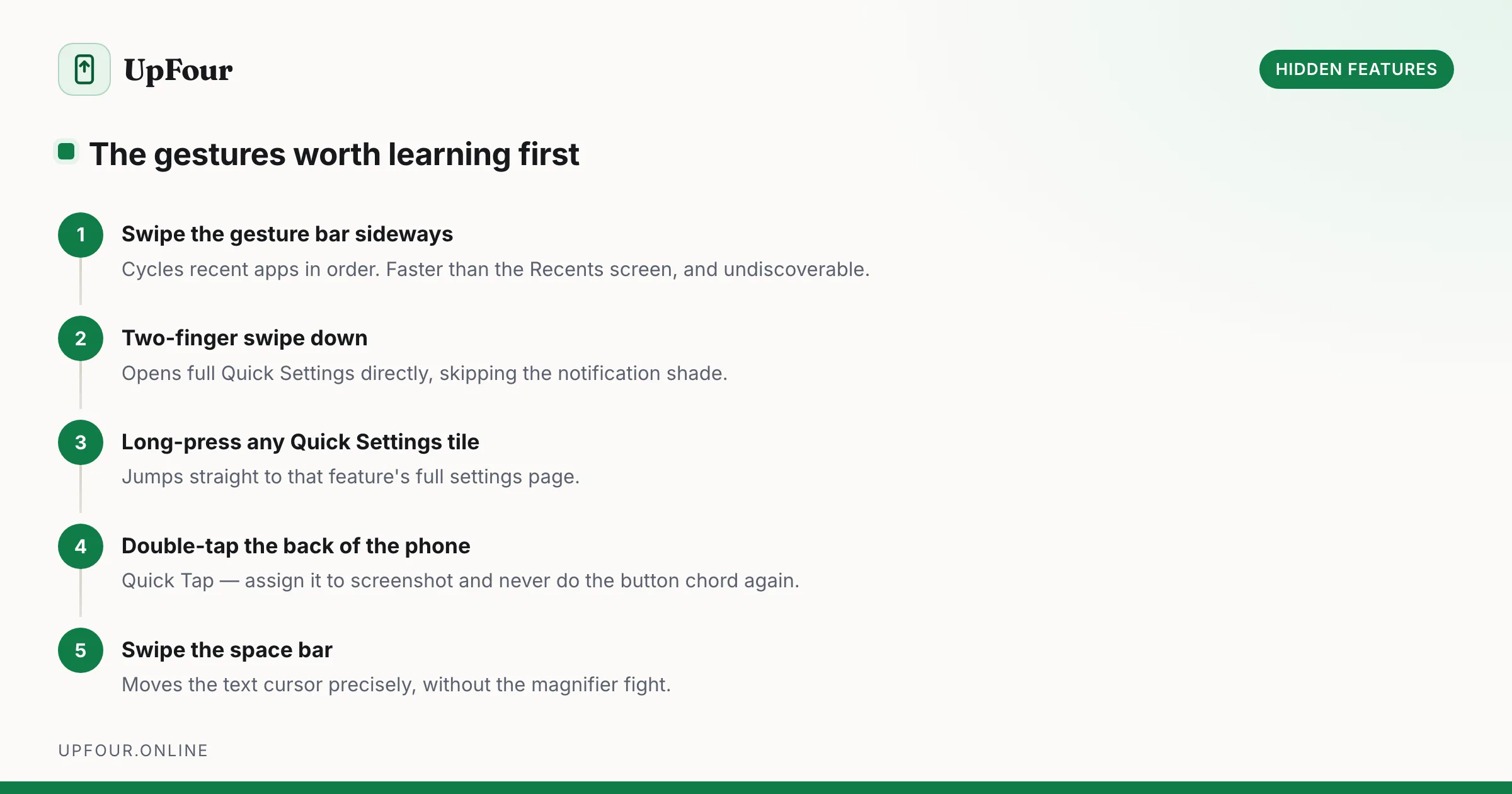
Gesture navigation is the default on every modern Android phone, but most of its vocabulary is undiscoverable. Here is the full set.
Core navigation gestures
| Gesture | Action |
|---|---|
| Swipe up from bottom | Home |
| Swipe up and hold | Recents |
| Swipe in from left or right edge | Back |
| Swipe the gesture bar sideways | Switch to previous / next app |
| Swipe up diagonally from bottom corner | Digital assistant |
| Two-finger swipe down from top | Full Quick Settings, skipping the notification shade |
The sideways gesture-bar swipe is the one to learn first. Flicking the bar left and right cycles through recent apps in order without ever opening the Recents screen — it is dramatically faster than the alternative.
Fix back-gesture conflicts with drawer apps
Apps with a left-hand navigation drawer fight the back gesture. Two fixes:
- Settings › System › Gestures › System navigation › ⚙ (gear) — adjust back sensitivity independently for the left and right edges. Drop the left to minimum.
- The same screen lists exclusions: apps where the back gesture is suppressed.
To open a drawer in a conflicting app, swipe in from the edge and hold for a moment before dragging — the drawer wins over the back gesture.
Quick Tap: double-tap the back of the phone
Settings › System › Gestures › Quick Tap. Two taps on the rear panel triggers one action: screenshot, torch, play/pause, notifications, assistant, or open a specific app. Enable Require stronger taps if it fires in your pocket.
Screenshot is the highest-value assignment — it removes an awkward two-button chord.
Power button
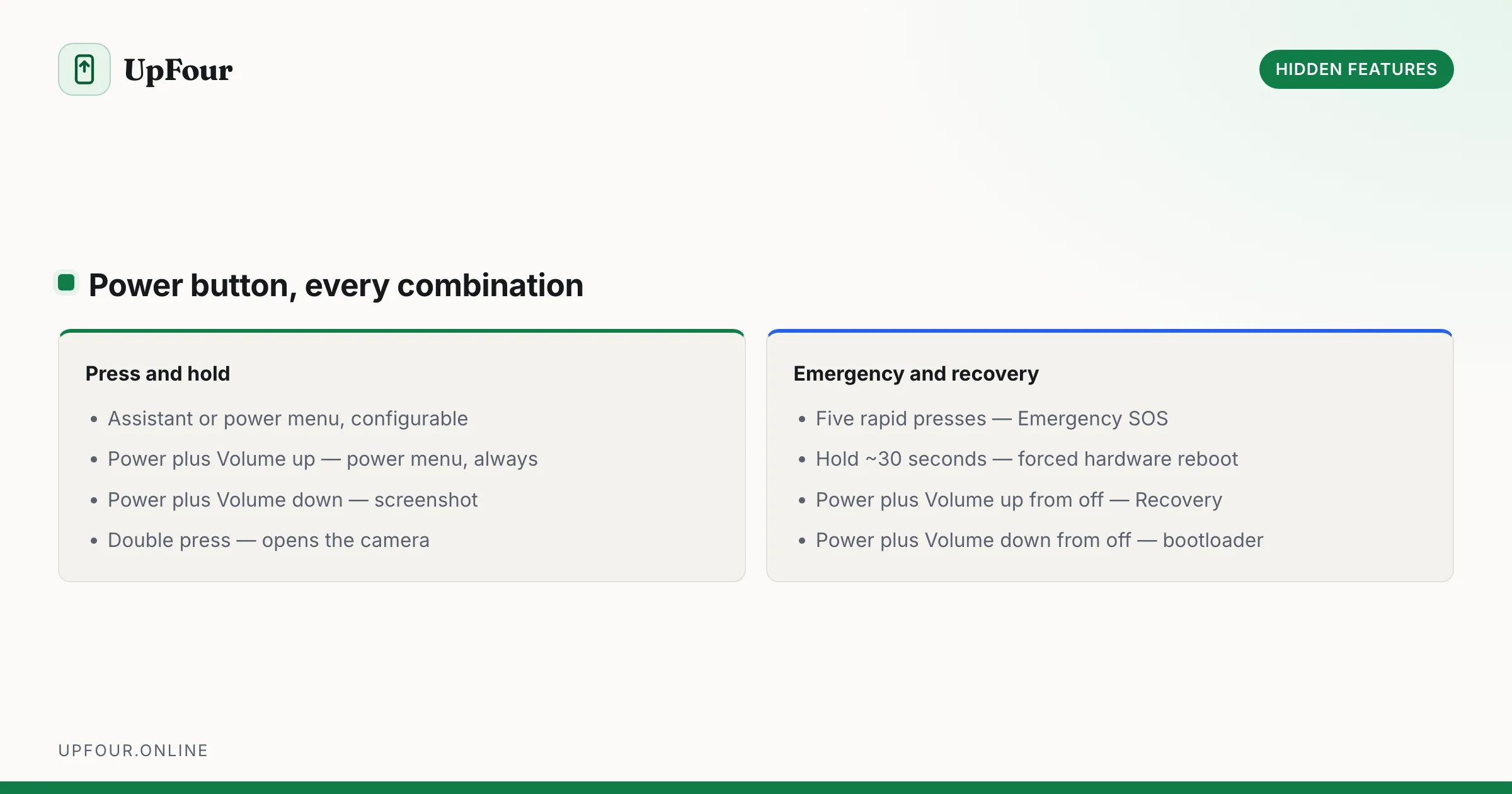
- Press and hold — assistant or power menu, configurable at Settings › System › Gestures › Press and hold power button.
- Power + Volume up — power menu, always, regardless of the setting above.
- Power + Volume down — screenshot.
- Double press — opens the camera (Settings › System › Gestures › Quickly open camera). Works from the lock screen.
- Five rapid presses — Emergency SOS.
- Long hold ~30 seconds — forced hardware reboot when the phone is frozen.
Quick Settings
- Long-press any tile to jump straight to that feature's full settings page. Long-press Wi-Fi to reach the network list; long-press the torch to reach display settings.
- Edit the tile order with the pencil icon. The first four tiles are the only ones visible on a single-finger pull-down, so put your four most-used there.
- Useful tiles most people never add: Extra dim, Screen record, QR scanner, Notes, Nearby Share, Colour correction, One-handed mode.
Volume keys
- Press either key, then tap the slider icon to expand to per-stream sliders (media, call, ring, alarm).
- Settings › Sound & vibration › Volume key shortcut can bind a long-press to Live Caption or to skipping tracks.
- Long-press volume down while music plays skips to the next track on many devices.
Text editing gestures
- Swipe the space bar left or right to move the cursor precisely.
- Long-press the space bar to switch languages.
- Double-tap then drag to select by word.
- Three-finger swipe down takes a screenshot on some OEM skins (Samsung uses a palm swipe across the display).
Accessibility gestures worth stealing
None of these require an impairment to be useful:
- Magnification — triple-tap to zoom anywhere, including in apps that block pinch-zoom.
- Accessibility button — a floating button that can trigger any accessibility shortcut.
- Colour inversion — a true system-wide dark mode for apps that never shipped one.
For more settings hidden in plain sight, see 14 hidden Android features.
Frequently asked questions
How do I quickly switch between the last two apps on Android?
Swipe the gesture bar at the bottom of the screen sideways. Flicking left and right cycles through recent apps in order without opening the Recents screen.
How do I stop the back gesture from interfering with navigation drawers?
Open Settings › System › Gestures › System navigation and tap the gear icon, then lower the back sensitivity on the affected edge. To open a drawer, swipe in and hold briefly before dragging.
What is Quick Tap on Android?
Quick Tap triggers an action when you double-tap the back of the phone. Configure it under Settings › System › Gestures › Quick Tap and assign it to screenshots, the torch, media playback or a specific app.
How do I open Quick Settings without seeing notifications first?
Swipe down from the top of the screen with two fingers. That opens the full Quick Settings panel directly, skipping the notification shade.
Sources & further reading
Official documentation used while writing and checking this guide. Every link was verified at the last update.
- Android platform releases and version historyAndroid Developers
- Official Samsung SupportSamsung
- Set screen lock on an Android deviceGoogle Android Help
Machine-readable version: Markdown source
Related guides
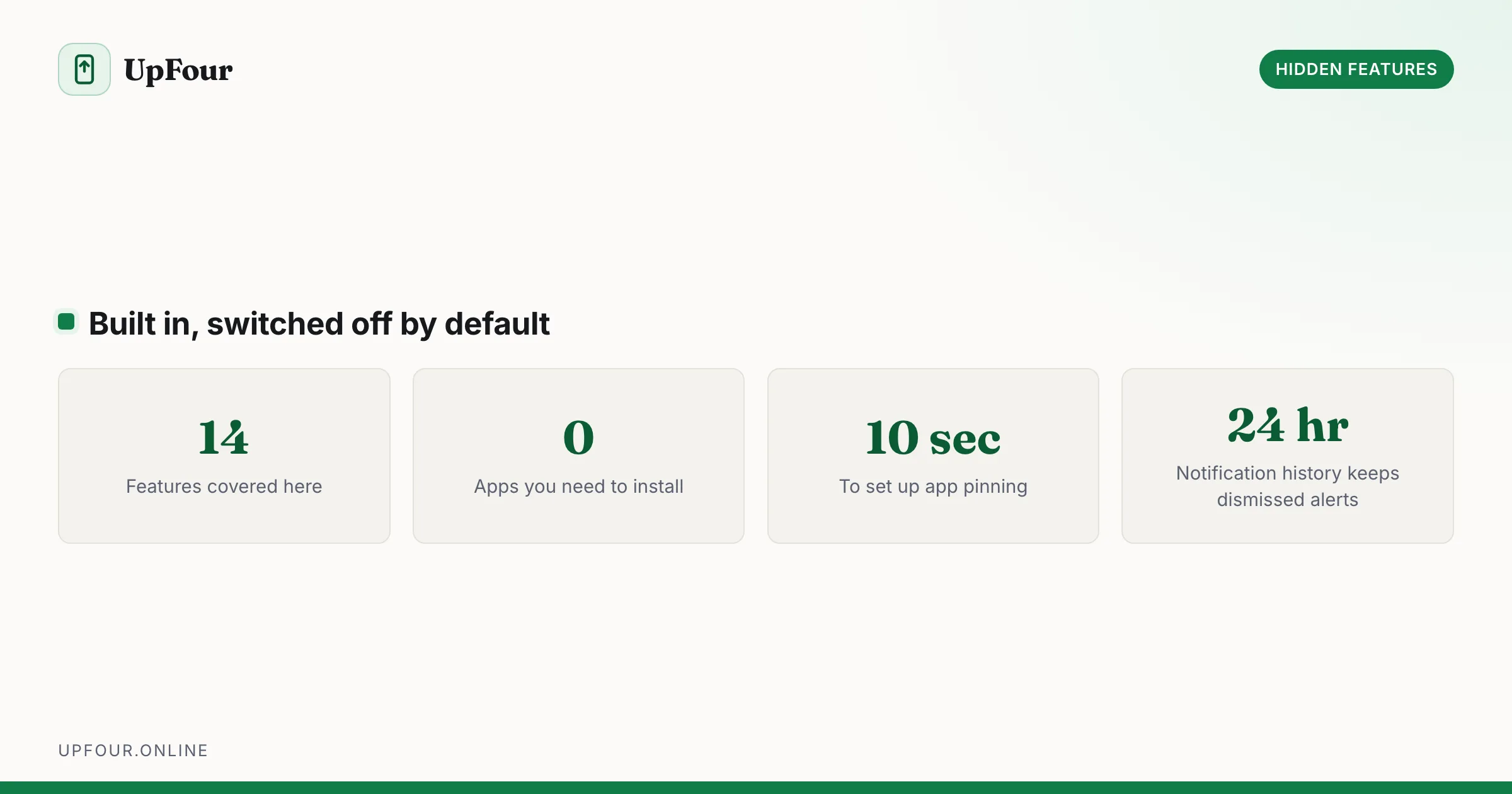
14 Hidden Android Features You Are Probably Not Using
Genuinely useful Android features buried in submenus: one-handed mode, app pinning, split-screen shortcuts, clipboard search, extra dim and more.
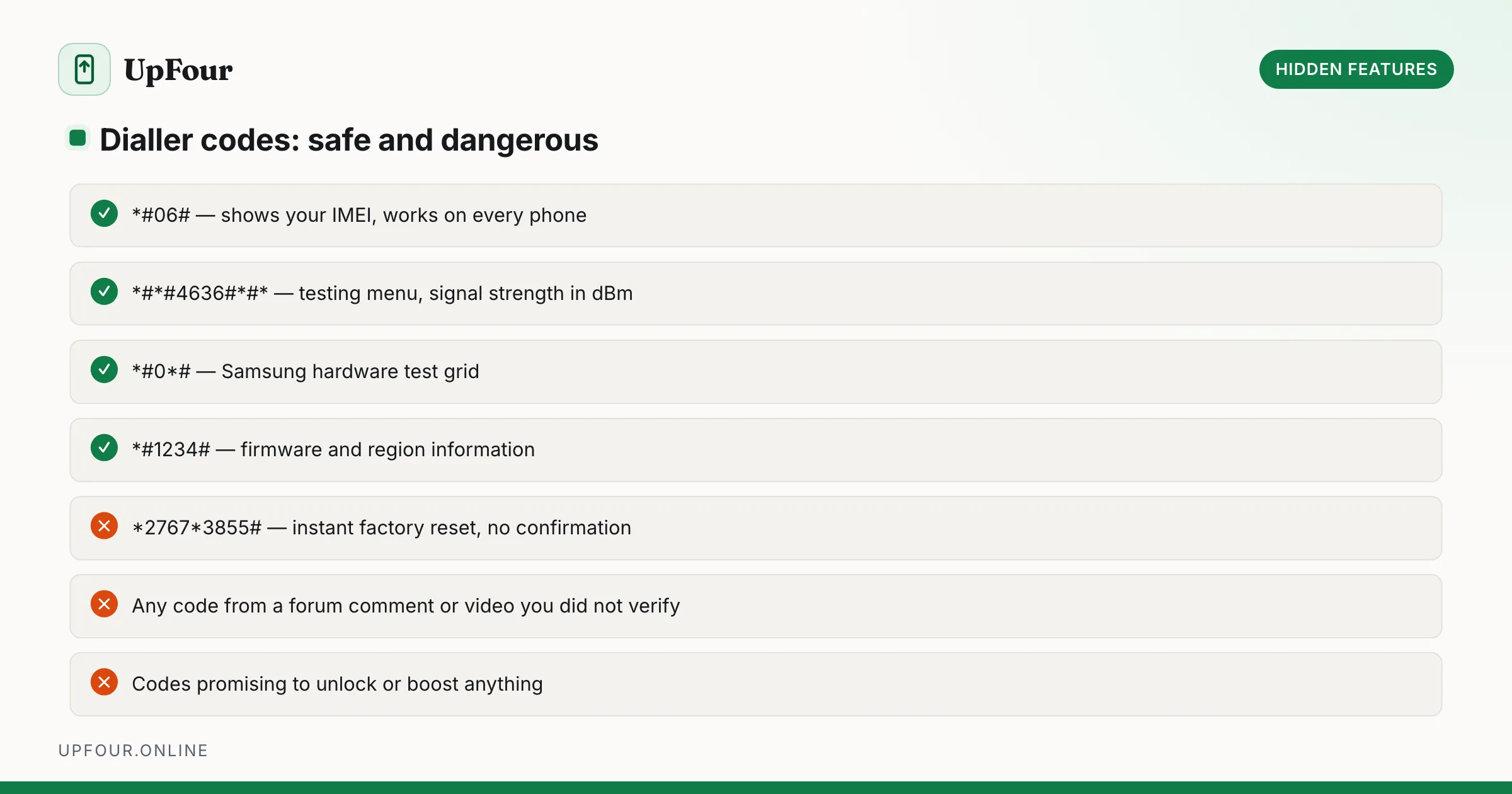
Android Secret Menus: Dialer Codes, Safe Mode and Recovery Explained
The hidden diagnostic menus on Android — dialer codes, Safe Mode, Recovery and the testing screens — what each one does and when it is safe to use.
Where Are Android Phones Made? Manufacturing by Brand
Which countries make Android phones, brand by brand — Samsung, Google Pixel, Xiaomi, OnePlus and Motorola — and why so much moved out of China.