14 Hidden Android Features You Are Probably Not Using
Genuinely useful Android features buried in submenus: one-handed mode, app pinning, split-screen shortcuts, clipboard search, extra dim and more.
Short answer
Android's most useful hidden features include app pinning, one-handed mode, Extra dim, guest mode, Nearby Share to yourself, and screenshot text selection — all built in and off by default.
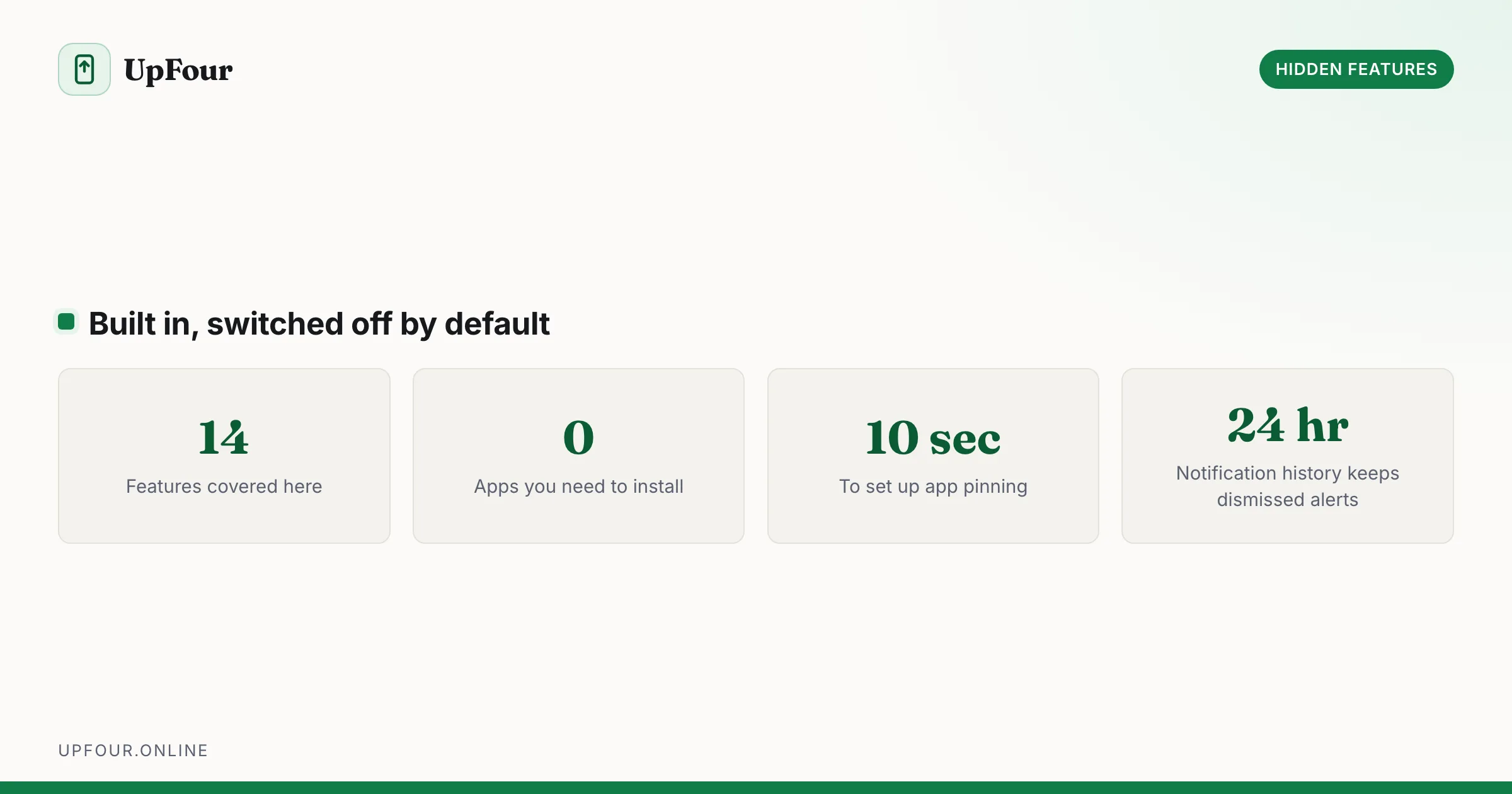
None of these require root, a custom ROM or a third-party app. All of them ship with Android and are switched off or buried by default.
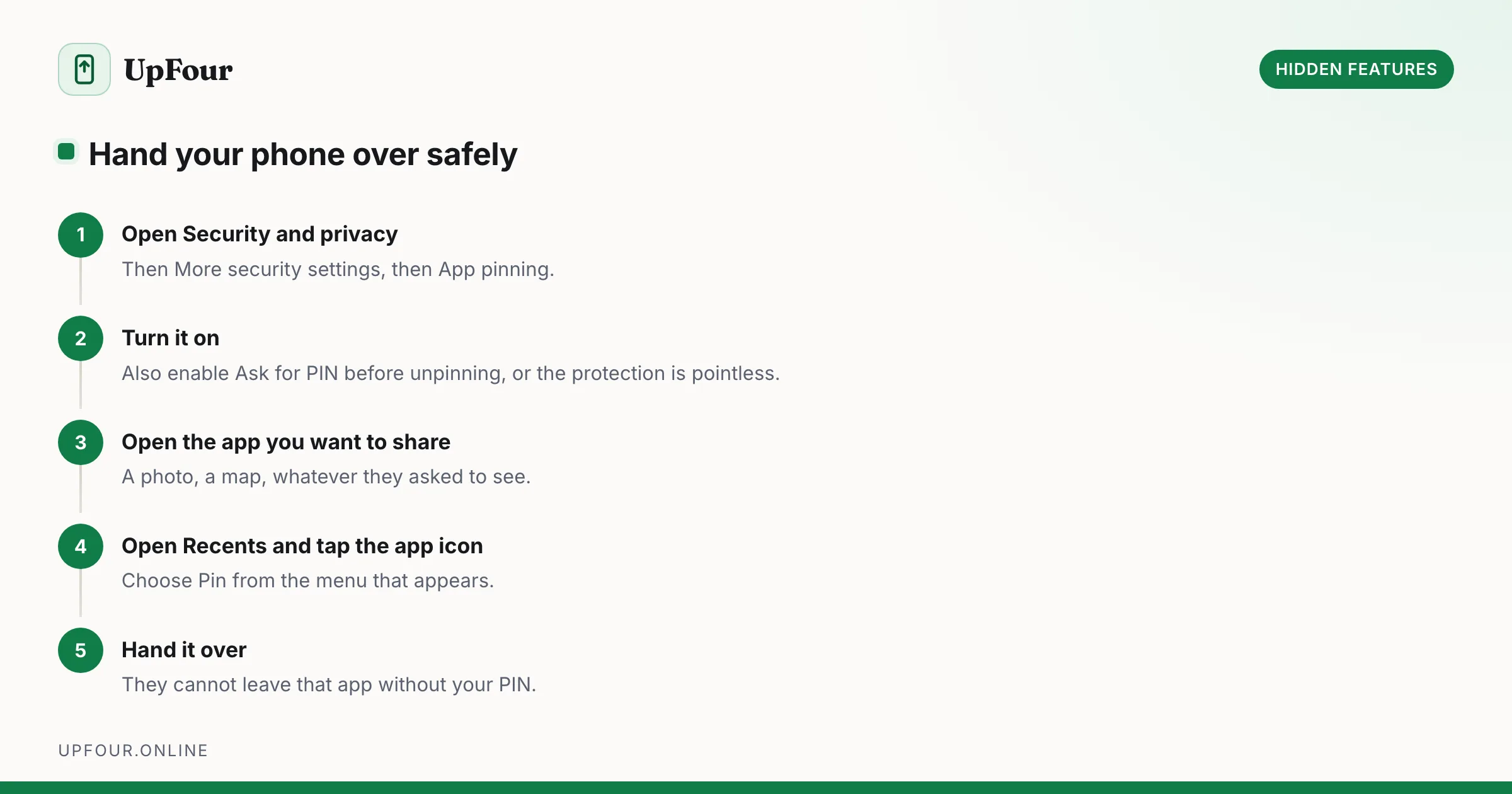
1. App pinning — hand your phone over safely
Locks the phone to a single app until you enter your PIN. Perfect for handing someone your phone to look at one photo.
Settings › Security & privacy › More security settings › App pinning. Enable it, then open Recents, tap the app icon at the top of the card, and choose Pin. Turn on Ask for PIN before unpinning or the whole point is lost.
2. Extra dim — below minimum brightness
The lowest brightness setting is still too bright in a dark room. Settings › Display › Extra dim adds a second dimming layer underneath it. Add the Extra dim tile to Quick Settings for one-tap access at 2am. More tile tricks in every Android gesture and shortcut worth learning.
3. Select text out of any screenshot or app
Open Recents and you can select and copy text directly from the app preview cards — even from apps that block text selection. Long-press any text in the card; Select and Copy appear. This also works on images inside those cards via Google Lens integration.
4. One-handed mode
Settings › System › Gestures › One-handed mode. Swipe down on the bottom edge of the screen and the entire interface slides into the lower half. Alternatively set it to Show notifications instead, which pulls the shade down without reaching for the top of the display.
5. Split-screen from Recents, with saved pairs
Open Recents, tap an app's icon, choose Split screen, then pick the second app. On many launchers you can then tap the divider handle and Save app pair to the home screen — one icon that opens both apps in split view.
6. Clipboard history and clipboard search
Gboard keeps a clipboard history. Tap the clipboard icon in the keyboard toolbar to see recent clips, and pin the ones you want to keep permanently. Pinned clips survive reboots; unpinned ones expire after an hour.
7. Nearby Share to your own devices
Nearby Share (Quick Share on Samsung) has a Your devices visibility setting that transfers between your own signed-in devices with no confirmation prompt. Far faster than emailing yourself a file.
8. Guest mode
Settings › System › Multiple users › Guest. A completely separate environment with its own apps, accounts and data. Delete the guest session and everything in it is gone. This is the correct answer to "can I borrow your phone for a while".
9. Lock screen shortcut buttons
The two icons in the bottom corners of the lock screen are configurable: Settings › Wallpaper & style › Lock screen › Shortcuts. Swap the default camera and wallet for Do Not Disturb, Torch, Home controls, QR scanner or Mute.
10. Turn any web page into a home-screen app
In Chrome, tap ⋮ › Add to Home screen. Sites with a web app manifest install as a proper standalone window with no browser chrome, their own icon and their own entry in Recents.
11. Emergency SOS and medical info on the lock screen
Settings › Safety & emergency. Add blood type, allergies, medications and emergency contacts — all readable from the lock screen without your PIN. Configure Emergency SOS to call and share location on five power-button presses. Test the countdown once so you know what it looks like.
12. Bluetooth codec selection
In Developer options, Bluetooth audio codec lets you force LDAC, aptX or AAC instead of accepting whatever the headphones negotiate. If LDAC keeps stuttering on a crowded 2.4 GHz band, dropping to AAC fixes it instantly.
13. Sound amplifier and Live Caption
Settings › Accessibility › Sound amplifier turns wired or Bluetooth headphones into directional hearing assistance. Live Caption captions any audio playing on the device — video, podcasts, calls — entirely on-device, no network required. Toggle it with the volume rocker.
14. Reverse wireless charging
On phones that support it: Settings › Battery › Battery share (Pixel) or Settings › Battery › Wireless power sharing (Samsung). Put earbuds on the back of the phone to top them up.
Quick reference
| Feature | Path |
|---|---|
| App pinning | Security & privacy › More security settings |
| Extra dim | Display › Extra dim |
| One-handed mode | System › Gestures |
| Guest mode | System › Multiple users |
| Lock screen shortcuts | Wallpaper & style › Lock screen |
| Emergency info | Safety & emergency |
Frequently asked questions
How do I lock my phone to a single app before handing it to someone?
Enable App pinning under Settings › Security & privacy › More security settings, then open Recents, tap the app's icon and choose Pin. Enable the PIN requirement so it cannot be unpinned without your code.
Can I make my Android screen dimmer than the minimum brightness?
Yes. Settings › Display › Extra dim adds a dimming layer below the normal minimum. Add the Extra dim tile to Quick Settings for fast access.
How do I copy text from an app that blocks selection?
Open the Recents screen and select the text directly from the app's preview card. Text selection works there even when the app itself disables it.
Do any of these features need root access?
No. Every feature listed ships with stock Android and is enabled through Settings. None require root, unlocking the bootloader or a custom ROM.
Sources & further reading
Official documentation used while writing and checking this guide. Every link was verified at the last update.
- Android platform releases and version historyAndroid Developers
- Set screen lock on an Android deviceGoogle Android Help
- Official Samsung SupportSamsung
- Manage your Android device's location settingsGoogle Account Help
Machine-readable version: Markdown source
Related guides
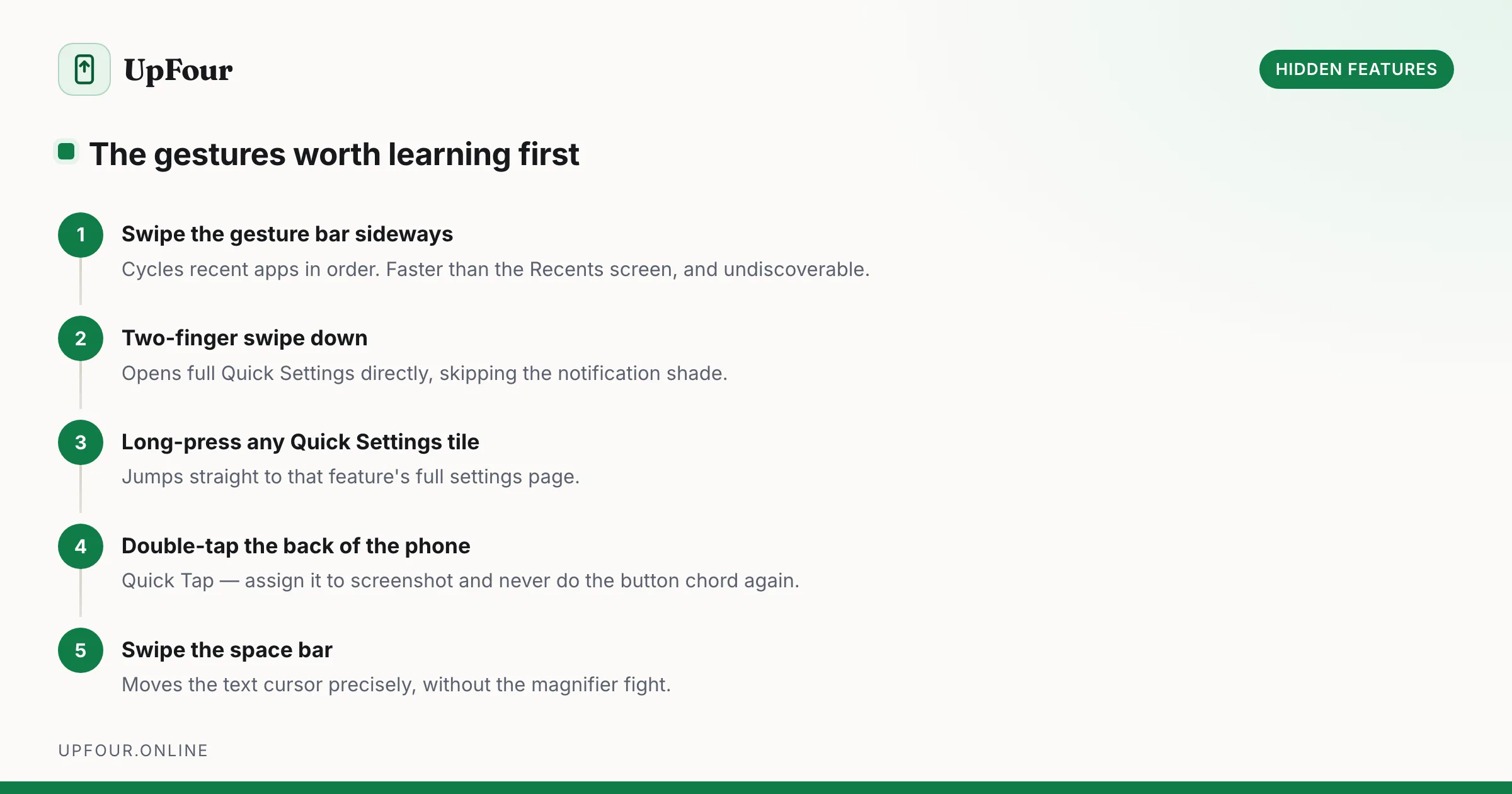
Every Android Gesture and Power-User Shortcut Worth Learning
A complete map of Android navigation gestures, quick-tap actions, power button shortcuts and Quick Settings tricks that cut taps out of your day.
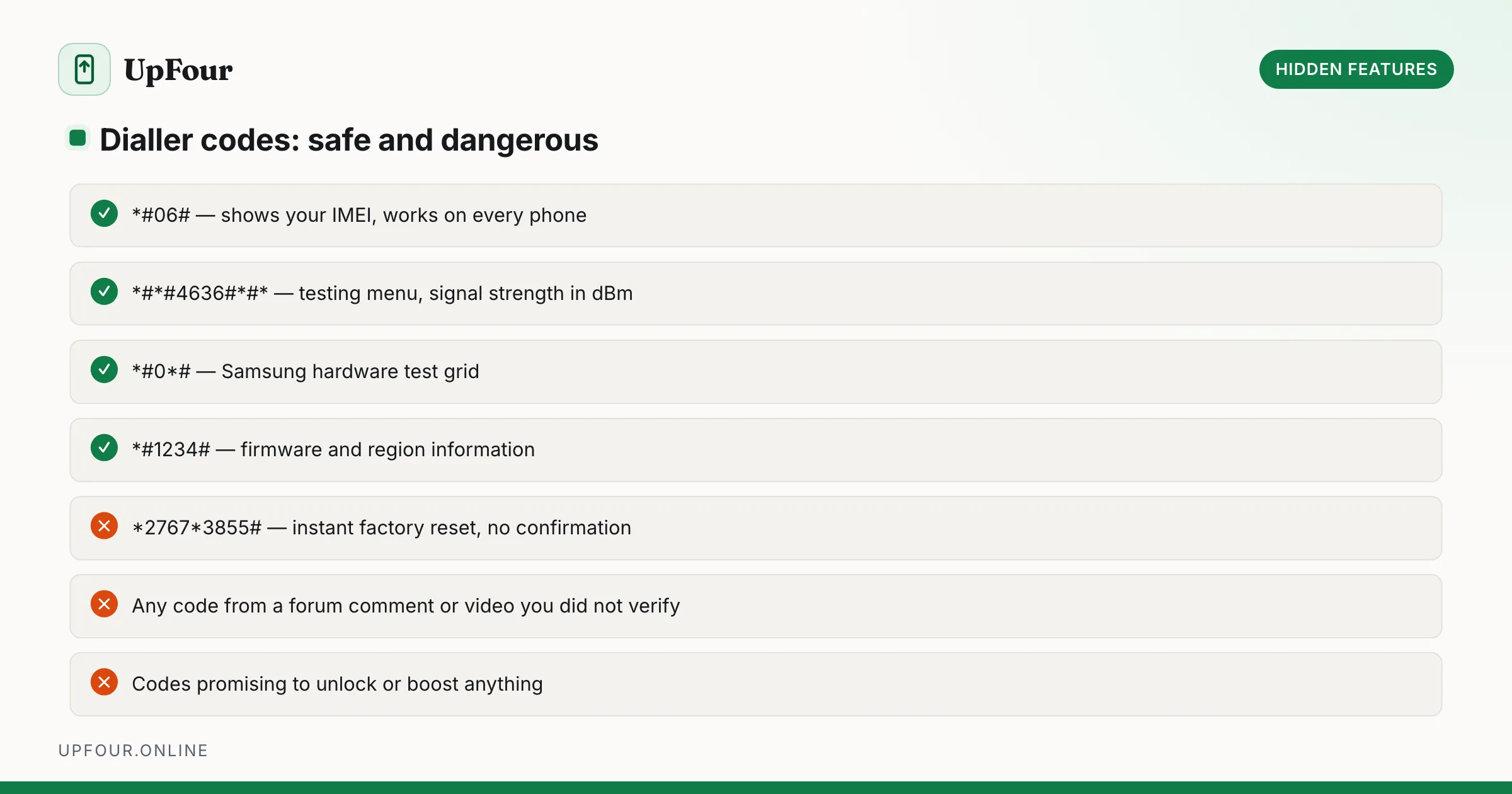
Android Secret Menus: Dialer Codes, Safe Mode and Recovery Explained
The hidden diagnostic menus on Android — dialer codes, Safe Mode, Recovery and the testing screens — what each one does and when it is safe to use.
Where Are Android Phones Made? Manufacturing by Brand
Which countries make Android phones, brand by brand — Samsung, Google Pixel, Xiaomi, OnePlus and Motorola — and why so much moved out of China.