How to Enable Developer Options on Android (and the 8 Toggles Worth Using)
Enable Developer Options on any Android phone in under a minute, then use the eight settings that genuinely speed up your device — and skip the ones that break things.
Short answer
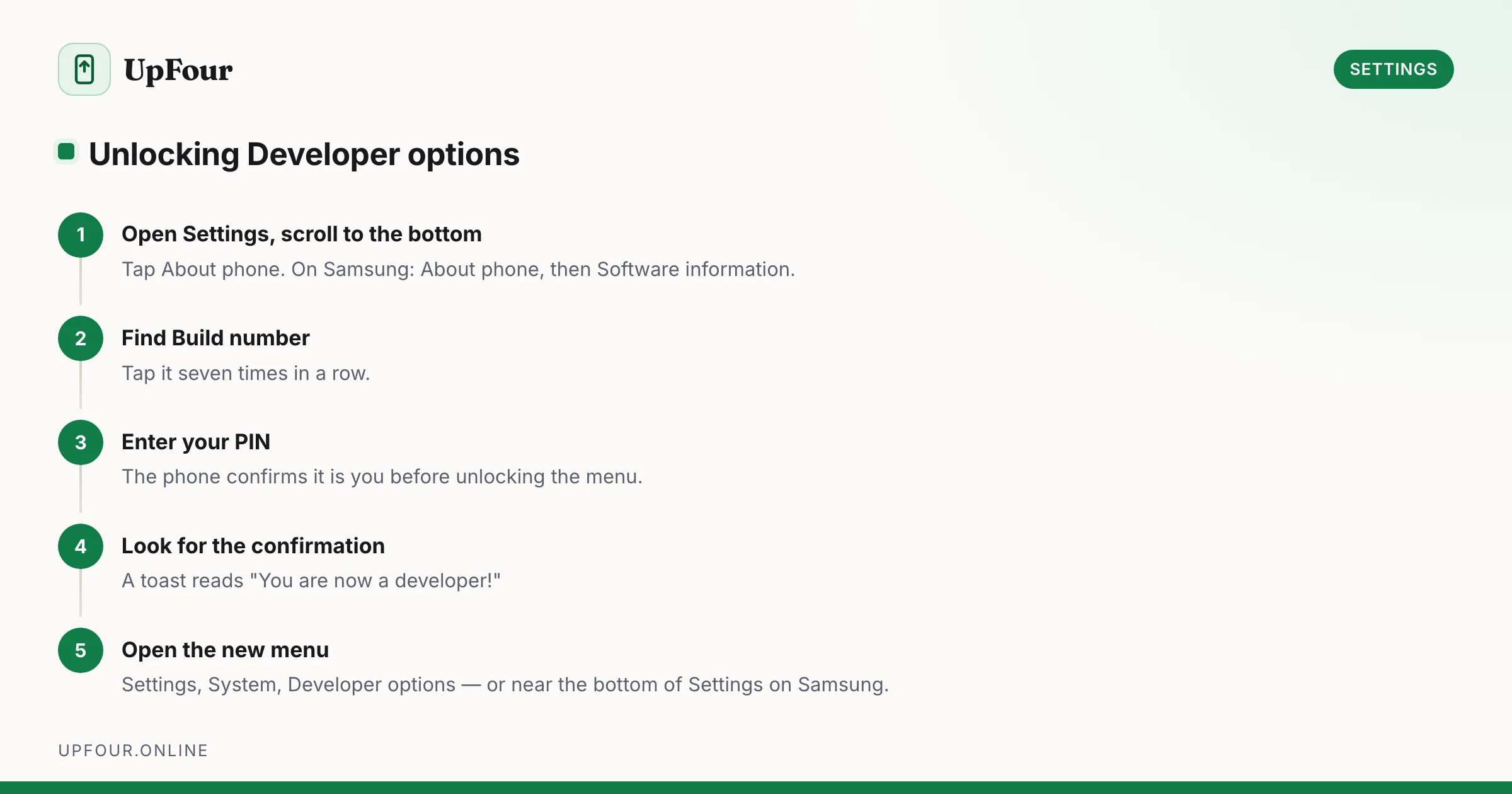
Open Settings › About phone and tap Build number seven times, entering your PIN when asked. Developer Options then appears under Settings › System.
Developer Options is the menu Android hides behind a deliberately awkward gesture. It is not dangerous by itself — it is just a settings screen — but it exposes toggles that assume you know what they do. This guide covers the unlock, the handful of options that are genuinely useful day to day, and the ones you should leave alone.
Enable Developer Options in under a minute
- Open Settings and scroll to the very bottom.
- Tap About phone (on Samsung it is About phone › Software information).
- Find Build number and tap it seven times in a row.
- Enter your PIN, pattern or password when prompted.
- A toast reads "You are now a developer!"
The menu now lives at Settings › System › Developer options on Pixel and stock Android, or Settings › Developer options near the bottom of the list on Samsung One UI.
If Build number does nothing, you are probably in a work profile or on a managed device. IT policy can block the developer flag entirely, and no amount of tapping will change that.
The 8 toggles actually worth changing
1. Animation scales — the real "make my phone faster" setting
Three separate settings control every transition on the system: Window animation scale, Transition animation scale and Animator duration scale. Set all three to 0.5x.
Your phone is not faster in any benchmark sense, but every tap now produces a visible result in half the time, which is what "fast" actually feels like. Setting them to Animation off works too, though the interface starts to feel abrupt because some gestures rely on the animation to communicate what happened. This is the biggest single win in our guide to making a slow Android phone fast again.
2. Force peak refresh rate
On a 90 Hz or 120 Hz phone, Android drops to 60 Hz aggressively to save battery. Force peak refresh rate pins the display to its maximum. It is a noticeable smoothness improvement and a noticeable battery cost — roughly 5-10% of a day's runtime. Worth toggling on for a weekend to decide if you care.
3. Background process limit
Under Apps › Background process limit you can cap how many background processes Android keeps. Do not use this as a performance fix. It is a debugging tool, and capping it breaks notifications, messaging and alarms. It is listed here specifically so you skip it.
4. USB debugging
Required for ADB, for sideloading over a cable, and for most desktop backup tools. Turn it on when you need it and off when you are done — a phone with USB debugging enabled and an authorised computer is a meaningfully softer target if the device is stolen.
Use Revoke USB debugging authorisations after using a machine you do not own.
5. Default USB configuration
Sets what happens when you plug into a computer. Changing it from No data transfer to File Transfer saves you from pulling down the notification shade and selecting the mode every single time.
6. Show taps and Pointer location
Both are screen-recording aids. Show taps draws a dot wherever you touch, which makes a tutorial recording readable. Pointer location dumps raw coordinate telemetry across the top of the screen — useful for diagnosing a touchscreen dead zone.
7. Disable absolute volume
If your Bluetooth headphones have only three usable volume steps between "quiet" and "painful", this is the fix. Turning Disable absolute volume on decouples the phone's volume slider from the headset's internal one, giving you the two multiplied together and a far finer range.
8. Standby apps / App standby buckets
A read-only diagnostic view showing which bucket Android has filed each app into: active, working set, frequent, rare or restricted. When an app's notifications keep arriving late, check here first — an app in the rare or restricted bucket is being deliberately throttled by the system. See fixing late Android notifications.
The ones that will cost you
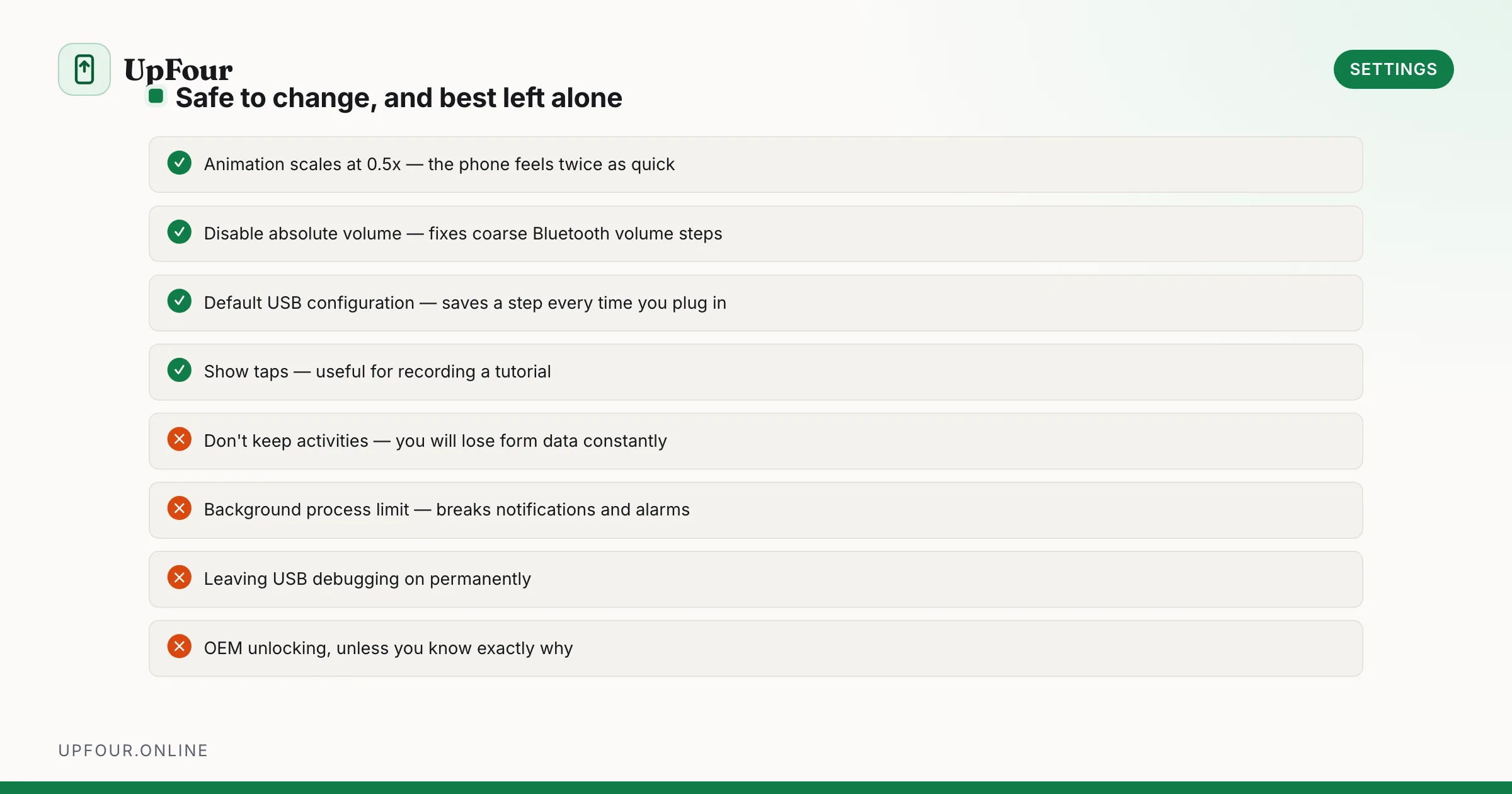
| Setting | What people think it does | What it actually does |
|---|---|---|
| Don't keep activities | Frees memory | Destroys every app the moment you leave it; you lose form data constantly |
| Background process limit | Speeds up the phone | Kills messaging and alarm reliability |
| Aggressive Wi-Fi to cellular handover | Better connectivity | Burns mobile data by leaving usable Wi-Fi early |
| OEM unlocking | Nothing on its own | Unlocks the bootloader path; on most phones enabling it is a prerequisite to wiping the device |
Turning it back off
Toggle Use developer options off at the top of the screen to disable everything without hiding the menu. To hide the menu entirely, go to Settings › Apps › See all apps › Settings › Storage › Clear storage. That resets the developer flag along with a few other Settings-app preferences.
Frequently asked questions
Is enabling Developer Options on Android safe?
Yes. Opening the menu changes nothing on its own — it only reveals settings that are already present in the system. Risk comes from specific toggles inside it, notably OEM unlocking and USB debugging, not from the menu itself.
Does Developer Options void my warranty?
No. Enabling Developer Options is a supported part of Android and does not affect your warranty. Unlocking the bootloader, which begins in this menu, can void warranty coverage with some manufacturers.
Do animation scales actually make my phone faster?
They do not change processing speed, but they cut the time between your tap and a finished on-screen response by half at 0.5x, which is what most people mean by faster.
How do I hide Developer Options again?
Switch off the master toggle at the top of the screen to neutralise every setting. To remove the menu entirely, clear the storage of the Settings app under Settings › Apps › See all apps › Settings › Storage.
Sources & further reading
Official documentation used while writing and checking this guide. Every link was verified at the last update.
- Android platform releases and version historyAndroid Developers
- Android Security BulletinsAndroid Open Source Project
- Official Samsung SupportSamsung
- Analyse power use with Battery HistorianAndroid Developers
Machine-readable version: Markdown source
Related guides
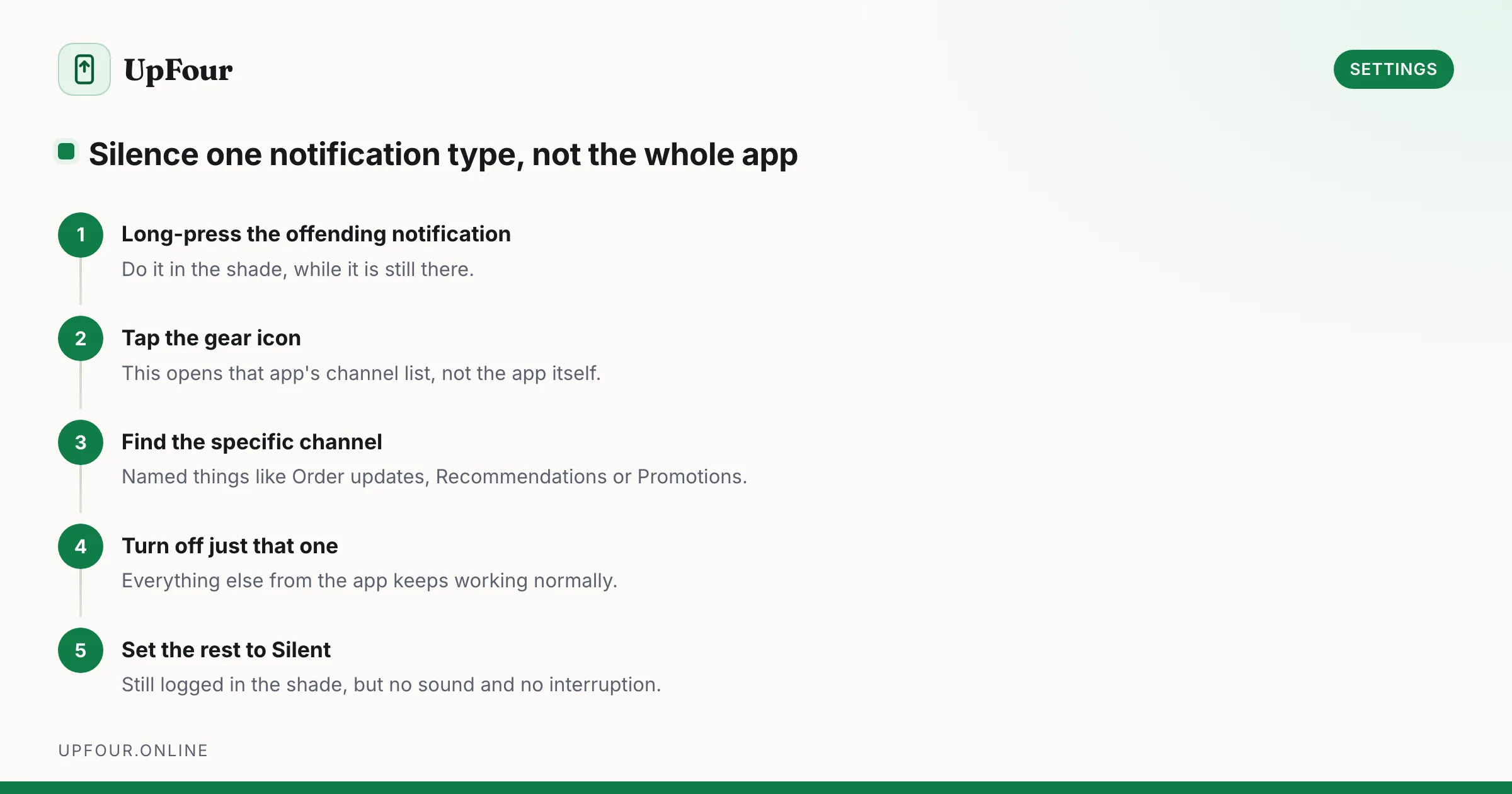
Take Back Control of Android Notifications: Channels, Priority and Silent Delivery
Stop app-by-app notification whack-a-mole. Use notification channels, priority conversations and Modes to silence noise without missing anything that matters.
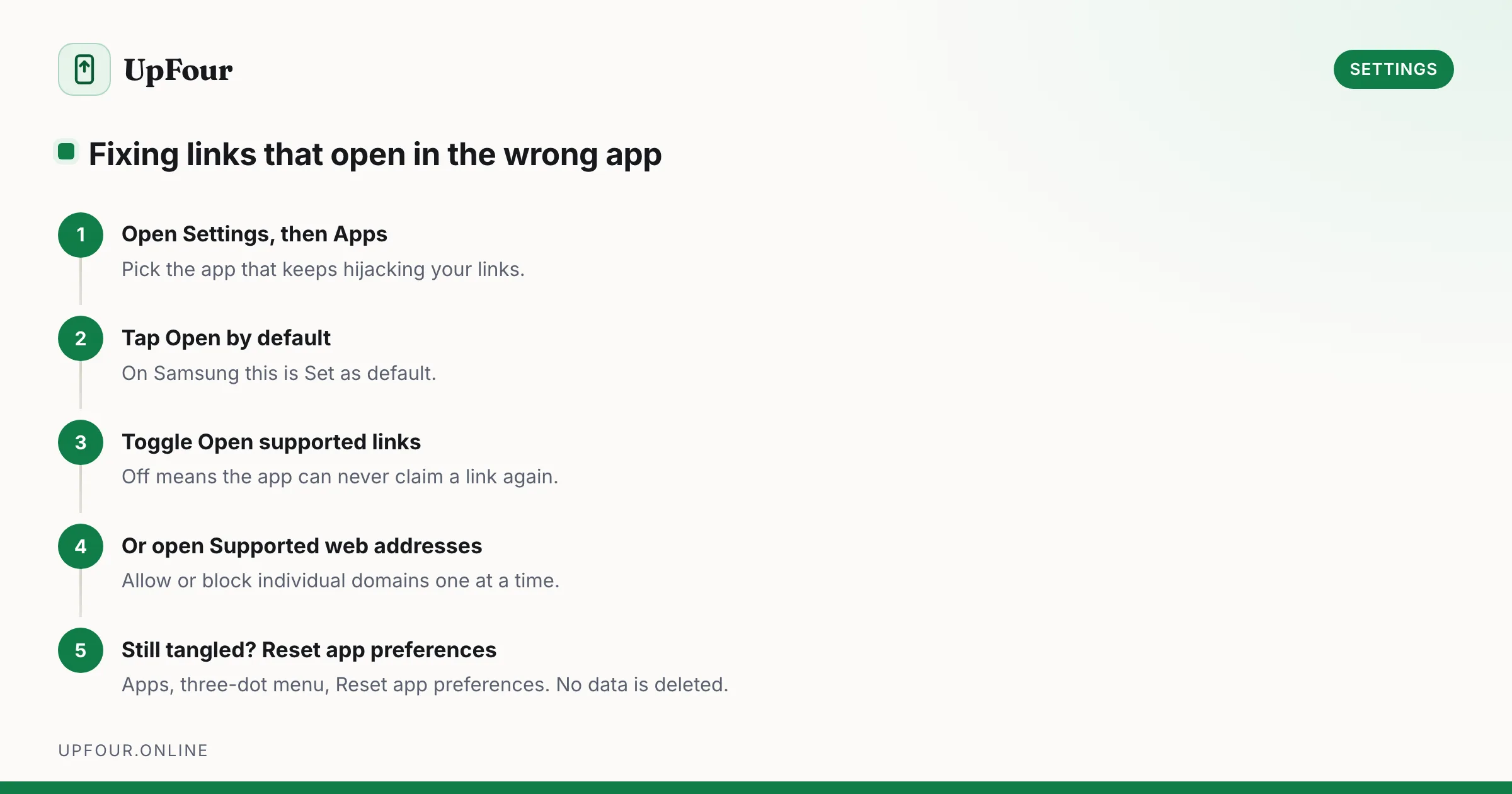
Change Default Apps on Android: Browser, Launcher, Messages and Link Handling
Set your default browser, launcher, SMS and assistant on Android — and fix the link-handling rules that keep opening links in the wrong app.
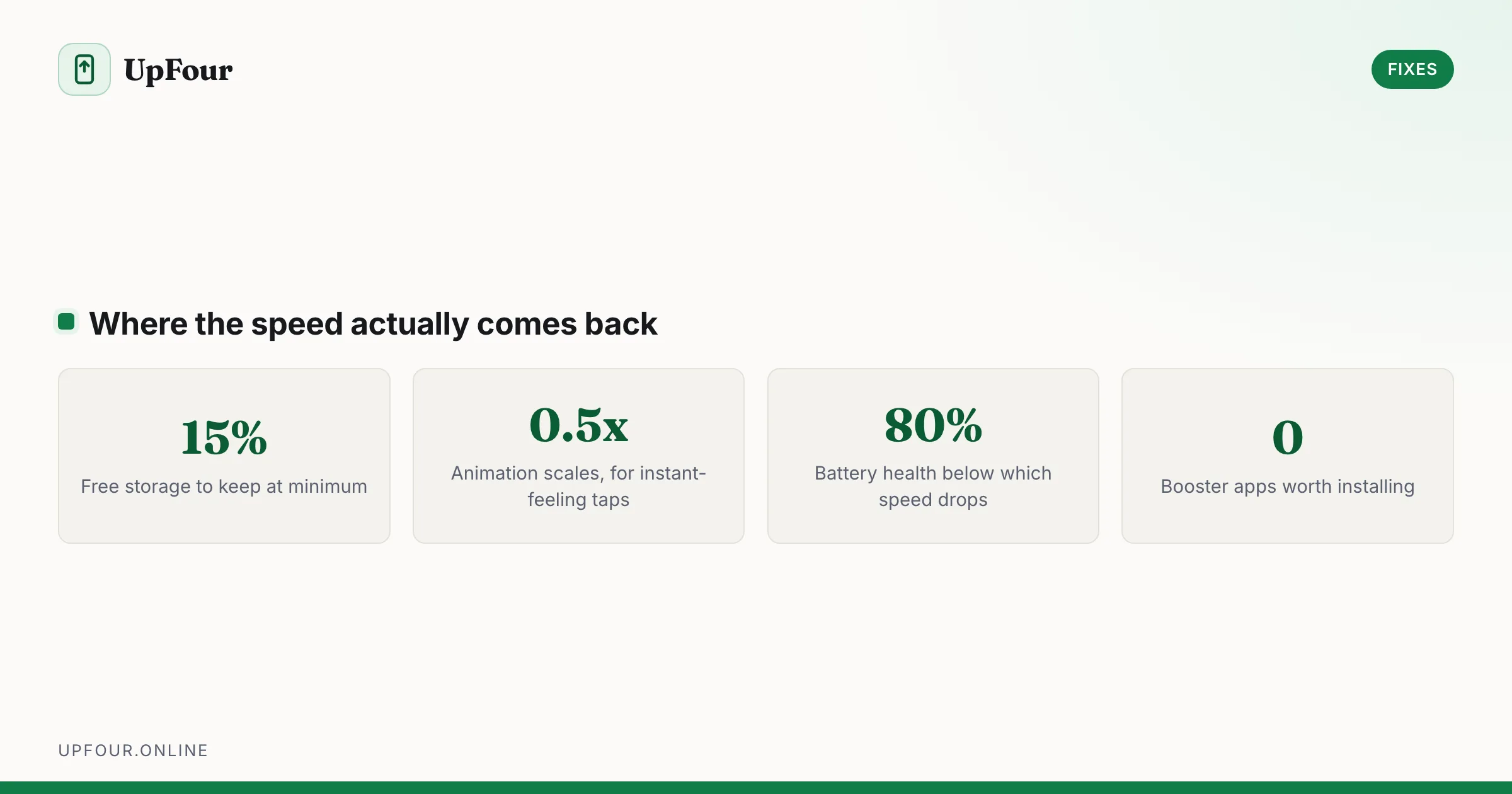
Make an Old Android Phone Fast Again (Without a Factory Reset)
Real fixes for a slow Android phone: animation scales, storage headroom, disabling bloatware, taming background sync and knowing when the hardware is the limit.