Take Back Control of Android Notifications: Channels, Priority and Silent Delivery
Stop app-by-app notification whack-a-mole. Use notification channels, priority conversations and Modes to silence noise without missing anything that matters.
Short answer
Long-press any notification and tap the gear to reach that app's notification channels, then turn off only the specific channel that produced it instead of muting the whole app.
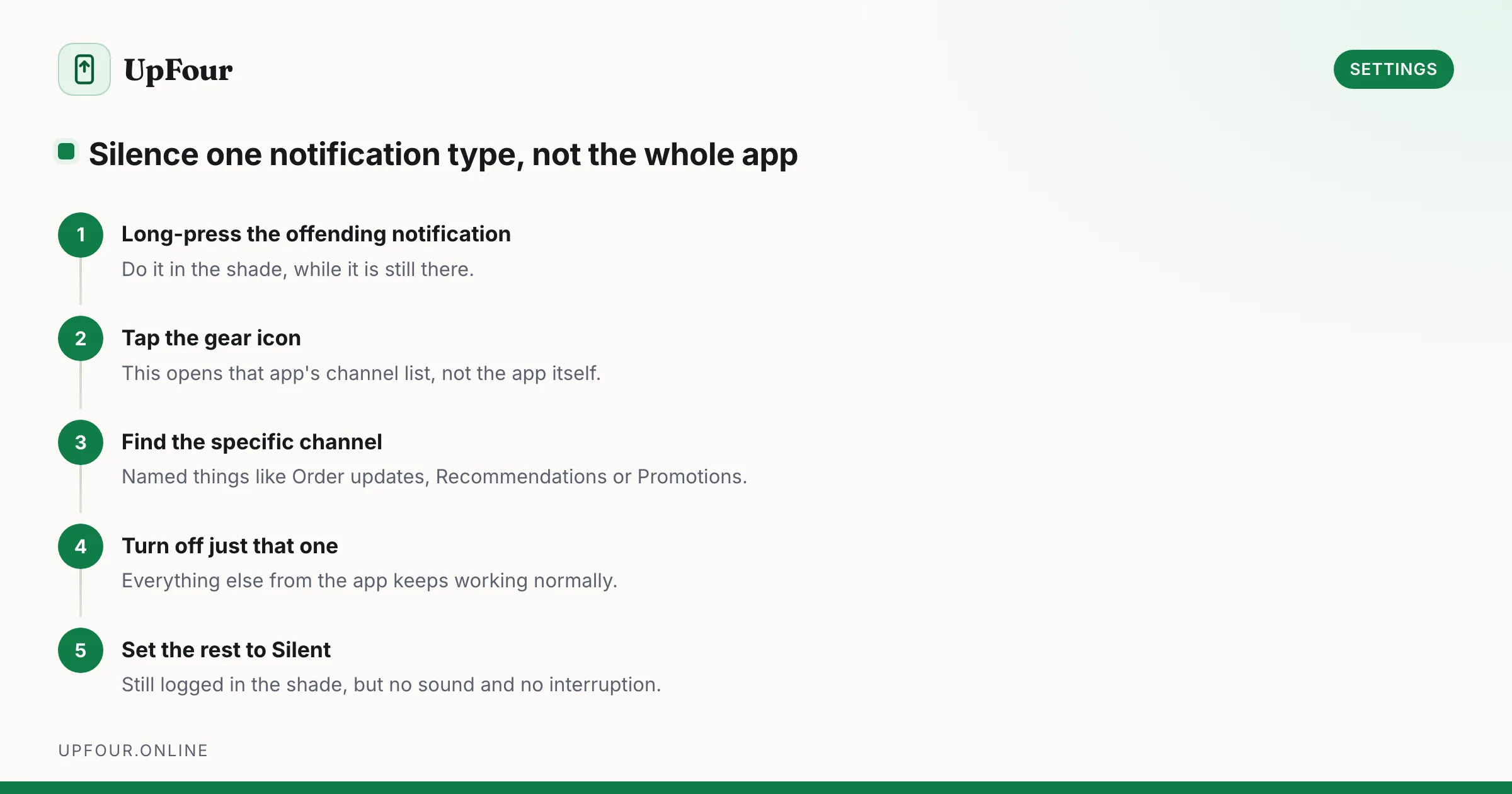
Most people mute Android notifications at the app level, lose something important, and turn the app back on. The fix is one level deeper: channels. Every notification an app sends belongs to a named category, and you can silence categories individually.
Silence one type of notification, not the whole app
The fastest route starts from the notification itself:
- Pull down the shade and long-press the offending notification.
- Tap the gear icon, or Turn off notifications.
- You now see that app's channel list — things like Order updates, Recommendations, Promotions.
- Toggle off only the channel you never want to see again.
A food delivery app typically has one channel for "your driver is outside" and another for "50% off Tuesdays". Muting the app kills both. Muting the channel kills exactly one.
The full list lives at Settings › Notifications › App notifications › [app].
Apps cannot rename or merge channels after shipping them, so a channel you disable stays disabled through updates. This is the most durable notification control Android offers.
Three delivery levels most people never set
For each channel, tap through to find the delivery behaviour:
- Default — makes a sound, shows in the shade and on the lock screen.
- Silent — appears in the shade, no sound, no vibration, no peek. This is the correct setting for the majority of apps.
- Minimised — collapsed to a single line at the bottom of the shade.
Move everything that is not a person or an alarm to Silent. The shade still records it; your attention is not interrupted.
Priority conversations
Android's conversation section sits at the top of the shade and holds messages from real people.
- Long-press a message notification.
- Tap Priority.
Priority conversations break through Do Not Disturb, show as a floating bubble if the app supports it, and appear above everything else. Set this for the four or five people whose messages genuinely cannot wait, and you can be far more aggressive about silencing everything else.
Modes: the replacement for Do Not Disturb
Modern Android folds Do Not Disturb into Modes (Settings › Modes, or the tile in Quick Settings). A Mode is a named profile — Sleeping, Driving, Working — that bundles:
- which people and apps can interrupt,
- a schedule or trigger (time, location, Bluetooth device connection),
- optional display changes such as greyscale or a dimmed wallpaper.
Set up Sleeping on a schedule with only starred contacts and repeat callers allowed. The repeat-caller exception is the important one: a genuine emergency almost always means someone calls twice.
Stop notification history from disappearing
Swiped away something before reading it? Enable Settings › Notifications › Notification history. It keeps a running log of everything from the last 24 hours, including dismissed items. It is off by default and costs nothing.
When notifications arrive late or not at all
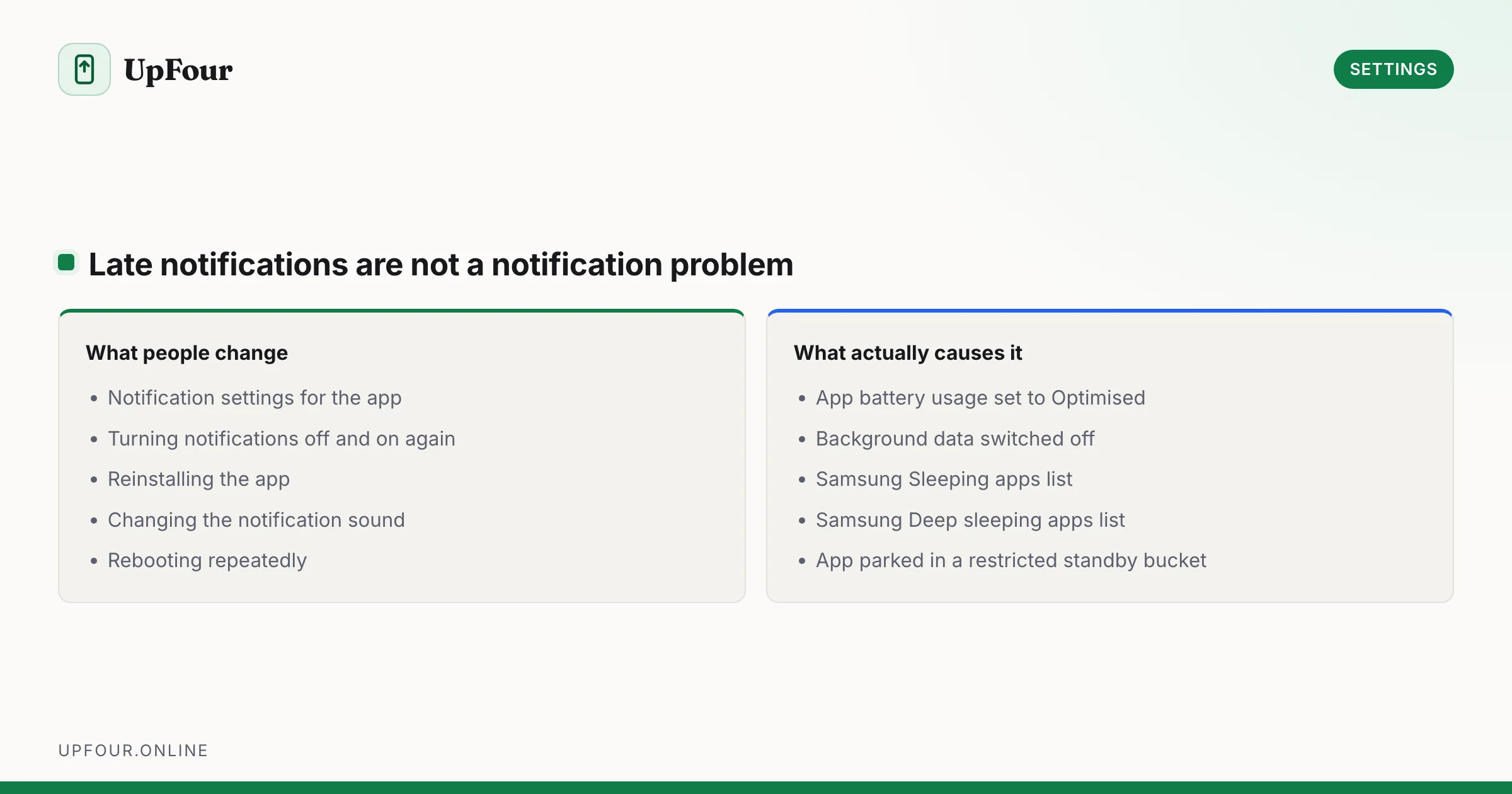
Late notifications are almost never a notification setting — they are battery restrictions.
- Settings › Apps › [app] › App battery usage → set to Unrestricted.
- Check Settings › Apps › [app] › Mobile data & Wi-Fi → Background data on.
- On Samsung, also check Settings › Battery › Background usage limits and remove the app from Sleeping apps and Deep sleeping apps.
Samsung's Deep sleeping apps list is the single most common cause of "my messages arrive an hour late on my Galaxy". If the phone is also draining fast, work through our battery diagnosis as well.
Frequently asked questions
What is a notification channel on Android?
A channel is a named category an app assigns to each kind of notification it sends, such as order updates or promotions. Android lets you control sound, priority and visibility per channel, so you can silence one type without muting the app.
Why are my Android notifications delayed?
Almost always battery optimisation. Set the app's battery usage to Unrestricted, enable background data, and on Samsung remove it from the Sleeping apps and Deep sleeping apps lists.
How do I see notifications I already dismissed?
Turn on Settings › Notifications › Notification history. It logs everything from the past 24 hours including dismissed notifications, and is disabled by default.
How do I let one person through Do Not Disturb?
Long-press their message notification and mark the conversation as Priority, or add them to the allowed people list inside the Mode under Settings › Modes.
Sources & further reading
Official documentation used while writing and checking this guide. Every link was verified at the last update.
- Create and manage notification channelsAndroid Developers
- NotificationChannel API referenceAndroid Developers
- Official Samsung SupportSamsung
- Android platform releases and version historyAndroid Developers
Machine-readable version: Markdown source
Related guides
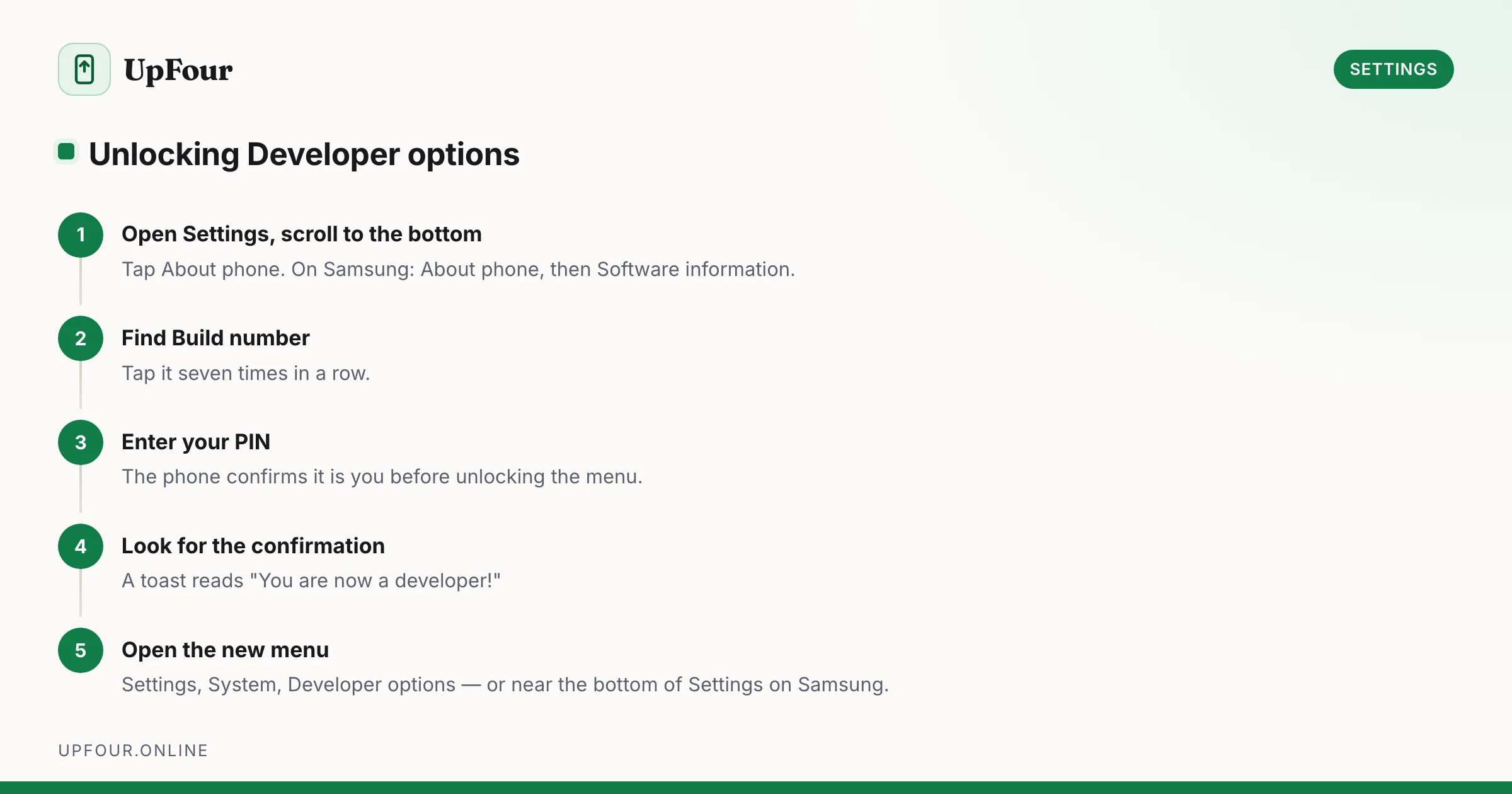
How to Enable Developer Options on Android (and the 8 Toggles Worth Using)
Enable Developer Options on any Android phone in under a minute, then use the eight settings that genuinely speed up your device — and skip the ones that break things.
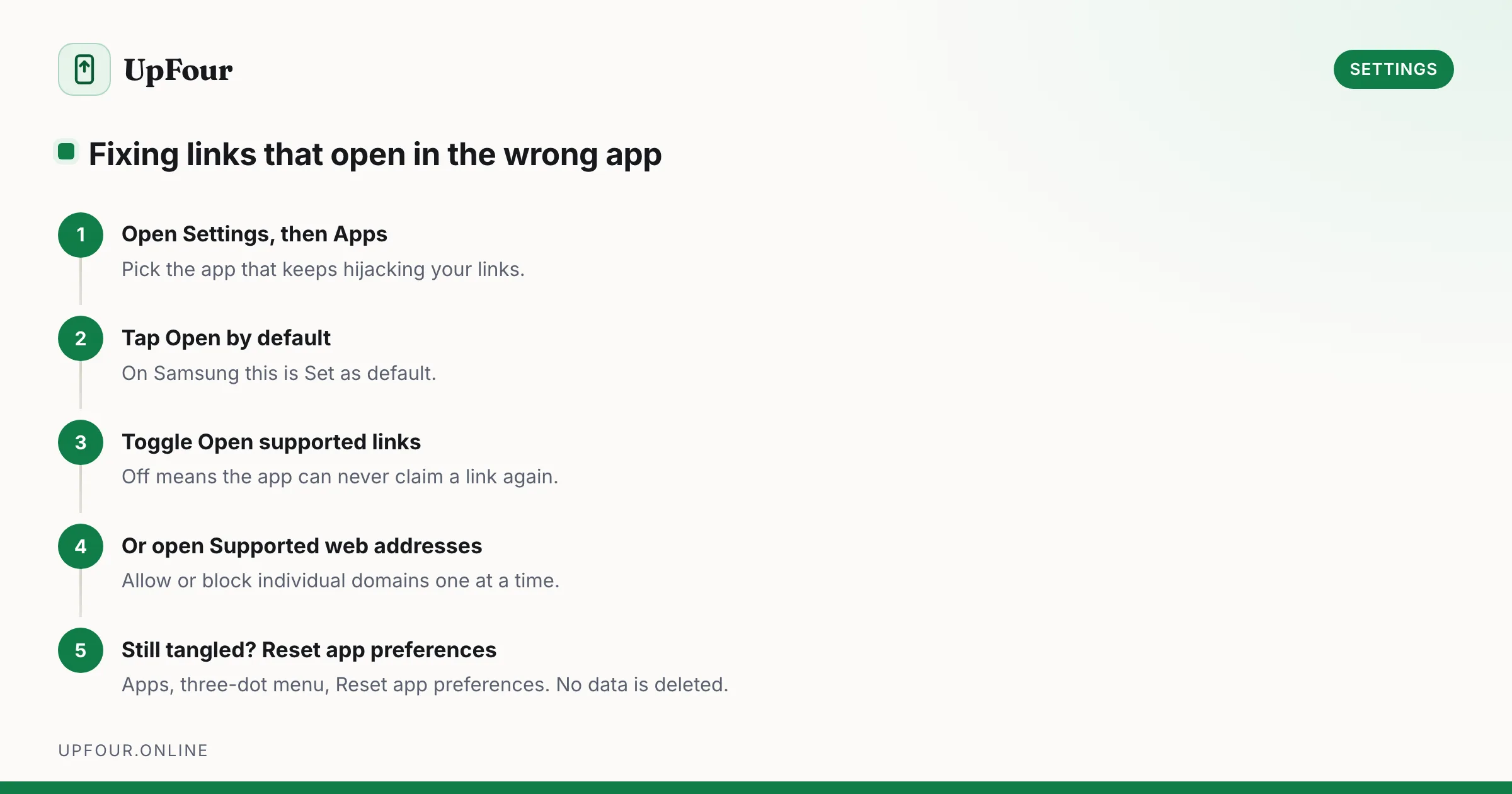
Change Default Apps on Android: Browser, Launcher, Messages and Link Handling
Set your default browser, launcher, SMS and assistant on Android — and fix the link-handling rules that keep opening links in the wrong app.
Where Are Android Phones Made? Manufacturing by Brand
Which countries make Android phones, brand by brand — Samsung, Google Pixel, Xiaomi, OnePlus and Motorola — and why so much moved out of China.