Fix Android Battery Drain: A Diagnostic Order That Actually Finds the Cause
Stop guessing. Diagnose Android battery drain in order — usage stats, screen-on vs standby drain, mobile signal, rogue wakelocks — then apply the fix that matches.
Short answer
Open Settings › Battery › Battery usage to see which app is responsible, then check whether drain happens while the screen is on (display or app) or in standby (a background wakelock or poor mobile signal) — the fix is completely different for each.
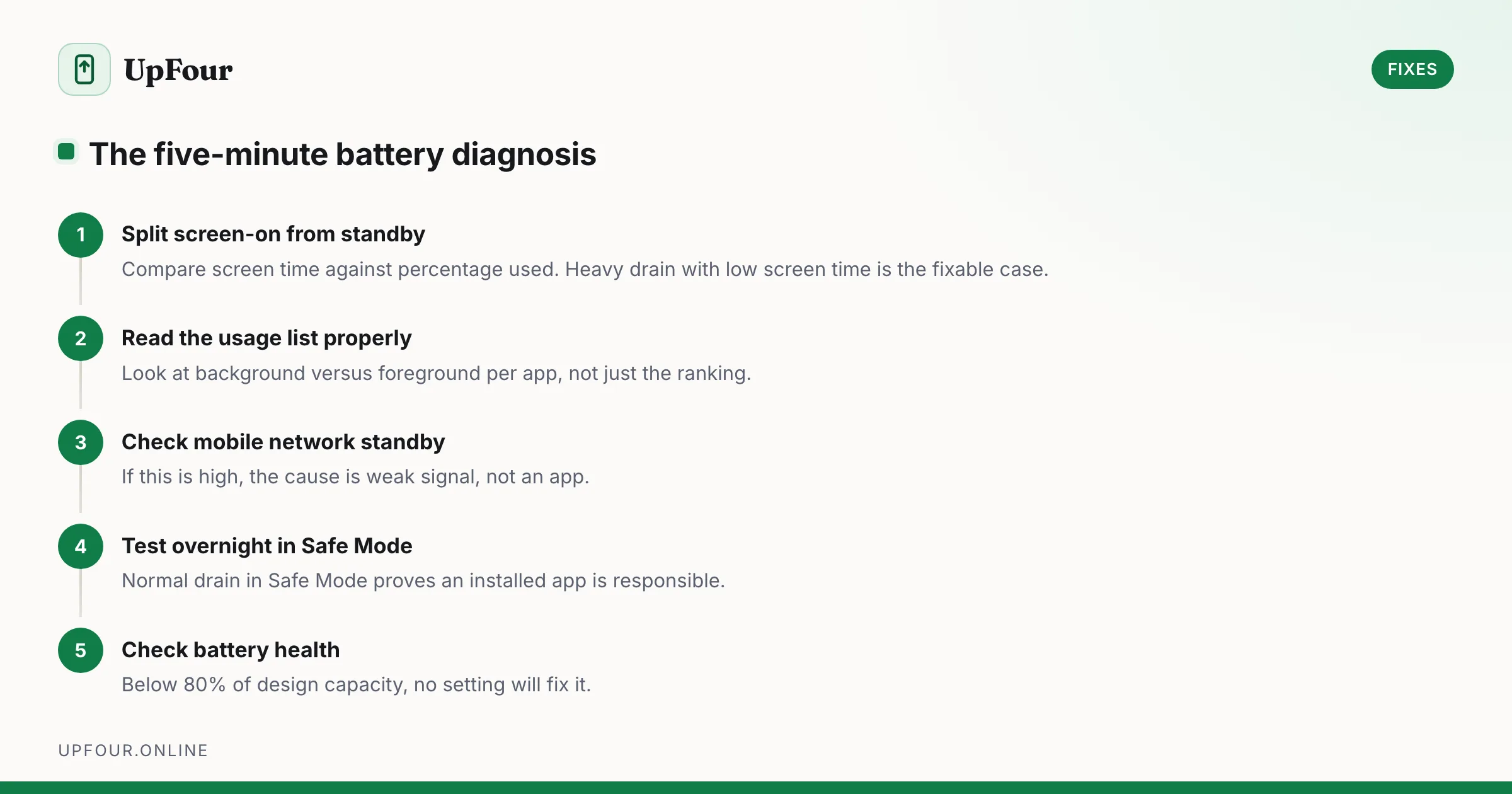
Nearly all battery advice is a list of things to switch off. That is guesswork. Work through this in order and you will identify the actual cause in about ten minutes.
Step 1: Split screen-on drain from standby drain
This single distinction determines everything that follows.
Go to Settings › Battery › Battery usage. Note the screen time against the percentage consumed.
- Heavy drain, high screen time — normal. A bright OLED at full brightness is the largest single consumer in any phone. Skip to Screen-on fixes.
- Heavy drain, low screen time — something is running while the phone should be idle. This is the fixable case. Continue to Step 2.
A healthy phone loses roughly 1–2% per hour in standby with a reasonable signal. Losing 5% or more per hour overnight means something is holding the device awake.
Step 2: Read the battery usage list correctly
The list is sorted by consumption, but the important column is what kind of usage it is. Tap any app to see the split between foreground and background.
- High foreground on an app you actually used: expected.
- Meaningful background usage on an app you did not open: this is your suspect.
- Android System, Android OS or Mobile network standby at the top: not an app problem. Go to Step 4.
Step 3: Restrict the suspect app
For the offending app: Settings › Apps › [app] › App battery usage › Restricted.
Restricted means the app cannot run in the background at all. Notifications from it will be delayed or absent — which is the correct trade for something that was draining 20% a night.
If you need its notifications, use Optimised instead and check whether the app has its own internal sync interval you can lengthen.
Step 4: Mobile network standby — the most common invisible cause
If Mobile network standby or Cell standby is high, the radio is burning power hunting for signal. A phone at −115 dBm transmits at many times the power of one at −85 dBm.
Check your actual signal: dial *#*#4636#*#* › Phone information, and read the dBm value.
Fixes, in order of preference:
- Enable Wi-Fi calling (Settings › Network & internet › SIMs › Wi-Fi calling). The phone stops fighting for a cellular connection when you are on Wi-Fi at home or work.
- In a known dead zone, switch to Airplane mode with Wi-Fi on. This is the single most effective battery fix in a bad-signal building.
- Lock the preferred network to LTE rather than 5G if your area has patchy 5G coverage — constant band switching is expensive.
Step 5: Check for a wakelock
If nothing above explains it, an app is holding the CPU awake. Look at Settings › Battery › Battery usage › ⋮ › Show full device usage and compare awake time against screen-on time. Awake time far exceeding screen time confirms a wakelock.
Then bisect with Safe Mode — see Android's hidden diagnostic menus for the full explanation of what it does. Leave the phone overnight in Safe Mode:
- Drain is normal in Safe Mode — a user-installed app is responsible. Uninstall recently added apps one at a time.
- Drain continues in Safe Mode — the problem is system-level or a failing battery. Go to Step 7.
Screen-on fixes
- Drop the refresh rate: Settings › Display › Smooth display off, or Motion smoothness › Standard on Samsung. Worth 5–10% of a day. See also how long Samsung phones last.
- Enable Adaptive brightness — it is genuinely better than manual after a week of training.
- Use a true black wallpaper and dark theme. On OLED, black pixels are switched off entirely.
- Shorten Screen timeout to 30 seconds and enable Screen attention so it will not blank while you are reading.
Step 6: Settings that are worth changing
- Settings › Battery › Adaptive Battery — on.
- Settings › Location › Location services › Wi-Fi scanning / Bluetooth scanning — off. These scan continuously even with Wi-Fi disabled.
- Settings › Google › All services › Personalise using shared data — reduces background sync.
- Settings › Battery › Battery Saver with a schedule based on routine rather than a fixed percentage.
Step 7: Is the battery just old?
Check Settings › Battery › Battery health (Android 16 and later, and most OEM skins). Below 80% of design capacity, the cell is at end of life and no setting will fix it.
Two symptoms that mean replace it now, regardless of the percentage reading:
- The phone shuts down at 20–30% and reports a much higher charge after a reboot — the fuel gauge has lost calibration against a degraded cell.
- Any visible swelling, or a back panel that no longer sits flush. Stop using the phone.
What does not work
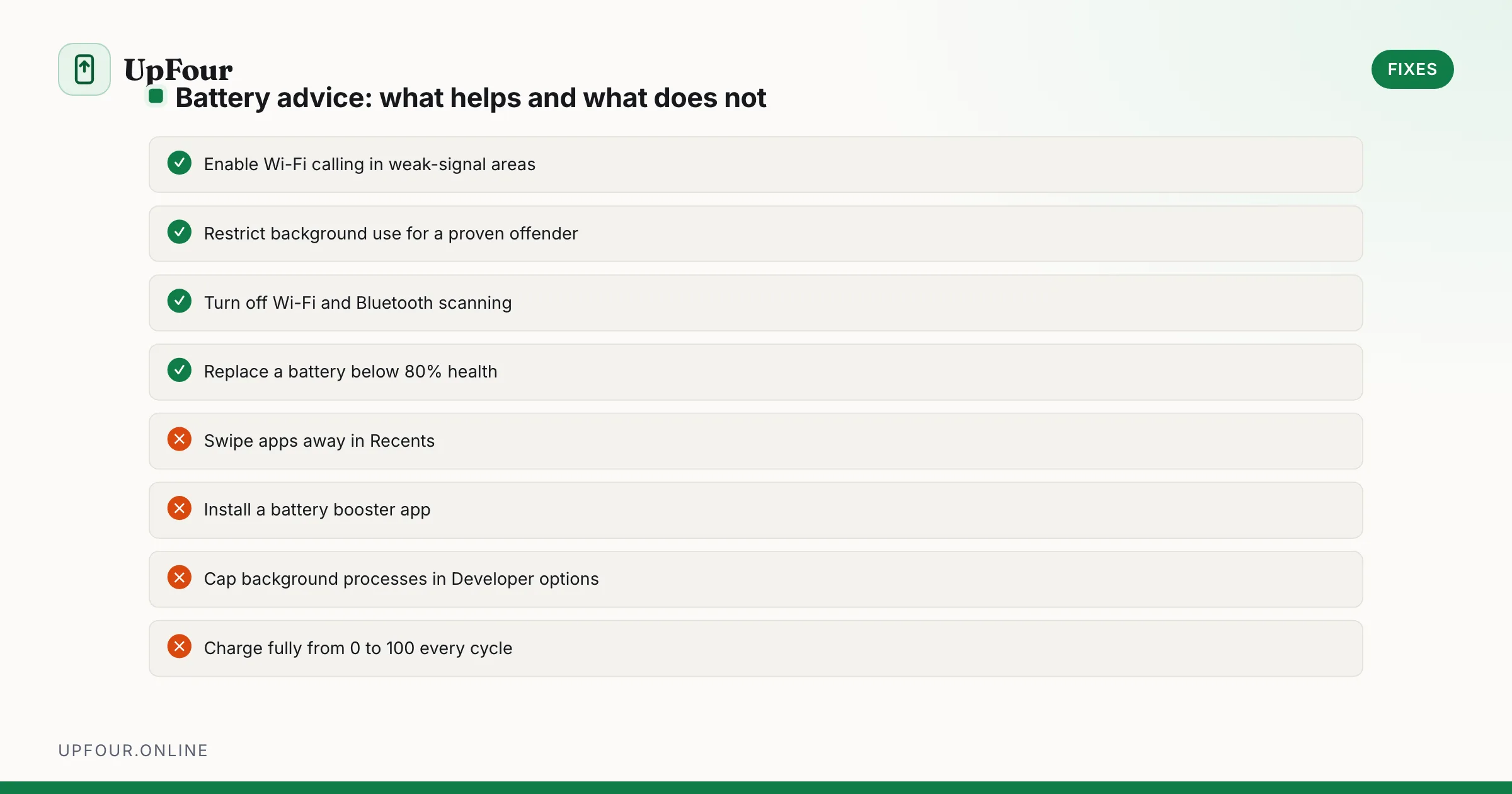
| Common advice | Reality |
|---|---|
| Closing apps in Recents | Android must fully reload them, costing more power than leaving them cached |
| "Battery booster" apps | They run constantly to do their job, adding drain |
| Killing all background processes | Breaks notifications; Android's own scheduler is better at this |
| Full 0–100% charge cycles | Lithium-ion cells prefer partial cycles; 20–80% extends lifespan |
Frequently asked questions
Why is my Android battery draining so fast overnight?
Standby drain above about 2% per hour usually means a background wakelock or a weak mobile signal forcing the radio to transmit at high power. Check Battery usage for Mobile network standby, and test overnight in Safe Mode to rule out an installed app.
Does closing background apps save battery on Android?
No. Swiping apps away from Recents forces Android to cold-start them again later, which uses more power than leaving them cached in memory.
What is a normal standby battery drain for Android?
Roughly 1–2% per hour with the screen off and a decent signal. Consistently losing 5% or more per hour in standby indicates a problem worth diagnosing.
When should I replace my Android battery?
When battery health falls below 80% of design capacity, when the phone shuts down unexpectedly above 20% charge, or at any sign of physical swelling.
Sources & further reading
Official documentation used while writing and checking this guide. Every link was verified at the last update.
- Analyse power use with Battery HistorianAndroid Developers
- BU-808: How to prolong lithium-based batteriesBattery University
- Android Security BulletinsAndroid Open Source Project
- Official Samsung SupportSamsung
Machine-readable version: Markdown source
Related guides
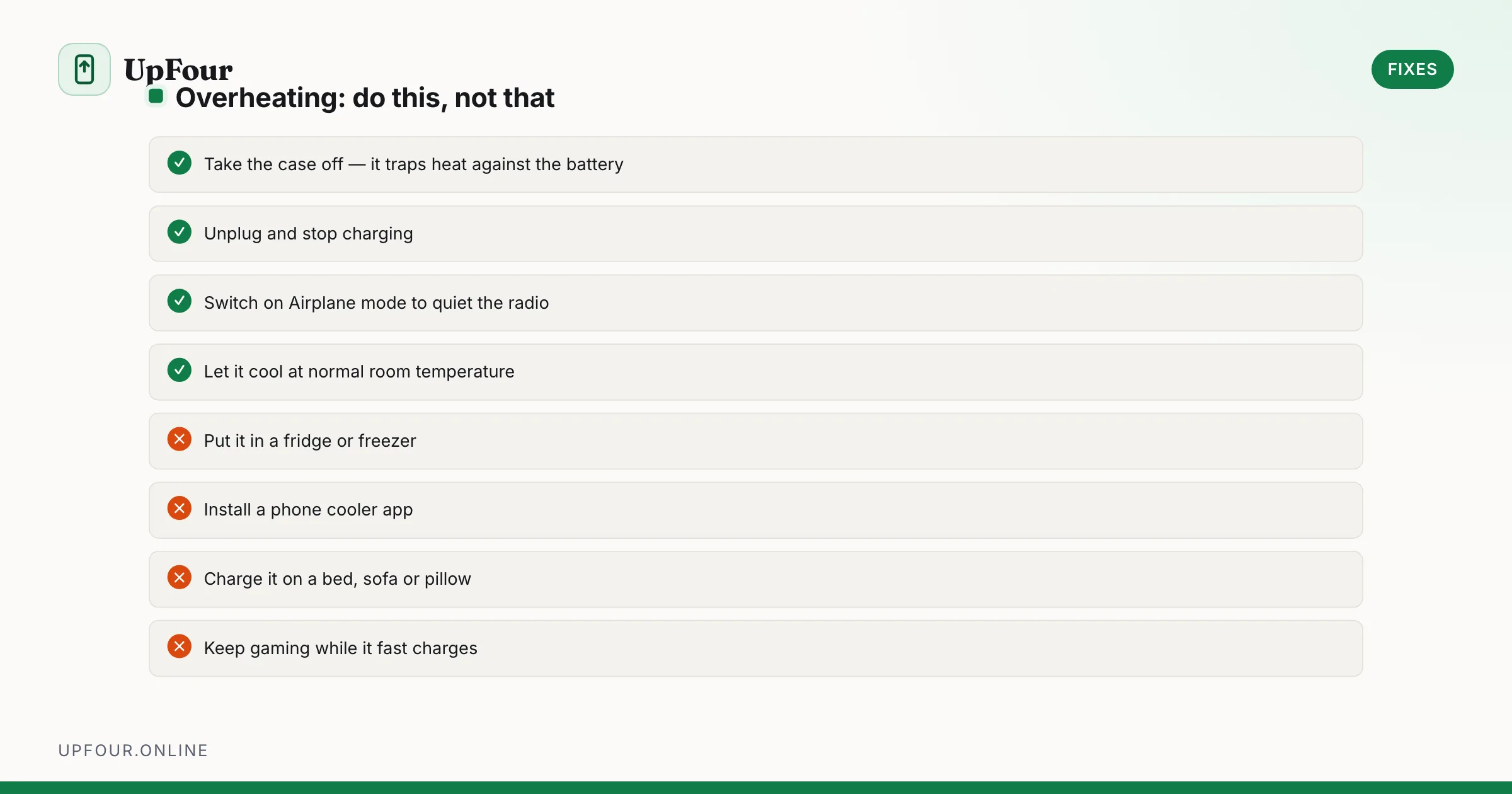
Why Your Android Phone Overheats — and How to Actually Cool It Down
Diagnose Android overheating properly: charging heat, camera and 5G thermal limits, rogue background apps, and the cooling mistakes that damage phones.
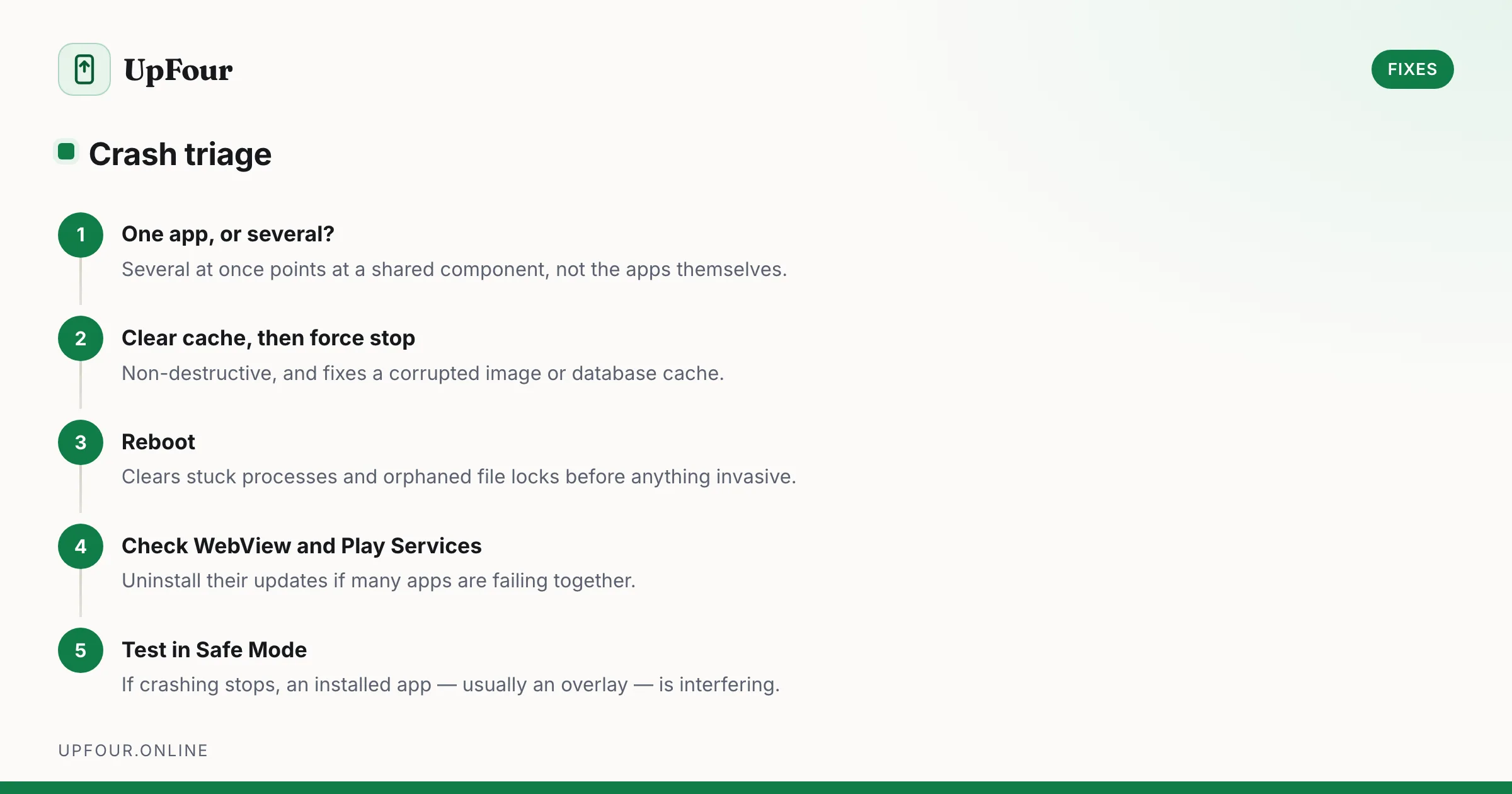
Android Apps Keep Crashing: The Fix Sequence That Works
Fix Android apps that crash, freeze or close instantly — from clearing cache and rolling back updates to repairing Play Services and WebView.
Android Storage Full: Where the Space Actually Went
Reclaim gigabytes on Android by targeting the real culprits — cached media in messaging apps, the Downloads folder, offline maps and orphaned WhatsApp files.