Android Apps Keep Crashing: The Fix Sequence That Works
Fix Android apps that crash, freeze or close instantly — from clearing cache and rolling back updates to repairing Play Services and WebView.
Short answer
Clear the app's cache first, then force stop and reboot. If several apps crash at once, the cause is usually Android System WebView or Google Play Services rather than the apps themselves.
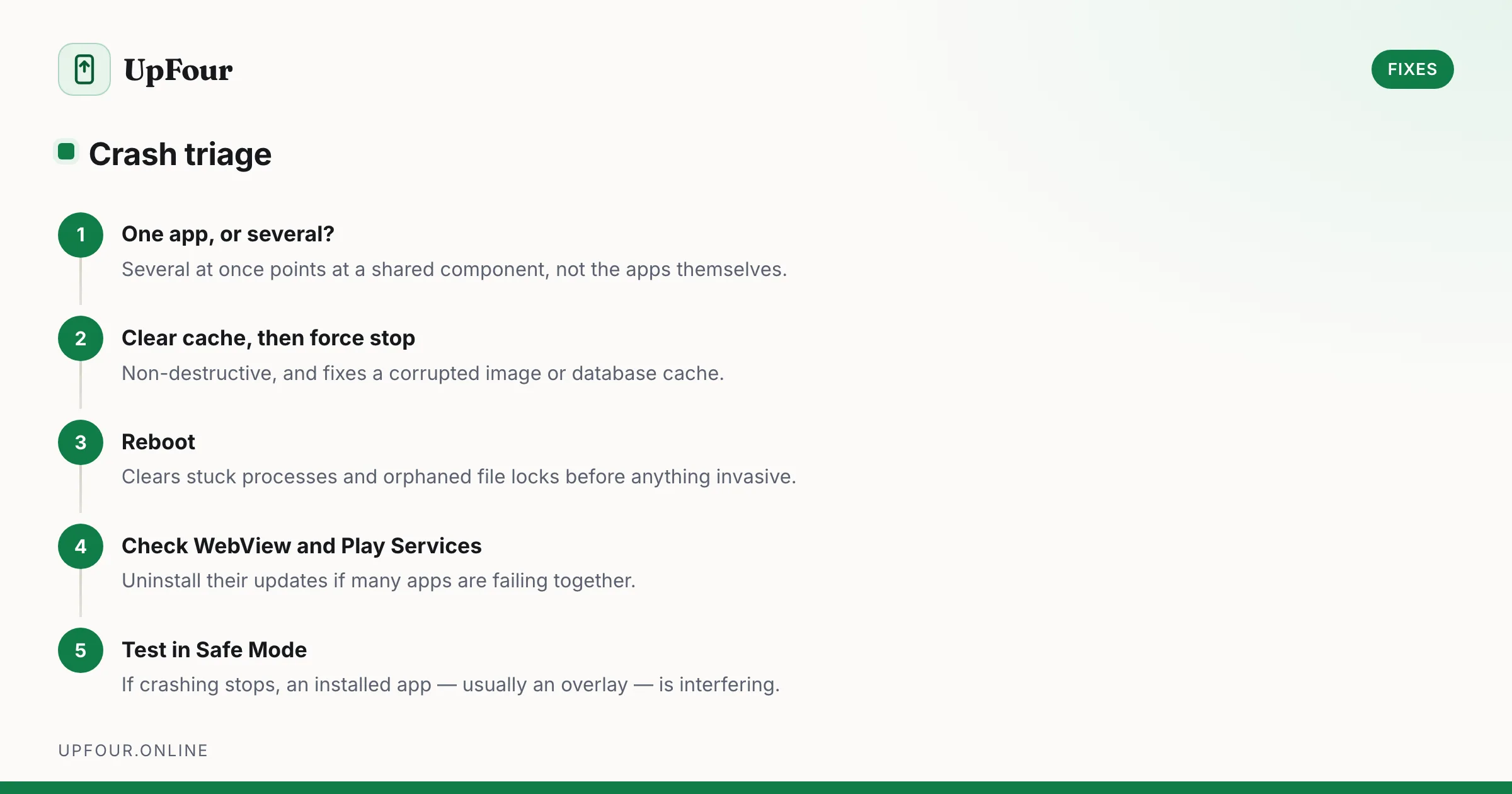
Two very different problems present the same way. Establish which one you have before doing anything else.
First: one app or several?
- One app crashing — the app's own data or a bad update. Start at Step 1.
- Several apps crashing — a shared component is broken. Jump to When multiple apps crash.
Step 1: Clear cache, then force stop
Settings › Apps › [app] › Storage & cache › Clear cache, then back out and tap Force stop. Reopen the app.
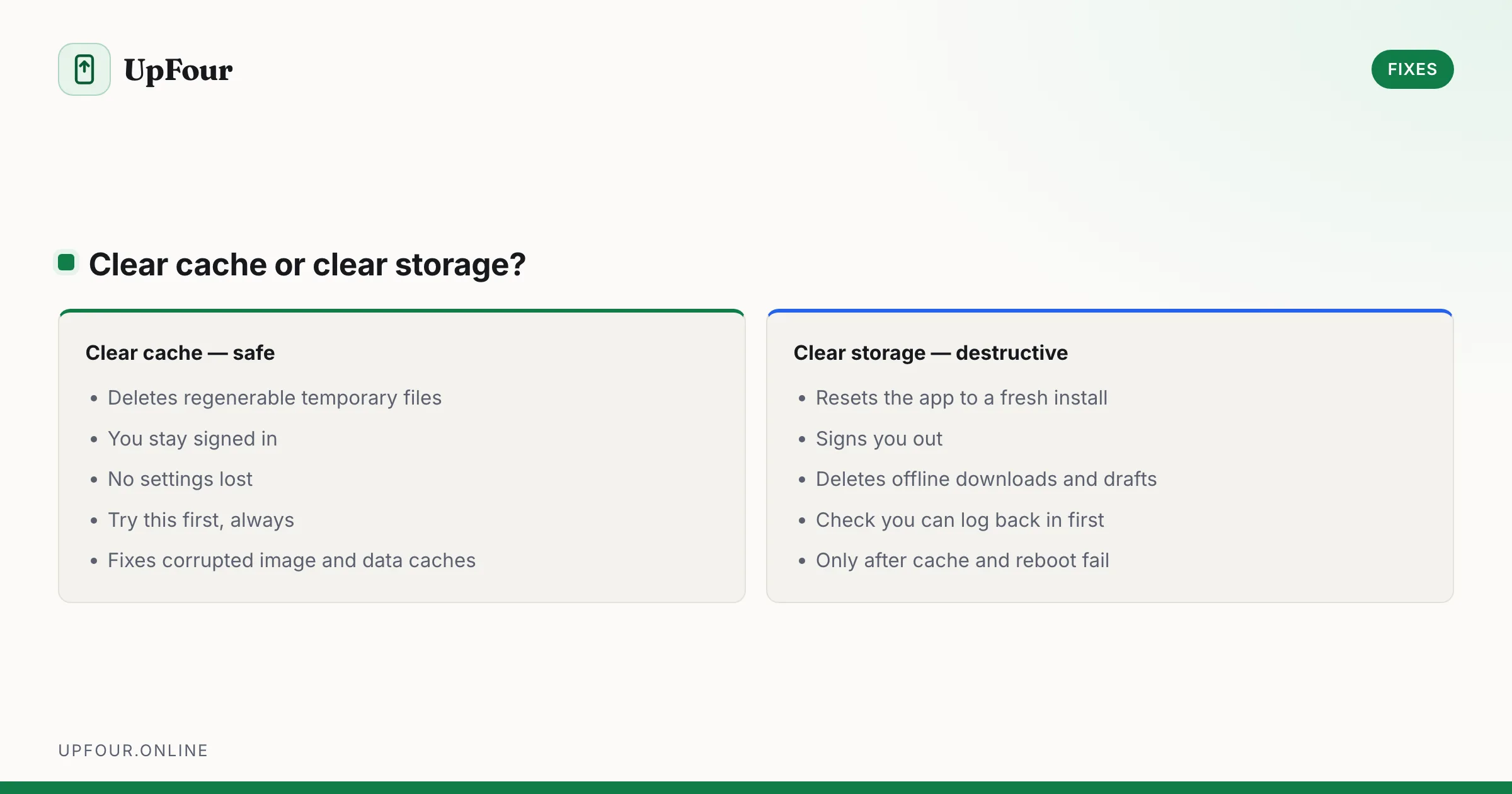
Clearing cache is non-destructive — it removes regenerable temporary files only. It fixes a corrupted image or database cache, which is a genuinely common cause.
Step 2: Reboot
A full restart clears stuck processes, releases orphaned file locks and remounts storage. Do this before anything more invasive; it resolves a meaningful share of crashes on its own.
Step 3: Update the app, and Android
Play Store › profile icon › Manage apps & device › Updates available. Then check Settings › System › Software update.
If the crash started immediately after an app update, the reverse applies — see Step 5.
Step 4: Clear the app's storage
Settings › Apps › [app] › Storage & cache › Clear storage.
This resets the app to a fresh install. You will be signed out and any locally stored data — offline downloads, drafts, unsynced content — is gone. Confirm your login details are recoverable first.
For most apps whose data lives in the cloud, this is a safe and very effective fix.
Step 5: Roll back a bad update
If the crash began right after an update and the app is preinstalled, you can revert to the factory version: Settings › Apps › [app] › ⋮ › Uninstall updates.
For a normal installed app, uninstall and reinstall. To get an older version specifically, enrol out of any beta programme on the app's Play Store page first — being in a beta is a frequent and easily missed cause.
When multiple apps crash
Android System WebView
WebView renders web content inside apps. When it breaks, every app with an embedded browser view crashes — which looks like the whole phone failing. Broken WebView updates have caused mass crashes several times.
- Play Store → search Android System WebView → Uninstall (reverts to factory version).
- Reboot.
- Update it again once a newer version ships.
Do the same for Google Chrome — on many devices Chrome provides the WebView implementation.
Google Play Services
Underpins sign-in, notifications, location and in-app purchases across nearly every app.
- Settings › Apps › See all apps › Google Play Services › Storage & cache › Clear cache (not storage).
- If that fails: ⋮ › Uninstall updates, then reboot and let it update itself.
Check for a low-storage condition
Below roughly 1 GB free, apps fail to write and crash unpredictably. Settings › Storage — free some space and retest before chasing anything else, using our guide to reclaiming Android storage.
Step 6: Safe Mode
Hold power → long-press Power off → Reboot to safe mode.
In Safe Mode only system apps run. If the crashing stops, a user-installed app is interfering — most often an overlay app (screen filter, floating widget, blue-light filter) or an "optimiser". Overlays in particular cause other apps to crash when they request permissions, because Android blocks permission dialogs while an overlay is drawn on top.
Check Settings › Apps › Special app access › Display over other apps and disable everything you do not recognise.
Step 7: Read the actual error
Enable Developer options (tap Build number seven times in About phone), then turn on Bug report shortcut. When an app crashes, the power menu now offers to capture a bug report containing the real stack trace — useful when reporting the issue to the developer, who otherwise has nothing to work with.
Step 8: Last resorts
- Reset app preferences — Settings › Apps › See all apps › ⋮ › Reset app preferences. Restores defaults, permissions and background restrictions without deleting data.
- Wipe cache partition — reboot to Recovery (Power + Volume up from off) and select Wipe cache partition. Data is preserved.
- Factory reset — back up first, following our backup and restore checklist. Reserve this for cases where Safe Mode also crashes, which points at system corruption.
Common causes by symptom
| Symptom | Likely cause |
|---|---|
| One app closes instantly on launch | Corrupted app data — clear storage |
| Many apps crash together | WebView or Play Services |
| Crashes only when granting permission | An overlay app is drawing on screen |
| Crashes started after an update | Bad app release, or a beta channel enrolment |
| Random crashes across the system | Low free storage, or failing storage hardware |
| Crashes only when offline | The app has no offline error handling — a developer bug |
Frequently asked questions
Why do all my Android apps keep crashing at once?
A shared system component is usually at fault — most often Android System WebView or Google Play Services. Uninstall updates for both from the Play Store or app settings, reboot, then let them update again.
Does clearing an app's cache delete my account or data?
No. Clearing cache removes temporary files only. Clearing storage is the destructive option that resets the app and signs you out.
How do I go back to an older version of an app?
For preinstalled apps use Settings › Apps › [app] › ⋮ › Uninstall updates. For others, leave any beta programme on the Play Store listing, then uninstall and reinstall.
Why does an app crash whenever it asks for a permission?
An app drawing over the screen — a screen filter, floating widget or blue-light app — blocks the permission dialog. Disable overlays under Settings › Apps › Special app access › Display over other apps.
Sources & further reading
Official documentation used while writing and checking this guide. Every link was verified at the last update.
- Keep your device & apps working with Google Play servicesGoogle Play Help
- Android Security BulletinsAndroid Open Source Project
- Official Samsung SupportSamsung
- Reset your Android device to factory settingsGoogle Android Help
Machine-readable version: Markdown source
Related guides
Fix Android Battery Drain: A Diagnostic Order That Actually Finds the Cause
Stop guessing. Diagnose Android battery drain in order — usage stats, screen-on vs standby drain, mobile signal, rogue wakelocks — then apply the fix that matches.
Why Your Android Phone Overheats — and How to Actually Cool It Down
Diagnose Android overheating properly: charging heat, camera and 5G thermal limits, rogue background apps, and the cooling mistakes that damage phones.
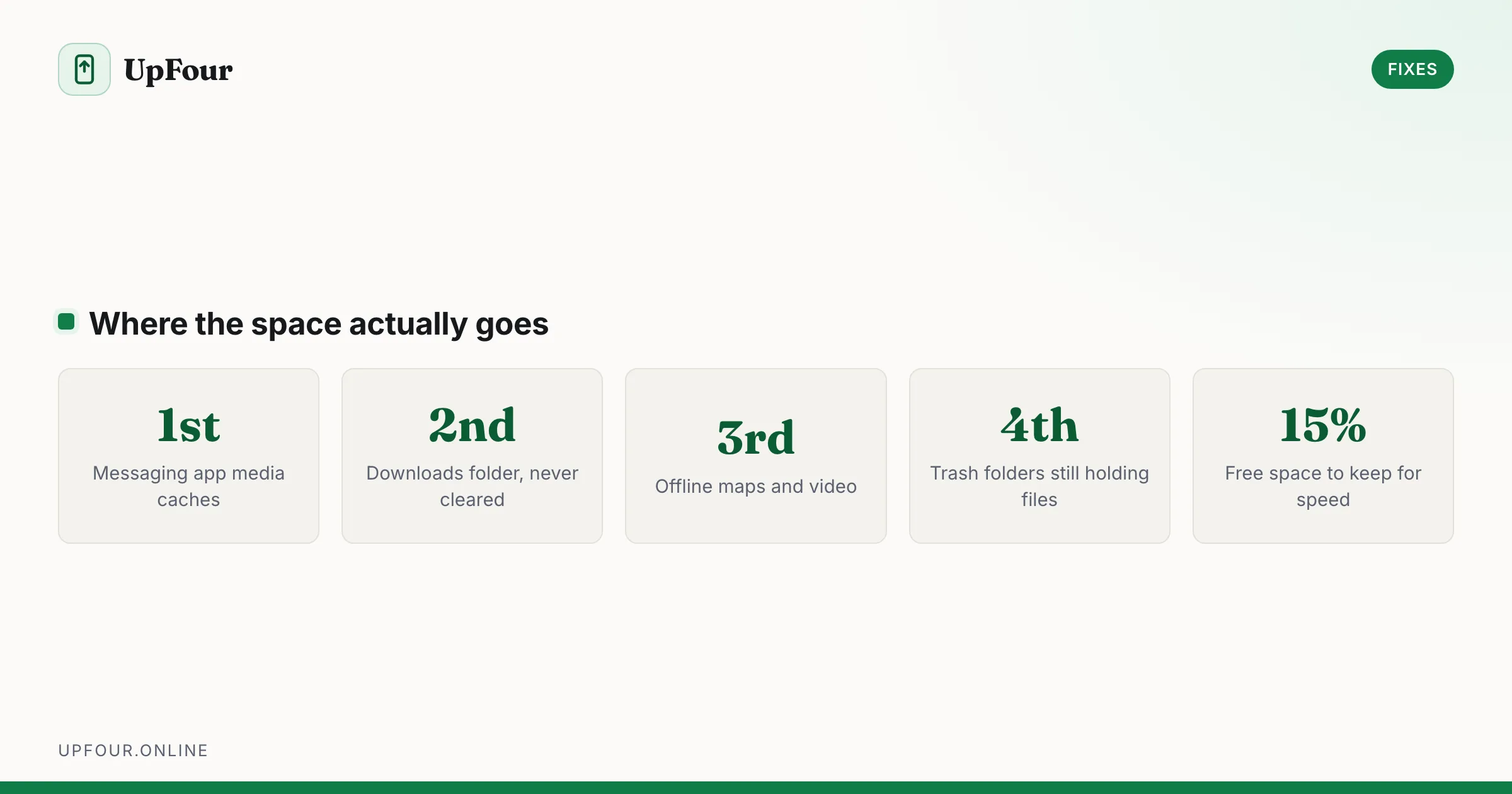
Android Storage Full: Where the Space Actually Went
Reclaim gigabytes on Android by targeting the real culprits — cached media in messaging apps, the Downloads folder, offline maps and orphaned WhatsApp files.