How to Back Up and Restore a Samsung Phone Properly
Back up a Galaxy phone with Samsung Cloud, Google and Smart Switch, then restore to a new device — including what each method does and does not save.
Short answer
Use Settings › Accounts and backup › Back up data for Samsung Cloud, confirm Google One backup is on, and use Smart Switch for a full transfer to a new phone. No single method covers everything, so use at least two.
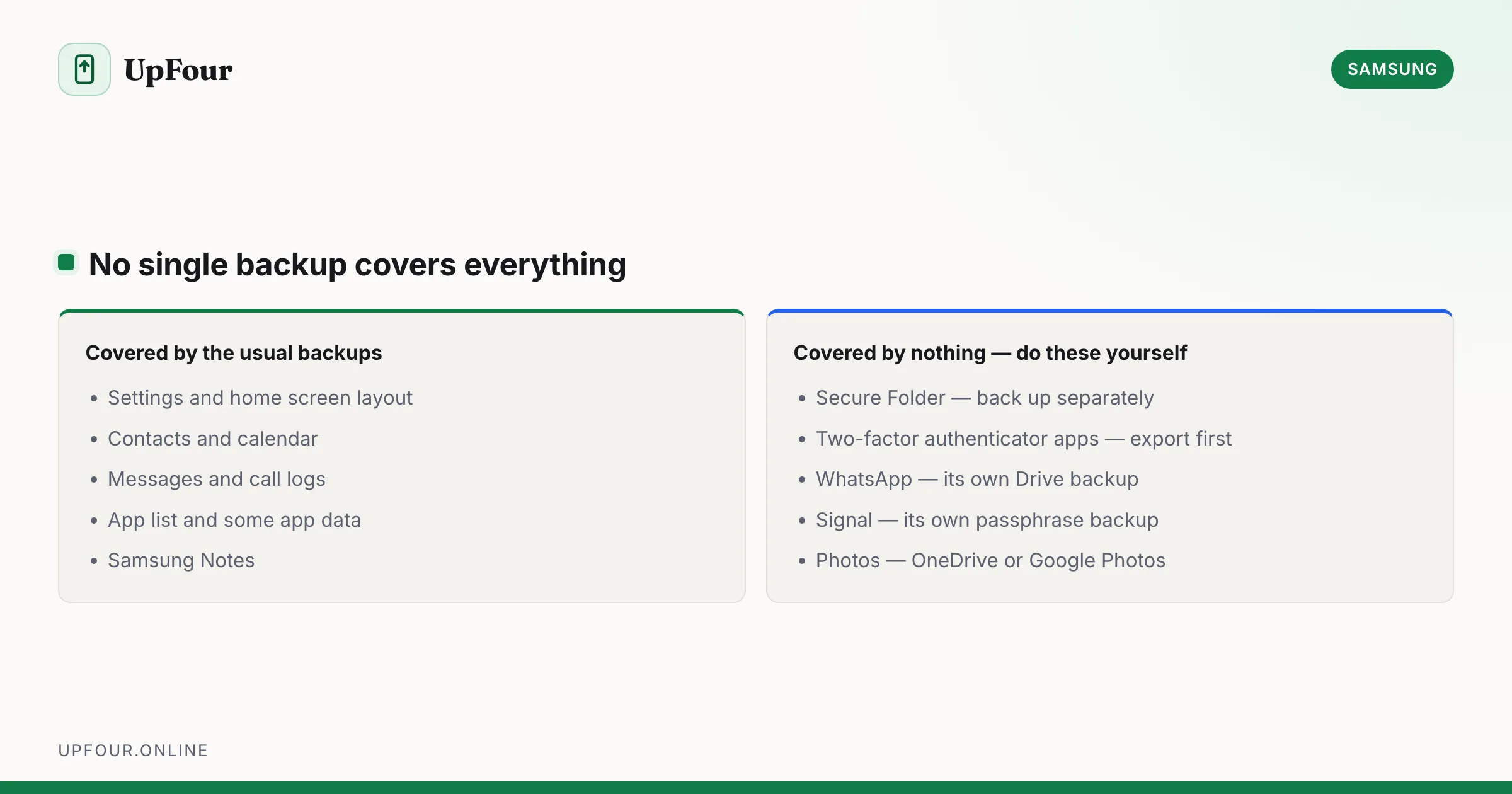
No single backup method on a Galaxy phone covers everything. Use two, and know which one holds what — otherwise you discover the gap on the day you need it.
The three methods, and what each covers
| Samsung Cloud | Smart Switch | ||
|---|---|---|---|
| Settings and layout | Yes | Partial | Yes |
| Apps | List only | List and some data | Apps and data |
| Photos | No | Via Google Photos | Yes |
| Messages and call logs | Yes | Partial | Yes |
| Contacts | Yes | Yes | Yes |
| Samsung Notes | Yes | No | Yes |
| Secure Folder | No | No | Separate backup |
The two entries in bold are the ones that cause real loss. Samsung Cloud does not back up photos — that moved to OneDrive. And Secure Folder is never included in a normal backup.
Samsung Cloud backup
Settings › Accounts and backup › Back up data.
Select what to include, then tap Back up now. Automatic backups normally run only when the phone is charging, on Wi-Fi and the screen has been off for a while — so a phone that is never plugged in overnight may not have backed up in months. Check the last backup date on this screen.
To restore: Settings › Accounts and backup › Restore data, or during the setup wizard on a new phone.
Full detail in our guide to accessing Samsung Cloud.
Google backup
Settings › Google › Backup — confirm Backup by Google One is on.
Covers app data, call history, contacts, settings and SMS. It is the backup that survives switching to a non-Samsung phone, which makes it the more portable of the two.
Google Photos is separate: open it, tap your profile picture, and confirm Backup is enabled. This is where your photos should be.
Smart Switch: the complete transfer
Smart Switch moves nearly everything to a new Galaxy, and is the right tool when replacing a phone.
Phone to phone (fastest):
- Install Smart Switch on both phones — it is preinstalled on most Galaxy devices.
- On the new phone choose Receive; on the old one choose Send.
- Connect by cable (USB-C to USB-C) or wirelessly.
- Select what to transfer and start.
A cable is substantially faster and more reliable than wireless for large photo libraries. Wireless is fine for a light transfer.
Backup to a computer:
- Install Smart Switch for PC or Mac.
- Connect the phone by cable and authorise it.
- Choose Back up.
This produces a full local backup on your computer, including photos. It is the only method here that gives you a copy you physically control — worth doing before a major repair, a factory reset or an OS upgrade.
Backup to an SD card, where your phone has a slot: Smart Switch › SD card › Back up.
Secure Folder must be backed up separately
Secure Folder is encrypted and deliberately excluded from every normal backup. Its contents are not in Samsung Cloud, not in Google's backup, and not in Smart Switch.
Secure Folder › ⋮ › Settings › Back up and restore.
If you factory reset without doing this, everything in Secure Folder is gone permanently. This is the single most common way people lose data on a Galaxy phone.
Things no backup covers
Plan for these separately:
- Two-factor authentication apps. Google Authenticator and similar do not transfer with a normal backup. Export the accounts before wiping the phone, or you lose access to every account they protect.
- WhatsApp. Uses its own backup — WhatsApp › Settings › Chats › Chat backup to Google Drive.
- Signal. Requires its own backup with a passphrase you must record.
- Banking and authenticator apps often refuse to restore and must be set up fresh.
- Downloaded media in streaming apps.
The 2FA point deserves emphasis. Wiping a phone with an authenticator app on it, without exporting first, can lock you out of your email, which then locks you out of everything else.
Before a factory reset: a checklist
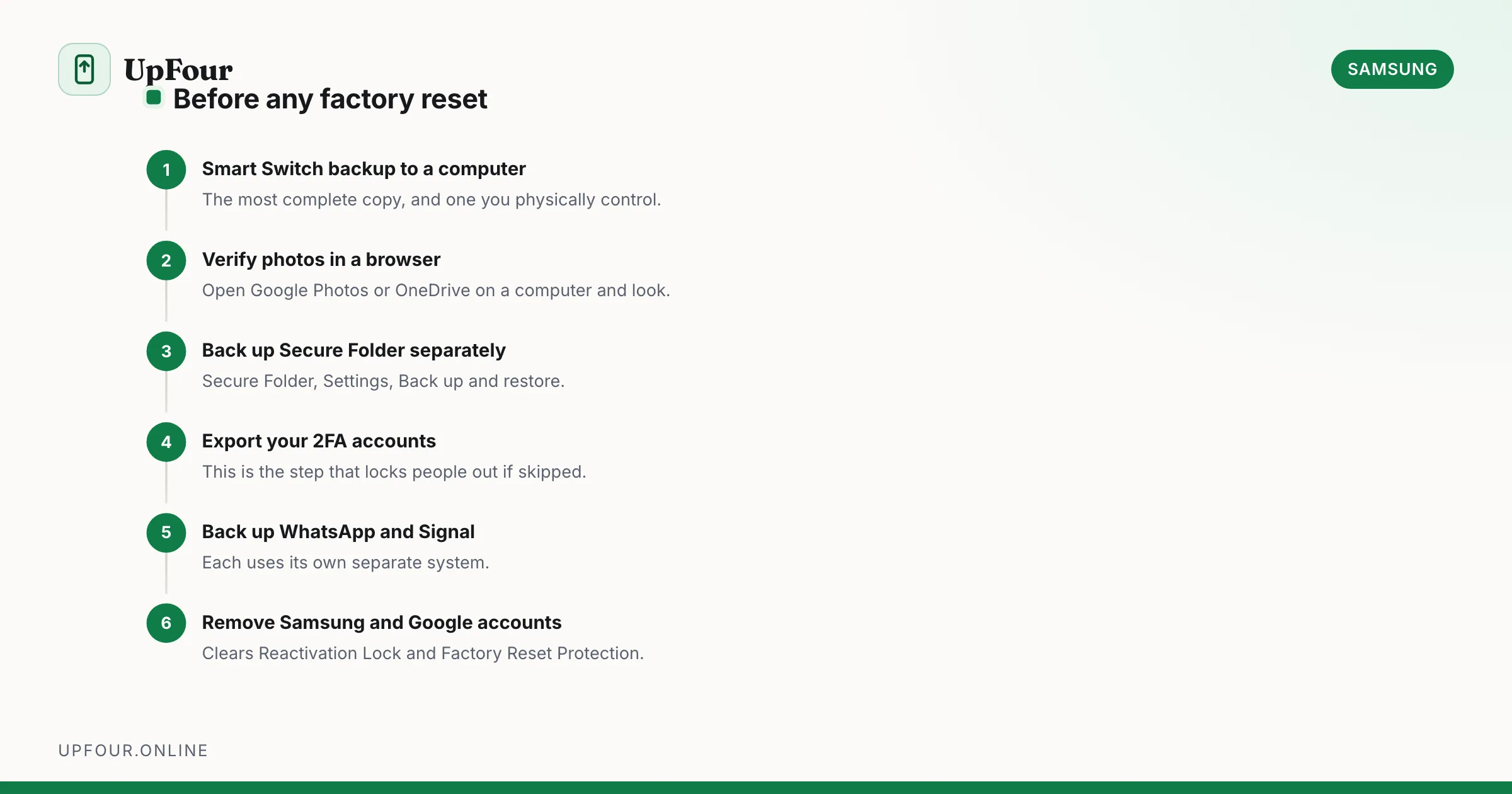
- Smart Switch backup to a computer — the most complete copy.
- Confirm Google Photos shows your recent photos, checked in a browser.
- Back up Secure Folder separately.
- Export 2FA accounts from your authenticator app.
- Back up WhatsApp and any other messenger with its own system.
- Remove your Samsung account and Google account — this clears Reactivation Lock and Factory Reset Protection. See deleting or removing a Samsung account.
- Then reset.
Step 6 before step 7 is the one people reverse, producing a phone the next owner cannot activate.
Restoring to a new phone
During setup you are offered:
- Smart Switch from the old phone — the most complete option.
- Samsung Cloud restore.
- Google restore.
You can combine them: restore from Google during setup, then run Smart Switch afterwards for Samsung-specific data. Restoring later is also possible via Settings › Accounts and backup › Restore data.
In short
Use Google Photos for photos, Samsung Cloud for settings and messages, and Smart Switch to a computer before anything risky. Back up Secure Folder separately, and export your 2FA accounts before wiping any phone.
Frequently asked questions
How do I back up my Samsung phone?
Go to Settings › Accounts and backup › Back up data for Samsung Cloud, confirm Backup by Google One is on under Settings › Google › Backup, and use Smart Switch on a computer for a complete local copy including photos.
Does Samsung Cloud back up photos?
No. Photo backup moved to Microsoft OneDrive via Gallery sync, or you can use Google Photos. Samsung Cloud covers settings, contacts, messages, call logs and Samsung Notes.
Is Secure Folder included in a Samsung backup?
No. Secure Folder is encrypted and excluded from all normal backups. Back it up separately under Secure Folder › Settings › Back up and restore, or its contents are lost permanently in a factory reset.
What does Smart Switch transfer?
Nearly everything — apps and their data, photos, messages, call logs, contacts, settings and home screen layout. It works phone to phone by cable or wirelessly, or as a full backup to a computer or SD card.
Sources & further reading
Official documentation used while writing and checking this guide. Every link was verified at the last update.
- Back up photos & videosGoogle Photos Help
- Microsoft OneDrive help and learningMicrosoft
- Reset your Android device to factory settingsGoogle Android Help
- Samsung CloudSamsung
Machine-readable version: Markdown source
Related guides
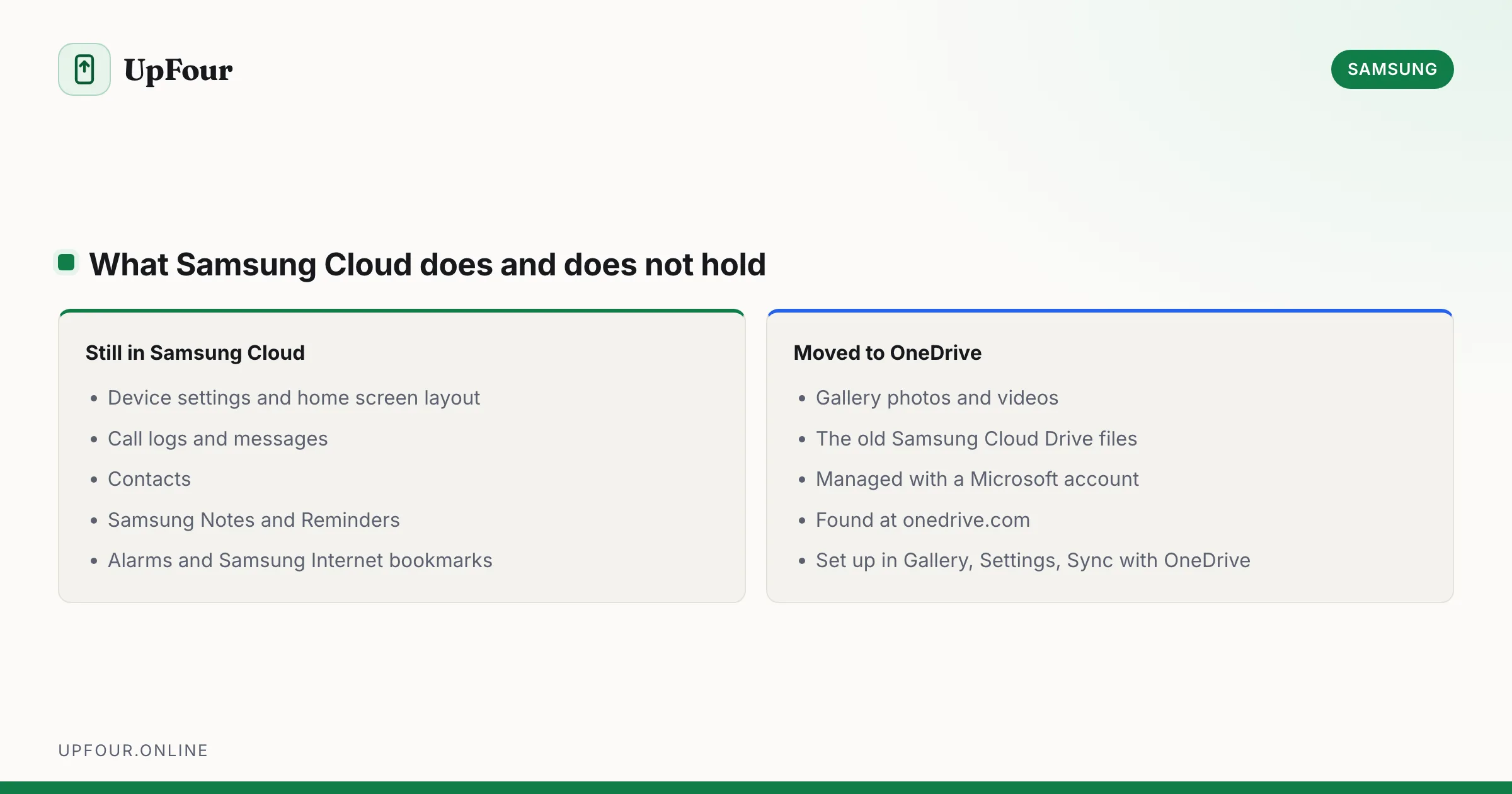
How to Access Samsung Cloud (and What Moved to OneDrive)
Find Samsung Cloud on your Galaxy phone or in a browser, and understand why Gallery and Drive files moved to Microsoft OneDrive.
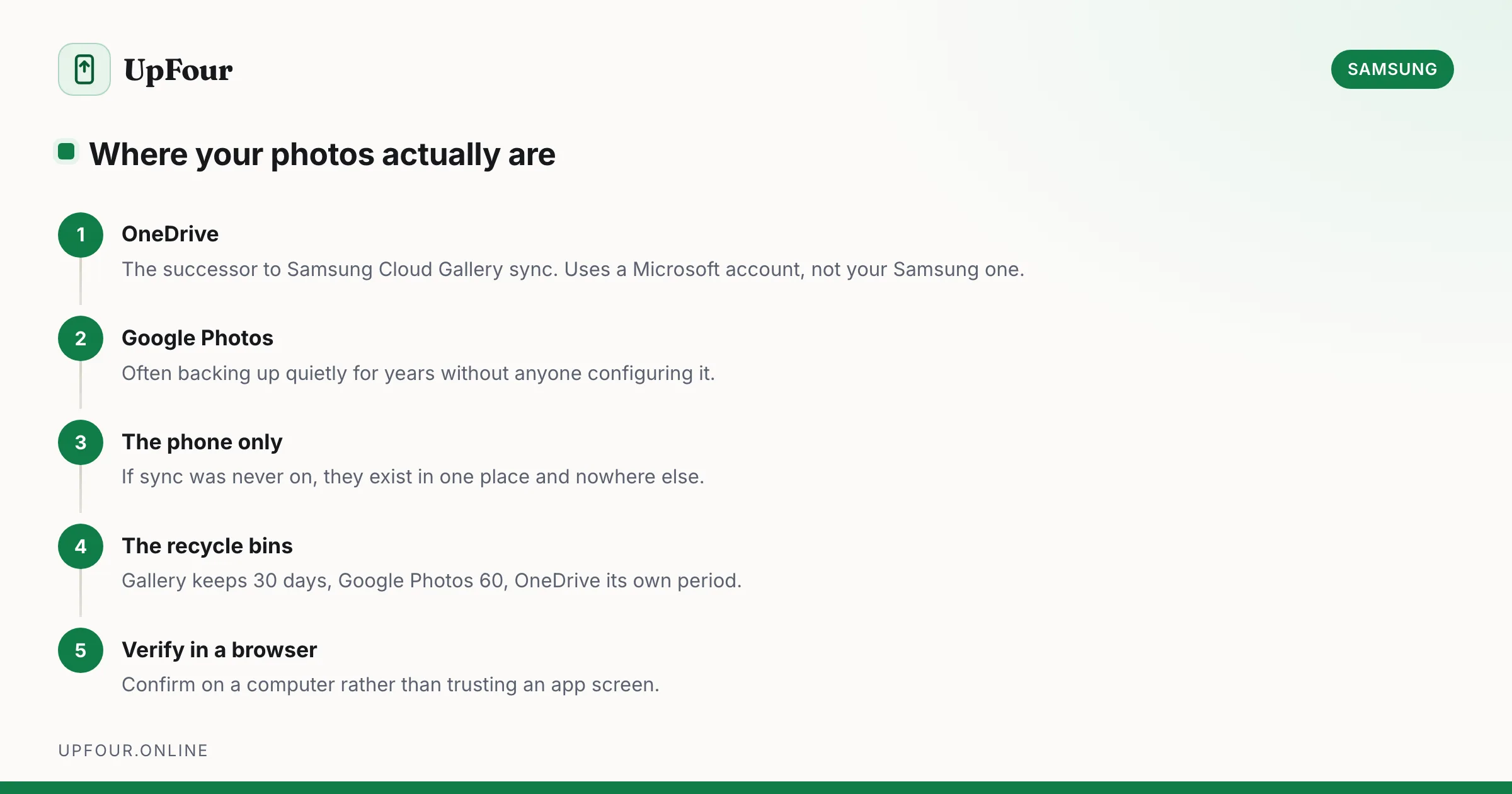
How to See Your Photos in Samsung Cloud (They're Probably in OneDrive)
Find photos you thought were in Samsung Cloud, recover deleted Gallery images, and set up photo backup that will not lose your pictures.
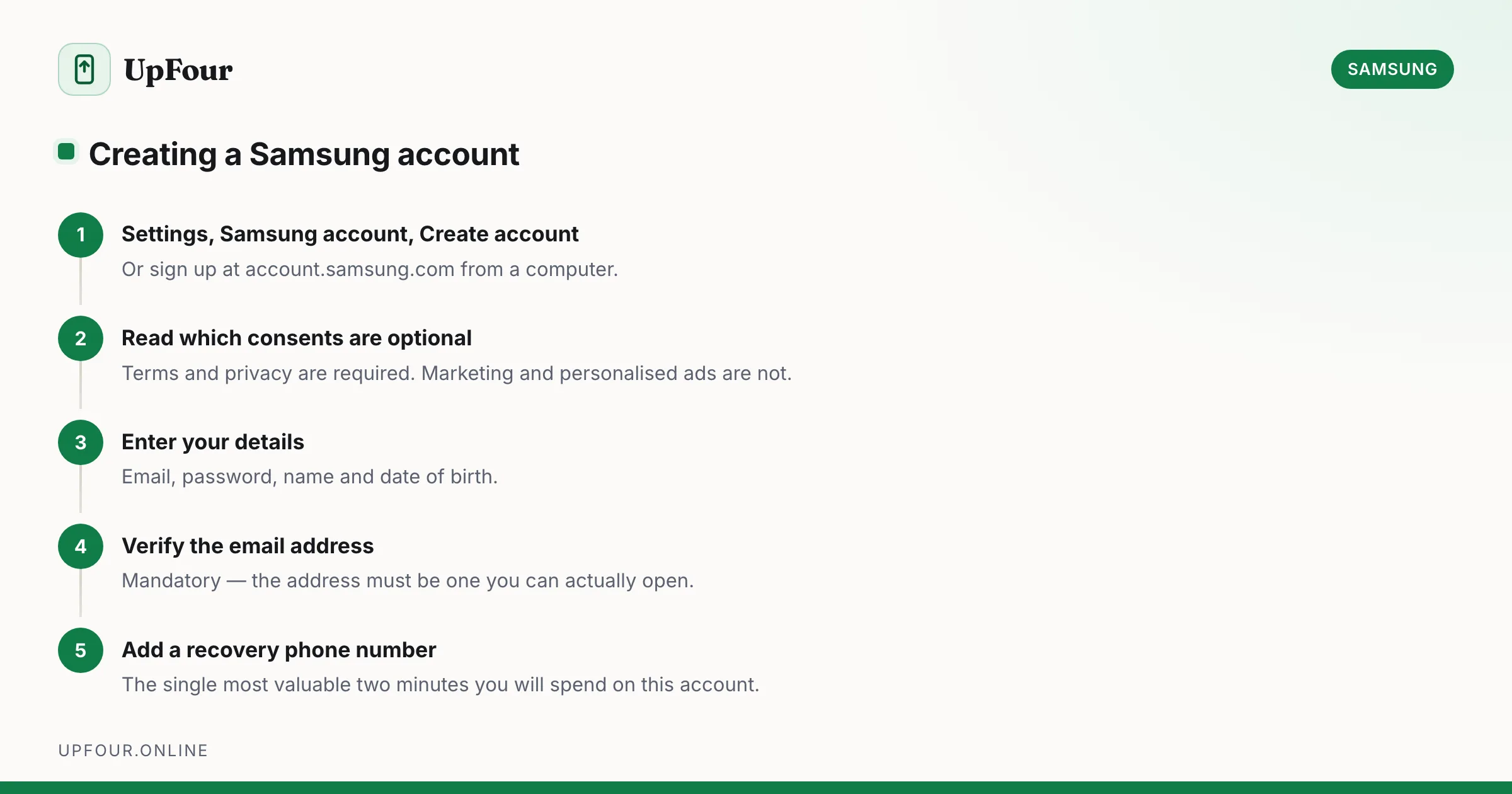
How to Create a Samsung Account (and Whether You Need One)
Set up a Samsung account on your phone or in a browser, avoid the common sign-up errors, and understand exactly what the account unlocks.