How to See Your Photos in Samsung Cloud (They're Probably in OneDrive)
Find photos you thought were in Samsung Cloud, recover deleted Gallery images, and set up photo backup that will not lose your pictures.
Short answer
Samsung Cloud no longer stores photos. Gallery sync moved to Microsoft OneDrive, so open the OneDrive app or onedrive.com and sign in with the Microsoft account linked in Gallery › Settings.
If you are looking for photos in Samsung Cloud and cannot find them, nothing has gone wrong with your account. Samsung retired photo storage and moved it to Microsoft OneDrive.
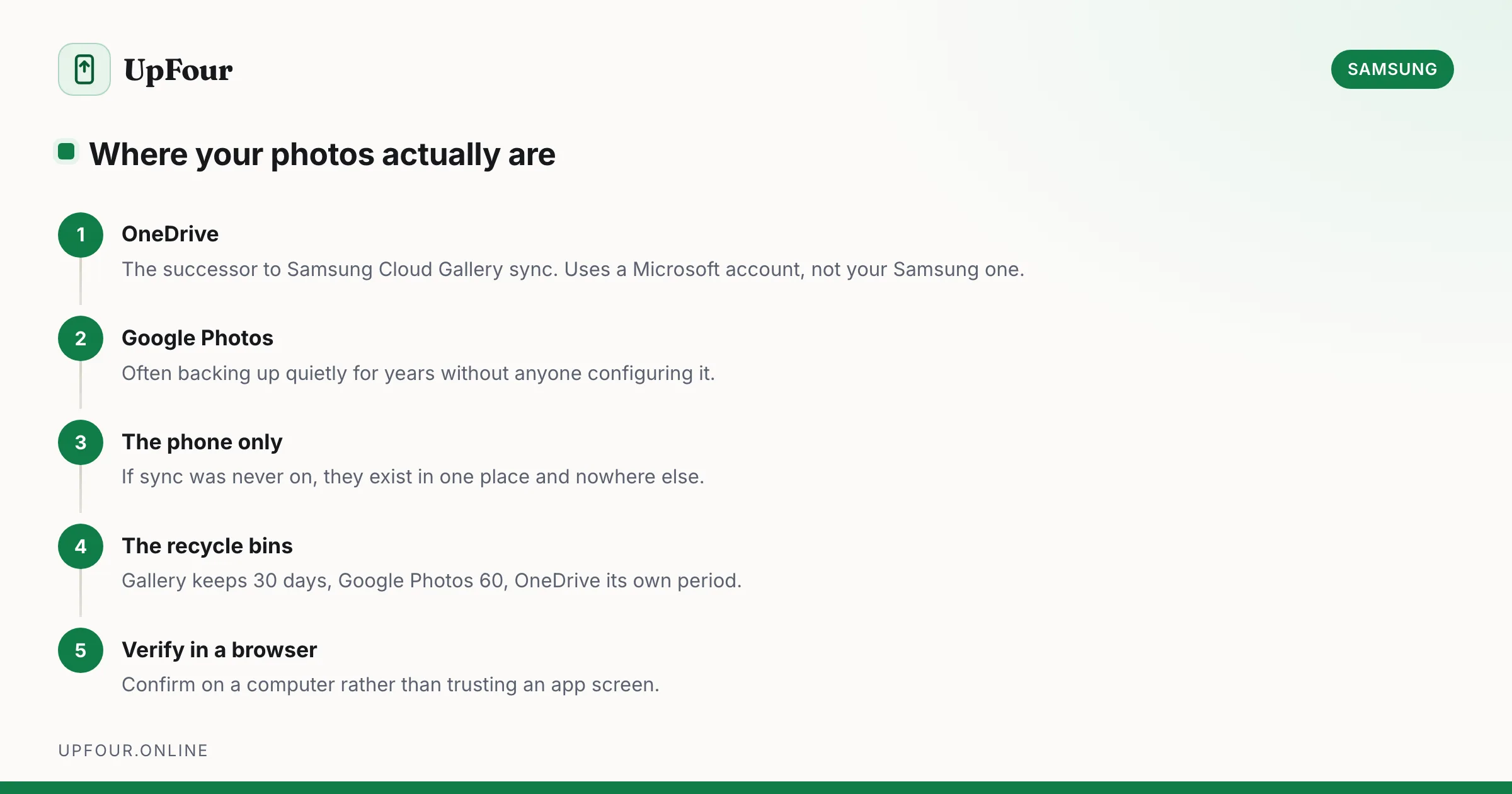
Where your photos actually are
Check these four places, in this order.
1. OneDrive
The official successor to Samsung Cloud Gallery sync.
- Open the OneDrive app, or go to onedrive.com.
- Sign in with the Microsoft account — not your Samsung account.
- Look in the Photos tab, or the Pictures › Samsung Gallery folder.
To check which account is linked: Gallery › ☰ or ⋮ › Settings › Sync with OneDrive.
2. Google Photos
Most Galaxy phones ship with it, and it may have been backing up quietly for years without you configuring anything.
- Open Google Photos, tap your profile picture, and check that Backup is on.
- Or go to photos.google.com and sign in with the Google account on the phone.
This is where a large number of "lost" Samsung photos turn out to be.
3. On the phone only
Gallery › Albums. If sync was never enabled anywhere, the photos exist on the device and nowhere else. Set up a backup today — see below.
4. The Gallery recycle bin
Gallery › ☰ › Recycle bin (or ⋮ › Trash). Deleted photos stay here for around 30 days before permanent removal.
Also check OneDrive's own recycle bin at onedrive.com, and Google Photos › Library › Trash, which holds items for 60 days. A photo deleted from the phone is often still recoverable in one of the three.
Set up photo backup properly
Pick one primary service and confirm it is working. Two is better than one for anything irreplaceable.
Option A: Google Photos (simplest)
- Open Google Photos.
- Tap your profile picture › Photos settings › Backup.
- Turn Backup on.
- Choose Storage saver to compress uploads, or Original quality to keep full resolution against your Google storage quota.
Works on any Android phone, not just Samsung, and survives switching brands.
Option B: OneDrive (the Samsung route)
- Open Gallery › Settings.
- Tap Sync with OneDrive.
- Sign in with a Microsoft account.
- Confirm sync is on.
Gives 5 GB free, integrates with the Gallery app directly, and includes Windows integration if you use a PC.
Verify the backup is real
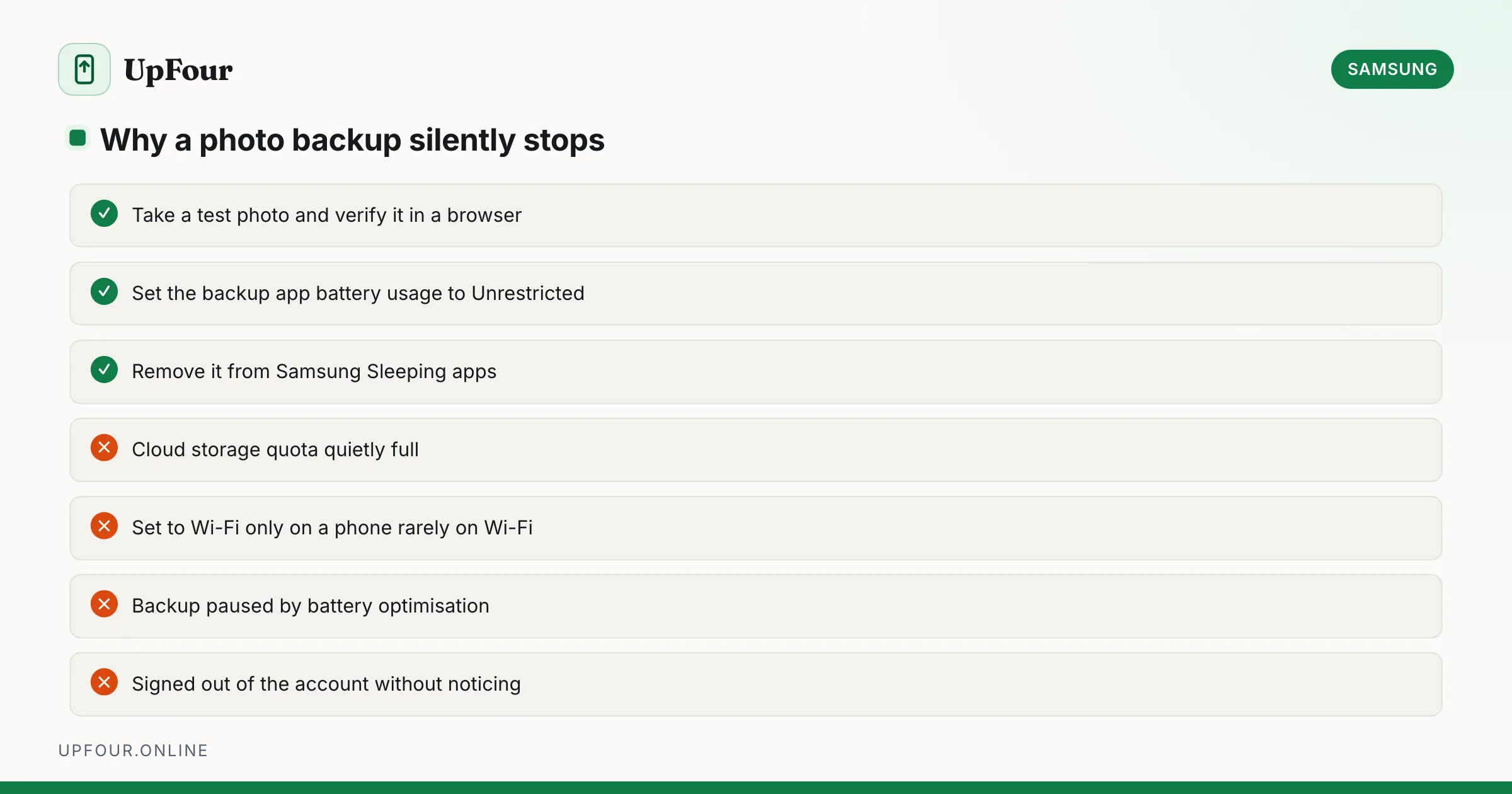
Do not assume. Test it:
- Take a photo now.
- Wait a few minutes on Wi-Fi.
- Open onedrive.com or photos.google.com in a browser, on a computer if possible.
- Confirm that exact photo is there.
If it is not, backup is not working, whatever the app claims. The usual causes are below.
| Symptom | Cause |
|---|---|
| Nothing uploads | Backup toggled off, or the account was signed out |
| Uploads stop partway | Cloud storage full — check the quota |
| Only uploads sometimes | Set to Wi-Fi only, and the phone is rarely on Wi-Fi while charging |
| Some albums missing | Only selected folders are included; check per-folder backup settings |
| Paused indefinitely | Battery optimisation is restricting the app in the background |
That last one is worth acting on: set the backup app to Unrestricted under Settings › Apps › [app] › Battery, and on Samsung remove it from Sleeping apps under Settings › Battery › Background usage limits.
Free up phone storage without losing photos
Once backup is confirmed working, remove the local copies safely:
- Google Photos › Profile › Free up space — deletes only photos already backed up.
- Settings › Storage › Storage manager — removes backed-up media older than a chosen age.
Never delete local photos before verifying they exist in the cloud with your own eyes.
Moving off a Galaxy phone
Because Gallery sync uses OneDrive rather than anything Samsung-specific, your photos are portable. On a new phone of any brand, install OneDrive or Google Photos and sign in — everything is there.
This is a good argument for Google Photos as the primary backup: it is brand-independent, and it does not tie your photo history to whichever partnership Samsung has in place at the time.
What Samsung Cloud still holds
Not photos, but not nothing either: device settings, home screen layout, call logs, messages, contacts, Samsung Notes, alarms and Samsung Internet bookmarks. Check it under Settings › Accounts and backup › Back up data, and see how to access Samsung Cloud for the full picture.
Frequently asked questions
How do I see my photos in Samsung Cloud?
Samsung Cloud no longer stores photos. Open the OneDrive app or onedrive.com and sign in with the Microsoft account linked under Gallery › Settings › Sync with OneDrive. Also check Google Photos, which backs up independently.
Did Samsung delete my cloud photos?
No. Samsung retired Gallery sync and migrated it to Microsoft OneDrive. Photos that were syncing at the time moved to OneDrive; photos that were never syncing remain on the phone only.
How do I recover deleted photos on a Samsung phone?
Check Gallery › Recycle bin, which holds items for about 30 days. Also check the OneDrive recycle bin and Google Photos Trash, which keeps deleted items for 60 days.
What is the best way to back up photos on a Galaxy phone?
Google Photos is the most portable option because it works on any Android phone and survives switching brands. OneDrive is the Samsung-integrated route via Gallery › Settings › Sync with OneDrive.
Sources & further reading
Official documentation used while writing and checking this guide. Every link was verified at the last update.
- Microsoft OneDrive help and learningMicrosoft
- Back up photos & videosGoogle Photos Help
- Samsung CloudSamsung
- Official Samsung SupportSamsung
Machine-readable version: Markdown source
Related guides
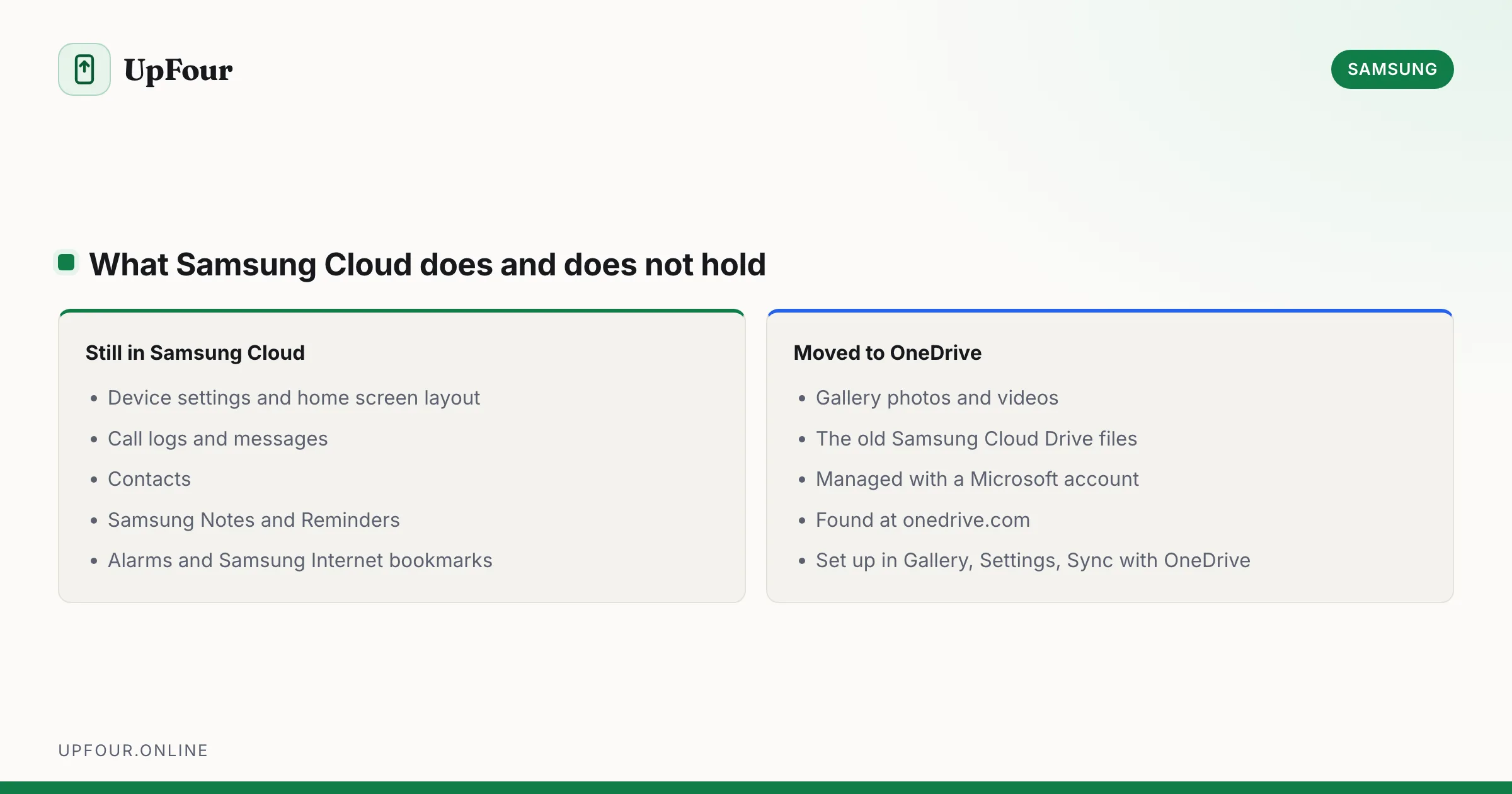
How to Access Samsung Cloud (and What Moved to OneDrive)
Find Samsung Cloud on your Galaxy phone or in a browser, and understand why Gallery and Drive files moved to Microsoft OneDrive.
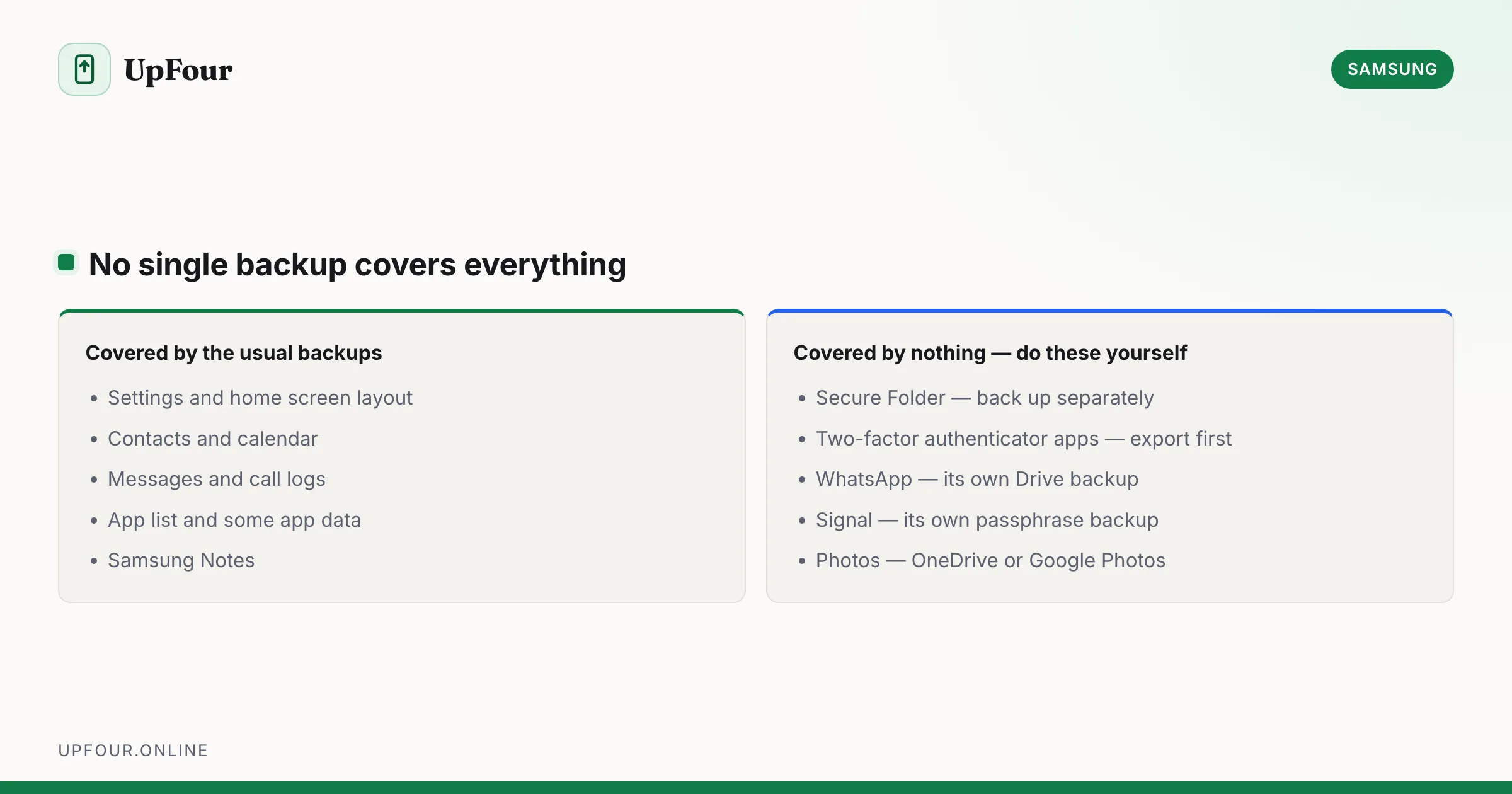
How to Back Up and Restore a Samsung Phone Properly
Back up a Galaxy phone with Samsung Cloud, Google and Smart Switch, then restore to a new device — including what each method does and does not save.
What Is Bixby? Samsung's Assistant Explained (and How to Disable It)
What Bixby does, how it differs from Google Assistant and Gemini, how to remap the power button, and how to turn Bixby off entirely.