How to Access Samsung Cloud (and What Moved to OneDrive)
Find Samsung Cloud on your Galaxy phone or in a browser, and understand why Gallery and Drive files moved to Microsoft OneDrive.
Short answer
On a Galaxy phone open Settings › Samsung account › Samsung Cloud. Samsung Cloud now covers backup and sync of settings, contacts and notes only — photos and files moved to Microsoft OneDrive.
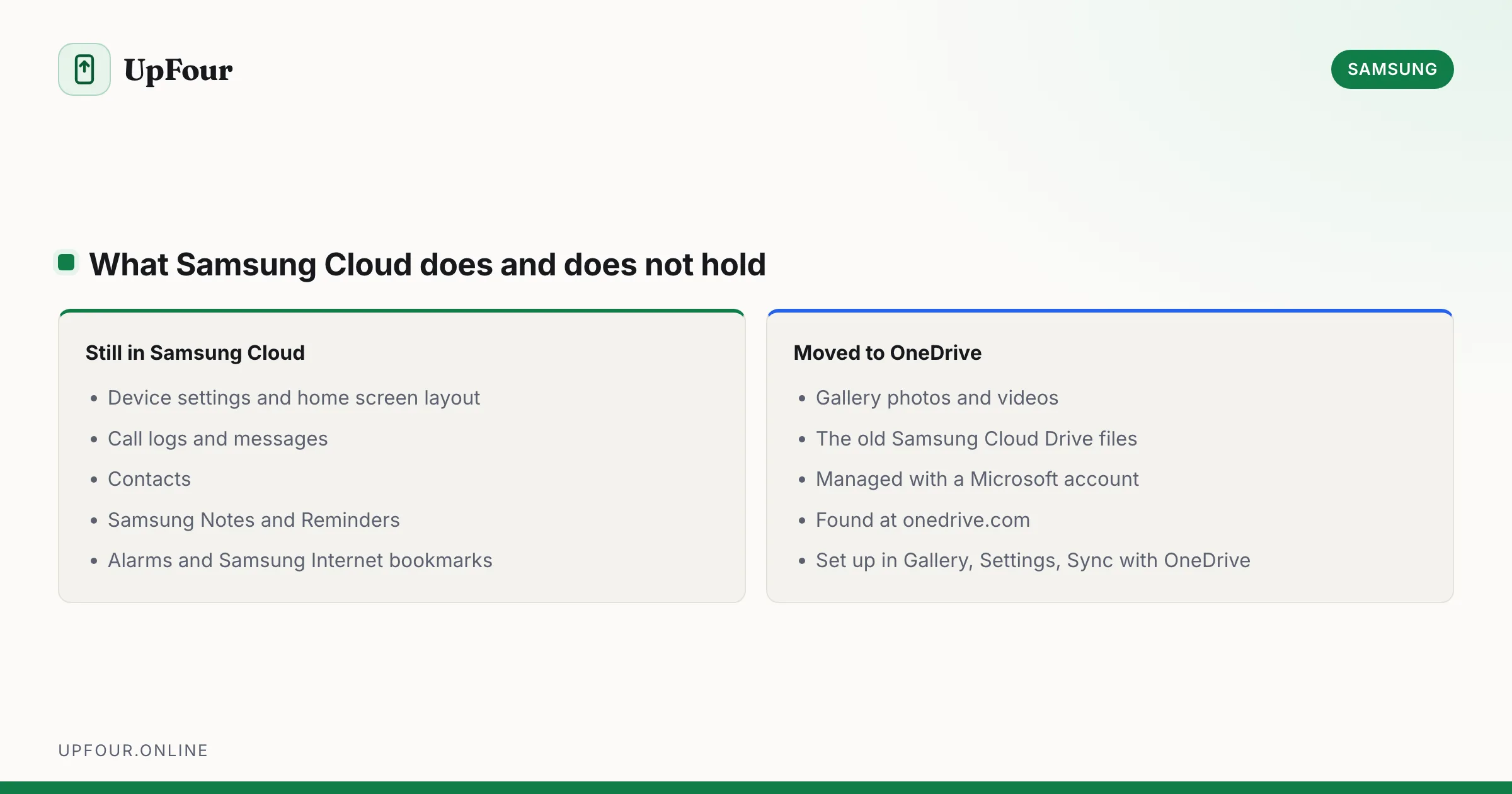
Samsung Cloud is smaller than it used to be, and that is the source of nearly all confusion about it. Photos and file storage were retired and handed to Microsoft OneDrive. What remains is device backup and sync.
Where Samsung Cloud lives on your phone
- Open Settings.
- Tap Samsung account at the top.
- Tap Samsung Cloud.
Alternative paths, depending on your One UI version:
- Settings › Accounts and backup › Samsung Cloud
- Settings › Accounts and backup › Back up data (for the backup portion specifically)
You must be signed in to a Samsung account for any of it to appear.
Access it in a browser
Sign in at account.samsung.com, then look under Samsung Cloud or Cloud. The web view is deliberately limited now — expect backup records and account-level controls rather than a file browser.
If you are looking for a place to browse your photos on a computer, that is onedrive.com, not Samsung.
What Samsung Cloud still does
| Backed up or synced | Notes |
|---|---|
| Device settings | Wallpaper, layout, sounds, accessibility options |
| Home screen layout | App positions, folders and widgets |
| Apps and app data | The app list, plus data for apps that permit it |
| Call logs and messages | SMS and call history |
| Contacts | Synced when Samsung account is chosen as the contact store |
| Samsung Notes | Synced across signed-in devices |
| Calendar and Reminders | Samsung's own apps only |
| Clock, Bixby, Samsung Internet | Alarms, routines, bookmarks and saved pages |
What moved to OneDrive
Gallery photos and videos, and the old Samsung Cloud Drive file storage. Samsung retired both and partnered with Microsoft.
To find your photos now:
- Open Gallery.
- Tap ☰ / ⋮ › Settings.
- Look for Sync with OneDrive (or Cloud sync).
- Sign in with a Microsoft account — this is separate from your Samsung account.
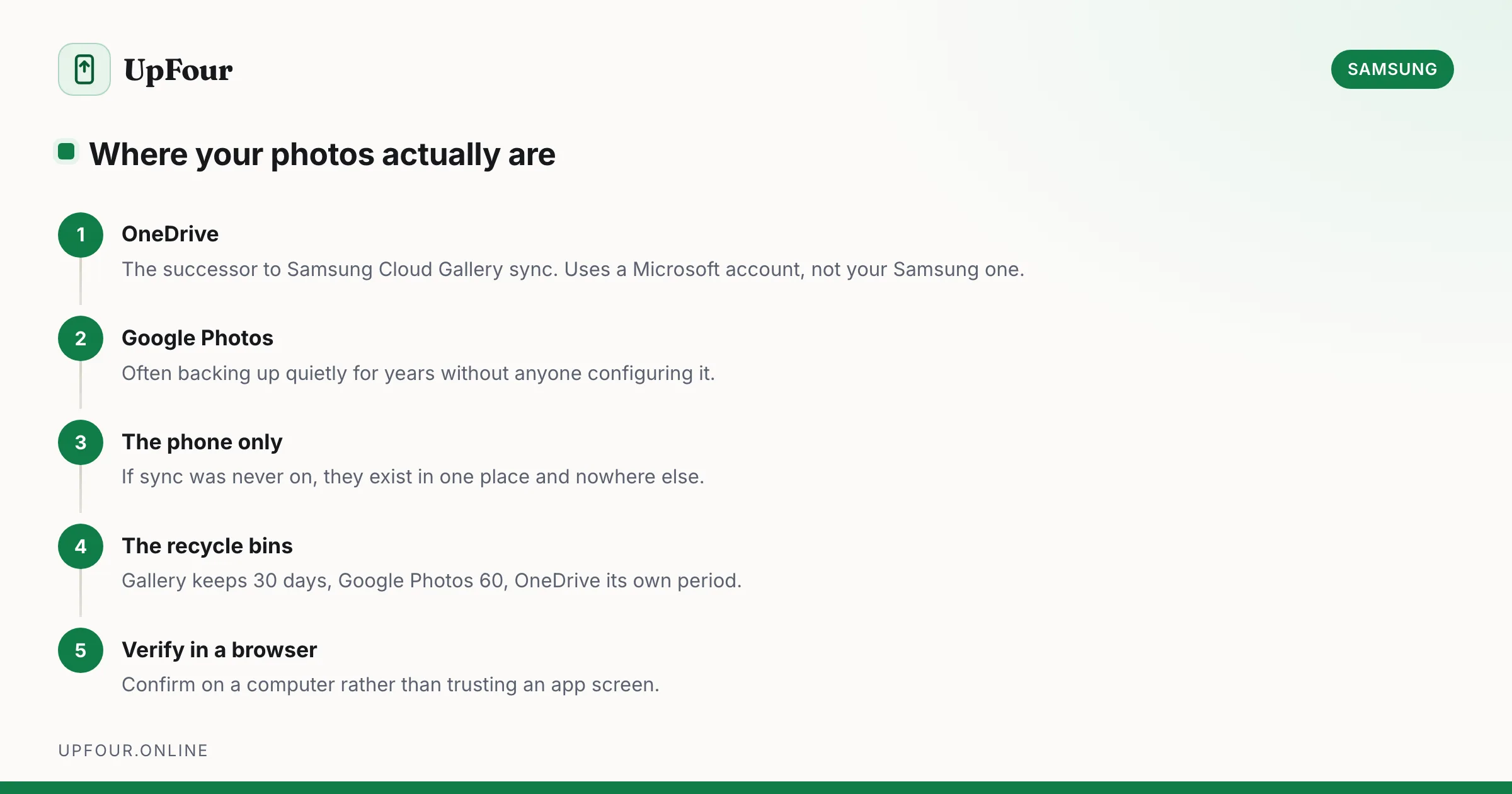
Photos then appear at onedrive.com and in the OneDrive app. If you never set this up, your photos are on the phone only, and nowhere else.
This catches people out badly. If you assumed "Samsung Cloud has my photos" and then reset the phone, the photos may not exist anywhere. Verify in OneDrive — or better, use Google Photos, which most Galaxy owners already have installed and which backs up independently of both.
Check your backup is actually running
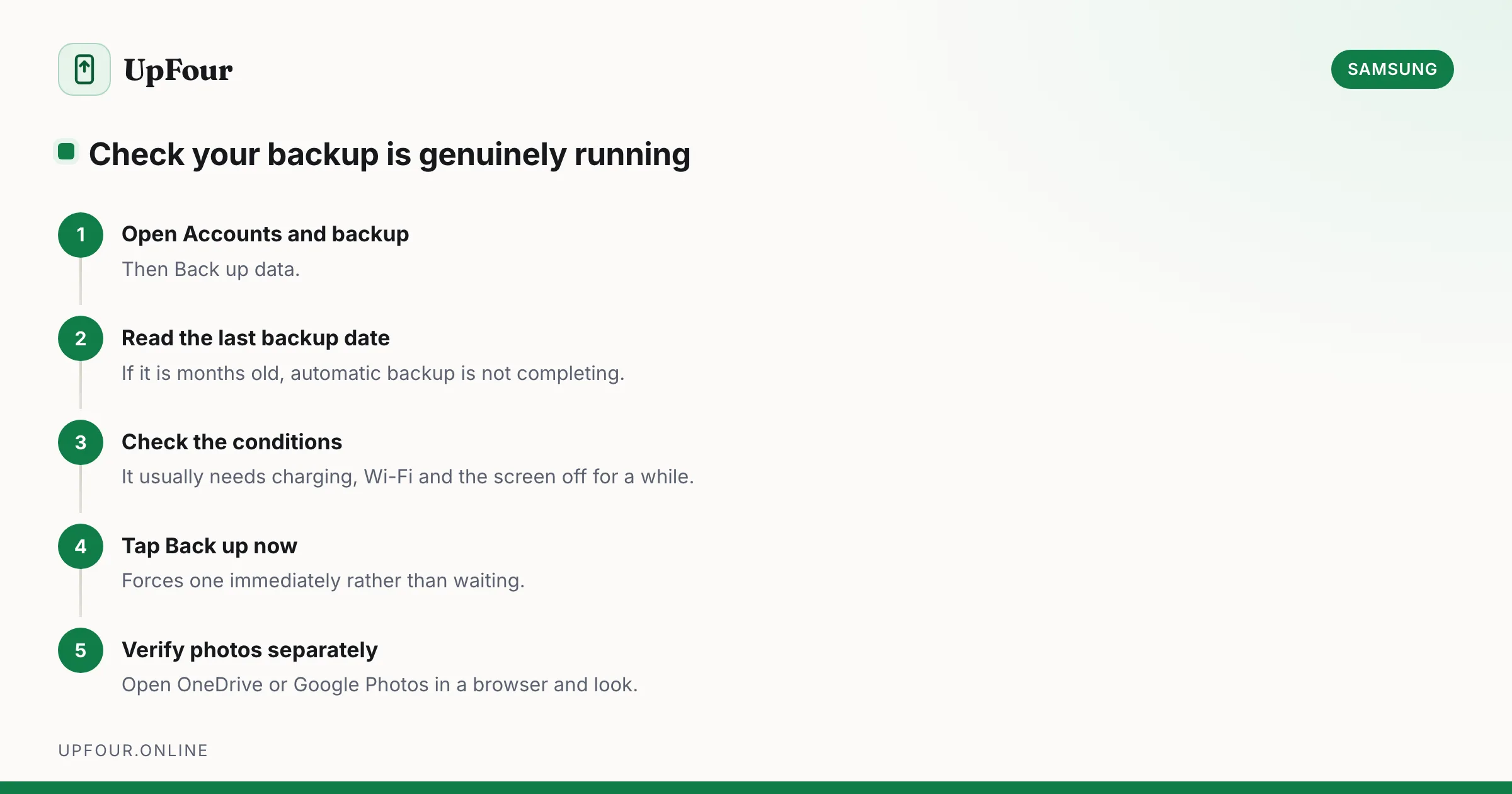
Settings › Accounts and backup › Back up data.
This shows each category with its last backup time. Things worth checking:
- Auto back up is on.
- The last backup date is recent. A device that has not backed up in months usually has Back up using mobile data off and rarely reaches Wi-Fi while charging.
- Backups typically run only when the phone is charging, on Wi-Fi and the screen is off for a period. A phone that is never left plugged in overnight may never back up.
Tap Back up now to force one immediately.
Restore from a backup
On a new or freshly reset phone, restore is offered during setup:
- During setup, sign in to your Samsung account.
- Choose Restore data and pick the source device.
- Select which categories to restore.
To restore later, after setup is complete: Settings › Accounts and backup › Restore data.
Backups are retained while the account is active. If you have not used a device for a long period, its backup may have been purged — Samsung removes backups for devices that have been inactive for an extended time, so do not treat this as archival storage.
Storage and pricing
The free allowance is modest and intended for settings and backup data, not media. Because photos went to OneDrive, storage pressure now generally lands on your Microsoft account (5 GB free) rather than Samsung.
If you are being nagged about full cloud storage on a Galaxy phone, check which service is actually full — it is usually OneDrive or Google, not Samsung Cloud.
Free up space
- Settings › Accounts and backup › Back up data — untick categories you do not need. Messages and call logs are usually the largest.
- Delete backups for devices you no longer own, listed in the same area.
- In OneDrive, empty the recycle bin — deleted photos still occupy quota for a period.
Samsung Cloud is not a substitute for a real backup
Two limitations worth being clear about:
- It does not back up photos. That is OneDrive or Google Photos.
- It is tied to one account. Lose access to the Samsung account and you lose the backup with it — see resetting your Samsung account password.
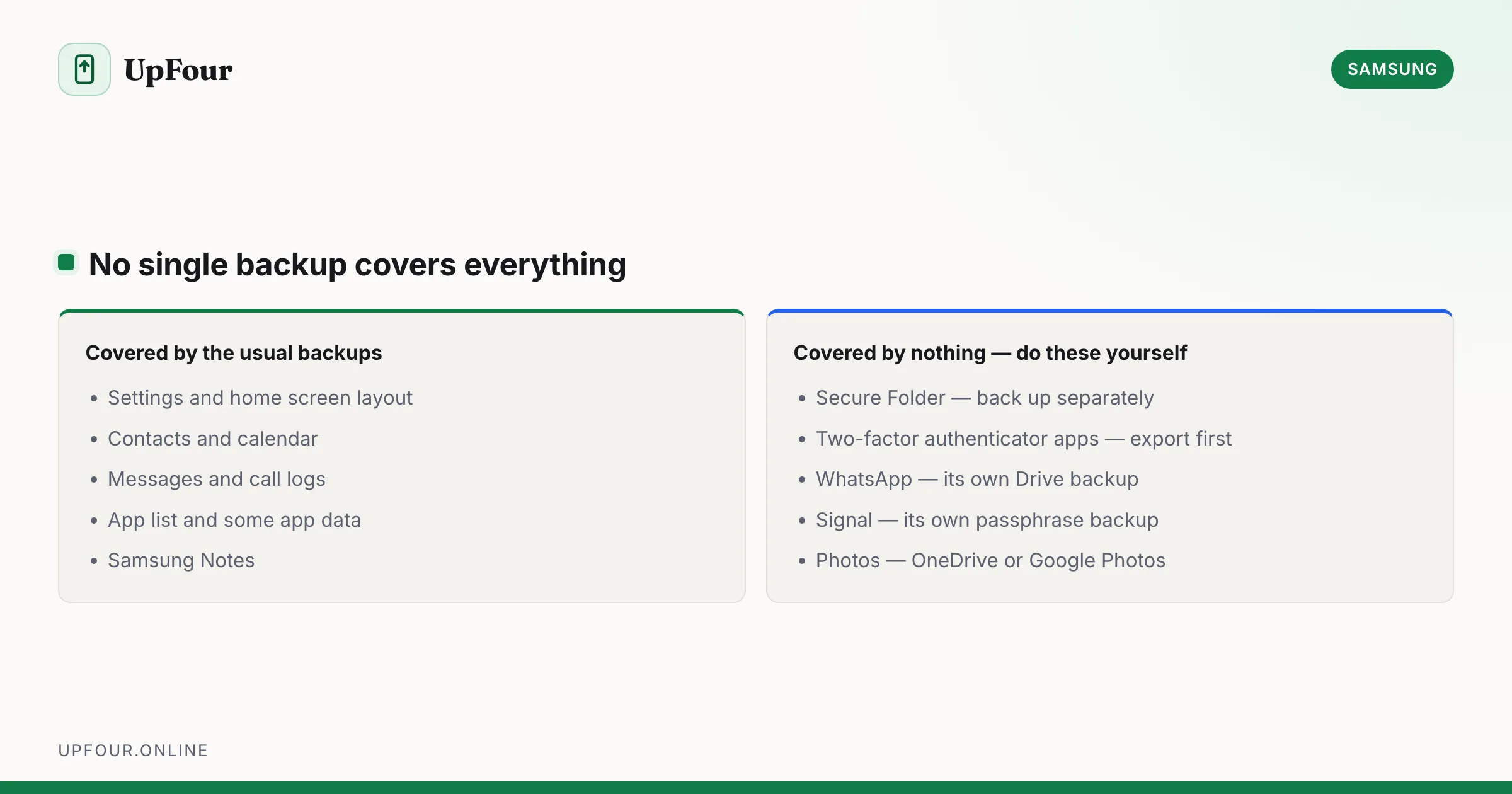
For anything irreplaceable, keep a second copy: Google Photos for images, and a periodic manual copy to a computer for documents. Cloud sync is convenience, not archival.
Quick reference
| Task | Where |
|---|---|
| Open Samsung Cloud | Settings › Samsung account › Samsung Cloud |
| Check or force a backup | Settings › Accounts and backup › Back up data |
| Restore a backup | Settings › Accounts and backup › Restore data |
| Find your photos | OneDrive app, or onedrive.com |
| Turn on Gallery sync | Gallery › Settings › Sync with OneDrive |
Frequently asked questions
How do I access Samsung Cloud?
Open Settings, tap Samsung account at the top, then Samsung Cloud. On some versions it is under Settings › Accounts and backup › Samsung Cloud. You must be signed in to a Samsung account.
Where did my Samsung Cloud photos go?
Samsung retired Gallery sync and Cloud Drive and moved them to Microsoft OneDrive. Your photos are in OneDrive if you linked a Microsoft account, and on the phone only if you never did.
Why is my Samsung Cloud backup not updating?
Backups normally run only when the phone is charging, connected to Wi-Fi and the screen has been off for a while. Check Settings › Accounts and backup › Back up data, confirm Auto back up is on, and tap Back up now to force one.
Does Samsung Cloud back up my photos?
No, not any more. Photo backup runs through OneDrive using a Microsoft account, or through Google Photos. Samsung Cloud now covers settings, contacts, messages, call logs and Samsung Notes.
Sources & further reading
Official documentation used while writing and checking this guide. Every link was verified at the last update.
- Samsung CloudSamsung
- Microsoft OneDrive help and learningMicrosoft
- Back up photos & videosGoogle Photos Help
- Official Samsung SupportSamsung
Machine-readable version: Markdown source
Related guides
How to See Your Photos in Samsung Cloud (They're Probably in OneDrive)
Find photos you thought were in Samsung Cloud, recover deleted Gallery images, and set up photo backup that will not lose your pictures.
How to Back Up and Restore a Samsung Phone Properly
Back up a Galaxy phone with Samsung Cloud, Google and Smart Switch, then restore to a new device — including what each method does and does not save.
How to Create a Samsung Account (and Whether You Need One)
Set up a Samsung account on your phone or in a browser, avoid the common sign-up errors, and understand exactly what the account unlocks.