Android Storage Full: Where the Space Actually Went
Reclaim gigabytes on Android by targeting the real culprits — cached media in messaging apps, the Downloads folder, offline maps and orphaned WhatsApp files.
Short answer
Open Settings › Storage to see the breakdown, then clear cached media inside messaging apps, empty Downloads, delete offline maps and offline video, and remove the Trash folders in Google Photos and Files — these five hold most of the recoverable space.
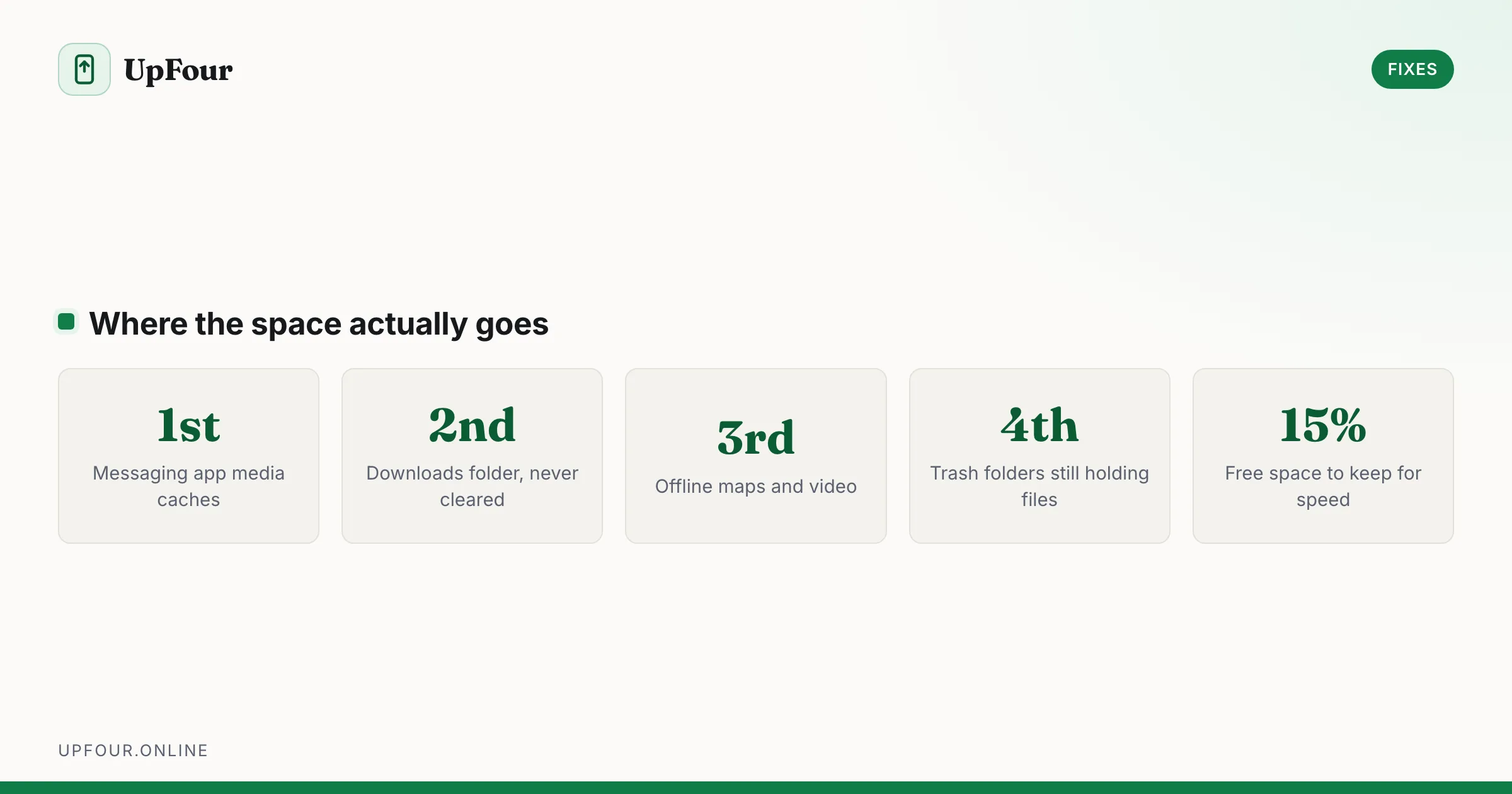
"Storage full" on Android is rarely photos. It is almost always cached media from messaging apps, downloaded video, and files nobody ever deletes because nobody knows where they are.
Start with the real breakdown
Settings › Storage gives categories. The Apps figure is the one that misleads — it includes each app's cached and user data, not the install size. Tap through to Apps, sort by size, and look at the biggest three.
An app like WhatsApp or Telegram showing 15 GB is not a 15 GB app. It is a 200 MB app holding 14.8 GB of media you were sent.
The five biggest recoverable stores
1. Messaging app media
This is usually the single largest reclaim.
- WhatsApp — Settings › Storage and data › Manage storage. It sorts by size and surfaces forwarded items and files over 5 MB. Delete these first; they are almost entirely memes and forwarded video.
- Telegram — Settings › Data and Storage › Storage Usage. Set Keep media to 1 week. Telegram caches every file in every channel you scroll past.
- Signal — Settings › Data and storage › Manage storage.
2. The Downloads folder
Open the Files app › Downloads and sort by size. Years of APKs, PDFs, receipts and half-watched videos accumulate here and nothing ever cleans it automatically.
3. Offline maps and offline media
Genuinely invisible until you look:
- Google Maps — Profile › Offline maps. A single metro area is 1–2 GB.
- Netflix / YouTube / Spotify — downloaded episodes and playlists. Check each app's downloads screen.
- Podcast apps — set them to auto-delete after playing.
4. Trash folders that are not empty
Deleting something usually just moves it:
- Google Photos — Library › Trash. Holds items for 60 days.
- Files — Trash, 30 days.
- Samsung Gallery — Recycle bin, 30 days.
If you deleted 8 GB of video last week to free space, it is still there.
5. "Other" and system data
The System figure in Storage covers the OS, and it grows after updates because the previous system image is retained. It shrinks on its own. You cannot and should not try to clear it.
Clear cache the right way
Android removed the global "clear all cached data" button because it was counterproductive — apps immediately rebuild their caches, and rebuilding costs battery and data.
Clear cache per app, and only for apps that are misbehaving or genuinely huge: Settings › Apps › [app] › Storage & cache › Clear cache. If apps are also crashing, see Android apps keep crashing.
Clear cache is safe: it deletes regenerable temporary files. Clear storage is not: it resets the app to a fresh install and signs you out.
Turn on Smart Storage
Settings › Storage › Storage manager (or Smart Storage). It automatically removes photos and videos from the device once they have been backed up to Google Photos, keeping the cloud copies. Set it to remove items older than 30, 60 or 90 days.
This is the only genuinely automatic fix here, and on a photo-heavy phone it is the difference between running out monthly and never thinking about storage again.
Photo backup and storage quality
Photo backup on a Galaxy runs through OneDrive or Google Photos — see where your Samsung photos actually are. In Google Photos › Profile › Photos settings › Backup, Storage saver compresses uploads and does not count against your Google account quota on some plans, while Original quality does. Check which you are using before assuming you need to buy more cloud storage.
Move media to an SD card
If your phone has a card slot:
- Settings › Storage › SD card — format as portable storage for media.
- Move files with the Files app, or point the camera app at the card in its own settings.
Avoid adoptable storage (formatting the card as internal). It encrypts the card to that specific phone, performance depends entirely on the card's speed, and a card failure takes app data with it.
When you have 1 GB left and need space now
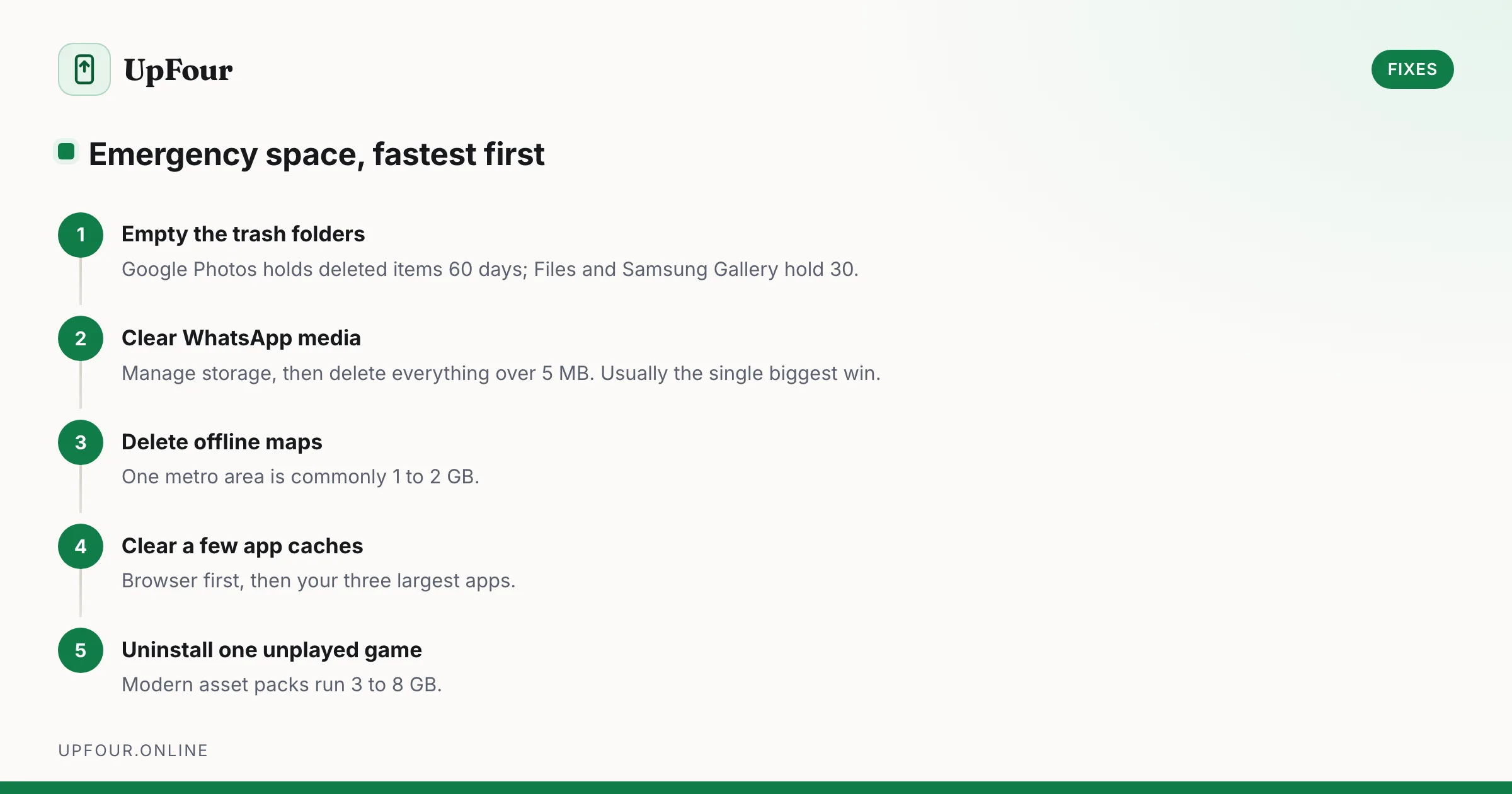
In order, fastest first:
- Empty Google Photos Trash and the Files Trash.
- WhatsApp › Manage storage → delete everything over 5 MB.
- Delete offline maps.
- Clear the cache of your browser and your top three largest apps.
- Uninstall the largest game you have not played in a month — game asset packs are frequently 3–8 GB.
Frequently asked questions
Why does my Android say storage is full when I have few photos?
Cached media inside messaging apps is usually the cause. WhatsApp and Telegram store every image and video you receive, which commonly runs to several gigabytes and is reported under the app's size rather than as photos.
Is it safe to clear an app's cache on Android?
Yes. Cache holds temporary files the app can regenerate. Clear storage is the destructive option — it resets the app to a fresh install and signs you out.
What is the System storage on Android and can I delete it?
It is the operating system plus retained update images. You cannot delete it, and it shrinks by itself after an update settles.
Should I format my SD card as internal storage?
Generally no. Adoptable storage encrypts the card to that one phone, ties app performance to the card's speed, and means a card failure takes app data with it.
Sources & further reading
Official documentation used while writing and checking this guide. Every link was verified at the last update.
- Back up photos & videosGoogle Photos Help
- Microsoft OneDrive help and learningMicrosoft
- Scan documents with Google DriveGoogle Drive Help
- Official Samsung SupportSamsung
Machine-readable version: Markdown source
Related guides
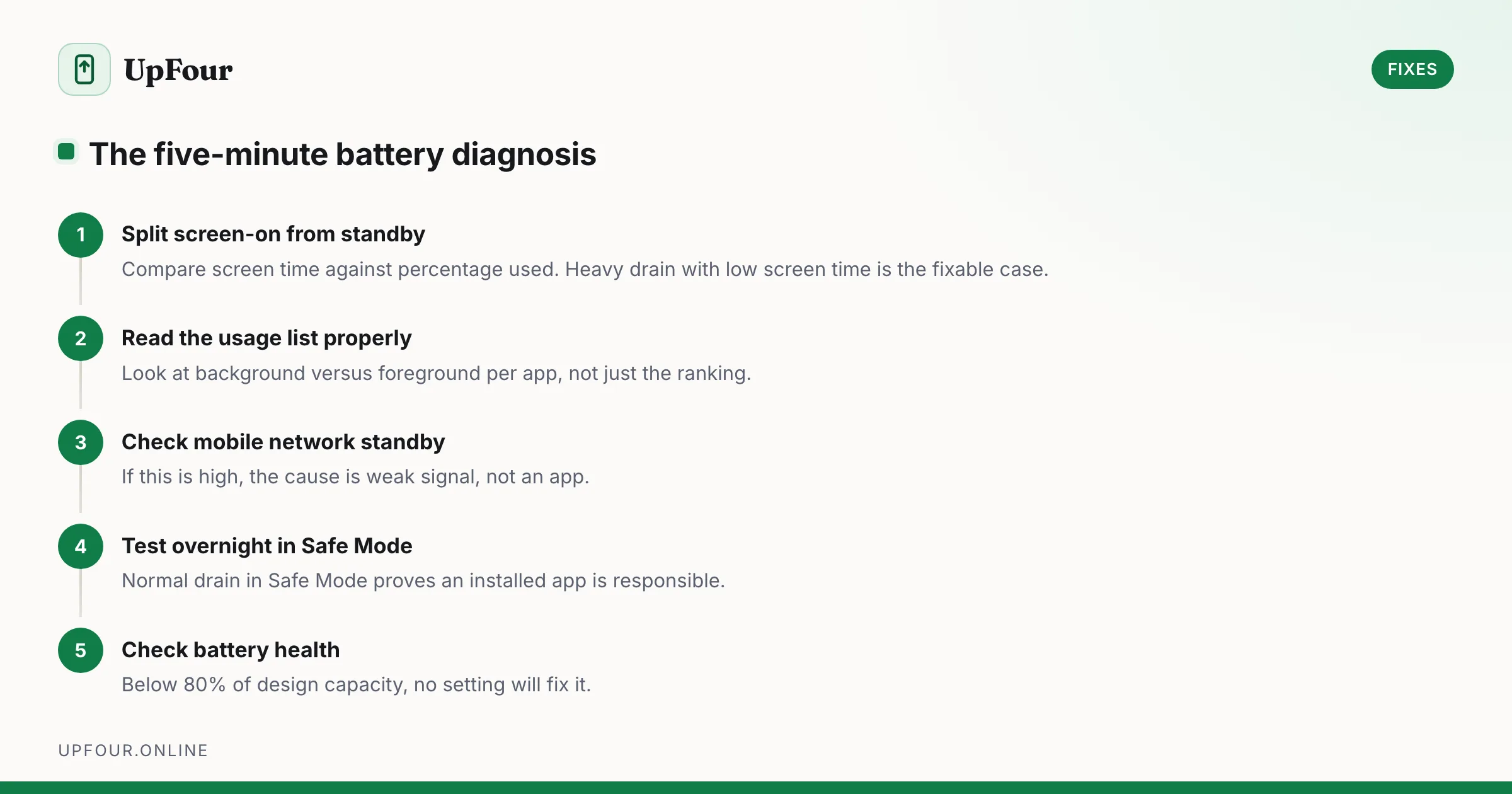
Fix Android Battery Drain: A Diagnostic Order That Actually Finds the Cause
Stop guessing. Diagnose Android battery drain in order — usage stats, screen-on vs standby drain, mobile signal, rogue wakelocks — then apply the fix that matches.
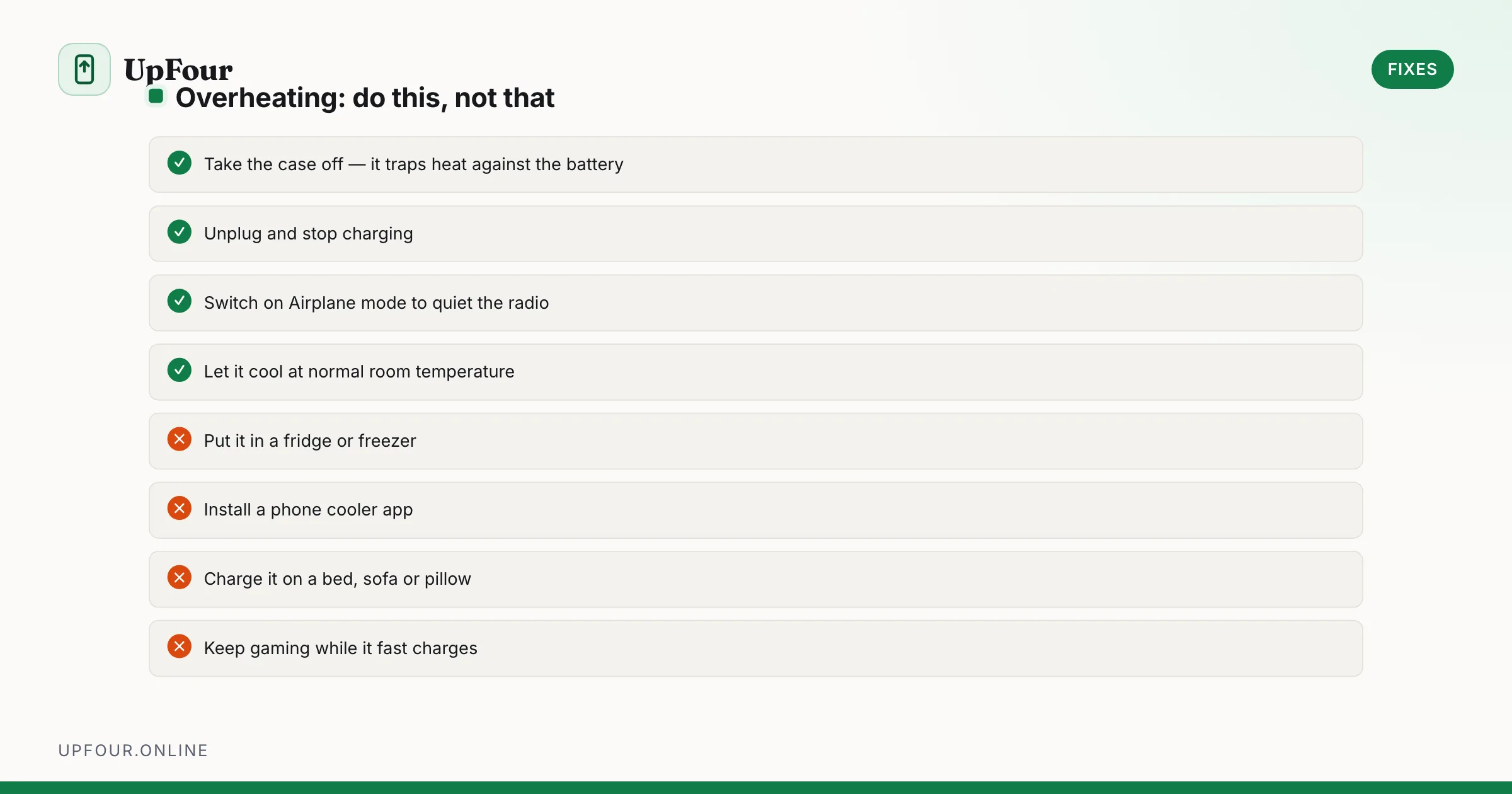
Why Your Android Phone Overheats — and How to Actually Cool It Down
Diagnose Android overheating properly: charging heat, camera and 5G thermal limits, rogue background apps, and the cooling mistakes that damage phones.
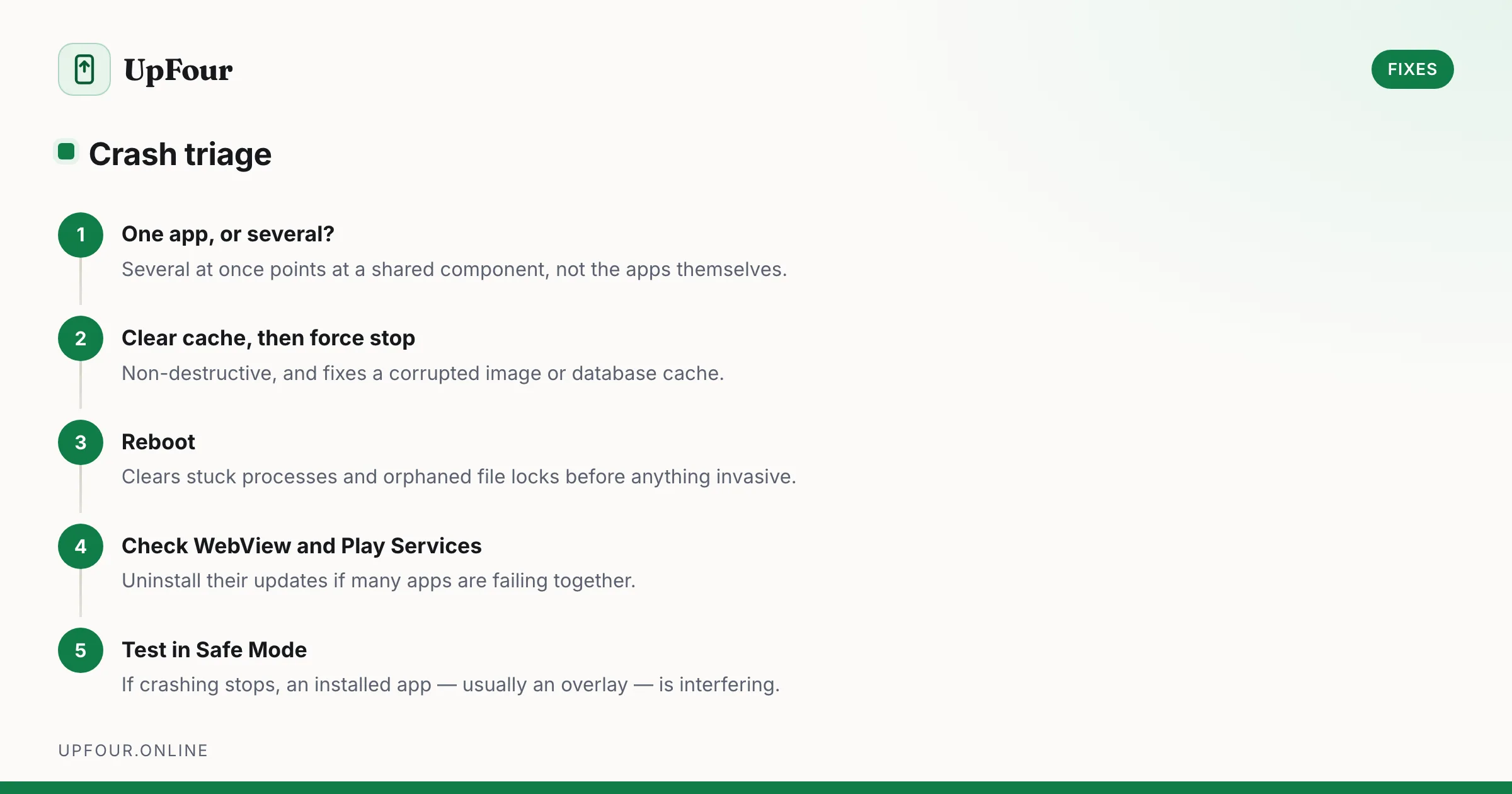
Android Apps Keep Crashing: The Fix Sequence That Works
Fix Android apps that crash, freeze or close instantly — from clearing cache and rolling back updates to repairing Play Services and WebView.