Change Default Apps on Android: Browser, Launcher, Messages and Link Handling
Set your default browser, launcher, SMS and assistant on Android — and fix the link-handling rules that keep opening links in the wrong app.
Short answer
Go to Settings › Apps › Default apps to set your browser, launcher, SMS, phone and assistant, then use Opening links to control which app claims each website.
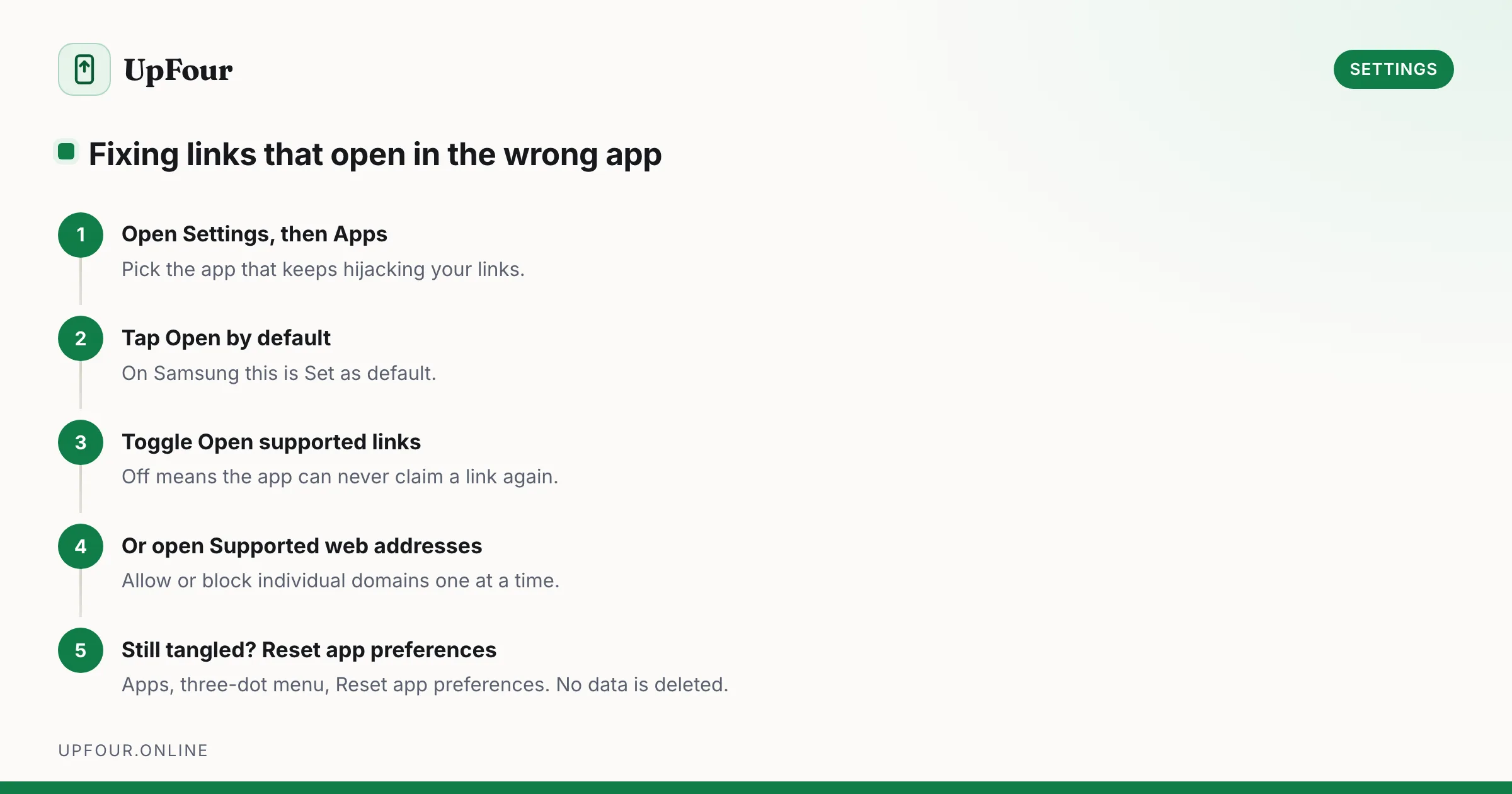
Android's defaults are set once during setup and then quietly ignored for years. Here is every place they hide, including the link-handling screen that causes most of the frustration.
The main defaults screen
Settings › Apps › Default apps (Samsung: Settings › Apps › Choose default apps) covers:
- Browser app
- Home app — your launcher
- Phone app
- SMS app
- Digital assistant app
- Caller ID & spam app
Each is a simple radio list of every installed app that declares support. If an app you installed is missing, it has not registered for that role and cannot be chosen.
Opening links: the setting people actually need
Tapping a YouTube link and landing in a browser — or tapping a news link and getting yanked into an app you did not want — is controlled separately, per app.
- Go to Settings › Apps › [app] › Open by default.
- Open supported links toggles whether this app is allowed to claim links at all.
- Tap Supported web addresses to see the exact domain list and switch individual domains on or off.
So you can let the YouTube app claim youtube.com while denying it youtu.be, or stop a shopping app from intercepting every link that mentions its store.
Android verifies these claims against the site's own
assetlinks.jsonfile. An app can only auto-open a domain the domain owner has approved, which is why you no longer get the old "which app do you want to use?" dialog on every link.
Changing your launcher
Install the launcher first, then either:
- Settings › Apps › Default apps › Home app, or
- press Home and pick from the chooser that appears.
To leave a launcher, set the default back before uninstalling. Uninstalling the active launcher first can drop you onto a blank home screen until you reboot.
Assistant and the power button
The digital assistant is set under Default apps, but the gesture that launches it is elsewhere:
- Settings › System › Gestures › Press and hold power button — choose between the assistant and the power menu.
- Settings › System › Gestures › System navigation — the corner swipe-in gesture also invokes the assistant.
Default camera, gallery and keyboard
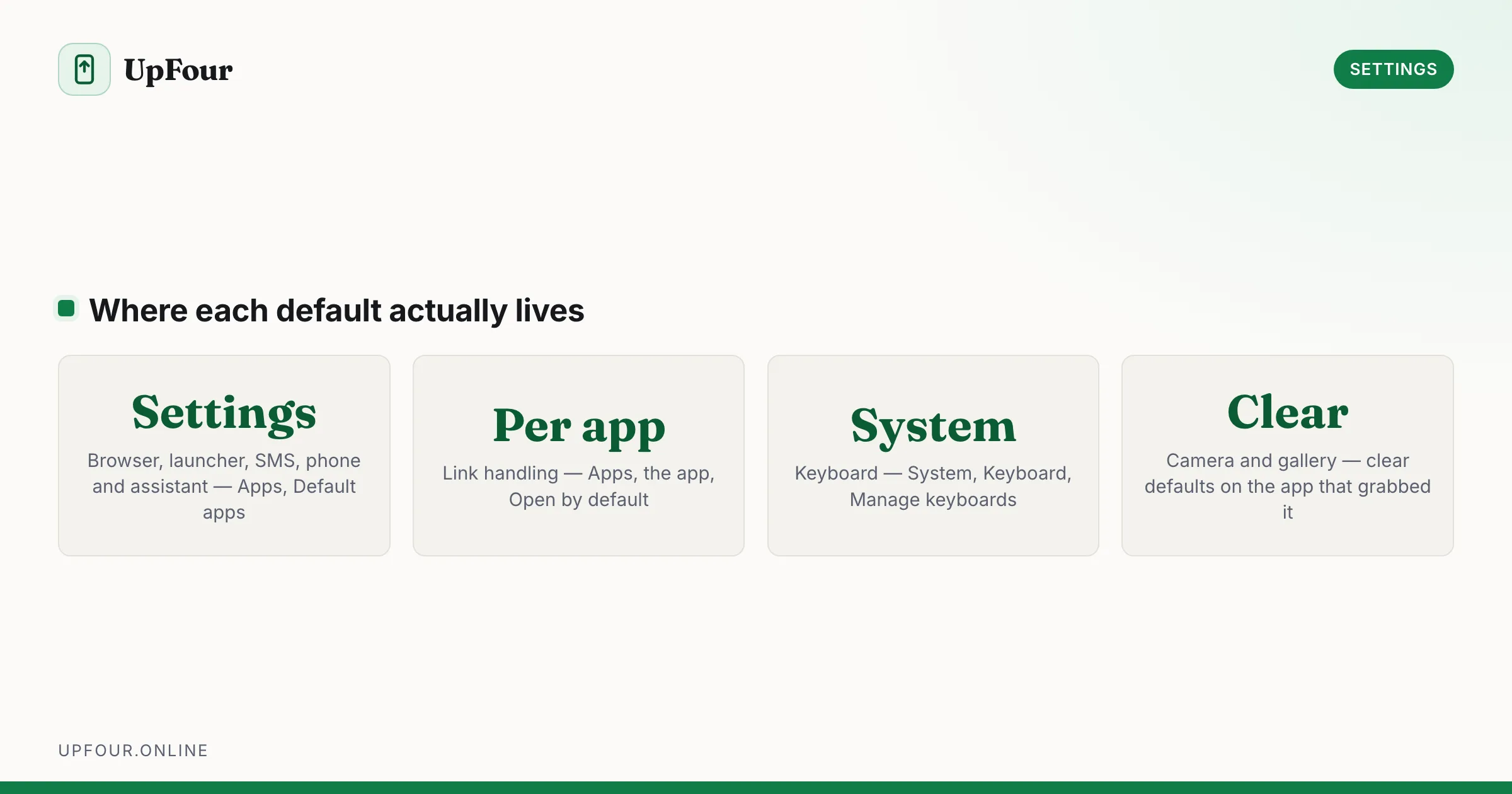
These three do not appear in the defaults list because Android handles them differently:
- Keyboard: Settings › System › Keyboard › On-screen keyboard › Manage keyboards, then use the keyboard switcher icon in the navigation bar. On a Galaxy the menus are renamed — see is a Samsung an Android phone for the translations.
- Camera: whichever app answers the camera intent, chosen from the app chooser the first time. Reset it with Settings › Apps › [current camera app] › Open by default › Clear defaults.
- Gallery: same mechanism — clear defaults on the app that grabbed it.
Resetting everything at once
Settings › Apps › See all apps › ⋮ › Reset app preferences clears all defaults, re-enables disabled apps, and resets permission and background-data restrictions. It does not delete any app data. When your defaults are in a tangled state, this is the clean slate.
Frequently asked questions
How do I stop links opening in an app instead of my browser?
Go to Settings › Apps › [that app] › Open by default and turn off Open supported links, or open Supported web addresses and disable the specific domains you want handled by the browser.
Why can't I select my app as the default browser?
Only apps that declare browser support appear in the list. If it is missing, the app is not a full browser or is not installed in the current user profile.
How do I change the default keyboard on Android?
Open Settings › System › Keyboard › On-screen keyboard › Manage keyboards, enable the keyboard, then switch to it using the keyboard icon that appears in the navigation bar while typing.
Does Reset app preferences delete my data?
No. It clears defaults, re-enables disabled apps and resets background restrictions and permission denials. App data and accounts are untouched.
Sources & further reading
Official documentation used while writing and checking this guide. Every link was verified at the last update.
- How to change your Google Play countryGoogle Play Help
- Official Samsung SupportSamsung
- Android platform releases and version historyAndroid Developers
- Permissions on AndroidAndroid Developers
Machine-readable version: Markdown source
Related guides
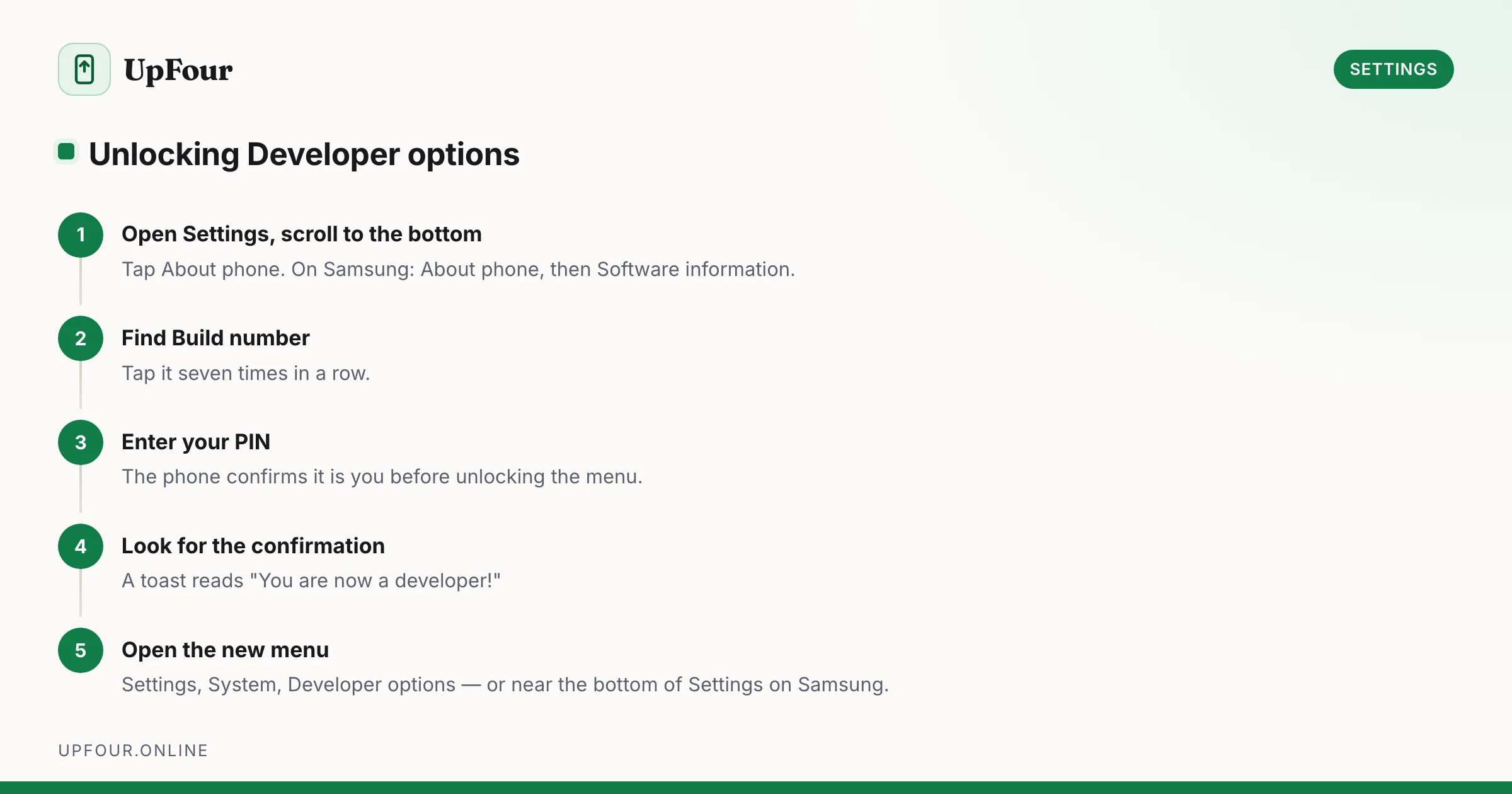
How to Enable Developer Options on Android (and the 8 Toggles Worth Using)
Enable Developer Options on any Android phone in under a minute, then use the eight settings that genuinely speed up your device — and skip the ones that break things.
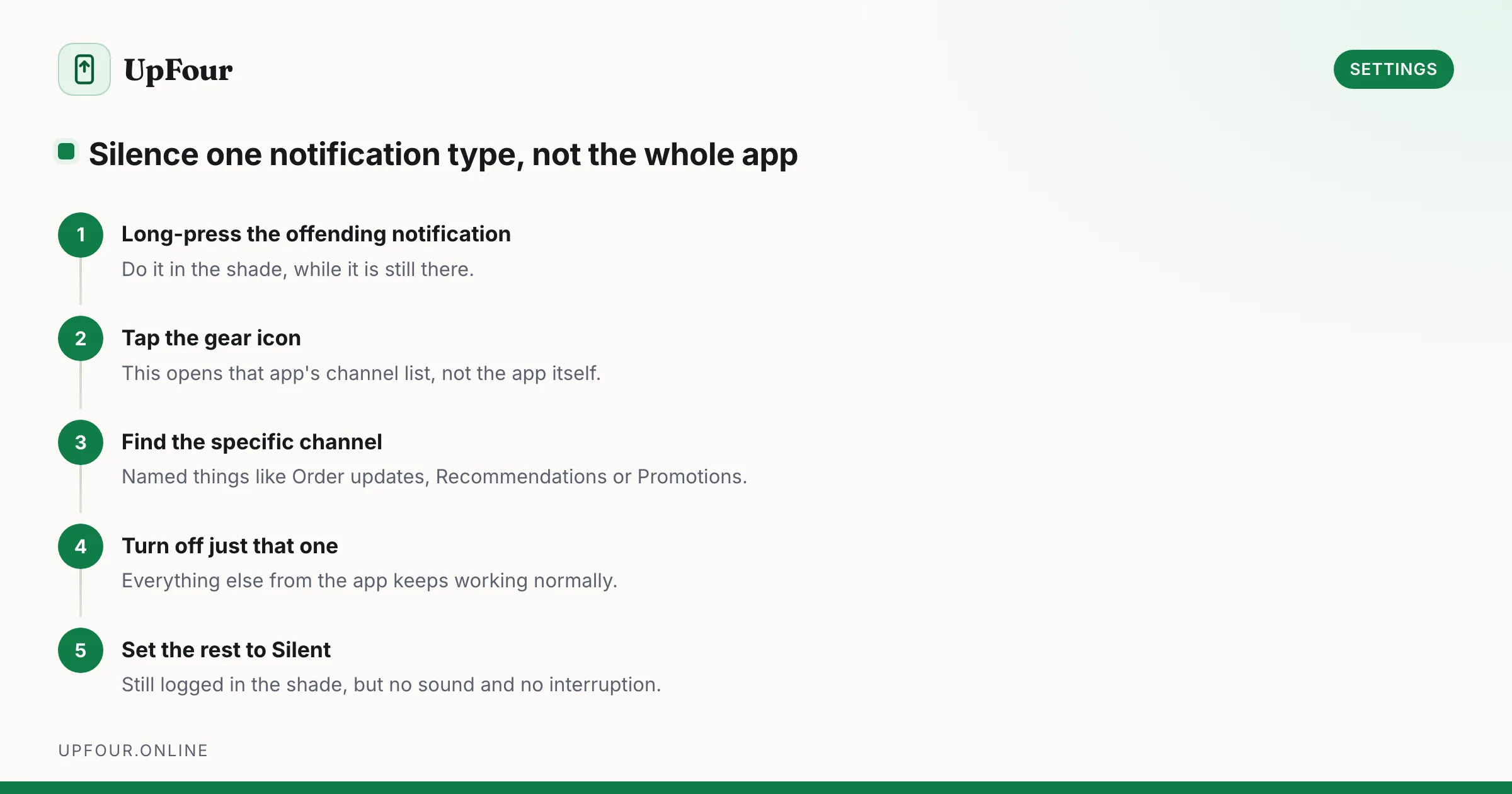
Take Back Control of Android Notifications: Channels, Priority and Silent Delivery
Stop app-by-app notification whack-a-mole. Use notification channels, priority conversations and Modes to silence noise without missing anything that matters.
Where Are Android Phones Made? Manufacturing by Brand
Which countries make Android phones, brand by brand — Samsung, Google Pixel, Xiaomi, OnePlus and Motorola — and why so much moved out of China.