Make an Old Android Phone Fast Again (Without a Factory Reset)
Real fixes for a slow Android phone: animation scales, storage headroom, disabling bloatware, taming background sync and knowing when the hardware is the limit.
Short answer
Free storage until at least 15% of capacity is empty, set the three animation scales to 0.5x in Developer options, and disable preinstalled apps you never use. Those three changes account for most recoverable speed.
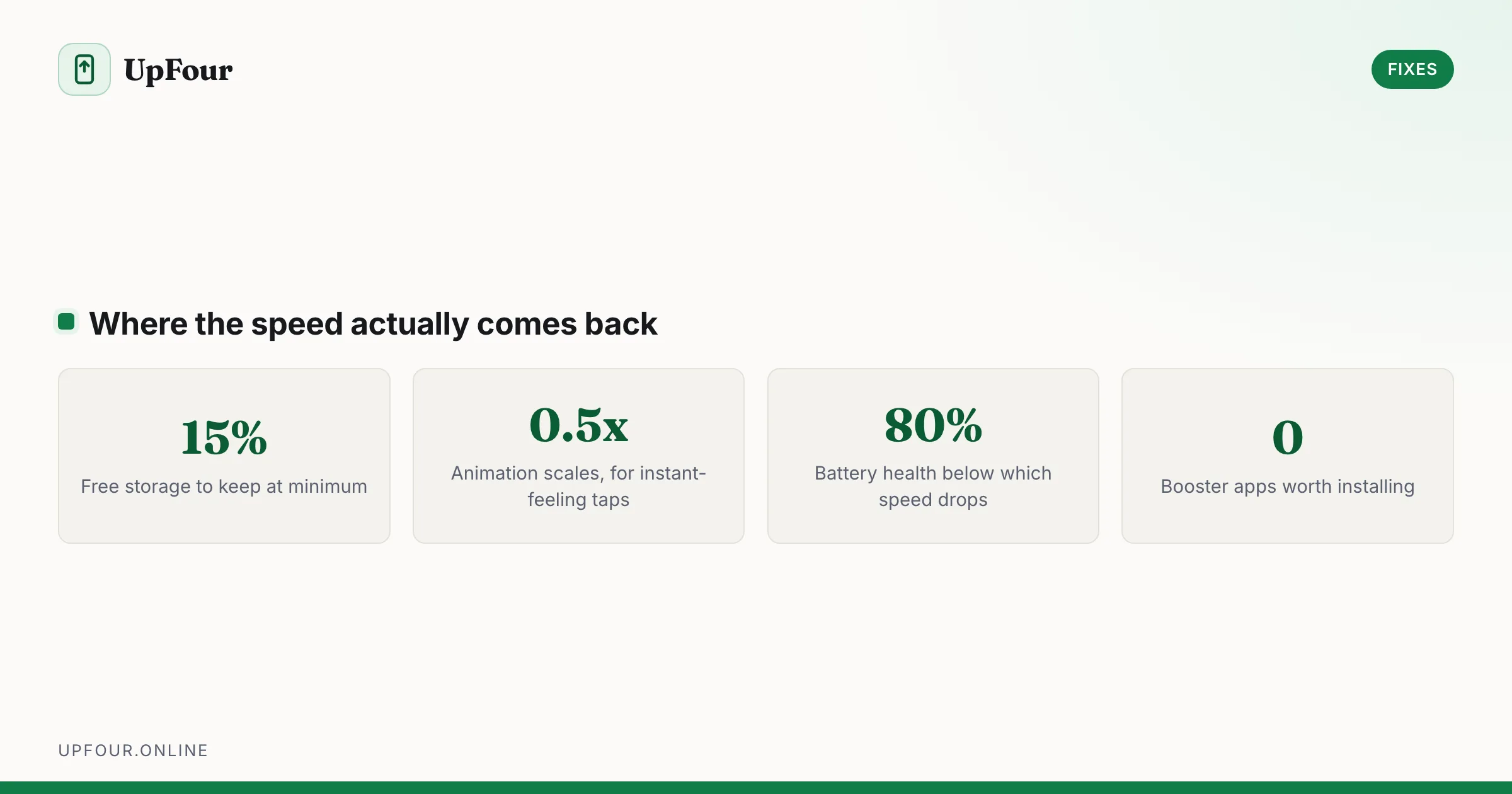
A phone that felt fast two years ago and feels slow now has usually not degraded — the software around it got heavier and the storage got full. Both are addressable.
1. Free storage — this is the big one
Flash storage slows dramatically as it fills, because the controller has fewer free blocks to write into and must erase before writing. Below about 10% free, write latency can multiply several times over, and everything the phone does involves writing.
Target at least 15% of total capacity free. On a 128 GB phone that is around 19 GB.
The fastest reclaims: messaging app media caches, the Downloads folder, offline maps, and the Trash folders in Google Photos and Files. See our full storage cleanup guide.
2. Halve the animation time
This is the single most noticeable change per unit of effort.
Enable Developer options (About phone → tap Build number seven times), then set all three to 0.5x:
- Window animation scale
- Transition animation scale
- Animator duration scale
The phone is not computing faster, but the delay between your tap and a finished result is halved. That is what slowness usually is.
3. Disable bloatware you cannot uninstall
Settings › Apps › See all apps. For each preinstalled app you never use, open it and tap Disable if Uninstall is unavailable. Disabled apps stop running, stop syncing and stop occupying memory.
Safe to disable on most phones: carrier apps, duplicate manufacturer apps where you use the Google equivalent, preinstalled games, shopping and news apps.
Do not disable anything named after a system service, anything with "Framework", "Provider", "Service" or "Sync" in the name, or anything you cannot identify.
For hidden bloat, check ⋮ › Show system and look for carrier packages — but be conservative there.
4. Cut background sync
- Settings › Accounts › [account] › Account sync — turn off sync for services you do not use on that phone.
- Settings › Apps › [app] › Mobile data & Wi-Fi › Background data — off for anything that does not need it.
- Settings › Location › Location services › Wi-Fi scanning and Bluetooth scanning — off. Both scan constantly.
- Remove widgets you never look at. Each one wakes its app on a schedule.
5. Trim the launcher
Home screen lag is frequently the launcher, not the system:
- Remove live wallpapers — use a static image.
- Reduce widget count, particularly weather and news widgets that refresh constantly.
- Clear the launcher's cache: Settings › Apps › [your launcher] › Storage & cache › Clear cache.
- On a genuinely old device, a lightweight launcher makes a real difference.
6. Update, then check what updates did
Keep apps and the OS updated for security. But be aware that on a phone three or more years old, app updates increase resource requirements over time — the same app is heavier every year. If a specific app became unusable after an update and you do not need its new features, an older version is a legitimate choice.
7. Check for a thermally throttled or degraded battery
A worn battery cannot deliver peak current, and the phone reduces clock speed rather than shut down. Symptoms: slowness that worsens at low charge, or shutdowns above 20%.
Check Settings › Battery › Battery health. Below 80%, a battery replacement often restores performance more effectively than any software change.
8. What does not help
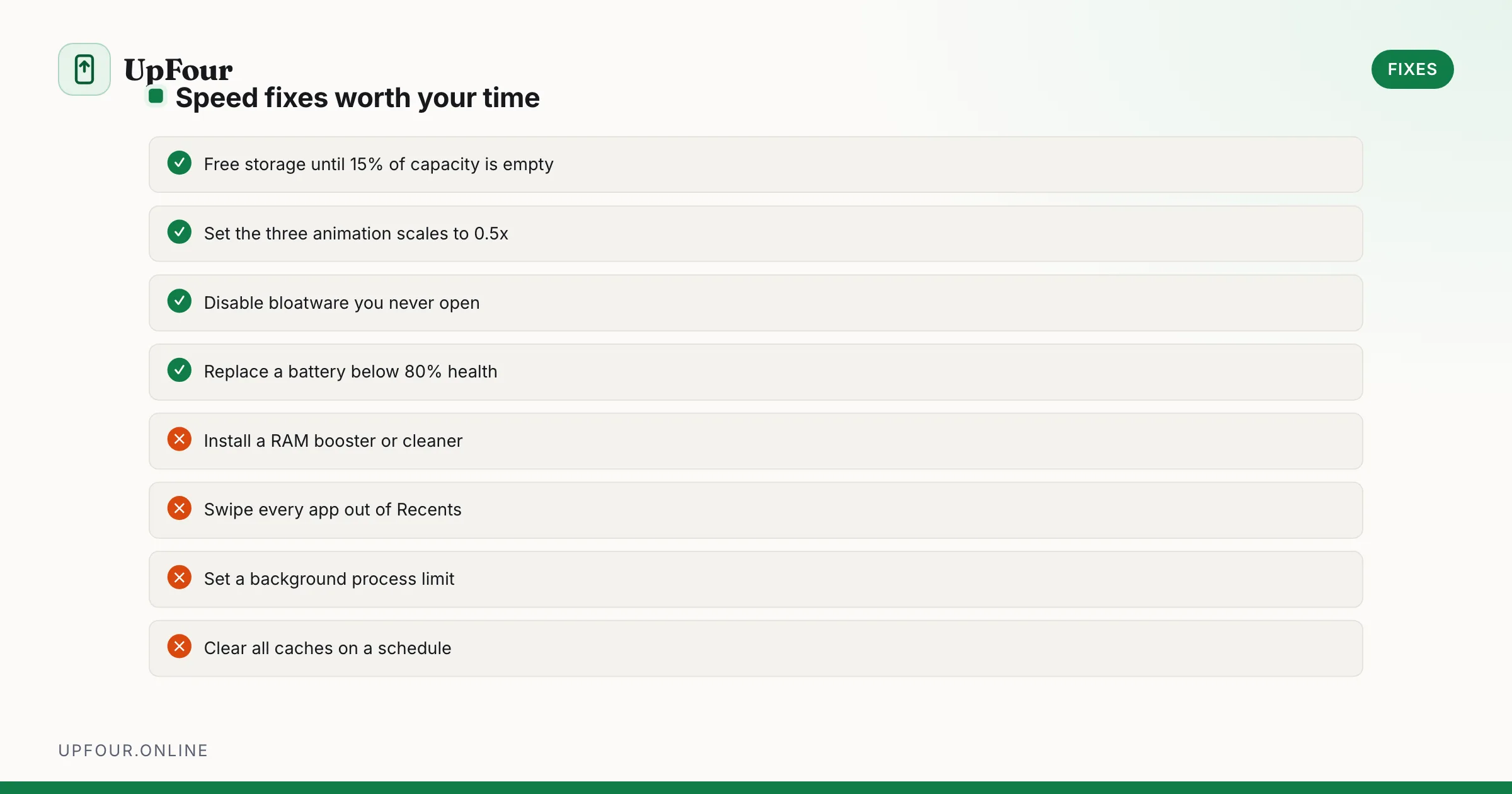
| Common advice | Reality |
|---|---|
| RAM cleaner / booster apps | They run constantly and force apps to cold-start, which is slower |
| Killing apps in Recents | Android's memory management is better than manual killing |
| Antivirus scans "to speed it up" | Continuous background scanning costs performance |
| Clearing all caches regularly | Apps rebuild them immediately, at a cost |
| Setting Background process limit | Breaks notifications and alarms for no real gain |
9. When a factory reset is genuinely the answer
If the phone is slow in Safe Mode and storage is not full, the system itself is in a bad state. A factory reset is then reasonable — but restore selectively. Restoring a full backup brings the problem back with it.
Back up photos and messages, reset, then install only the apps you actually use. Most people find they need fewer than they had.
10. Accepting the hardware limit
A phone with 3 GB of RAM in 2026 will thrash regardless of settings, because modern apps and the OS itself no longer fit comfortably. Signs you have reached the limit:
- Apps reload from scratch every time you switch back to them.
- The keyboard takes a second to appear.
- The phone no longer receives security updates.
At that point, settings are not the problem.
Frequently asked questions
How much free storage does Android need to run well?
Keep at least 15% of total capacity free. Flash storage slows significantly as it fills because the controller must erase blocks before writing, and nearly every operation involves a write.
Do RAM booster apps speed up Android?
No. They force apps out of memory so Android has to cold-start them again, which is slower than leaving them cached, and the booster itself runs continuously.
Is it safe to disable preinstalled apps on Android?
Yes for carrier apps, preinstalled games and duplicate manufacturer apps. Avoid anything containing Framework, Provider, Service or Sync in its name, or anything you cannot identify.
Can a worn battery make my phone slow?
Yes. A degraded cell cannot supply peak current, so the phone reduces clock speed to avoid shutdowns. Check Battery health — below 80%, replacing the battery often restores performance.
Sources & further reading
Official documentation used while writing and checking this guide. Every link was verified at the last update.
- Android platform releases and version historyAndroid Developers
- Official Samsung SupportSamsung
- BU-808: How to prolong lithium-based batteriesBattery University
- Electronics donation and recyclingUS Environmental Protection Agency
Machine-readable version: Markdown source
Related guides
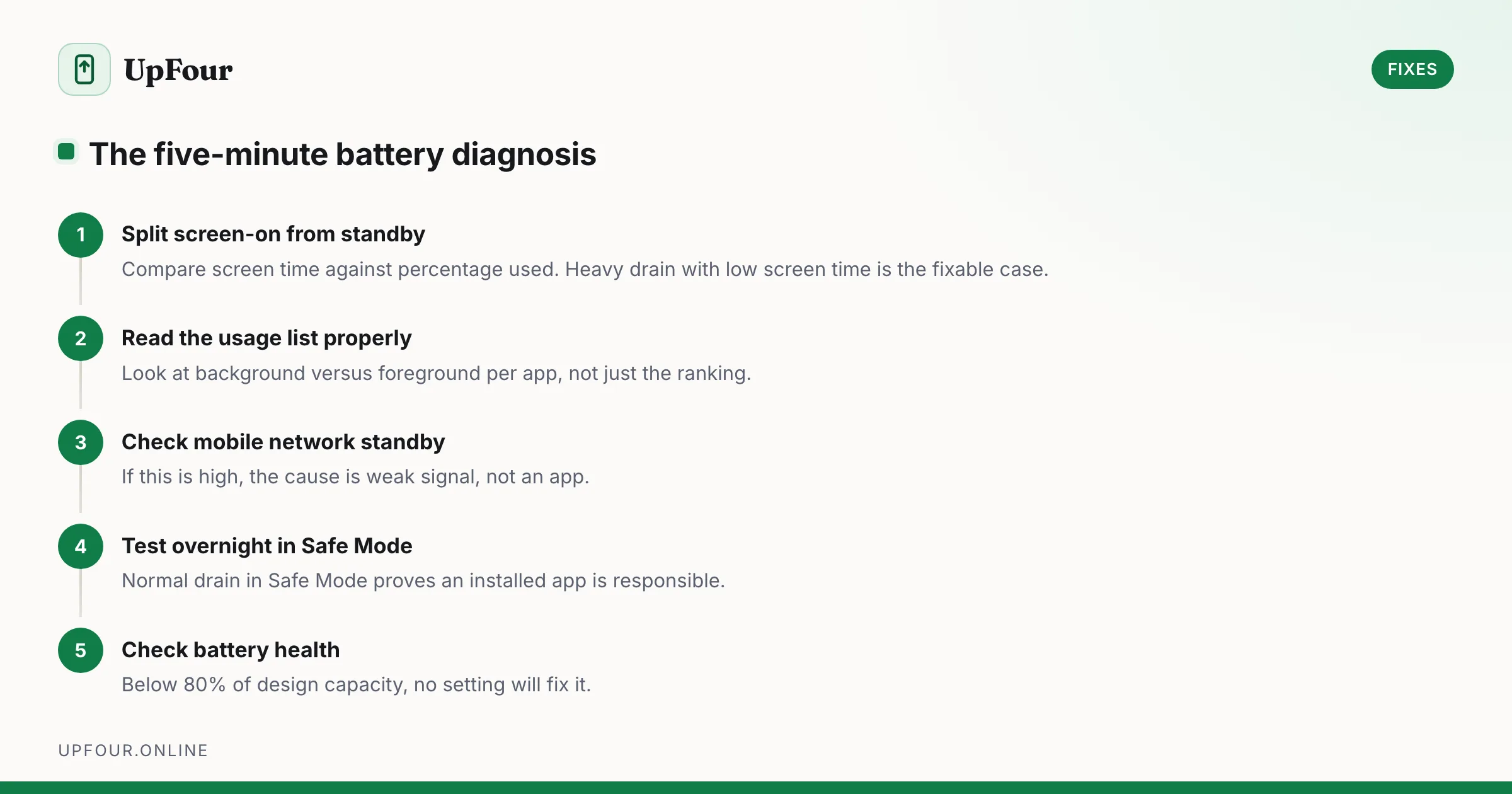
Fix Android Battery Drain: A Diagnostic Order That Actually Finds the Cause
Stop guessing. Diagnose Android battery drain in order — usage stats, screen-on vs standby drain, mobile signal, rogue wakelocks — then apply the fix that matches.
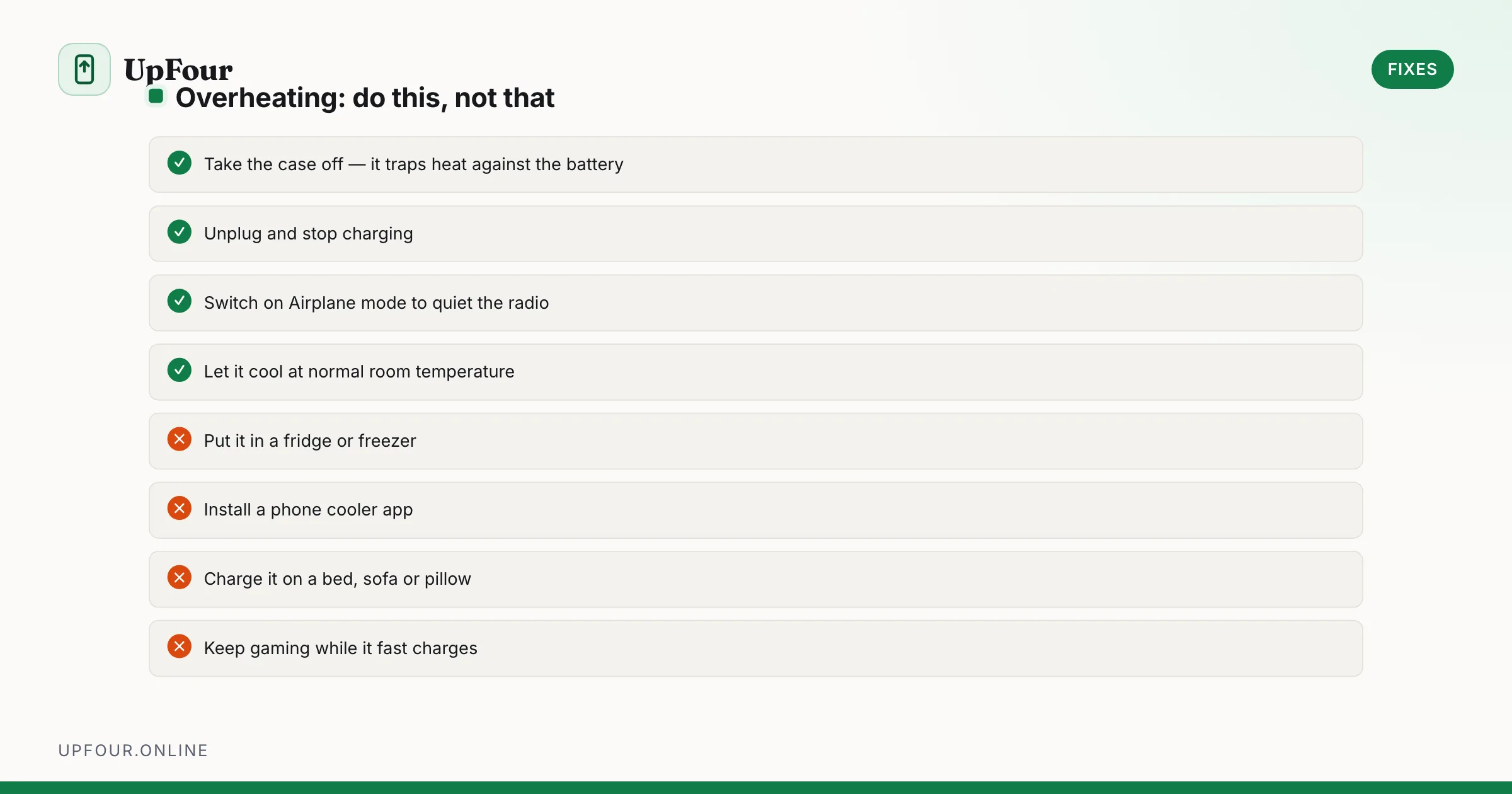
Why Your Android Phone Overheats — and How to Actually Cool It Down
Diagnose Android overheating properly: charging heat, camera and 5G thermal limits, rogue background apps, and the cooling mistakes that damage phones.
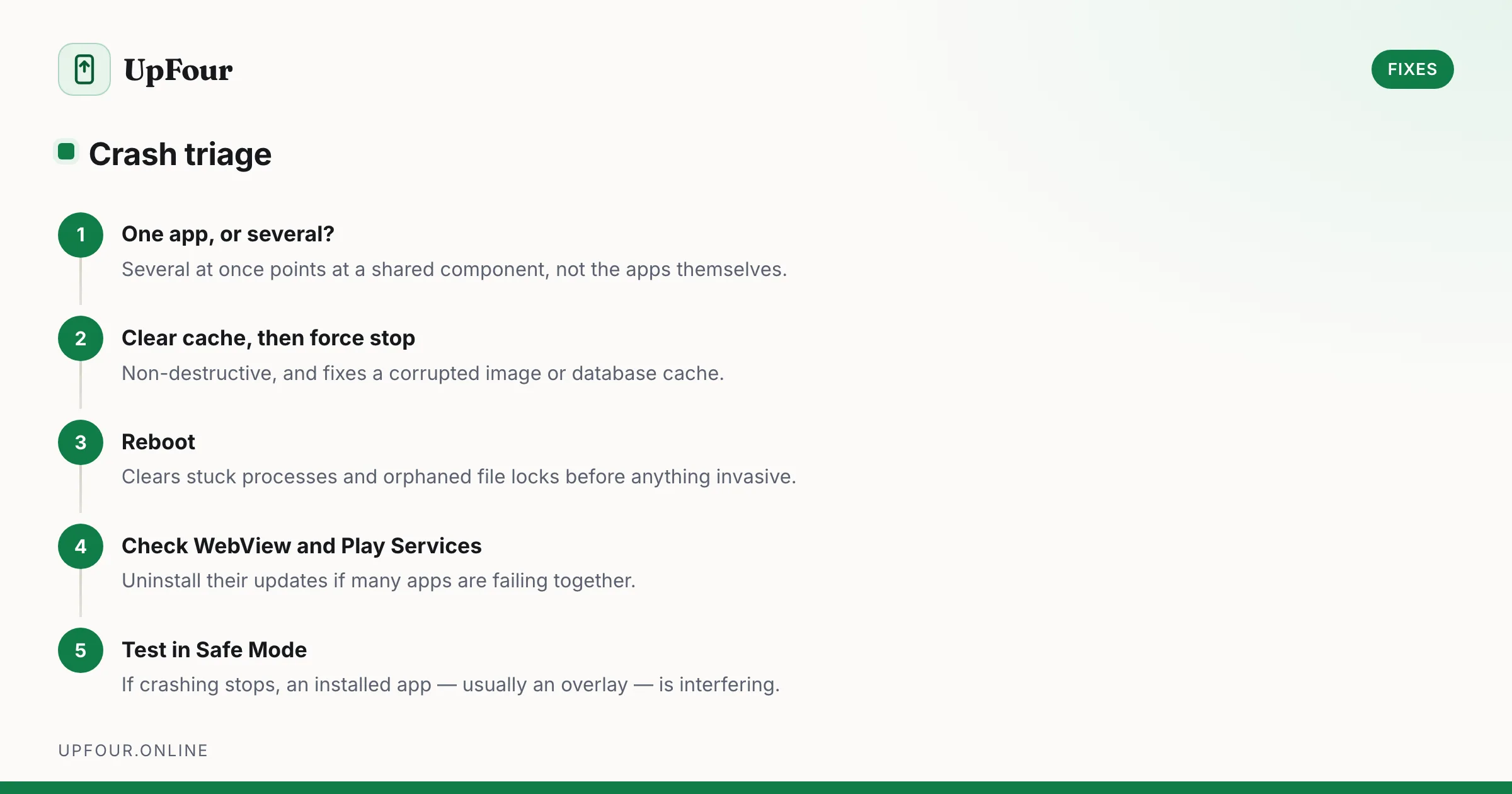
Android Apps Keep Crashing: The Fix Sequence That Works
Fix Android apps that crash, freeze or close instantly — from clearing cache and rolling back updates to repairing Play Services and WebView.