How to Scan Documents With an Android Phone (No App Needed)
Scan documents to PDF on any Android phone using tools you already have — Google Drive, Google Files and the camera — with tips for readable, small-file scans.
Short answer
Open Google Drive, tap the + button, choose Scan, and photograph the document. Drive crops and de-skews it automatically and saves it as a PDF — no third-party app required.
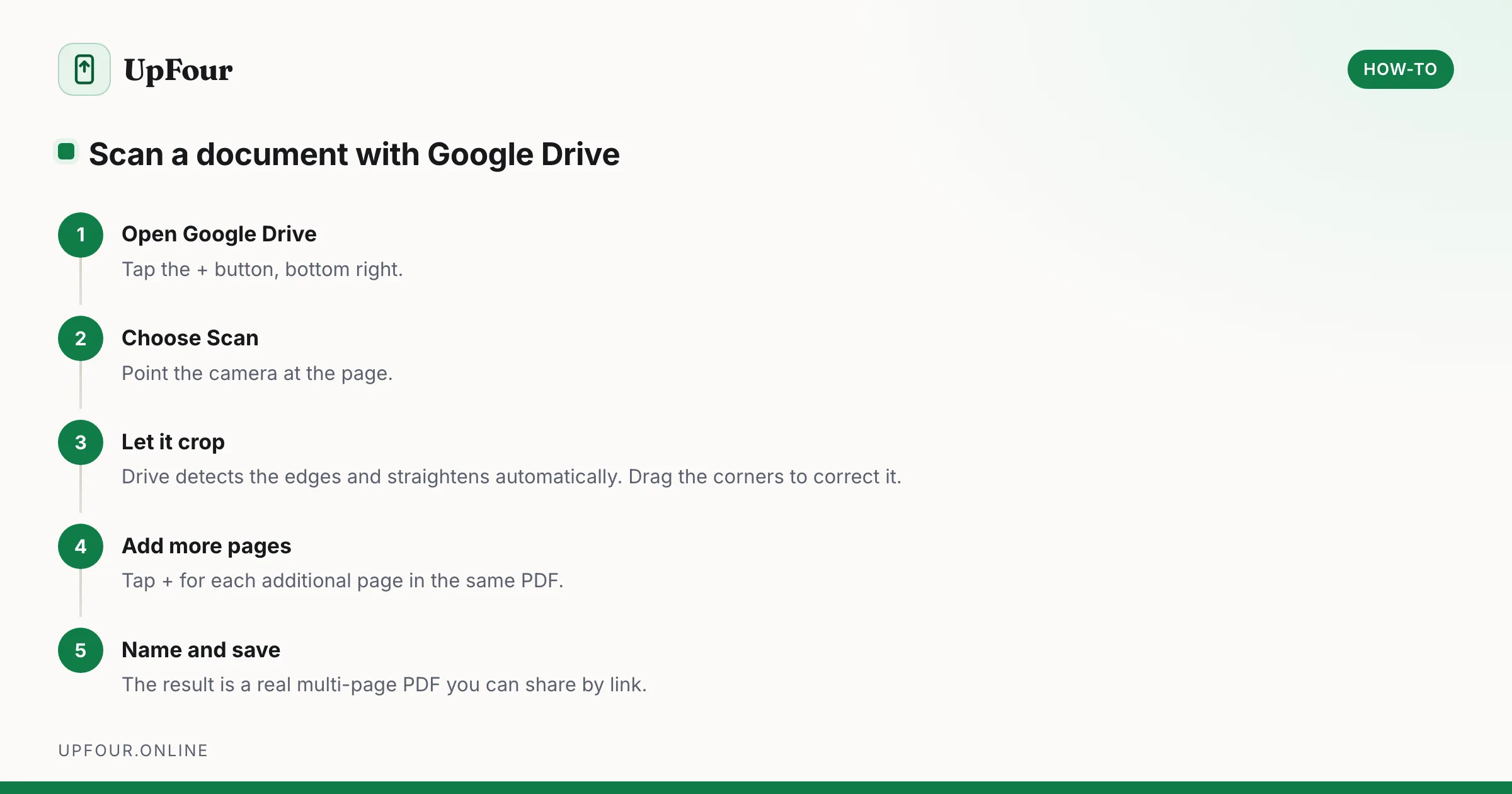
Every Android phone can produce a proper PDF scan without installing anything. The trick is knowing which built-in tool does it, because it is not the camera app.
Method 1: Google Drive (available on virtually every Android phone)
- Open Google Drive.
- Tap the + button, bottom right.
- Tap Scan.
- Photograph the page.
- Drive detects the edges and crops automatically. Drag the corners if it gets it wrong.
- Tap + to add more pages, or the checkmark to finish.
- Name the file and choose a folder, then Save.
The result is a genuine multi-page PDF, uploaded to Drive and shareable by link. This is the fastest route on a stock Android phone.
Method 2: Google Files (saves locally)
Better when you want the file on the phone rather than in the cloud.
- Open the Files by Google app.
- Look for the Scan option — it appears as a floating button or in the bottom bar.
- Capture the page, adjust the crop, and add more pages if needed.
- Save as PDF to local storage.
Method 3: The Camera app
Many camera apps now detect documents automatically and offer a Scan or Document shortcut when you point at a page. Google's own Lens does the same:
- Open Google Lens (in the Google app or the search bar's camera icon).
- Point at the document.
- Choose Documents mode and capture.
- Export as PDF, or copy the text straight out of the image.
Lens is the right choice when you want the text rather than an image — it will read the page and let you paste it anywhere.
On a Samsung Galaxy phone
Samsung has its own built-in scanner in the camera. See our dedicated guide to scanning on a Samsung phone for the exact steps — the short version is that pointing the camera at a document surfaces a Scan button automatically.
Getting a scan that is actually readable
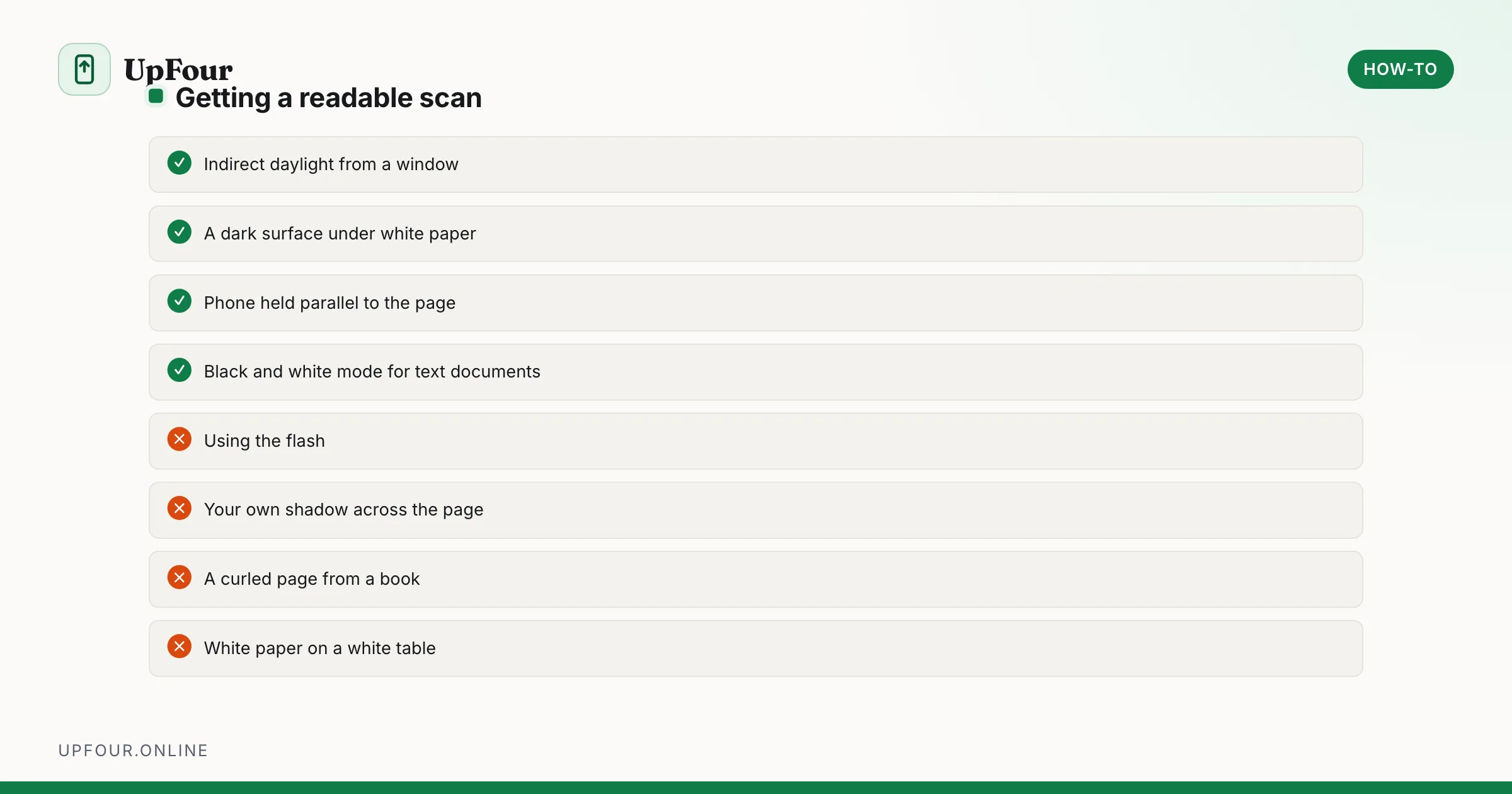
Most bad scans are lighting problems, not app problems.
- Use indirect, even light. A window during the day is ideal. Overhead light directly behind you casts your own shadow across the page.
- Avoid flash. It produces a hotspot in the middle and dark corners.
- Use a contrasting background. A white page on a dark table lets edge detection work; white on white does not.
- Hold the phone parallel to the page, not at an angle. Auto de-skew corrects a little, not a lot.
- Flatten the page. A curved page from a book produces distorted text that OCR cannot read.
Choose the right output mode
Scanning apps offer filters, and the choice matters more than people expect:
| Mode | Use for |
|---|---|
| Black and white / Document | Text documents. Smallest file, sharpest text |
| Greyscale | Documents with photographs or shading |
| Colour | Anything where colour carries meaning — forms, receipts, ID |
| Auto | A reasonable default, but check the result before saving |
For a form you need to email, black and white is usually both the most legible and dramatically the smallest file.
Reduce the file size
Multi-page colour scans get large fast, and many email systems reject attachments over 10 MB or so.
- Switch to black and white — often a tenfold reduction.
- Lower the resolution if the app offers it. 200–300 dpi is plenty for text.
- Scan only the pages you need.
- Share a Drive link instead of attaching the file. This sidesteps size limits entirely.
Extract the text from a scan
To get editable text rather than a picture of text:
- Google Lens — point, select the text, and copy. Works on a live camera view or on a saved image.
- Google Drive — right-click a scanned PDF at drive.google.com and choose Open with › Google Docs. Drive runs OCR and produces an editable document.
- The Recents screen — on Android you can select text directly from an app preview card, useful for grabbing text from an app that blocks copying.
Signing a scanned document
You rarely need to print, sign and rescan:
- Open the PDF in Google Drive or a PDF viewer with annotation support.
- Use the annotate / markup tool to draw your signature.
- Save and share.
Adobe Acrobat Reader offers a Fill & Sign tool that stores a reusable signature, which is worth setting up once if you sign documents regularly.
Quick reference
| Goal | Tool |
|---|---|
| Fast PDF, saved to cloud | Google Drive › + › Scan |
| PDF saved locally | Files by Google › Scan |
| Copy the text out | Google Lens › Documents |
| Scan on a Galaxy | Camera app, or Samsung Notes |
| Edit the text afterwards | Drive › Open with Google Docs |
Frequently asked questions
How do I scan a document with my Android phone?
Open Google Drive, tap the + button and choose Scan, then photograph the page. Drive crops and straightens it automatically and saves the result as a PDF. Files by Google offers the same thing saved locally.
Do I need an app to scan documents on Android?
No. Google Drive and Files by Google both include a scanner, and Google Lens can capture documents and extract their text. Third-party scanning apps are unnecessary for ordinary use.
How do I make a scanned PDF smaller?
Switch the scan mode to black and white, which often cuts the size by a factor of ten, and lower the resolution to 200–300 dpi. Alternatively share a Google Drive link instead of attaching the file.
How do I turn a scan into editable text?
Upload the PDF to Google Drive, then right-click it at drive.google.com and choose Open with Google Docs. Drive runs OCR and produces an editable document. Google Lens can also copy text directly from an image.
Sources & further reading
Official documentation used while writing and checking this guide. Every link was verified at the last update.
- Scan documents with Google DriveGoogle Drive Help
- Back up photos & videosGoogle Photos Help
- Android platform releases and version historyAndroid Developers
Machine-readable version: Markdown source
Related guides
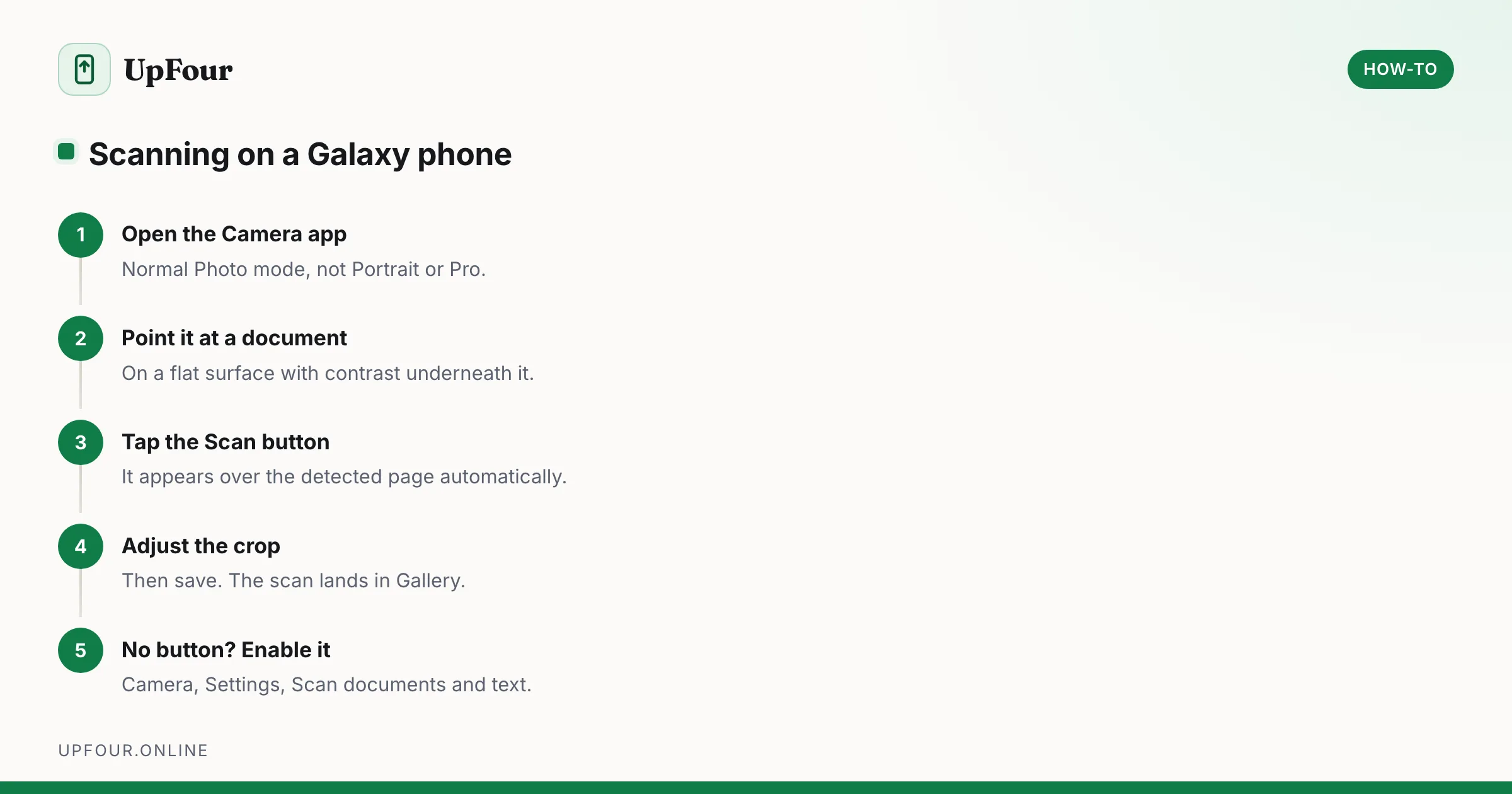
How to Scan Documents on a Samsung Galaxy Phone
Scan documents to PDF on a Samsung Galaxy using the built-in camera scanner, Samsung Notes and Google Drive — plus how to fix a missing Scan button.
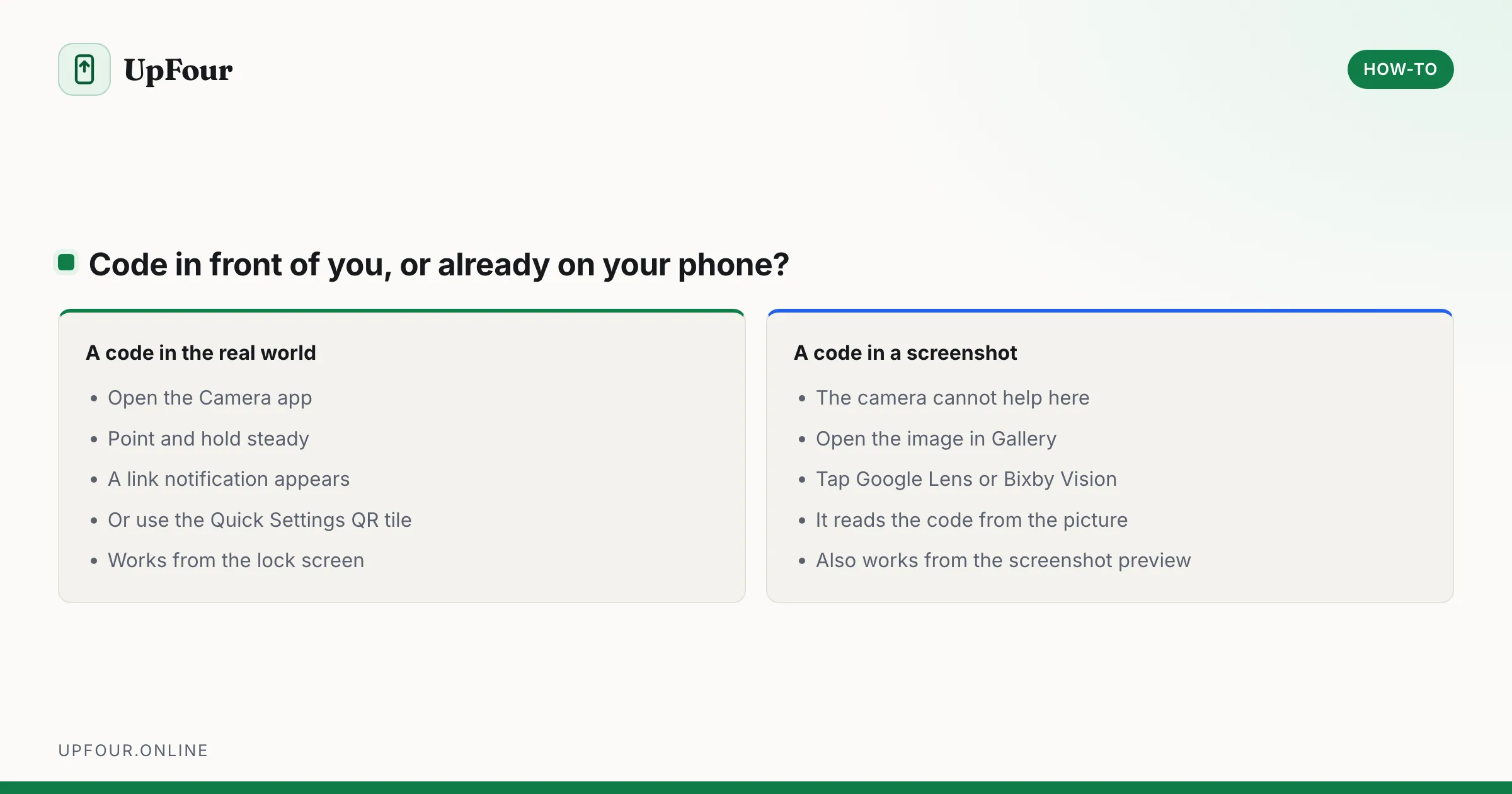
How to Scan a QR Code on a Samsung Phone (Including From the Gallery)
Scan QR codes on a Galaxy phone with the camera, Quick Settings tile or Bixby Vision — plus how to scan a QR code from a saved screenshot or photo.
How to Change the Region on a Samsung Phone
Change your country, language and store region on a Galaxy phone — what can be changed easily, what is locked to the firmware, and what breaks.