How to Scan a QR Code on a Samsung Phone (Including From the Gallery)
Scan QR codes on a Galaxy phone with the camera, Quick Settings tile or Bixby Vision — plus how to scan a QR code from a saved screenshot or photo.
Short answer
Open the Camera app and point it at the QR code — a notification appears with the link. To scan a code already saved on your phone, open the image in Gallery and tap the Bixby Vision or Google Lens icon.
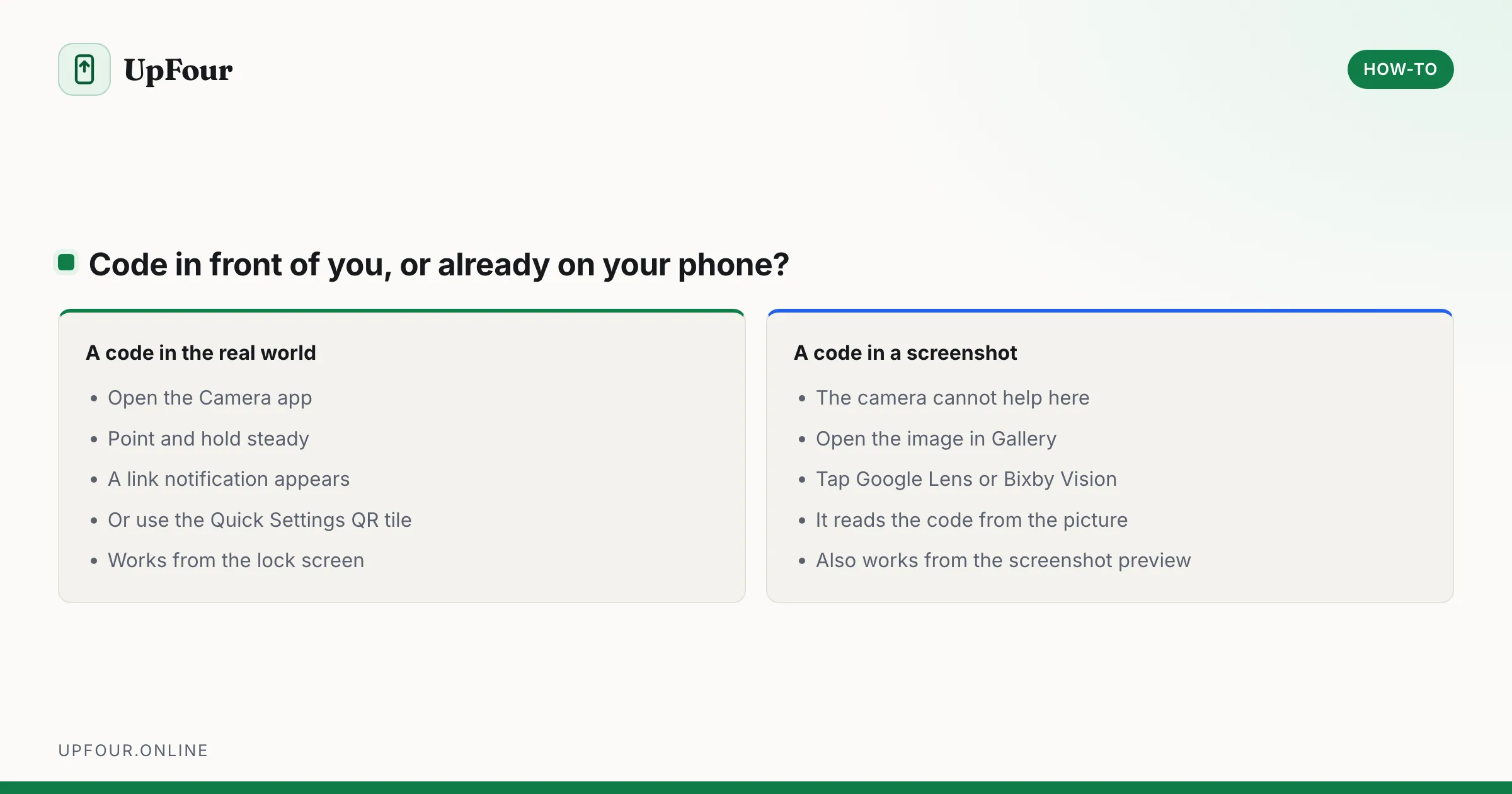
Every modern Galaxy scans QR codes without an app. The part that stumps people is scanning a code from a screenshot or saved image, which needs a different tool.
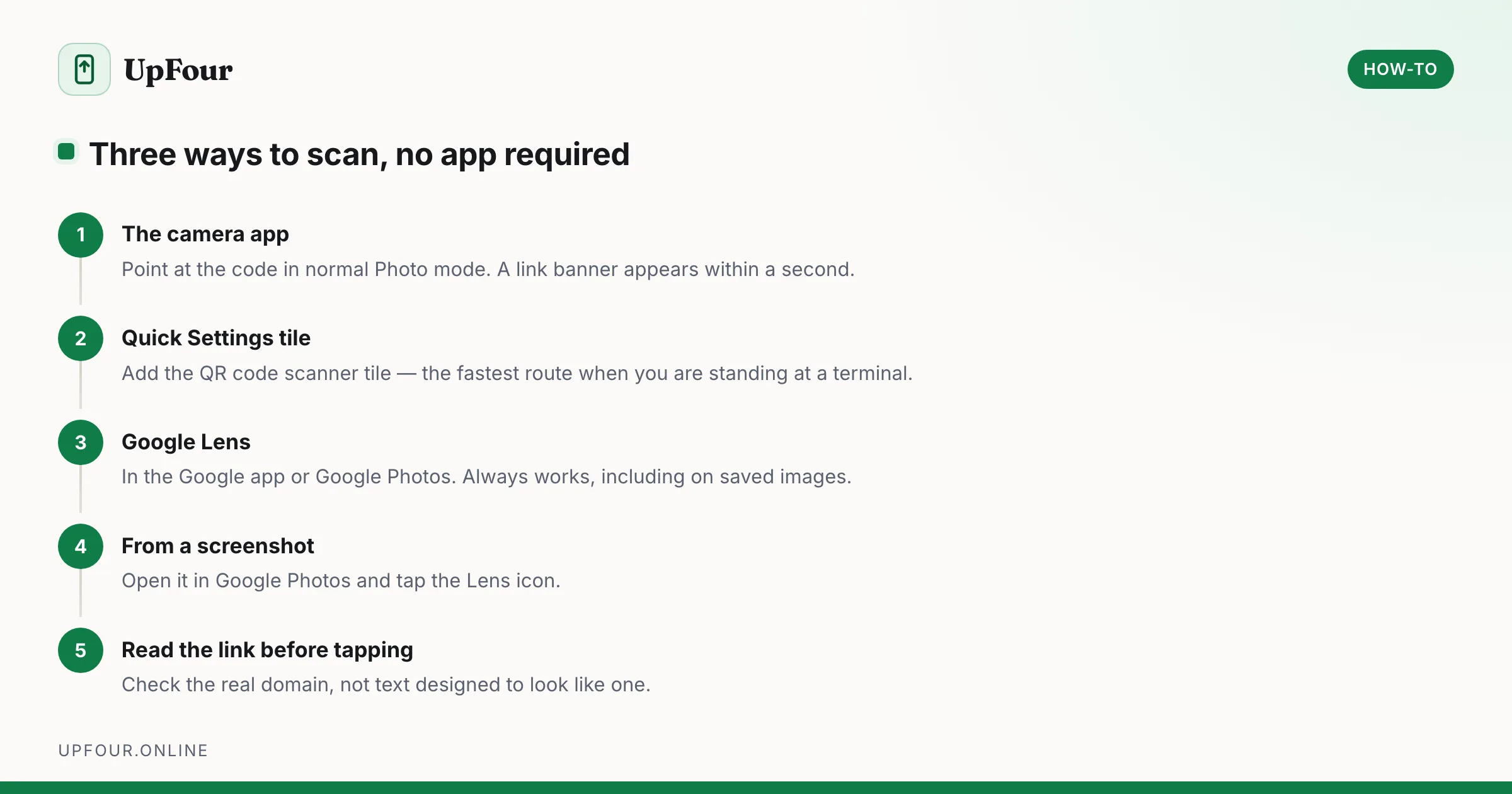
Scan with the Camera
- Open the Camera app.
- Point it at the QR code and hold steady.
- A pop-up or notification appears with the link or action.
- Tap it.
No button to press and no special mode — the camera recognises codes in the normal photo view.
If nothing happens
Camera › Settings (gear) › Scan QR codes — make sure it is on. On newer builds this is merged into Scan documents and text.
Other causes:
- The code is too small in frame. Move closer, or zoom slightly.
- Poor lighting, or glare from a screen or laminated surface. Change the angle.
- The code is damaged or partially covered. QR codes tolerate some damage but not a missing corner marker.
- You are in a special camera mode such as Portrait or Pro. Switch back to Photo.
Scan from Quick Settings
Faster than opening the camera, and it works straight from the lock screen.
- Swipe down twice to open the full Quick Settings panel.
- Tap the Scan QR code tile.
If the tile is not there, tap the pencil / + icon to edit the panel and drag it in from the available tiles.
Scan a QR code from a saved image or screenshot
This is the case the camera cannot handle — the code is already on your phone, so there is nothing to point at.
From Gallery
- Open the image in Gallery.
- Tap the Bixby Vision icon (an eye symbol) or the Google Lens icon.
- The code is detected and the link appears.
With Google Lens
- Open the Google app, or Google Photos.
- Tap the Lens icon.
- Choose the image from your gallery using the image picker.
- Lens reads the code and offers the link.
From a screenshot you just took
After taking a screenshot, the preview toolbar at the bottom of the screen often includes a Lens or Bixby Vision shortcut. Tap it before the preview disappears.
This is the standard workaround for a QR code someone messaged you, or one displayed on the same phone you are holding — such as a ticket or a two-factor setup code.
Scan a code shown on the phone you are using
You cannot point a phone's camera at its own screen. Options:
- Screenshot it, then use Gallery + Lens as above.
- Long-press the image in the app — some apps offer Search image with Lens directly.
- Open the same page on another device and scan that.
Connect to Wi-Fi with a QR code
Scanning a Wi-Fi QR code joins the network without typing the password.
To share your own network as a code:
- Settings › Connections › Wi-Fi.
- Tap the gear beside your connected network.
- Tap QR code.
- Let the other person scan it with their camera.
This works across Android and iPhone, and avoids reading a 30-character password aloud — see connecting a Samsung phone to Wi-Fi for more.
Bixby Vision versus Google Lens
Both read QR codes. The difference is what else they do:
| Bixby Vision | Google Lens | |
|---|---|---|
| QR and barcodes | Yes | Yes |
| Text extraction and translation | Yes | Yes, generally better |
| Product and landmark search | Yes | Yes, larger index |
| Availability | Samsung only, removed from some newer models | Every Android phone |
On recent Galaxy phones Samsung has scaled Bixby Vision back, and Google Lens is the more reliable choice. It is built into the Google app, Google Photos and the camera on most devices.
Safety: check before you tap
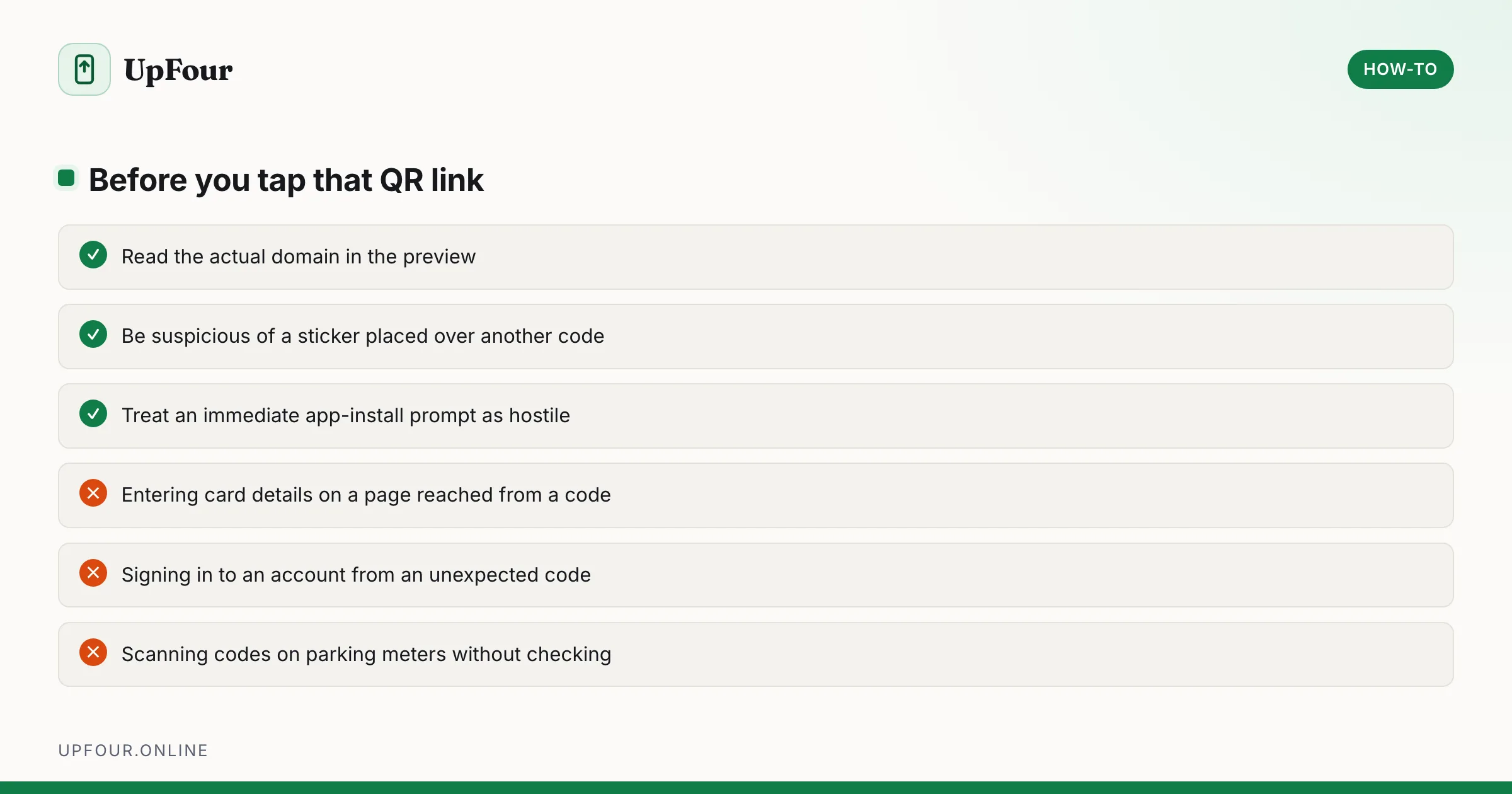
QR codes are opaque by design — you cannot see where one leads until you scan it. Malicious codes stuck over legitimate ones on parking meters, restaurant tables and payment terminals are a real and common scam.
- Read the URL in the preview before tapping. Look at the actual domain, not the display text.
- Be suspicious of a sticker placed over another code, especially on payment hardware.
- Never enter payment or login details on a page reached from a QR code you did not expect.
- Treat a code that immediately asks you to install an app as hostile.
Your phone shows you the destination first for exactly this reason. Read it.
Quick reference
| Task | Where |
|---|---|
| Scan a code in front of you | Camera app, point and hold |
| Scan from the lock screen | Quick Settings › Scan QR code tile |
| Scan a saved image | Gallery › Bixby Vision or Google Lens |
| Scan a screenshot | Screenshot preview › Lens shortcut |
| Share your Wi-Fi | Settings › Connections › Wi-Fi › gear › QR code |
| Enable scanning | Camera › Settings › Scan QR codes |
Frequently asked questions
How do I scan a QR code on a Samsung phone?
Open the Camera app and point it at the code. A notification appears with the link — tap it. You can also use the Scan QR code tile in Quick Settings, which works from the lock screen.
How do I scan a QR code from a picture in my gallery?
Open the image in Gallery and tap the Bixby Vision or Google Lens icon. Lens reads the code from the saved image and shows the link. The camera cannot do this because there is nothing to point at.
Why won't my Samsung camera scan QR codes?
Check that Camera › Settings › Scan QR codes is enabled. Also make sure you are in normal Photo mode, the code fills enough of the frame, and there is no glare on it.
Are QR codes safe to scan?
Scanning is safe, but always read the URL in the preview before tapping. Malicious codes placed over legitimate ones on payment terminals and parking meters are a common scam, so never enter payment or login details on an unexpected page.
Sources & further reading
Official documentation used while writing and checking this guide. Every link was verified at the last update.
- Official Samsung SupportSamsung
- How to recognise and avoid phishing scamsUS Federal Trade Commission
- Secure Our World guidanceUS Cybersecurity & Infrastructure Security Agency
Machine-readable version: Markdown source
Related guides
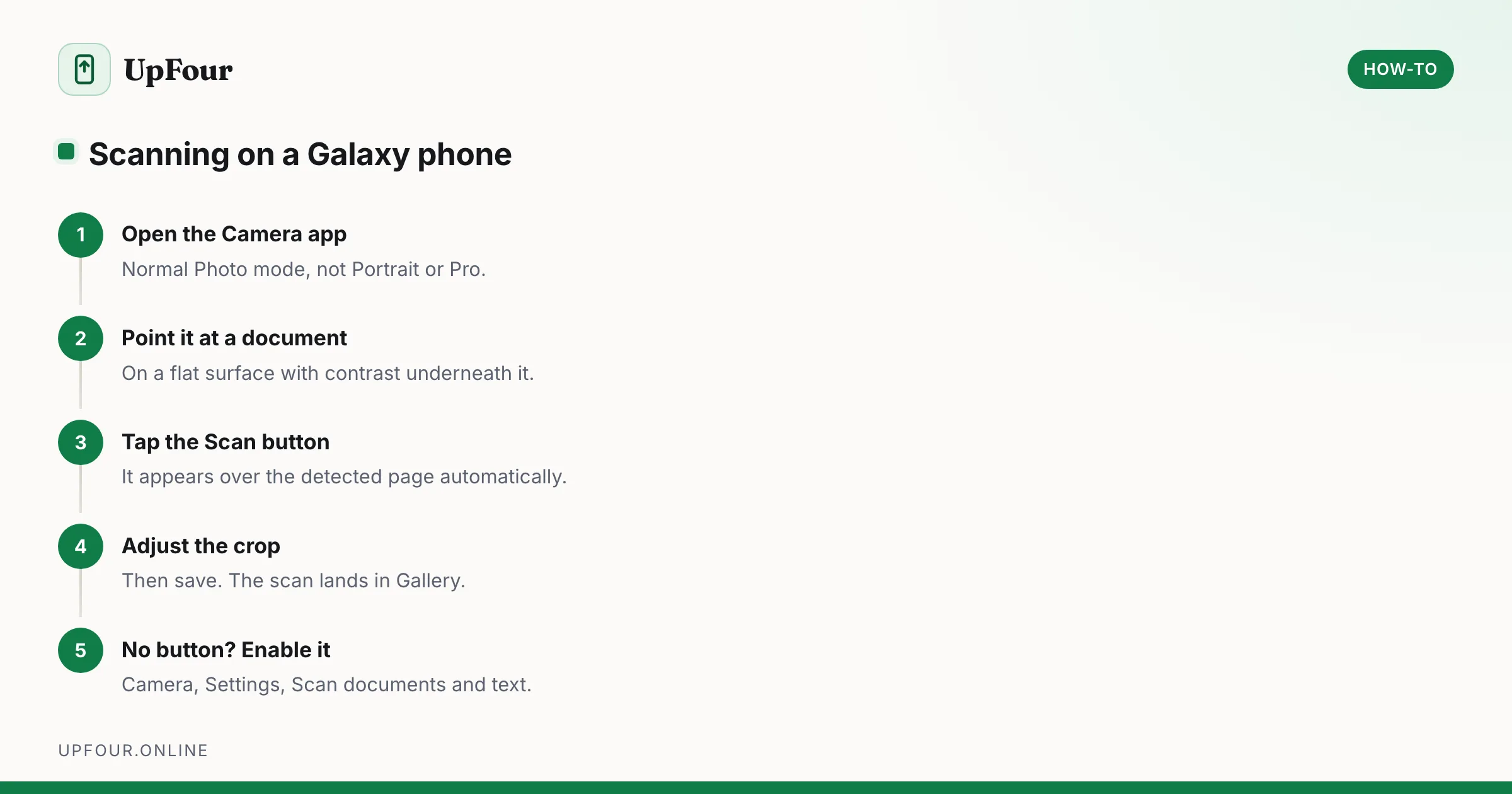
How to Scan Documents on a Samsung Galaxy Phone
Scan documents to PDF on a Samsung Galaxy using the built-in camera scanner, Samsung Notes and Google Drive — plus how to fix a missing Scan button.
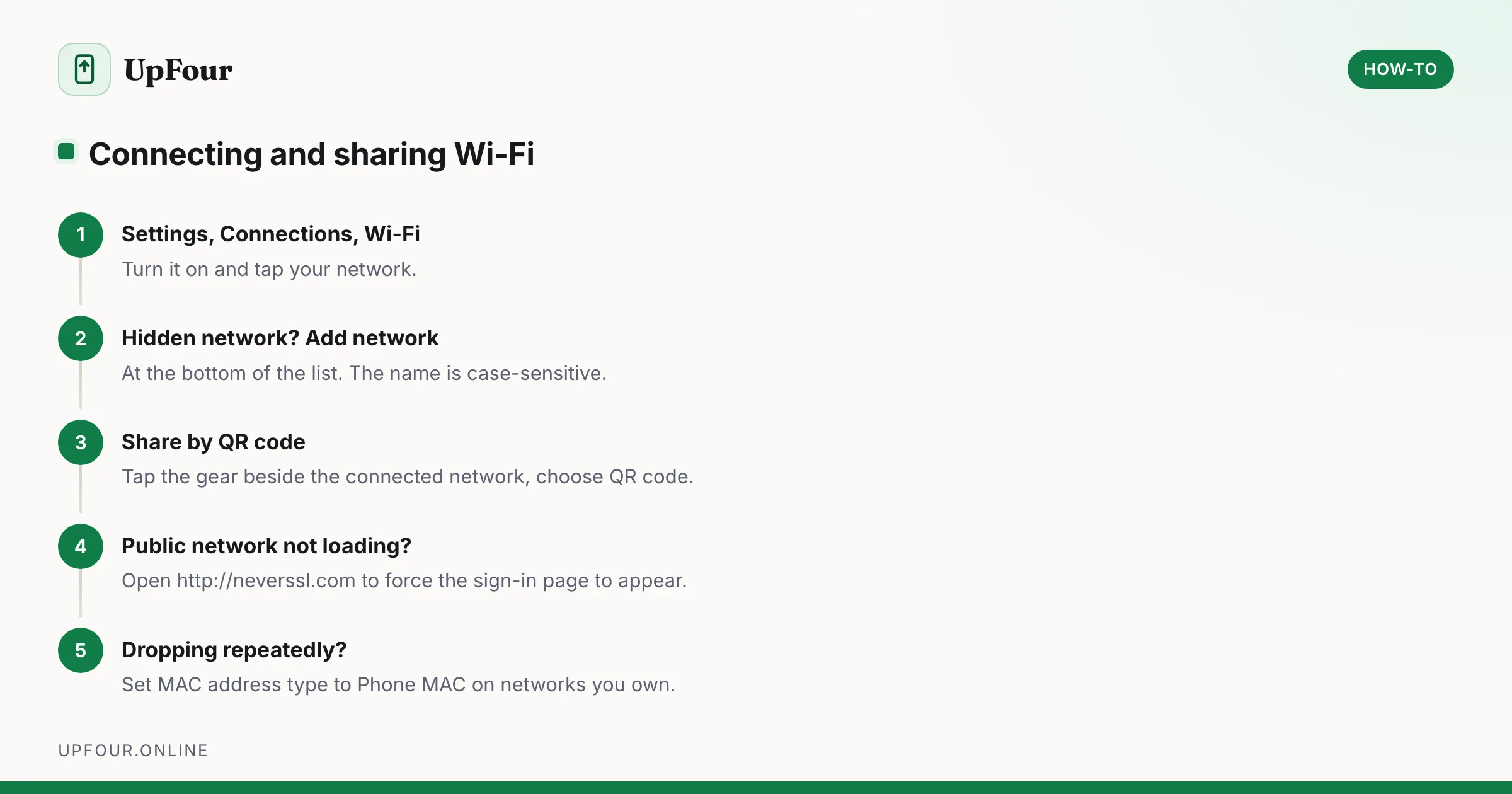
How to Connect a Samsung Phone to Wi-Fi (and Share the Password)
Connect a Galaxy phone to Wi-Fi, join a hidden network, share your connection by QR code, and fix a network that will not connect.
How to Scan a QR Code on Any Android Phone
Scan QR codes on Android with the camera, Google Lens or the Quick Settings tile — no app required — and read codes from saved screenshots.