How to Scan a QR Code on Any Android Phone
Scan QR codes on Android with the camera, Google Lens or the Quick Settings tile — no app required — and read codes from saved screenshots.
Short answer
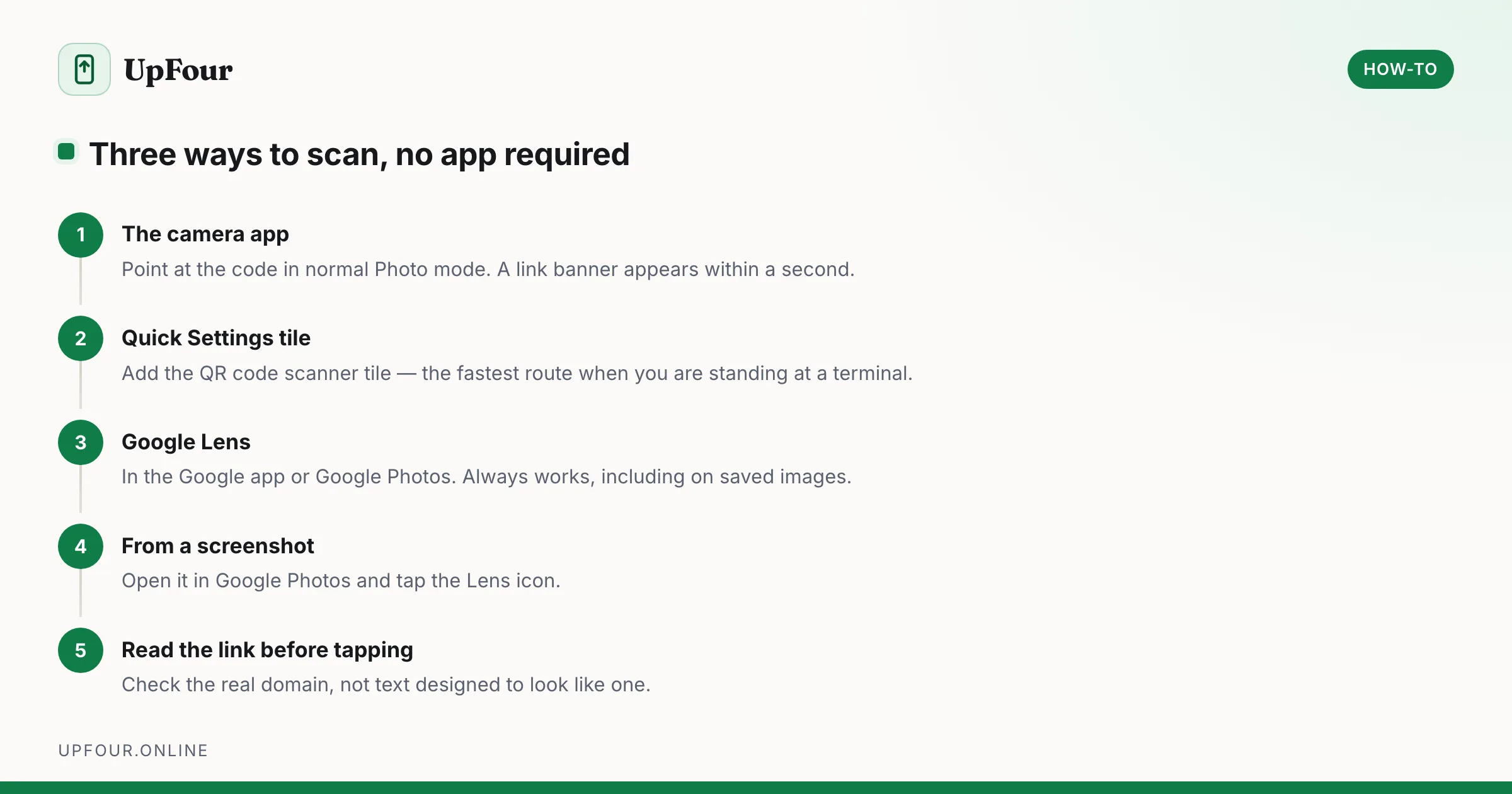
Open your camera app and point it at the QR code; a link notification appears within a second or two. If nothing happens, use Google Lens from the Google app or add the QR code scanner tile to Quick Settings.
Android has read QR codes natively for years. You do not need a scanner app, and the ones in the Play Store are a well-known source of adware.
Method 1: The camera app
- Open the Camera.
- Point it at the code and hold steady for a second.
- A banner or notification appears with the destination.
- Tap it.
Works in the standard Photo mode on virtually every phone shipped in the last several years.
If the camera does not react
- Check the setting. It is usually Camera › Settings › Scan QR codes, Google Lens suggestions, or similar.
- Switch back to Photo mode — Portrait, Pro and Night modes often disable detection.
- Move closer so the code fills more of the frame.
- Avoid glare. Codes on glossy paper or a screen may need an angle change.
Method 2: Google Lens (always works)
Lens is on every Android phone with Google apps installed.
- Open the Google app.
- Tap the Lens (camera) icon in the search bar.
- Point at the code, or pick an image from your gallery.
You can also reach Lens from Google Photos by opening any image and tapping the Lens icon.
Method 3: The Quick Settings tile
- Swipe down twice for the full Quick Settings panel.
- Tap the pencil / edit icon.
- Drag the QR code scanner tile into the active area.
It then works directly from the lock screen, which is the fastest route of all when you are standing at a menu or a payment terminal.
Scan a QR code from a screenshot or saved image
The camera cannot help here — there is nothing to point at. Use Lens:
- Open the image in Google Photos (or Gallery).
- Tap the Lens icon.
- The code is read from the image and the link appears.
You can also long-press an image inside many apps and choose Search with Google Lens, which avoids saving the picture first.
This is how you handle a code someone sent you in a message, or one displayed on the very phone you are holding.
Connect to Wi-Fi by QR code
Point the camera at a Wi-Fi QR code and Android offers to join the network — no password typing.
To share your own network:
- Settings › Network & internet › Internet.
- Tap the gear beside the connected network.
- Tap Share.
- Authenticate, and a QR code appears.
Both Android and iPhone can scan the resulting code, which makes it the easiest way to give a guest access without reading a long password aloud.
Why you should not install a QR scanner app
Search the Play Store for "QR scanner" and you get hundreds of results. Almost none are necessary, and the category has a long history of problems:
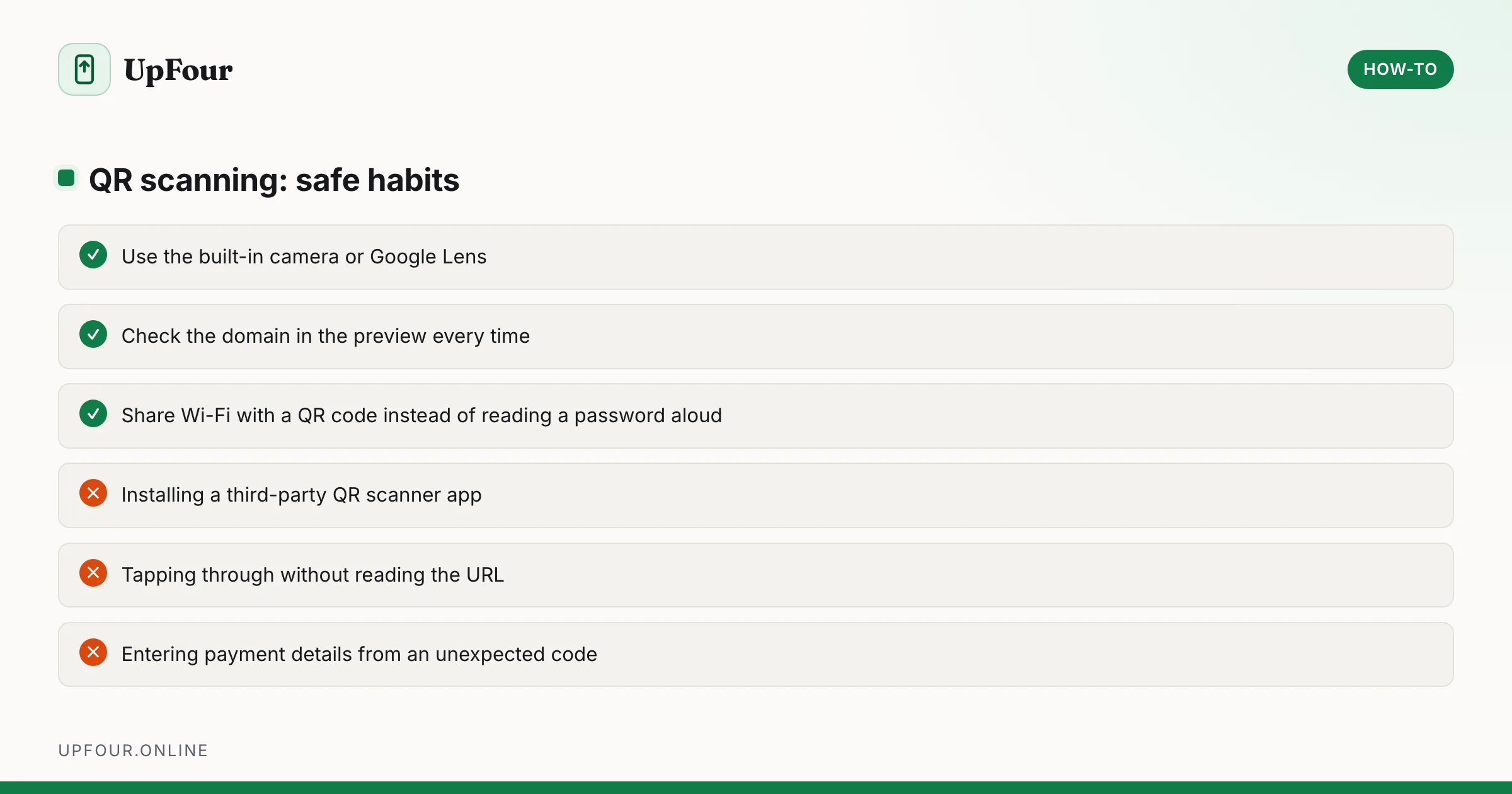
- Your camera already does it, natively and faster.
- These apps commonly request camera, storage, contacts and location permissions they do not need.
- Many are ad-supported to an aggressive degree, and some have shipped adware that displays full-screen ads outside the app.
If you have pop-up ads appearing on your home screen after installing one, see our guide on stopping Android ads and pop-ups.
Read the link before you tap
A QR code is unreadable to humans, which is exactly what makes it useful to scammers. Codes stuck over genuine ones on parking meters, EV chargers, restaurant tables and payment terminals are a widespread and growing fraud.
Before tapping:
- Check the domain in the preview. Look at the real domain, not text designed to look like one —
paypal.secure-login.example.comis not PayPal. - Be wary of a physical sticker over another code, particularly on payment hardware.
- Never enter card details or passwords on a page you reached from an unexpected code.
- A code that immediately prompts an app install is a red flag.
Android deliberately shows you the destination first. That preview is the entire defence — read it.
Create your own QR code
Useful for sharing a link on a poster or slide:
- Chrome — open the page, tap ⋮ › Share › QR code. Chrome generates one and lets you download it.
- Most browsers and many apps offer the same under their share sheet.
Quick reference
| Task | Where |
|---|---|
| Scan a code in front of you | Camera app, Photo mode |
| Scan from the lock screen | Quick Settings › QR code scanner tile |
| Scan a saved image | Google Photos › image › Lens icon |
| Share your Wi-Fi | Settings › Network & internet › network gear › Share |
| Make a QR code for a page | Chrome › ⋮ › Share › QR code |
Frequently asked questions
How do I scan a QR code on Android?
Open your camera app in normal Photo mode and point it at the code. A notification with the link appears within a second or two. Google Lens and the Quick Settings QR scanner tile also work.
How do I scan a QR code from a screenshot on Android?
Open the image in Google Photos and tap the Google Lens icon. Lens reads codes from saved images, which the camera cannot do because there is nothing to point at.
Do I need an app to scan QR codes on Android?
No. The camera and Google Lens both read QR codes natively. Third-party scanner apps are unnecessary and the category is a well-known source of adware and excessive permission requests.
Are QR codes dangerous?
The scan itself is harmless, but the destination may not be. Always read the domain in the link preview before tapping, and never enter payment or login details on a page reached from an unexpected code.
Sources & further reading
Official documentation used while writing and checking this guide. Every link was verified at the last update.
- How to recognise and avoid phishing scamsUS Federal Trade Commission
- Secure Our World guidanceUS Cybersecurity & Infrastructure Security Agency
- Permissions on AndroidAndroid Developers
Machine-readable version: Markdown source
Related guides
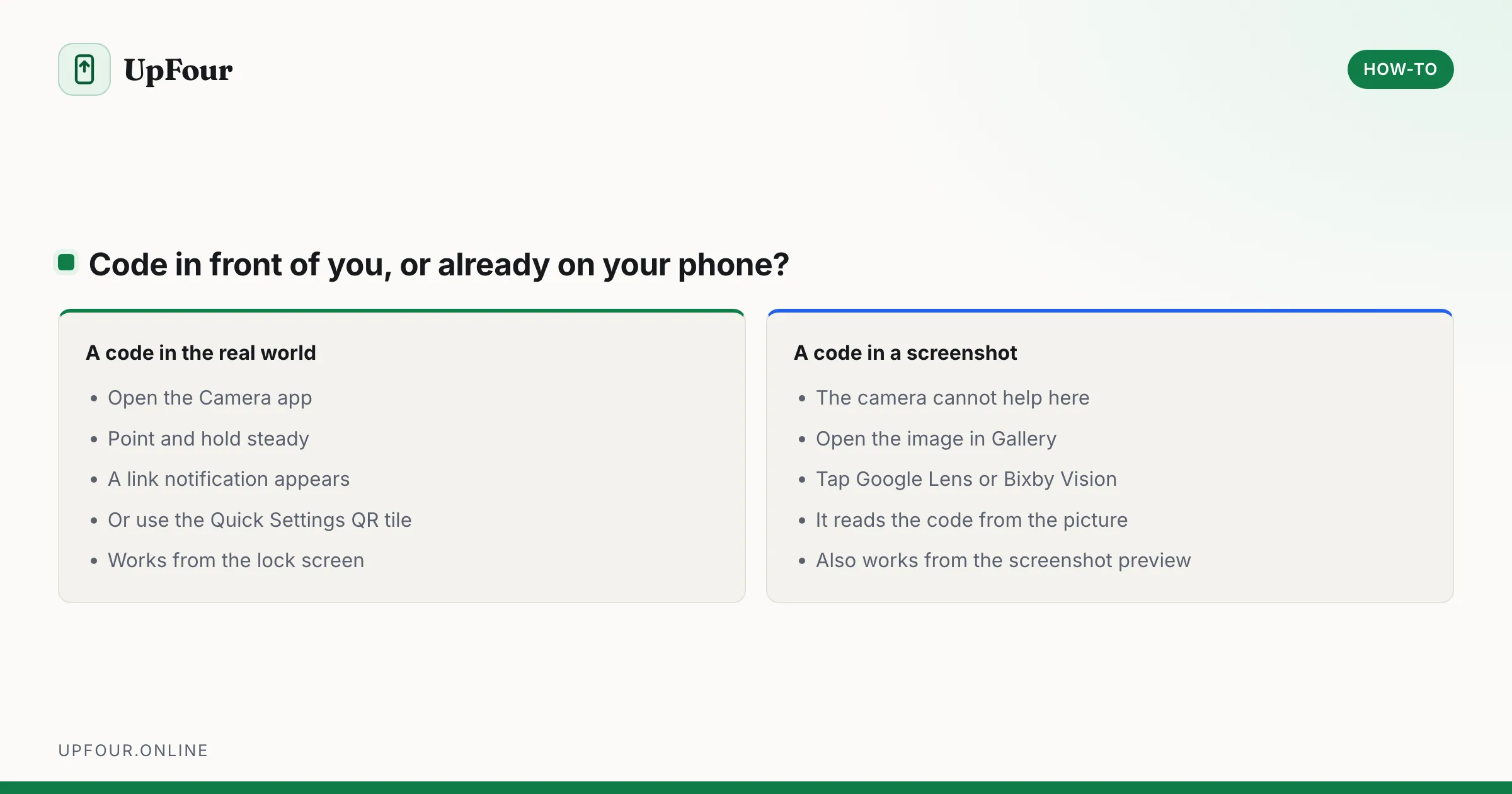
How to Scan a QR Code on a Samsung Phone (Including From the Gallery)
Scan QR codes on a Galaxy phone with the camera, Quick Settings tile or Bixby Vision — plus how to scan a QR code from a saved screenshot or photo.
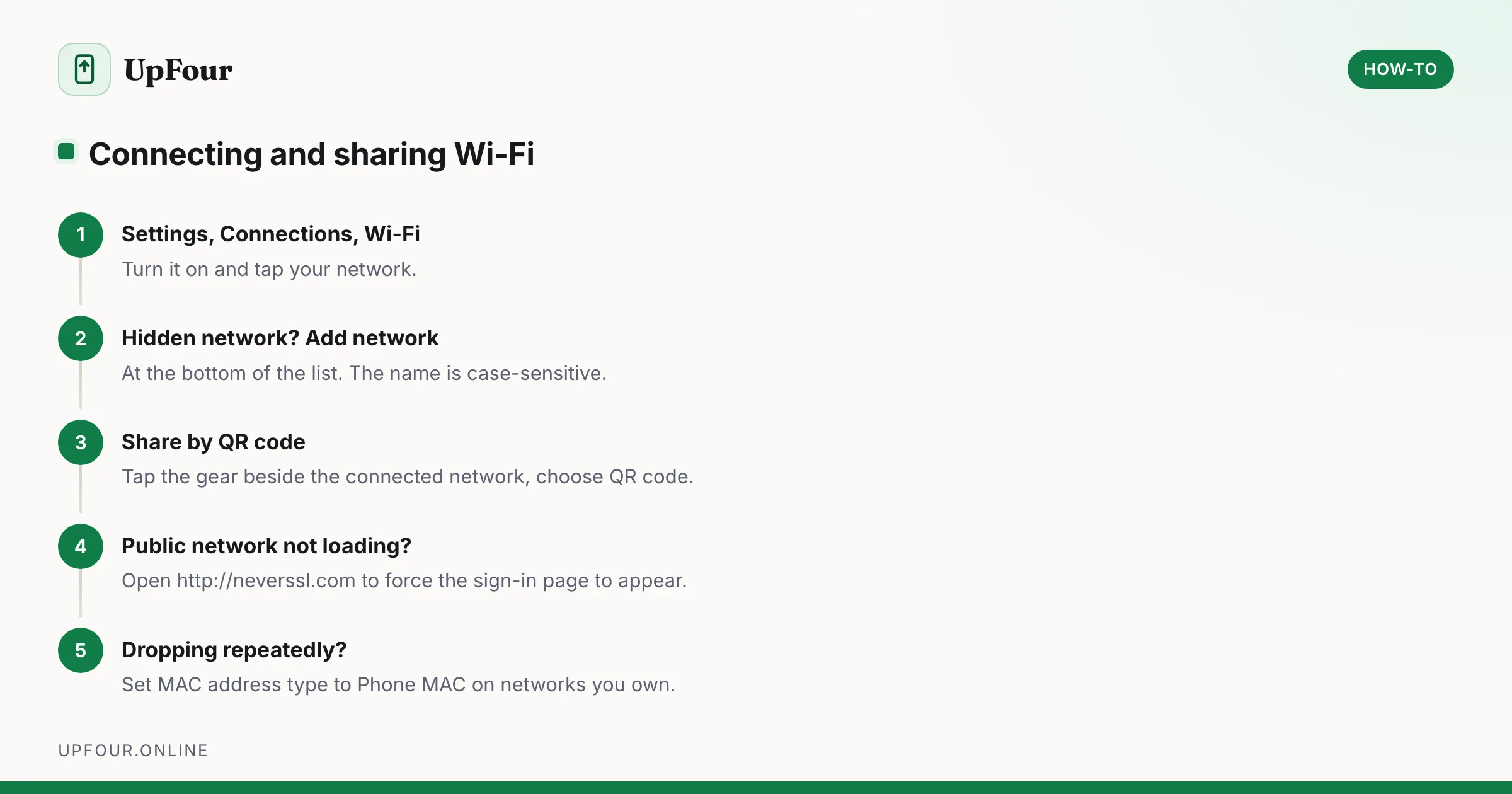
How to Connect a Samsung Phone to Wi-Fi (and Share the Password)
Connect a Galaxy phone to Wi-Fi, join a hidden network, share your connection by QR code, and fix a network that will not connect.
How to Change the Region on a Samsung Phone
Change your country, language and store region on a Galaxy phone — what can be changed easily, what is locked to the firmware, and what breaks.