How to Connect a Samsung Phone to Wi-Fi (and Share the Password)
Connect a Galaxy phone to Wi-Fi, join a hidden network, share your connection by QR code, and fix a network that will not connect.
Short answer
Go to Settings › Connections › Wi-Fi, switch it on, tap your network and enter the password. To share the connection, tap the gear beside the connected network and choose QR code.
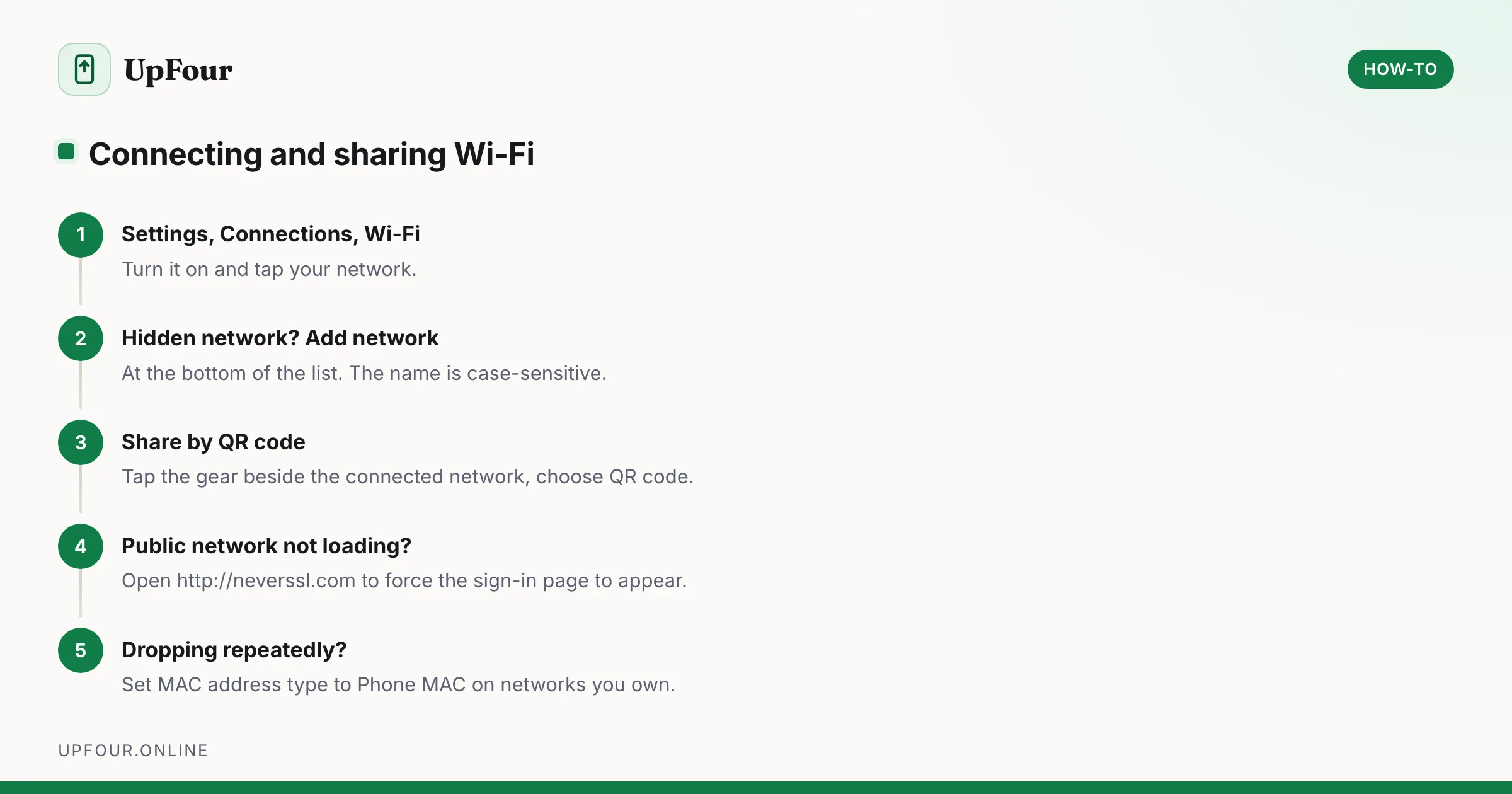
Connecting is two taps. The parts worth knowing are hidden networks, sharing by QR code, and what to do when a network refuses to connect.
Connect to a network
- Open Settings.
- Tap Connections › Wi-Fi.
- Turn Wi-Fi on.
- Tap your network from the list.
- Enter the password and tap Connect.
Faster route: swipe down for Quick Settings, long-press the Wi-Fi icon — this opens the full network list directly rather than merely toggling the radio.
Join a hidden network
A network that does not broadcast its name will not appear in the list.
- Settings › Connections › Wi-Fi.
- Scroll to the bottom and tap Add network.
- Type the network name (SSID) exactly — it is case-sensitive.
- Choose the security type (usually WPA2/WPA3 Personal).
- Enter the password and connect.
Getting the security type wrong produces an authentication failure that looks identical to a wrong password, so check both.
Share your Wi-Fi with a QR code
Far better than reading a 30-character password aloud.
- Settings › Connections › Wi-Fi.
- Tap the gear beside the connected network.
- Tap QR code.
- The other person scans it with their camera.
This works across Android and iPhone. To join a network from someone else's code, just point your camera at it — see scanning QR codes on Samsung.
Connect to a public network with a sign-in page
Hotels, cafés and airports use a captive portal — you join the network, then must sign in through a browser.
If the sign-in page does not appear automatically:
- Open a browser.
- Go to a plain HTTP address such as
http://neverssl.com. - The portal page appears.
An HTTPS address fails silently instead of redirecting, which is why typing a normal website address often appears to do nothing.
If you have set a Private DNS provider, some captive portals will not load at all. Temporarily set Settings › Connections › More connection settings › Private DNS to Off or Automatic, sign in, then re-enable it.
When a network will not connect
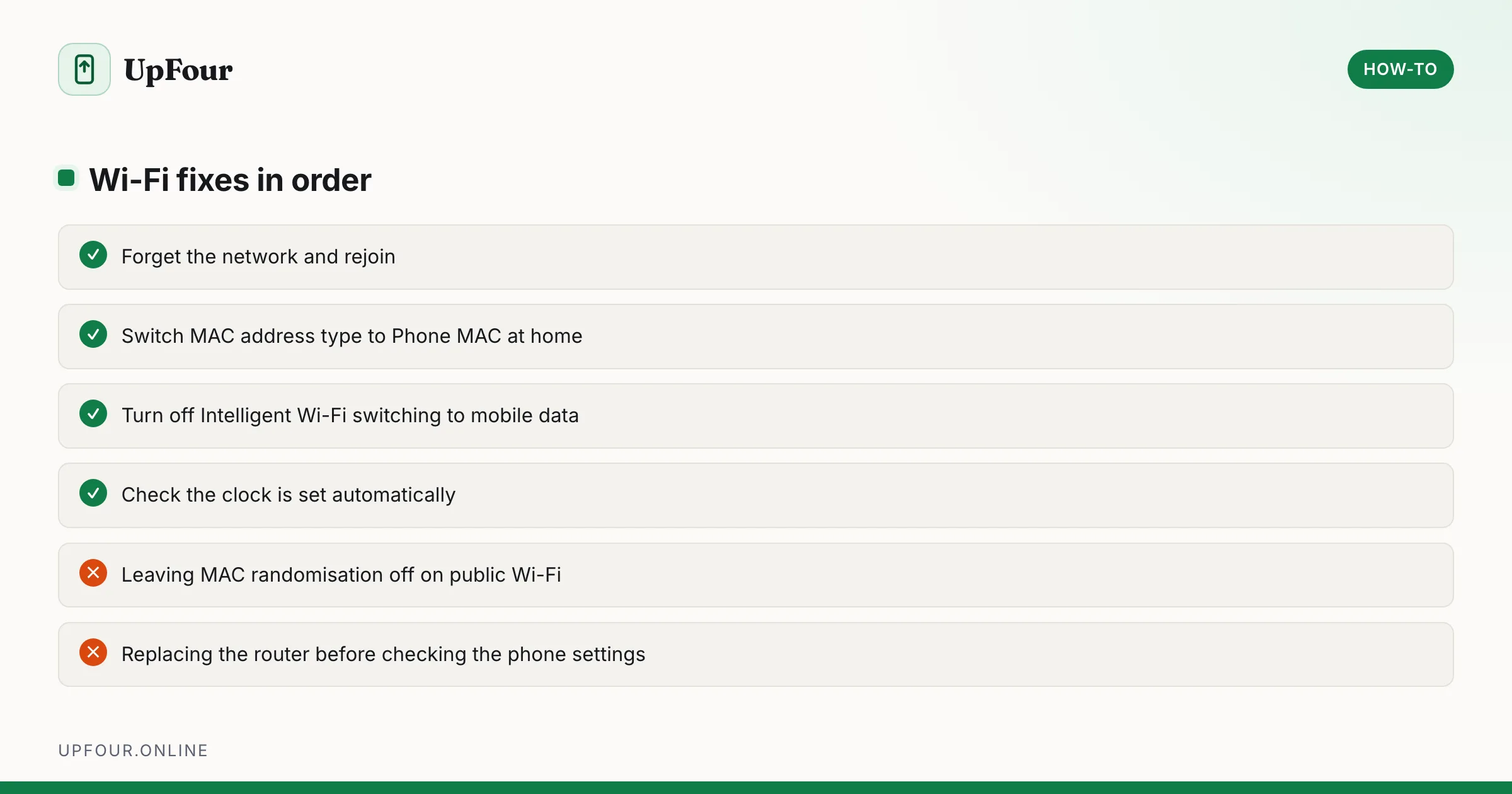
Work through these in order.
1. Forget and rejoin. Tap the network, choose Forget, then reconnect and re-enter the password. This clears corrupted saved credentials, a common problem after a router firmware update.
2. Turn off MAC randomisation. Samsung presents a random MAC address per network for privacy, which some routers reject.
Tap the gear beside the network › MAC address type → Phone MAC.
Do this only on networks you own. Leave randomisation on for public Wi-Fi, where it is a genuine privacy protection.
3. Turn off automatic switching. Samsung's Intelligent Wi-Fi moves you to mobile data when it judges the connection weak, which causes constant flapping.
Settings › Connections › Wi-Fi › ⋮ › Intelligent Wi-Fi → turn off Switch to mobile data.
4. Check the date and time. A wrong system clock breaks certificate validation and produces vague connection errors. Enable Settings › General management › Date and time › Automatic date and time.
5. Reset network settings. Settings › General management › Reset › Reset network settings. Clears all saved Wi-Fi networks, Bluetooth pairings and mobile preferences. You will re-enter Wi-Fi passwords afterwards; nothing else is affected.
Our full guide covers this in more depth: fixing Android Wi-Fi that keeps disconnecting.
Connected but no internet
The phone joined the access point but cannot reach anything beyond it.
- An unfinished captive portal sign-in — see above.
- A Private DNS host the network blocks.
- A VPN left half-connected.
- A wrong system clock.
- The router itself has no internet — check another device before blaming the phone.
Wi-Fi 6E and 6 GHz networks
If a 6 GHz network is invisible on a phone that supports it, the router is usually the cause. 6 GHz requires WPA3 with Protected Management Frames, and routers in WPA2/WPA3 mixed mode frequently fail to hold 6 GHz clients. Setting the router to WPA3-only resolves it, at the cost of very old devices.
Save battery and data
- Settings › Connections › Wi-Fi › ⋮ › Advanced — turn off Switch to mobile data to stop unexpected data use.
- Settings › Location › Wi-Fi scanning — turn off. It scans continuously even with Wi-Fi disabled.
- Turn on Wi-Fi automatically near saved networks is worth leaving on; it saves more battery than it costs.
In short
Settings › Connections › Wi-Fi, tap the network, enter the password. Use Add network for hidden SSIDs and the gear › QR code to share. When a network misbehaves, forget and rejoin first, then switch MAC address type to Phone MAC.
Frequently asked questions
How do I connect my Samsung phone to Wi-Fi?
Open Settings › Connections › Wi-Fi, turn it on, tap your network and enter the password. You can also long-press the Wi-Fi icon in Quick Settings to open the network list directly.
How do I share my Wi-Fi password from a Samsung phone?
Go to Settings › Connections › Wi-Fi, tap the gear beside the connected network and choose QR code. Anyone with an Android phone or iPhone can scan it to join without typing the password.
How do I connect to a hidden Wi-Fi network?
In Settings › Connections › Wi-Fi, scroll down and tap Add network. Enter the network name exactly, as it is case-sensitive, choose the correct security type and enter the password.
Why does my Samsung connect to Wi-Fi but have no internet?
Usually an unfinished captive portal sign-in, a blocked Private DNS setting, a half-connected VPN, or a system clock wrong enough to break certificate validation. Open http://neverssl.com to force a portal page to appear.
Sources & further reading
Official documentation used while writing and checking this guide. Every link was verified at the last update.
- Wi-Fi security and WPA3Wi-Fi Alliance
- Quad9 privacy and security DNSQuad9
- Official Samsung SupportSamsung
Machine-readable version: Markdown source
Related guides
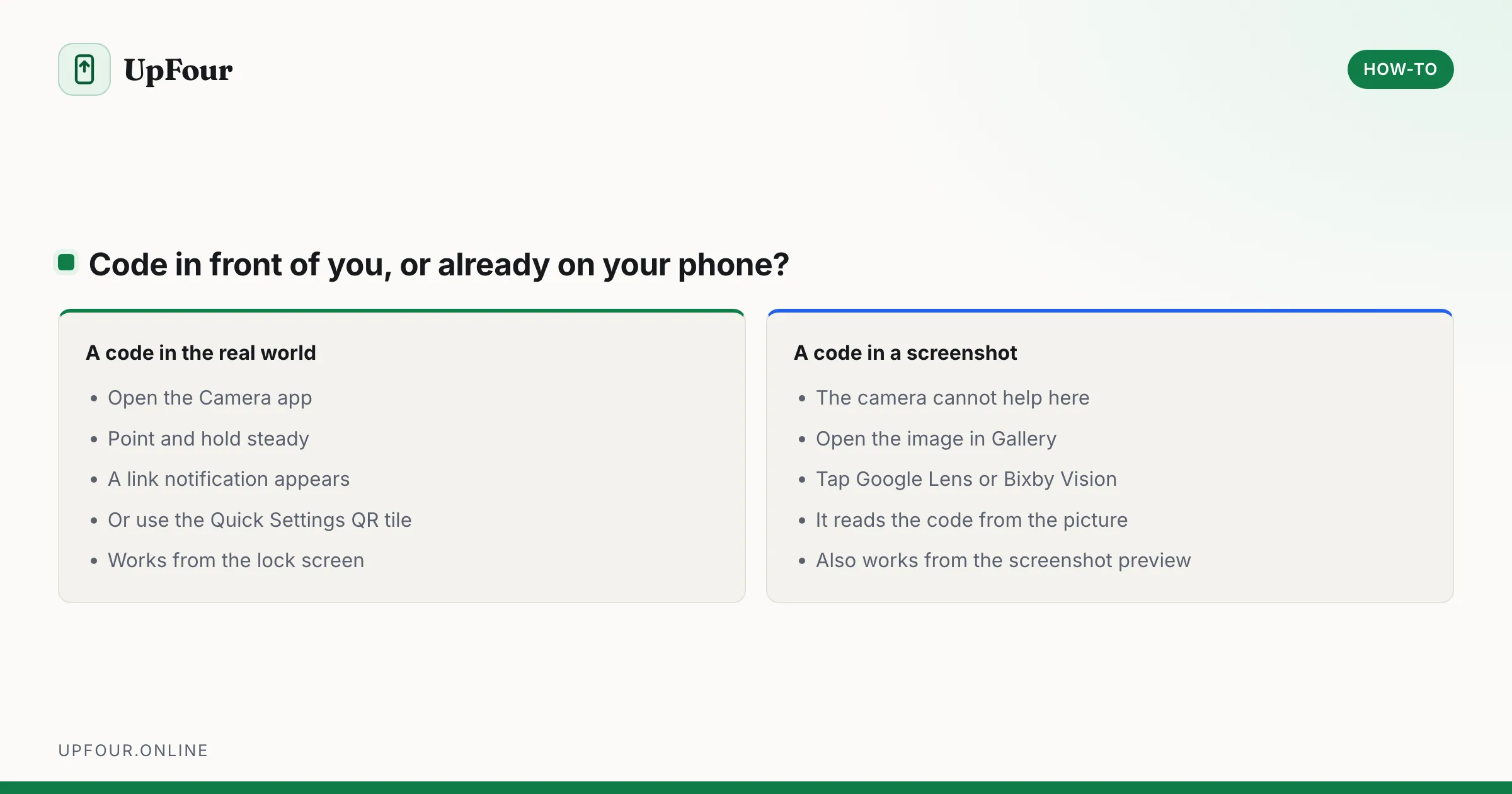
How to Scan a QR Code on a Samsung Phone (Including From the Gallery)
Scan QR codes on a Galaxy phone with the camera, Quick Settings tile or Bixby Vision — plus how to scan a QR code from a saved screenshot or photo.
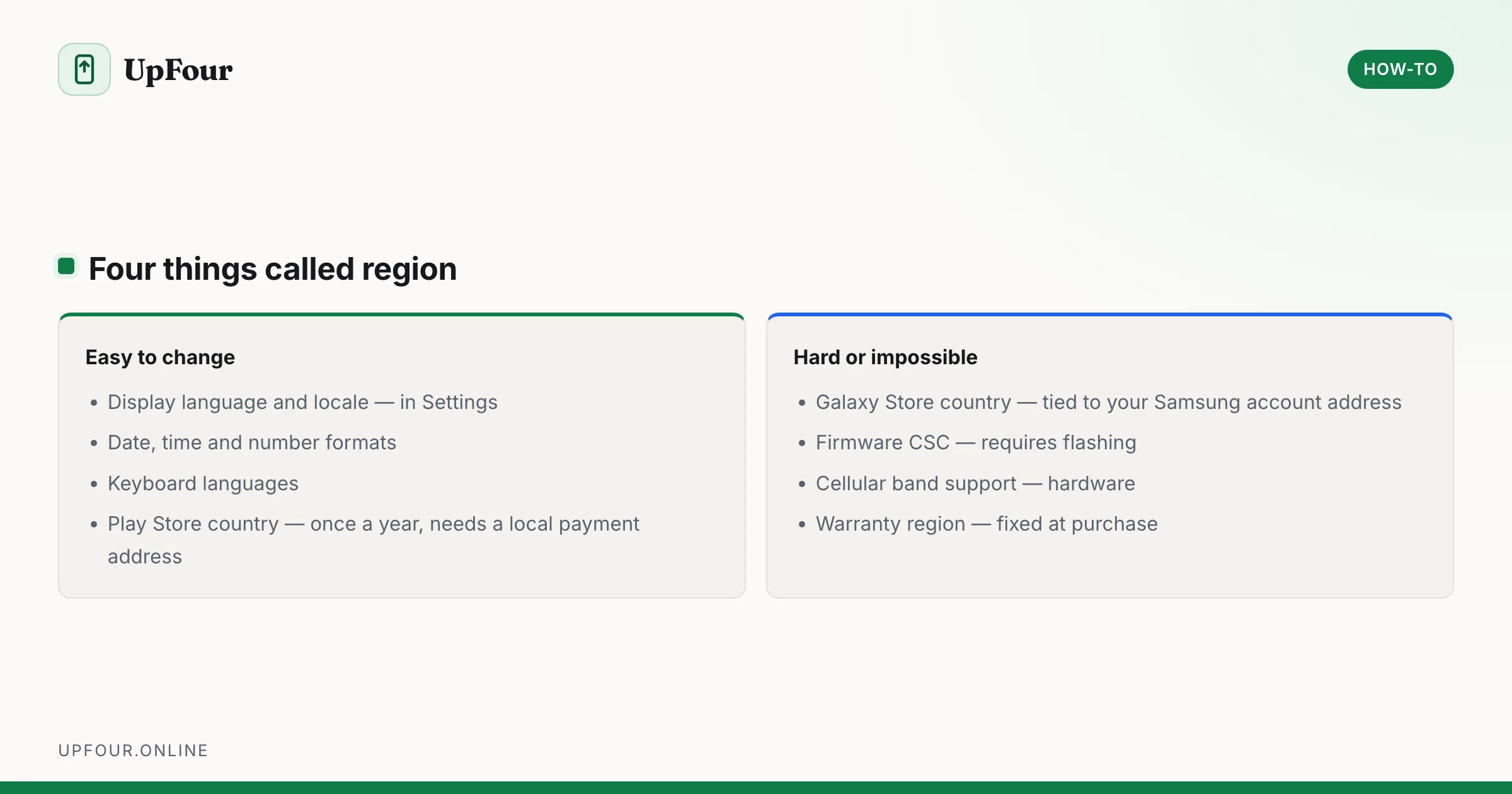
How to Change the Region on a Samsung Phone
Change your country, language and store region on a Galaxy phone — what can be changed easily, what is locked to the firmware, and what breaks.
How to Scan a QR Code on Any Android Phone
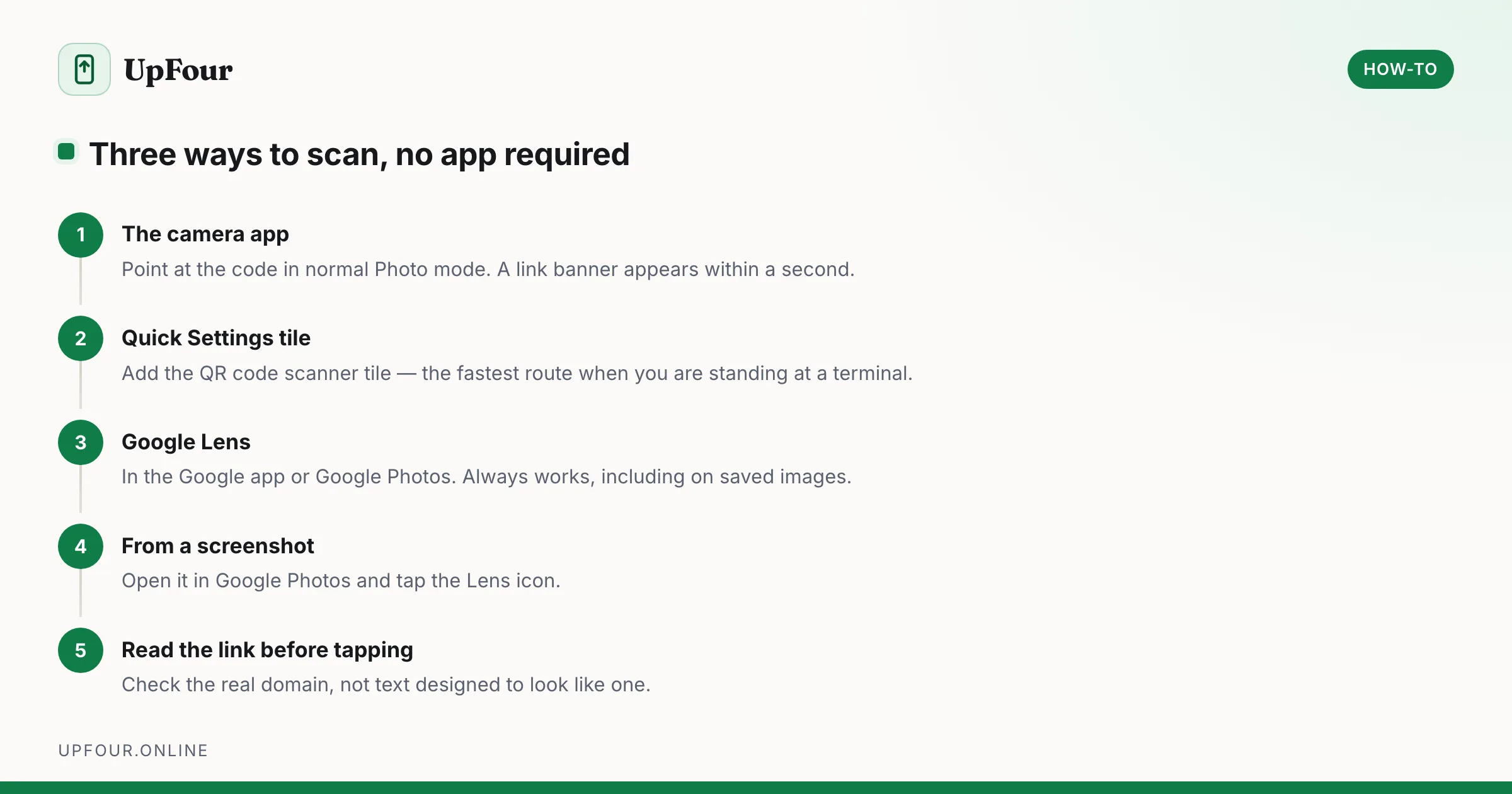
Scan QR codes on Android with the camera, Google Lens or the Quick Settings tile — no app required — and read codes from saved screenshots.