Android Wi-Fi Keeps Disconnecting: 9 Fixes in Diagnostic Order
Fix Android Wi-Fi that drops, shows no internet, or keeps switching to mobile data — from randomised MAC addresses to adaptive connectivity and DNS.
Short answer
Start by turning off Adaptive connectivity and switching the network's Privacy setting from randomised MAC to Use device MAC — those two settings cause the majority of Android Wi-Fi drops on home routers.
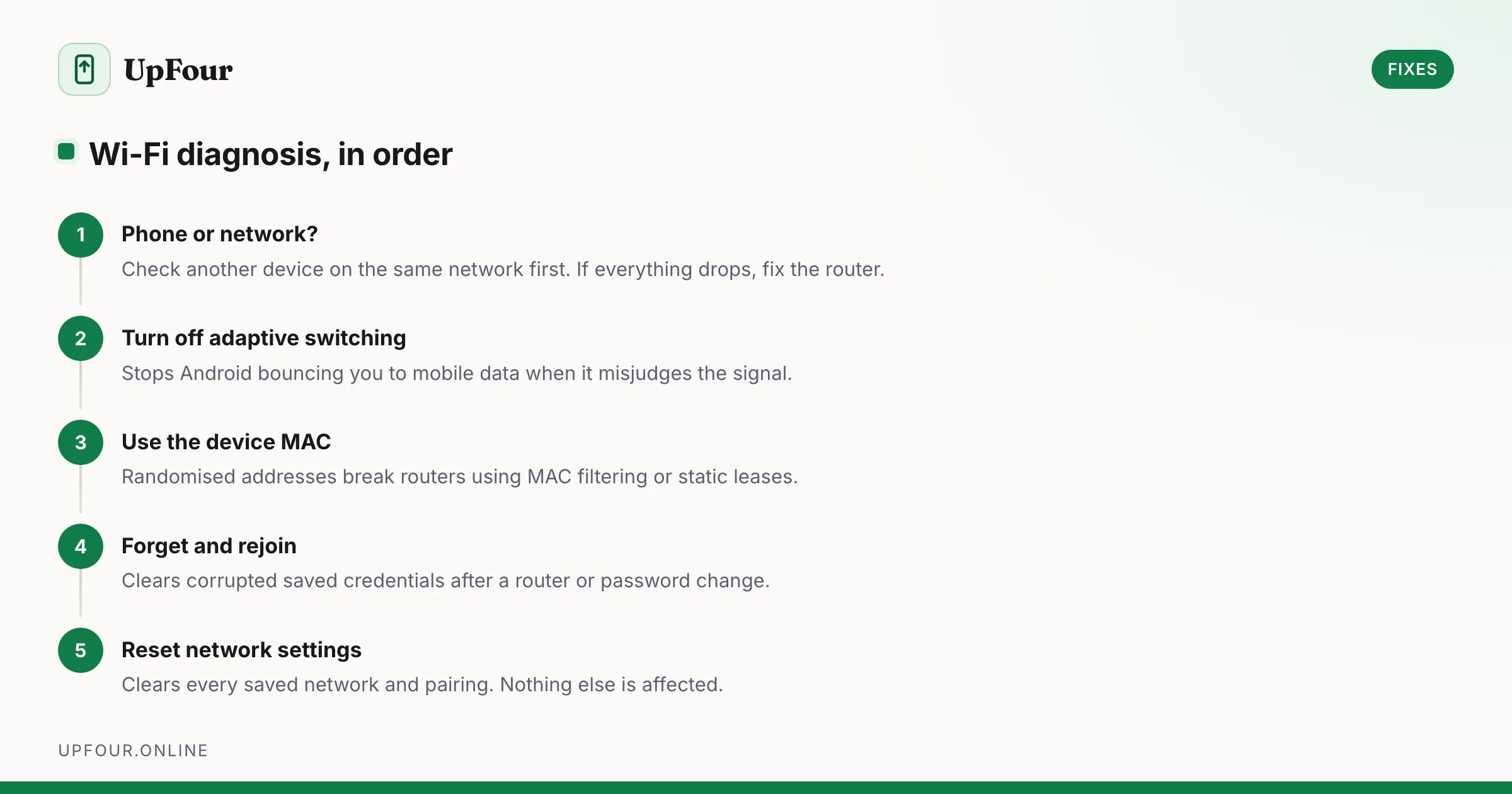
Work down this list in order. Each step rules something out, so do not skip ahead.
1. Is it the phone or the network?
Check another device on the same network. If everything drops, fix the router, not the phone. If only the phone drops, continue.
2. Turn off adaptive connectivity and network switching
Android actively moves you off Wi-Fi when it judges the connection poor. When that judgement is wrong, you get constant flapping between Wi-Fi and mobile data.
- Settings › Network & internet › Adaptive connectivity — off.
- Settings › Network & internet › Internet › Network preferences › Switch to mobile data automatically — off.
- On Samsung: Settings › Connections › Wi-Fi › ⋮ › Intelligent Wi-Fi — turn off Switch to mobile data and Auto reconnect.
This alone resolves a large share of "my Wi-Fi keeps dropping" reports.
3. Disable MAC randomisation for your home network
Android presents a different, random MAC address per network for privacy. Some routers — especially ones with MAC filtering, static DHCP leases or captive portals — handle this badly and drop the client.
- Settings › Network & internet › Internet, tap the gear beside your network.
- Privacy → change from Use randomised MAC to Use device MAC.
Do this only for networks you own and trust. Leave randomisation on for public Wi-Fi — it is a real privacy protection there.
4. Forget and rejoin the network
Corrupted saved credentials are common after a router firmware update or password change.
Tap the network → Forget → reconnect and re-enter the password. Trivial, and it fixes a surprising number of cases.
5. Reset network settings
Clears every Wi-Fi network, Bluetooth pairing and mobile network preference at once.
Settings › System › Reset options › Reset Wi-Fi, mobile & Bluetooth.
You will re-enter Wi-Fi passwords and re-pair Bluetooth devices afterwards. Nothing else is affected.
6. Fix "Connected, no internet"
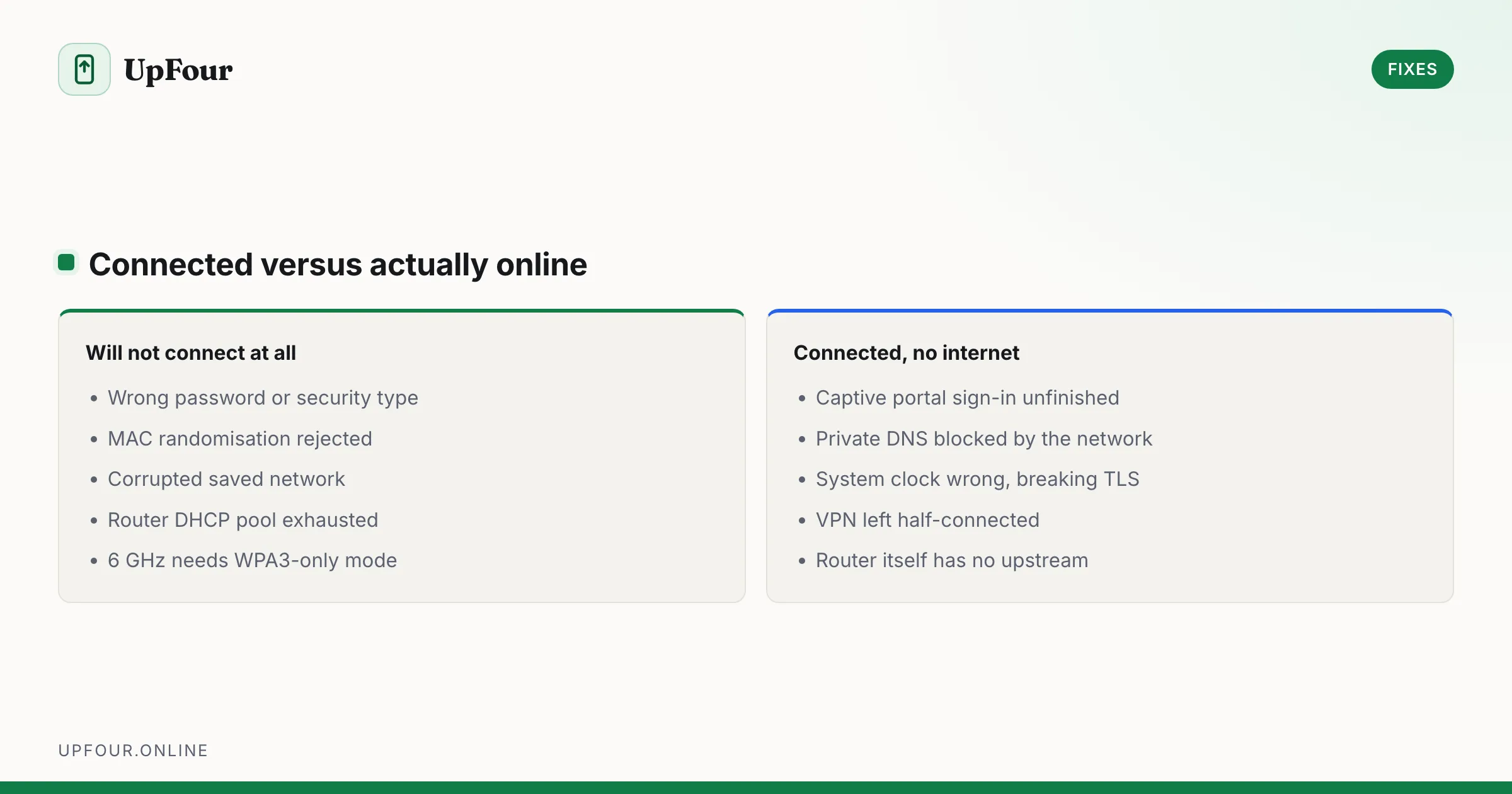
Connected to the access point but nothing loads means the problem is above the radio layer.
- Check for a captive portal. Hotels, cafés, airports and campuses require a browser sign-in. Open
http://neverssl.com— a plain HTTP address forces the portal to appear where an HTTPS address silently fails. - Check Private DNS. Settings › Network & internet › Private DNS. Set to Automatic. See Private DNS for ad blocking for what that setting normally does. A configured DNS-over-TLS host that the network blocks produces exactly this symptom: associated, no resolution.
- Check the date and time. A wrong system clock breaks TLS certificate validation and every HTTPS page fails while the connection itself is fine. Set Settings › System › Date & time › Set time automatically.
- Check for a VPN or private relay left half-connected.
7. Band and channel problems
2.4 GHz reaches further but is congested and slow; 5 GHz and 6 GHz are fast but shorter range.
If a combined network drops when you move around the house, the phone is fighting over which band to use. Split the SSIDs on the router — for example Home and Home-5G — and join the one appropriate to where you use the phone.
For 6 GHz networks: Wi-Fi 6E and 7 require WPA3 with Protected Management Frames. Routers set to WPA2/WPA3 mixed mode frequently fail to hold 6 GHz clients. Setting the router to WPA3-only fixes it, at the cost of very old devices.
8. Check power saving is not killing the radio
- Settings › Battery › Battery Saver can restrict Wi-Fi when the screen is off. On a Galaxy the equivalent settings are covered in connecting a Samsung phone to Wi-Fi.
- Settings › Network & internet › Internet › Network preferences › Turn on Wi-Fi automatically — should be on.
- Samsung's Adaptive power saving turns Wi-Fi off during sleep hours by default on some builds.
9. Test the router side
- Reboot the router. Genuinely fixes DHCP lease-pool exhaustion, which presents as devices randomly losing the network.
- Check the DHCP lease pool. A pool of 20 addresses on a network with 30 devices means someone loses their lease every day.
- Update router firmware. Wi-Fi 6 routers shipped with genuinely broken firmware for a period; updates matter.
- Change the channel away from your neighbours. Use 1, 6 or 11 on 2.4 GHz — those are the only non-overlapping options.
Quick reference
| Symptom | Most likely cause |
|---|---|
| Flaps between Wi-Fi and mobile | Adaptive connectivity / auto network switching |
| Drops only on the home router | MAC randomisation |
| Connected, no internet | Captive portal, Private DNS, or wrong clock |
| Drops when screen turns off | Battery Saver restricting Wi-Fi |
| Drops after moving rooms | Band steering between 2.4 and 5 GHz |
| Cannot see the 6 GHz network | Router not in WPA3-only mode |
Frequently asked questions
Why does my Android keep switching from Wi-Fi to mobile data?
Adaptive connectivity and the Switch to mobile data automatically setting move you off Wi-Fi whenever Android judges the connection weak. Turn both off under Settings › Network & internet.
Should I disable MAC randomisation on Android?
Only on networks you own. Randomisation protects you from tracking on public Wi-Fi, but it breaks routers using MAC filtering or static DHCP leases, causing repeated disconnects at home.
What does 'Connected, no internet' mean on Android?
The phone has joined the access point but cannot reach the internet through it. The usual causes are an unfinished captive portal sign-in, a blocked Private DNS setting, or a system clock wrong enough to break certificate validation.
Does resetting network settings delete my data?
No. It clears saved Wi-Fi networks, Bluetooth pairings and mobile network preferences only. Apps, photos and accounts are unaffected.
Sources & further reading
Official documentation used while writing and checking this guide. Every link was verified at the last update.
- Wi-Fi security and WPA3Wi-Fi Alliance
- Quad9 privacy and security DNSQuad9
- Official Samsung SupportSamsung
- Android Security BulletinsAndroid Open Source Project
Machine-readable version: Markdown source
Related guides
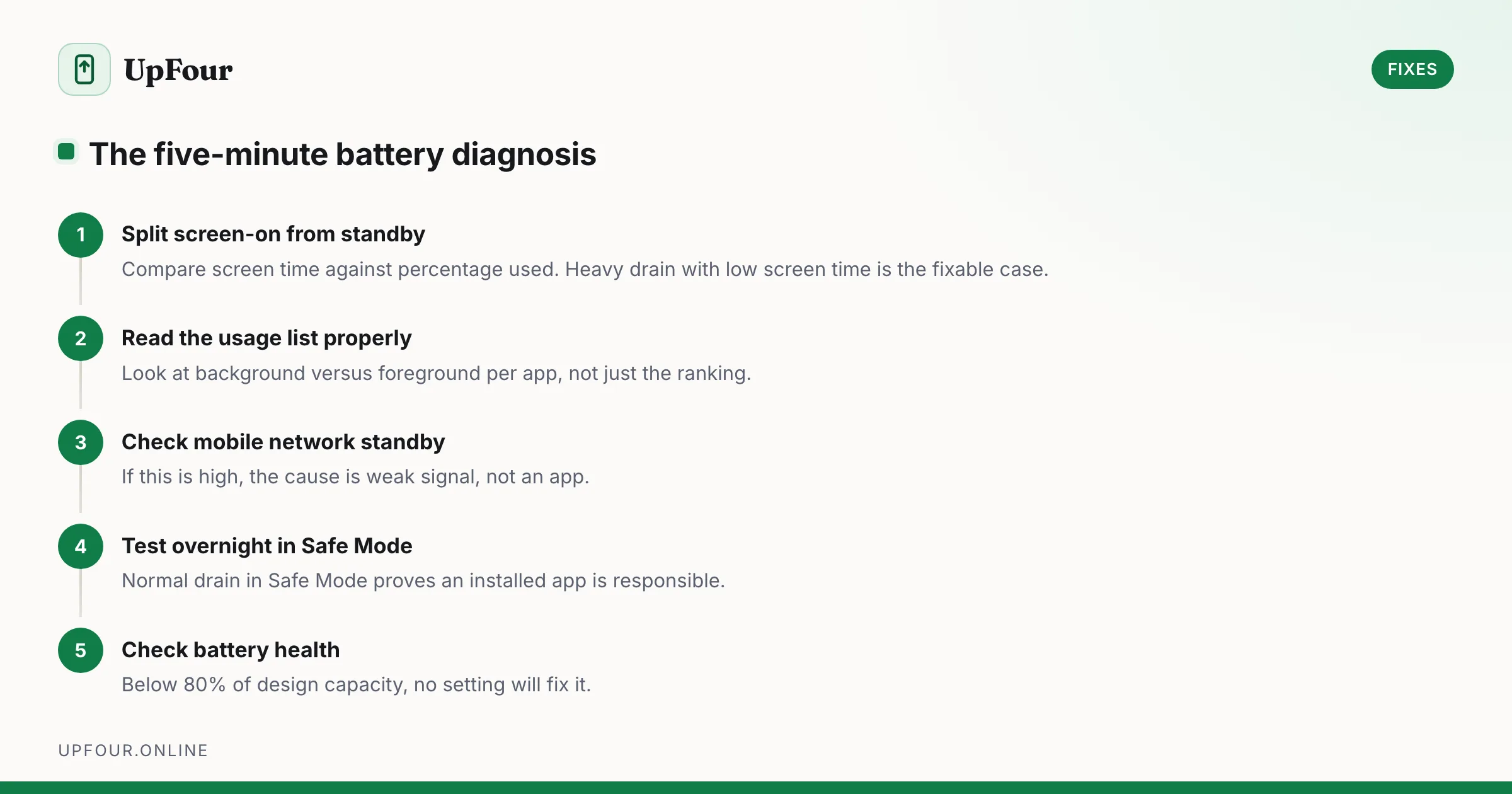
Fix Android Battery Drain: A Diagnostic Order That Actually Finds the Cause
Stop guessing. Diagnose Android battery drain in order — usage stats, screen-on vs standby drain, mobile signal, rogue wakelocks — then apply the fix that matches.
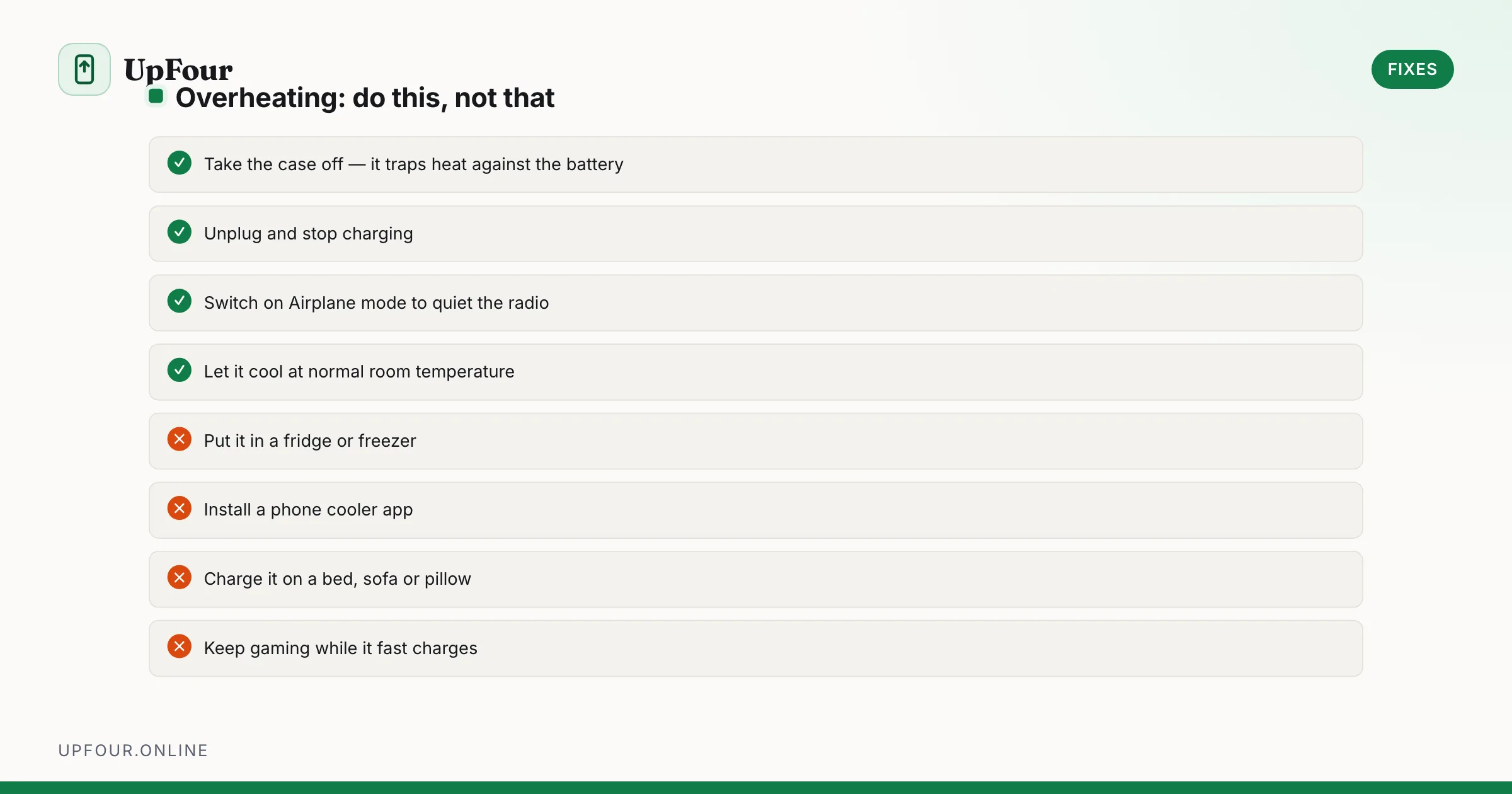
Why Your Android Phone Overheats — and How to Actually Cool It Down
Diagnose Android overheating properly: charging heat, camera and 5G thermal limits, rogue background apps, and the cooling mistakes that damage phones.
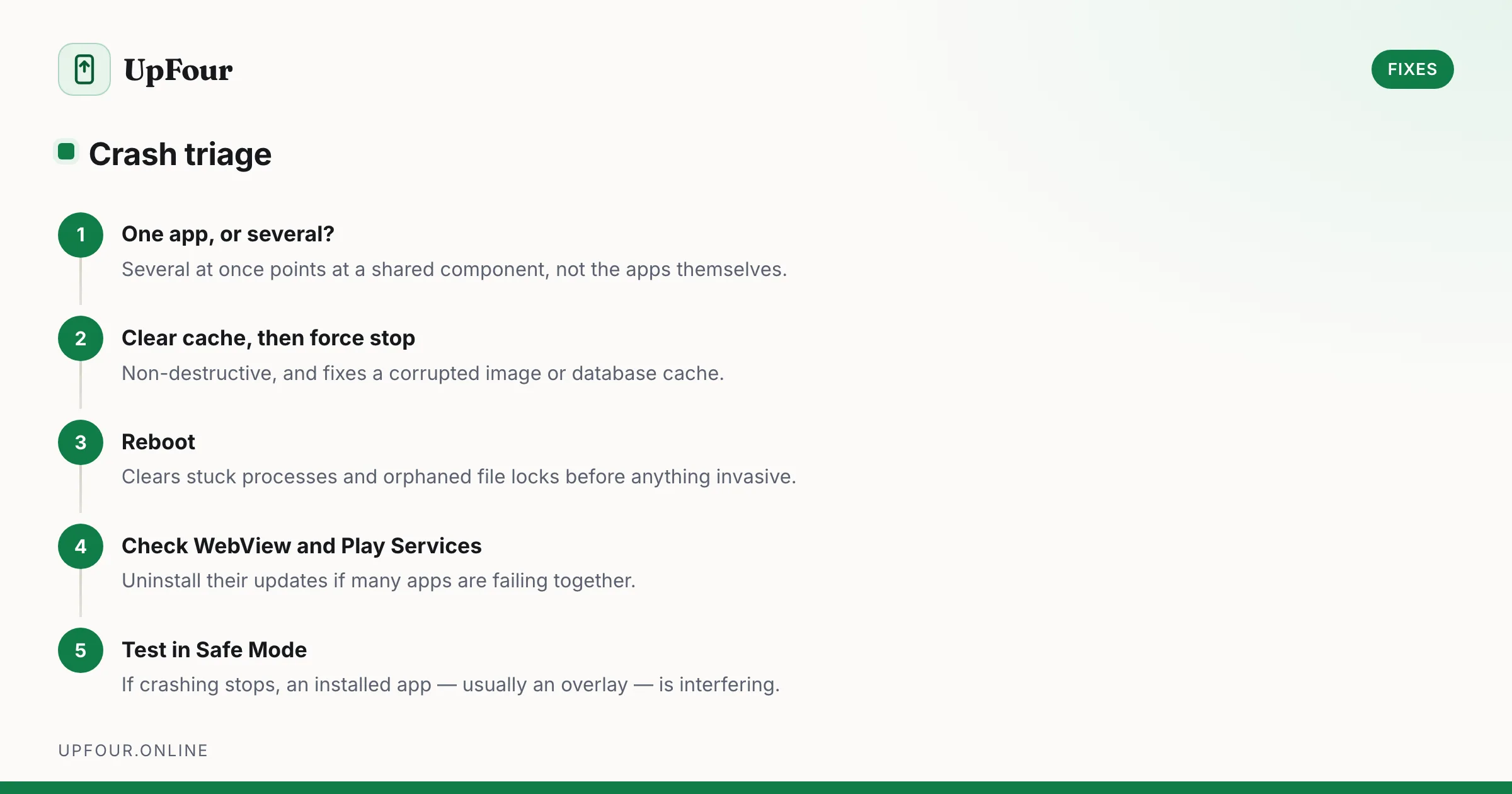
Android Apps Keep Crashing: The Fix Sequence That Works
Fix Android apps that crash, freeze or close instantly — from clearing cache and rolling back updates to repairing Play Services and WebView.