How to Stop Ads and Pop-Ups on Android (Including the Ones From Nowhere)
Block ads on Android without root: remove personalised ads, use a filtering DNS, and find the app responsible for full-screen pop-ups on your home screen.
Short answer
Set a filtering Private DNS such as dns.adguard-dns.com to block ad and tracker domains system-wide, delete your advertising ID, and if pop-ups appear outside apps, find the culprit under Settings › Apps › Special app access › Display over other apps.
There are three separate problems here and they need different fixes: ads inside apps and web pages, personalised targeting, and pop-ups appearing when no app is open. The third one is the serious one.
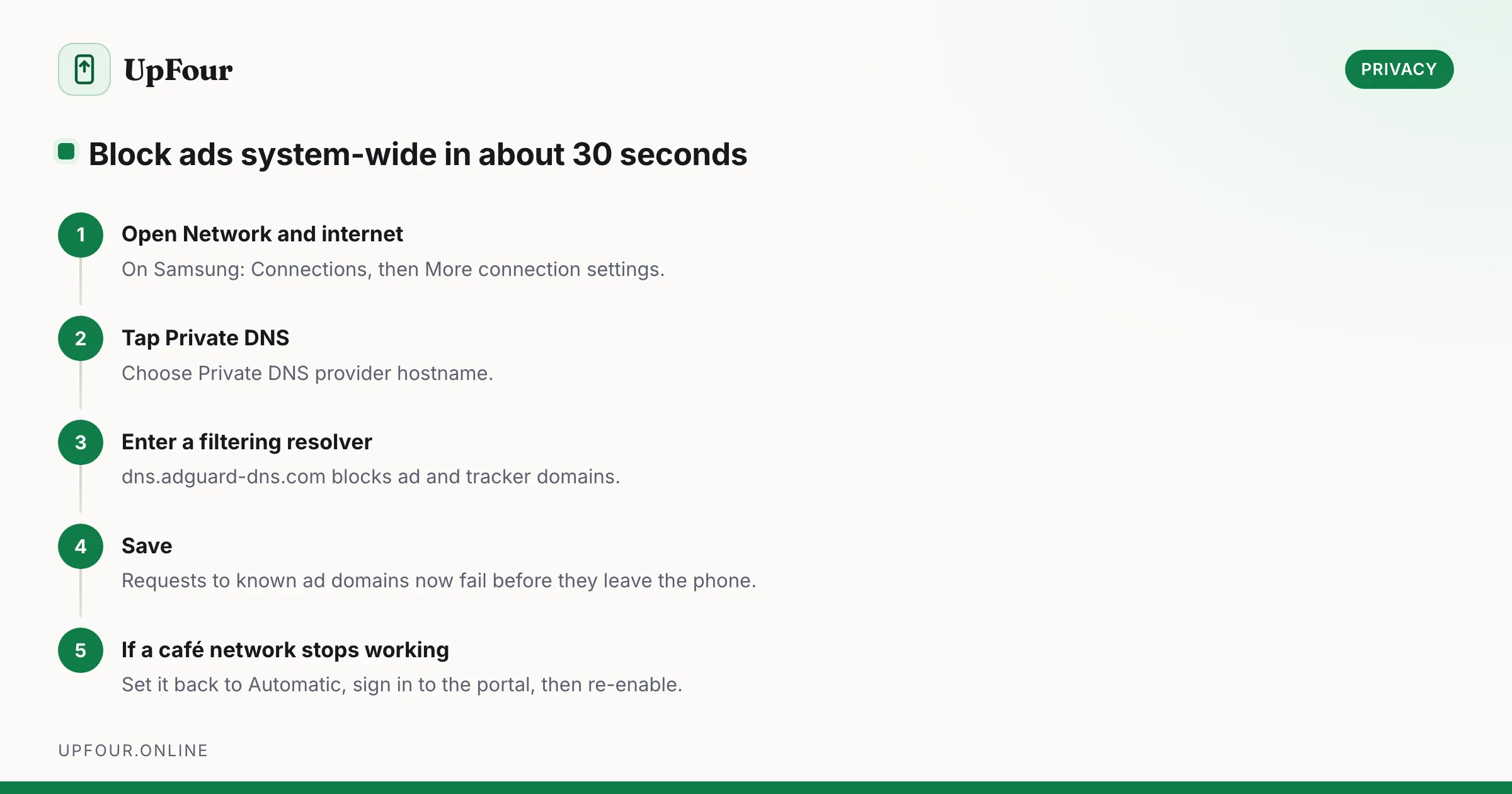
System-wide ad blocking with Private DNS
The most effective no-root ad blocking on Android takes about thirty seconds and applies to every app and browser at once.
- Settings › Network & internet › Private DNS
- Select Private DNS provider hostname
- Enter
dns.adguard-dns.com - Save
Every DNS lookup now goes encrypted to a resolver that refuses to resolve known ad and tracker domains. Ads are not merely hidden — the request never leaves the phone successfully.
Alternatives:
| Hostname | Blocks |
|---|---|
dns.adguard-dns.com | Ads, trackers, malware |
family.adguard-dns.com | The above plus adult content |
dns.quad9.net | Malware only, no ad blocking |
base.dns.mullvad.net | Ads and trackers, no logging |
Limitations worth knowing: it cannot block ads served from the same domain as the content (YouTube ads, Instagram in-feed ads), and it applies only when your traffic uses the phone's DNS — a VPN takes over resolution.
Stop personalised targeting
Blocking the delivery is separate from stopping the profiling.
- Settings › Security & privacy › Privacy controls › Ads › Delete advertising ID. This is step one of our Android privacy checklist.
- Settings › Google › Manage your Google Account › Data & privacy › Ad settings → turn off Ad personalisation.
- In Chrome: Settings › Privacy and security › Ad privacy → turn off all three of Ad topics, Site-suggested ads and Ad measurement.
Browser-level blocking
If a filtering DNS is not enough on the web:
- Use a browser with built-in blocking — Brave, Firefox with uBlock Origin, or DuckDuckGo.
- In Chrome: Settings › Site settings › Pop-ups and redirects → Don't allow, and Intrusive ads → Block.
- Chrome's Settings › Site settings › Notifications — this is where "a website keeps sending me notifications" is fixed. Review the allowed list and revoke everything you did not deliberately approve.
Pop-ups when you are not in any app
Full-screen ads on your home screen, or ads that appear over other apps, mean an installed app is abusing overlay permission. This is adware, and it usually arrives with a flashlight app, a "cleaner", a QR scanner or a sideloaded APK.
Find it:
- When an ad appears, immediately open Recents — the offending app is often the card behind it.
- Settings › Apps › Special app access › Display over other apps — review the list and revoke everything you do not recognise or do not need.
- Settings › Apps › See all apps, sort by Recently installed. The problem almost always began with something installed in the last few weeks.
- Boot into Safe Mode (hold power → long-press Power off → Reboot to safe mode). If the pop-ups stop, it is definitely an installed app.
Then remove it:
- Uninstall the app.
- If Uninstall is greyed out, it has device-admin rights: Settings › Security & privacy › More security settings › Device admin apps → deactivate it first, then uninstall.
- Check Settings › Accessibility › Downloaded apps and disable anything unexpected. Adware requests accessibility access because it grants the ability to read and control the screen.
- Run Play Store › profile › Play Protect › Scan. For a full permissions audit afterwards, see what each Android permission really grants.
Notification-shade spam
Ads arriving as notifications are easier: long-press the notification, tap the gear, and turn off that channel. If the app has no legitimate purpose, uninstall it — an app that advertises to you through the notification shade is telling you what it is.
Reduce ads in Google's own apps
- Google app → Profile › Settings › General → turn off Discover if you do not use the feed.
- Play Store → Profile › Settings › General › Notifications → turn off the promotional categories.
- Gmail → Settings › [account] › Inbox categories → turn off Promotions and Social tabs to stop the sponsored slots at the top of Promotions.
What not to do
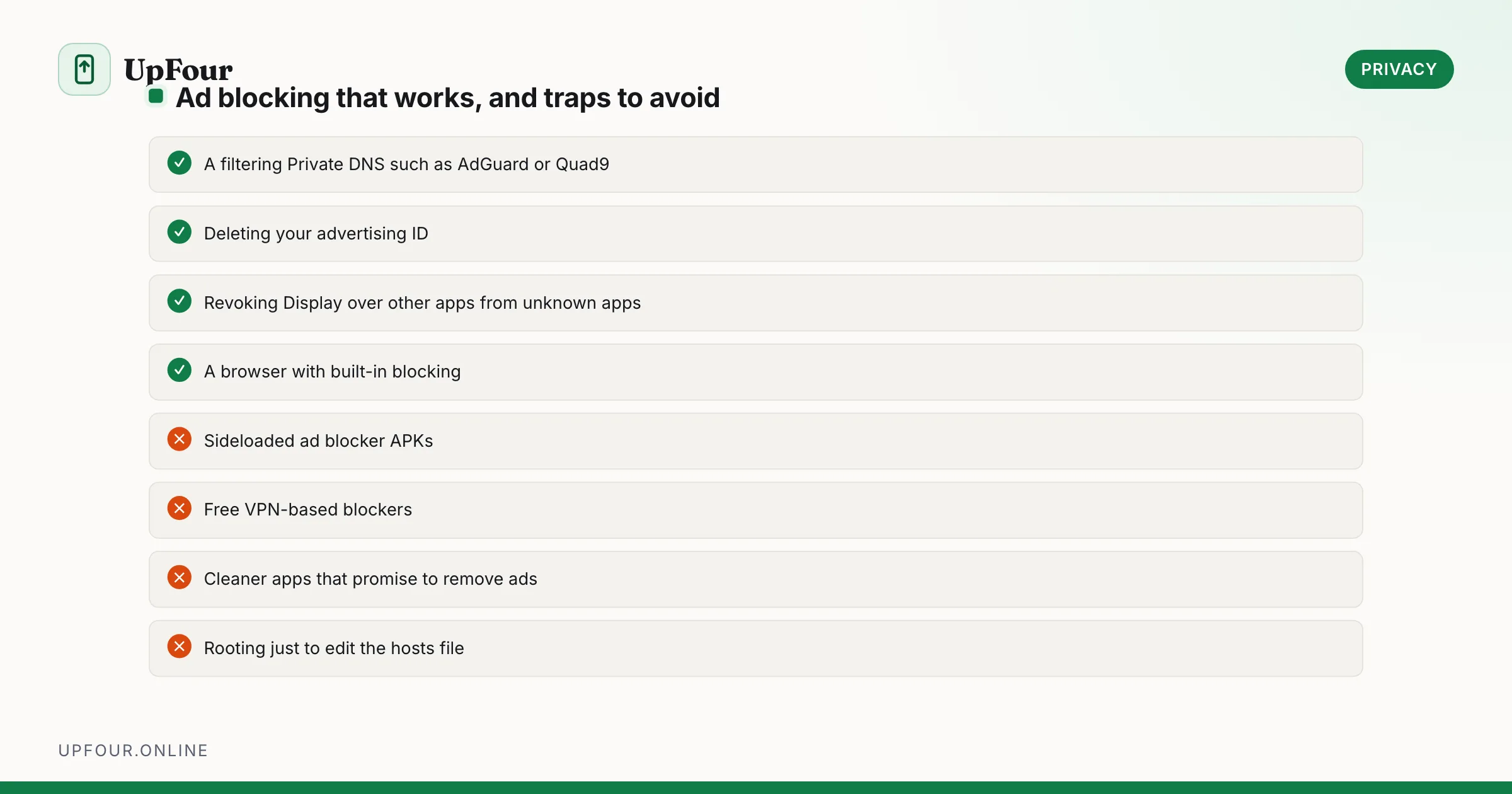
| Approach | Problem |
|---|---|
| Sideloaded "ad blocker" APKs | A common adware delivery method in itself |
| VPN-based blockers | Occupy the one VPN slot; many log traffic; some are the ad networks |
| Rooting to edit the hosts file | Breaks banking apps and Play Integrity; a filtering DNS achieves the same result |
| "Cleaner" apps that promise to remove ads | Overwhelmingly the source of the ads |
Verify it is working
Load a site you know is ad-heavy before and after setting Private DNS. Or check that doubleclick.net fails to resolve — with a filtering resolver active, it should not load at all.
Frequently asked questions
How do I block ads on Android without root?
Set Private DNS to a filtering resolver such as dns.adguard-dns.com under Settings › Network & internet › Private DNS. It blocks ad and tracker domains across every app and browser without root or a VPN.
Why do I get pop-up ads on my home screen when no app is open?
An installed app is abusing the display-over-other-apps permission. Review Settings › Apps › Special app access › Display over other apps, check recently installed apps, and confirm with Safe Mode.
Why can't I uninstall the app causing pop-ups?
It has device administrator rights. Deactivate it under Settings › Security & privacy › More security settings › Device admin apps, then uninstall it normally.
Does Private DNS block YouTube ads?
No. YouTube serves ads from the same domains as its video content, so a DNS filter cannot separate them without breaking the app.
Sources & further reading
Official documentation used while writing and checking this guide. Every link was verified at the last update.
- AdGuard public DNS serversAdGuard
- Quad9 privacy and security DNSQuad9
- How to recognise and avoid phishing scamsUS Federal Trade Commission
- Permissions on AndroidAndroid Developers
- Secure Our World guidanceUS Cybersecurity & Infrastructure Security Agency
Machine-readable version: Markdown source
Related guides
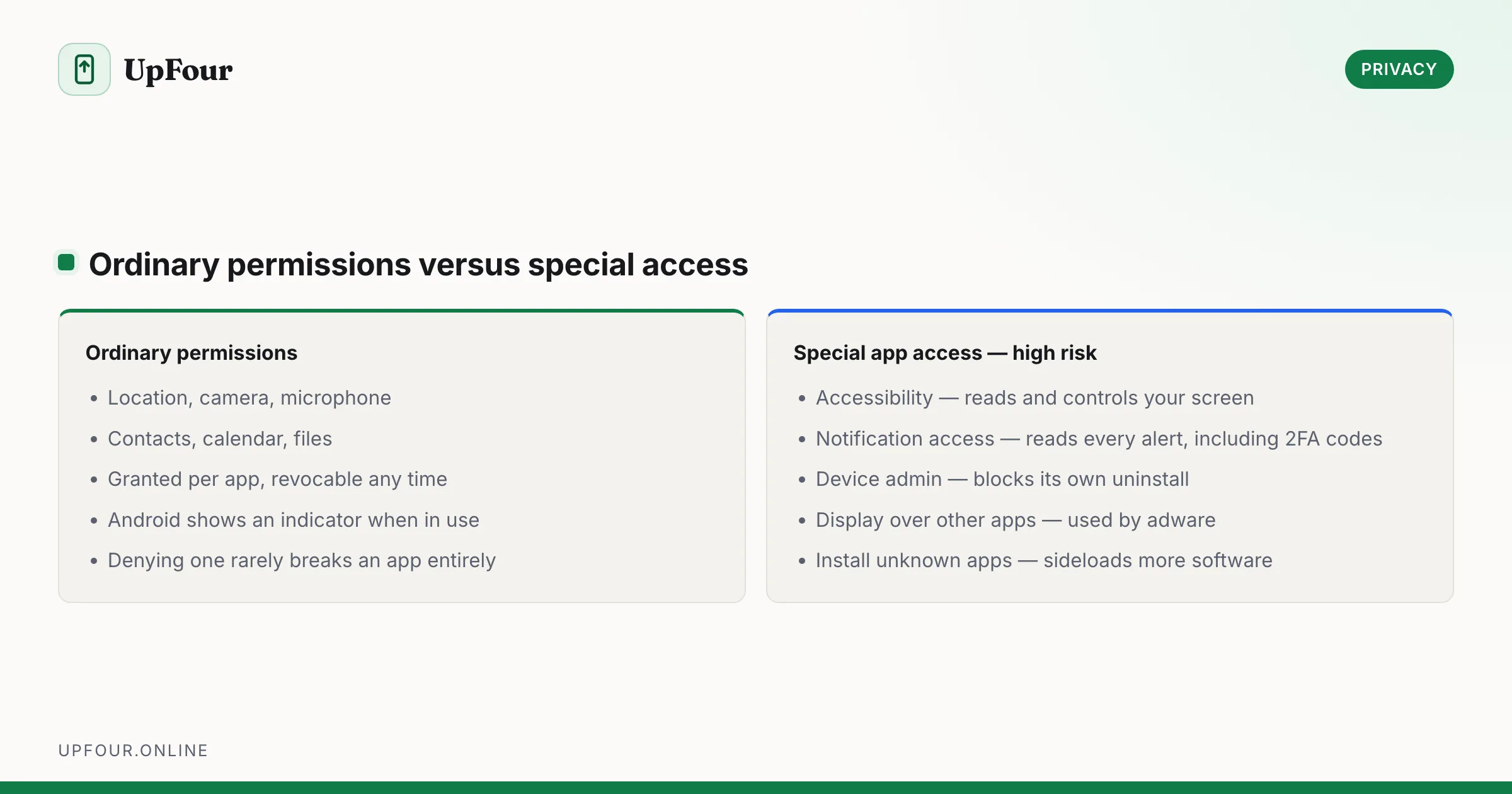
Android App Permissions Explained: What Each One Really Grants
What every Android permission actually allows, which ones apps abuse, and how to audit and revoke access without breaking the apps you rely on.
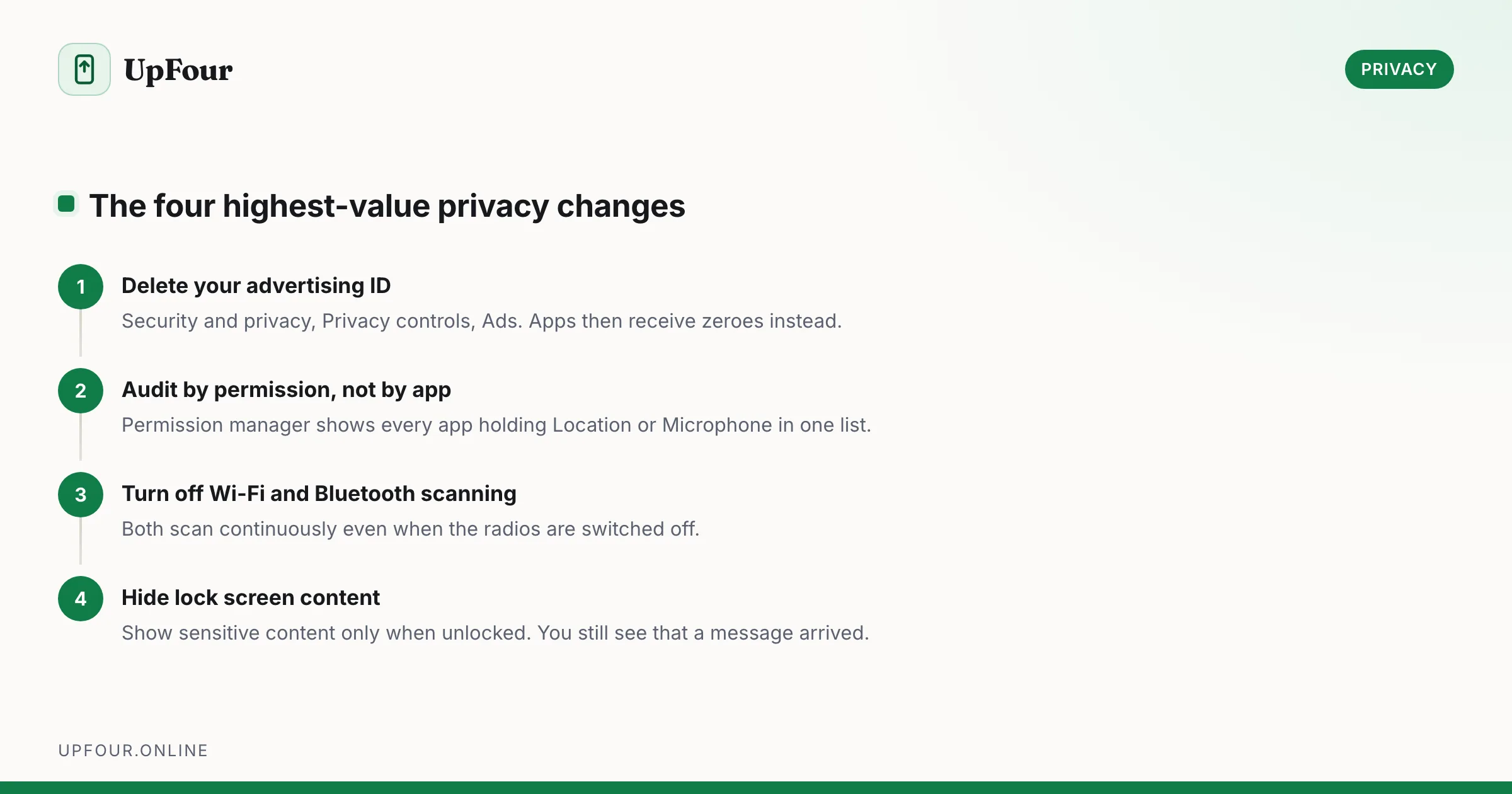
The Android Privacy Checklist: 12 Settings to Change Today
A concrete Android privacy checklist — permissions, ad ID, location history, lock screen leaks, Private DNS and the settings that actually reduce tracking.
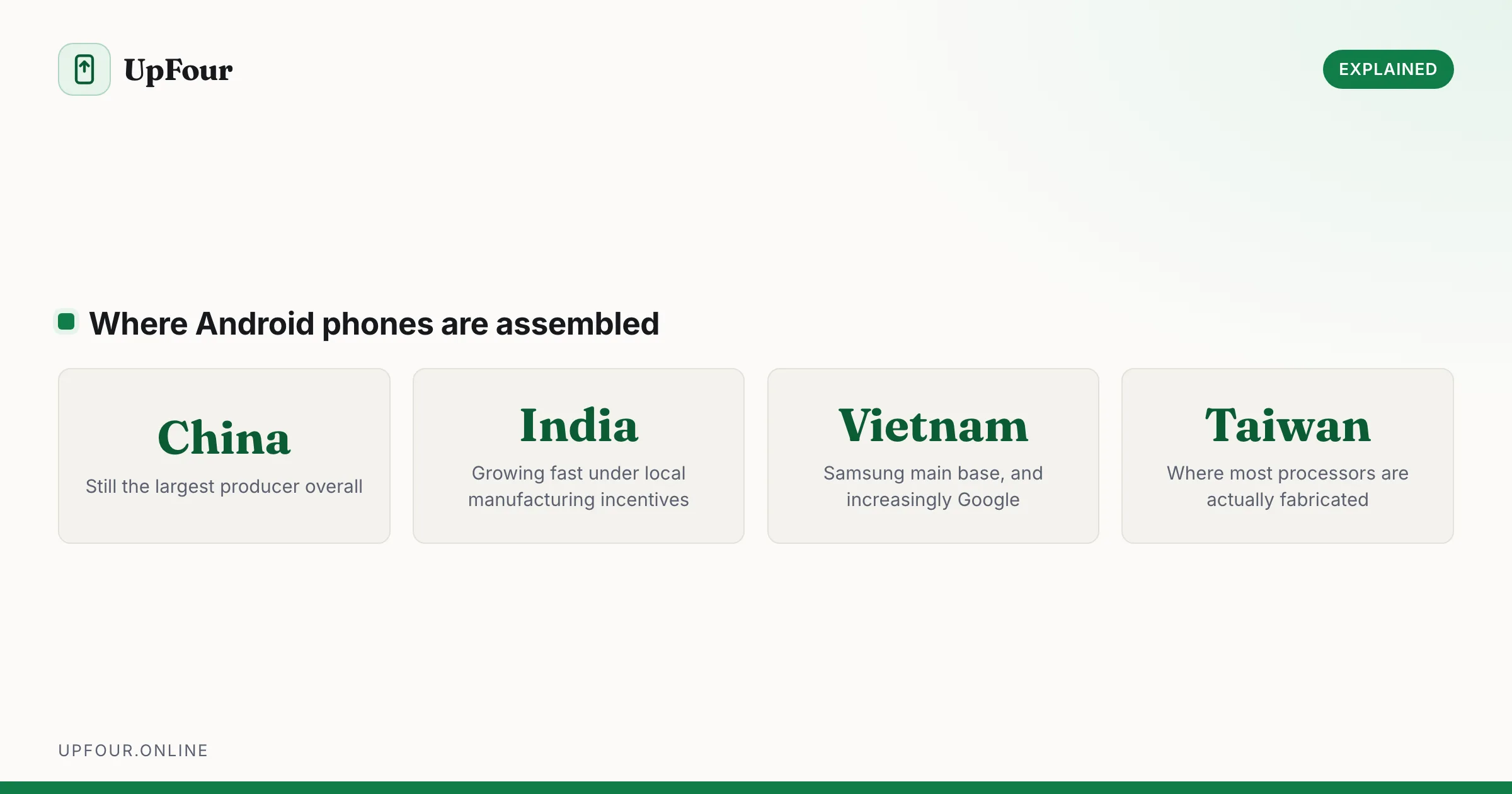
Where Are Android Phones Made? Manufacturing by Brand
Which countries make Android phones, brand by brand — Samsung, Google Pixel, Xiaomi, OnePlus and Motorola — and why so much moved out of China.