The Android Privacy Checklist: 12 Settings to Change Today
A concrete Android privacy checklist — permissions, ad ID, location history, lock screen leaks, Private DNS and the settings that actually reduce tracking.
Short answer
Start with Settings › Security & privacy › Privacy controls: delete your advertising ID, set location permissions to Only while using, turn off Wi-Fi and Bluetooth scanning, and hide notification content on the lock screen.
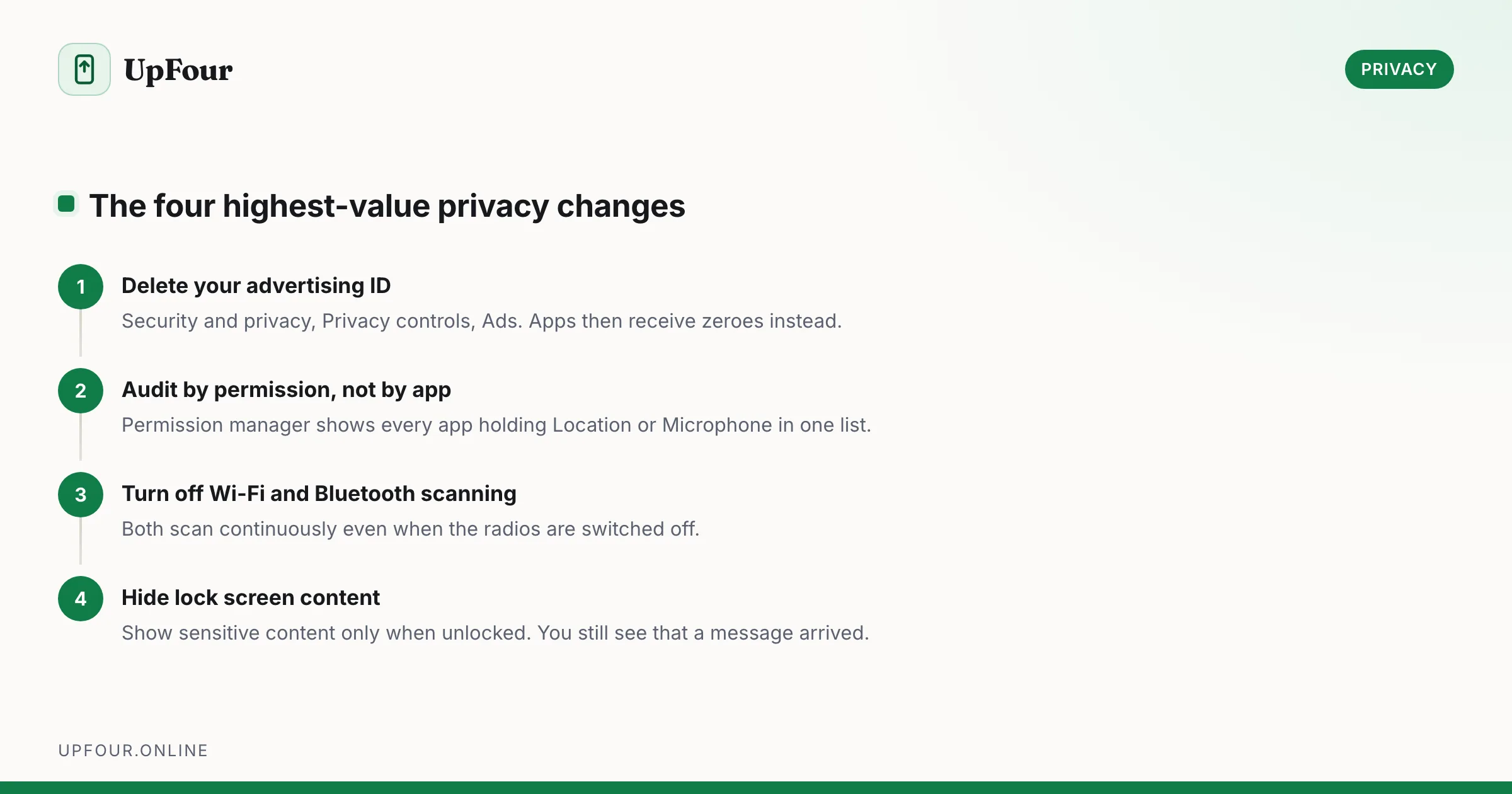
Twelve changes, roughly fifteen minutes, no third-party apps. Ordered by how much they reduce real-world tracking per minute spent.
1. Delete your advertising ID
The single highest-impact toggle on this list. Your advertising ID is the identifier that lets unrelated apps recognise you as the same person and join their data together.
Settings › Security & privacy › Privacy controls › Ads › Delete advertising ID.
Deleting it — rather than merely resetting it — causes Android to hand apps a string of zeroes instead. Apps that request it are notified that the user opted out. This does not stop ads; it stops them being tied to a persistent cross-app identity. To block the ads themselves, see how to stop Android ads and pop-ups.
2. Audit permissions by permission, not by app
Settings › Security & privacy › Privacy controls › Permission manager.
Look at it by permission, which reveals what app-by-app review never does. Open Location and you will see the full list of apps that can locate you. Open Microphone and Camera and check every entry.
Rules worth applying:
- Location → Only while using the app at most. Very few apps justify Allow all the time.
- Precise location off for anything that only needs your city — weather, news, shopping.
- Camera and microphone → Ask every time for anything you use rarely.
- Deny Nearby devices, Body sensors and Files and media unless the app's core function needs them. Our guide to what each Android permission really grants goes through them one by one.
3. Turn on automatic permission removal
Settings › Apps › [app] › Pause app activity if unused. Android revokes permissions and stops background work for apps you have not opened in a few months. Enable it globally where your OEM offers the option.
4. Kill Wi-Fi and Bluetooth scanning
These two scan continuously for nearby networks and devices to improve location accuracy — even when Wi-Fi and Bluetooth are switched off. They are a location-tracking channel and a battery cost.
Settings › Location › Location services → turn off Wi-Fi scanning and Bluetooth scanning.
5. Stop lock-screen notification leaks
Anyone who picks up your phone can currently read your messages without unlocking it.
Settings › Notifications › Notifications on lock screen → Show sensitive content only when unlocked, or Don't show notifications at all.
The first option is the right balance: you still see that a message arrived, but not its contents.
6. Review Google account activity controls
Settings › Google › Manage your Google Account › Data & privacy.
- Web & App Activity — turn off, or set auto-delete to 3 months.
- Location History (Timeline) — turn off unless you actively use it. On recent Android versions this data is stored on-device; deleting it still matters.
- YouTube History — auto-delete at 3 months.
- Ad personalisation — off.
Auto-delete is the pragmatic setting: it limits how much history exists at any moment without breaking features that rely on recent context.
7. Set Private DNS
Settings › Network & internet › Private DNS › Private DNS provider hostname.
Enter a DNS-over-TLS provider such as dns.quad9.net (blocks known-malicious domains) or dns.adguard-dns.com (also blocks ad and tracker domains). This encrypts your DNS queries so your network operator cannot read or log which sites you visit, and it applies system-wide, including inside apps.
If a network later stops working entirely while showing a Wi-Fi connection, set this back to Automatic — some captive portals block DNS-over-TLS until you sign in.
8. Use the microphone, camera and clipboard indicators
Android shows a green dot when the camera or microphone is active and a toast when an app reads your clipboard. Both are on by default — do not disable them, and pay attention when they appear unexpectedly.
Add the Camera access and Microphone access tiles to Quick Settings. These are hard kill switches at the system level that override every app's permission.
9. Lock down the lock screen itself
- Settings › Display › Lock screen › Show wallet / device controls — off. Both are reachable without unlocking. See also changing your default apps.
- Set a 6-digit PIN or password rather than a 4-digit PIN or a pattern. Patterns are readable from smudges and from across a room.
- Turn on Settings › Security & privacy › Device unlock › Lock screen › Enhanced PIN privacy to disable the animation that shows which digits you press.
10. Set up Private Space
Settings › Security & privacy › Private space. Creates a separate, separately-locked container with its own copies of apps and its own accounts. Apps inside are hidden from the app list and from notifications when locked, and they do not run.
This is the correct place for banking, health and anything you would not want visible to someone scrolling your app drawer.
11. Turn on Theft Detection and Remote Lock
Settings › Security & privacy › Device unlock › Theft protection.
- Theft Detection Lock — locks the screen when the phone detects the motion pattern of being snatched.
- Offline Device Lock — locks if the phone goes offline for an extended period.
- Remote Lock — lock the device using only your phone number and a security question, without needing to sign in to a Google account you may not be able to reach.
12. Check what has device admin and accessibility access
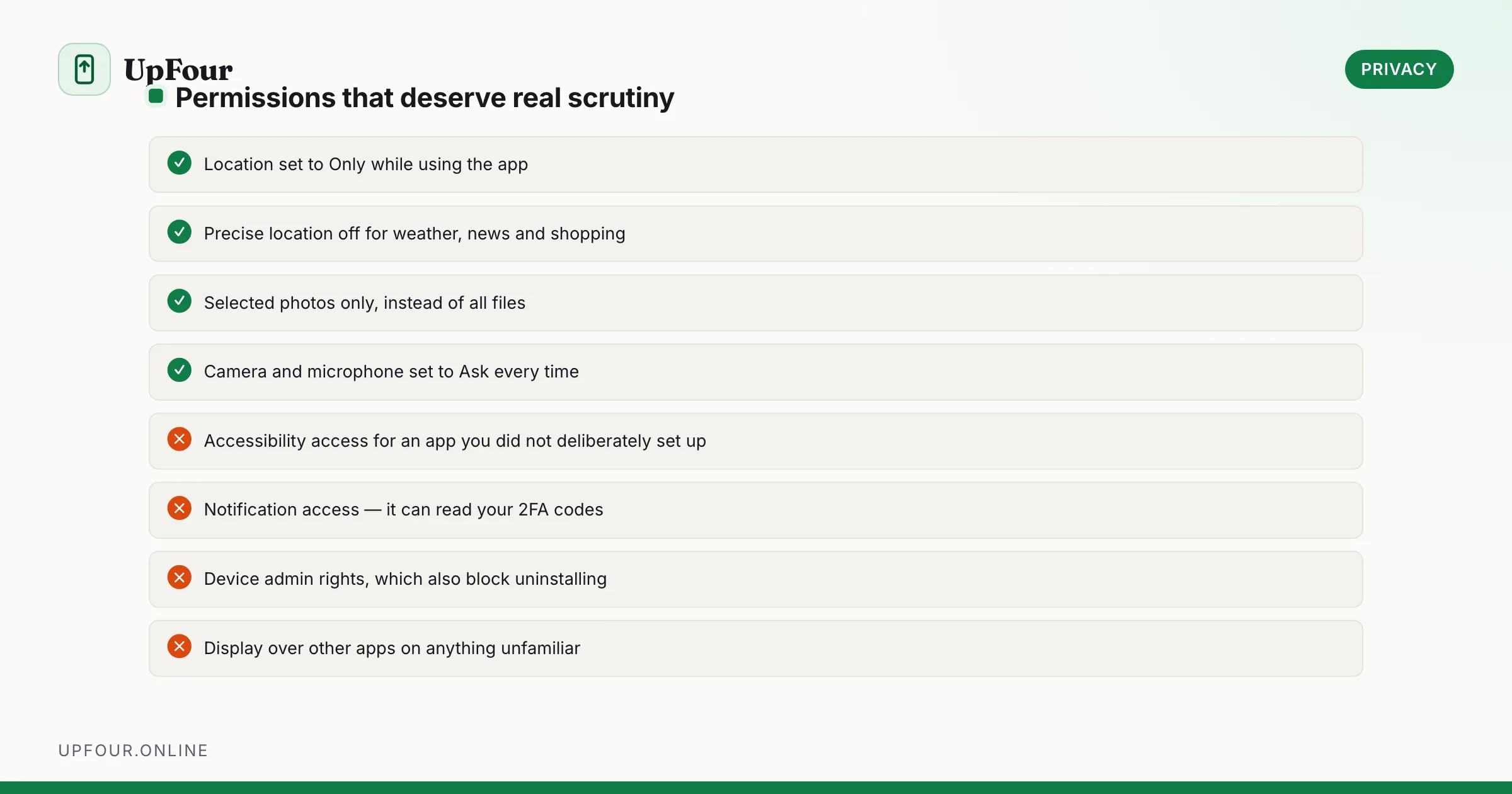
Two permissions that grant near-total control, and the ones malware wants most.
- Settings › Security & privacy › More security settings › Device admin apps.
- Settings › Accessibility › Downloaded apps.
Anything here that you did not deliberately install and configure — remove it now. A legitimate accessibility service is something you chose; anything else can read your screen and act on your behalf.
Quick reference
| Setting | Path |
|---|---|
| Delete advertising ID | Security & privacy › Privacy controls › Ads |
| Permission manager | Security & privacy › Privacy controls |
| Wi-Fi / Bluetooth scanning | Location › Location services |
| Lock screen notifications | Notifications › Notifications on lock screen |
| Private DNS | Network & internet › Private DNS |
| Private space | Security & privacy › Private space |
| Theft protection | Security & privacy › Device unlock |
| Device admin apps | Security & privacy › More security settings |
Frequently asked questions
What is the advertising ID on Android and should I delete it?
It is a resettable identifier that lets separate apps recognise you as the same person and combine their data. Deleting it under Settings › Security & privacy › Privacy controls › Ads makes Android return zeroes instead and signals that you have opted out.
Does turning off Wi-Fi scanning affect my location accuracy?
Slightly. Location fixes may take a little longer indoors, but GPS still works normally. The trade is usually worth it since scanning runs continuously even with Wi-Fi switched off.
What is Private space on Android?
A separately locked container holding its own copies of apps and accounts. Apps inside are hidden from the app list and do not run or send notifications while it is locked.
Is setting a Private DNS provider safe?
Yes, and it encrypts your DNS queries system-wide. If a captive portal network later fails to connect, set Private DNS back to Automatic until you have signed in.
Sources & further reading
Official documentation used while writing and checking this guide. Every link was verified at the last update.
- Permissions on AndroidAndroid Developers
- Manage location permissions for appsGoogle Android Help
- Manage your Android device's location settingsGoogle Account Help
- Quad9 privacy and security DNSQuad9
- Secure Our World guidanceUS Cybersecurity & Infrastructure Security Agency
Machine-readable version: Markdown source
Related guides
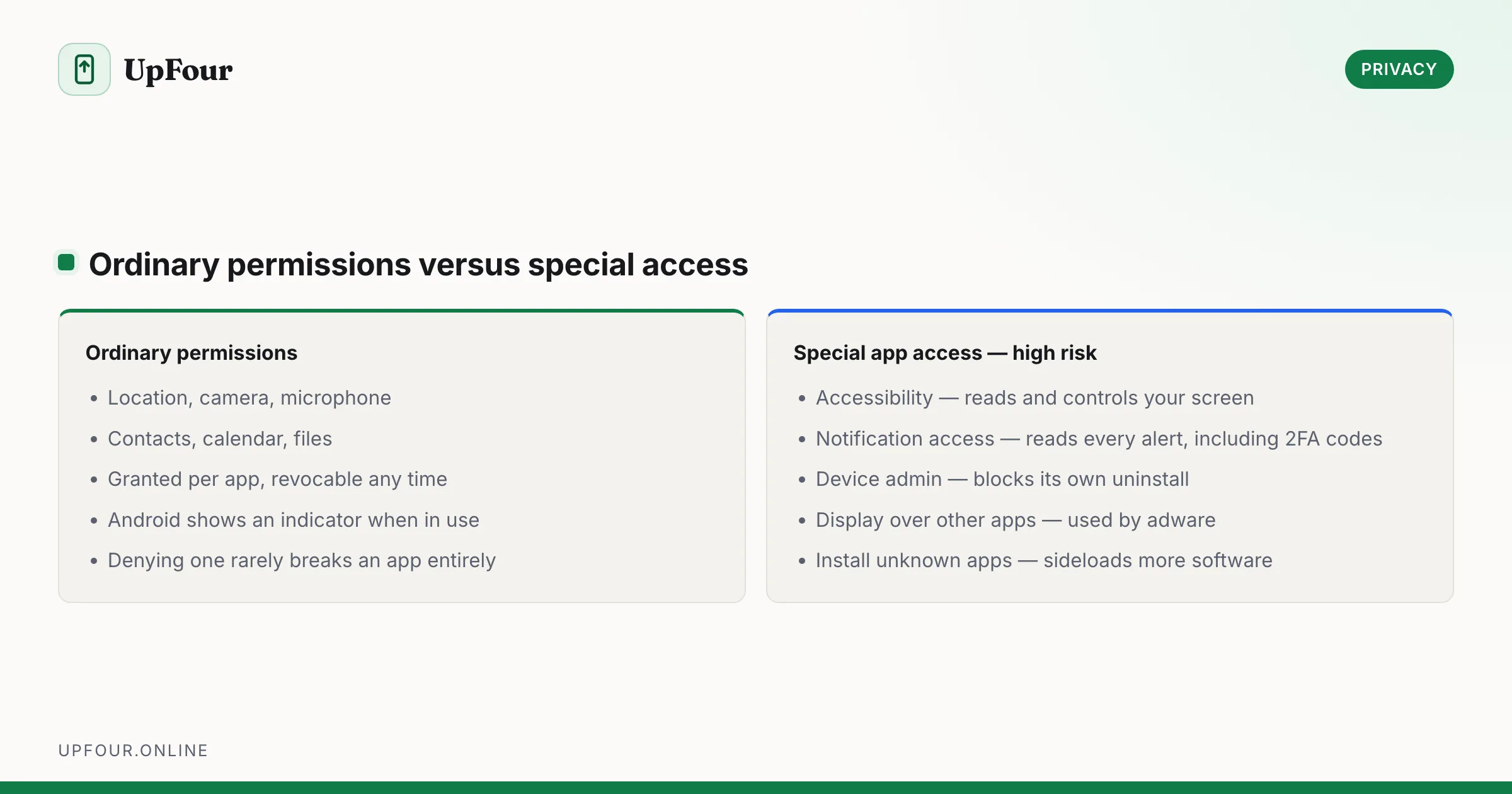
Android App Permissions Explained: What Each One Really Grants
What every Android permission actually allows, which ones apps abuse, and how to audit and revoke access without breaking the apps you rely on.
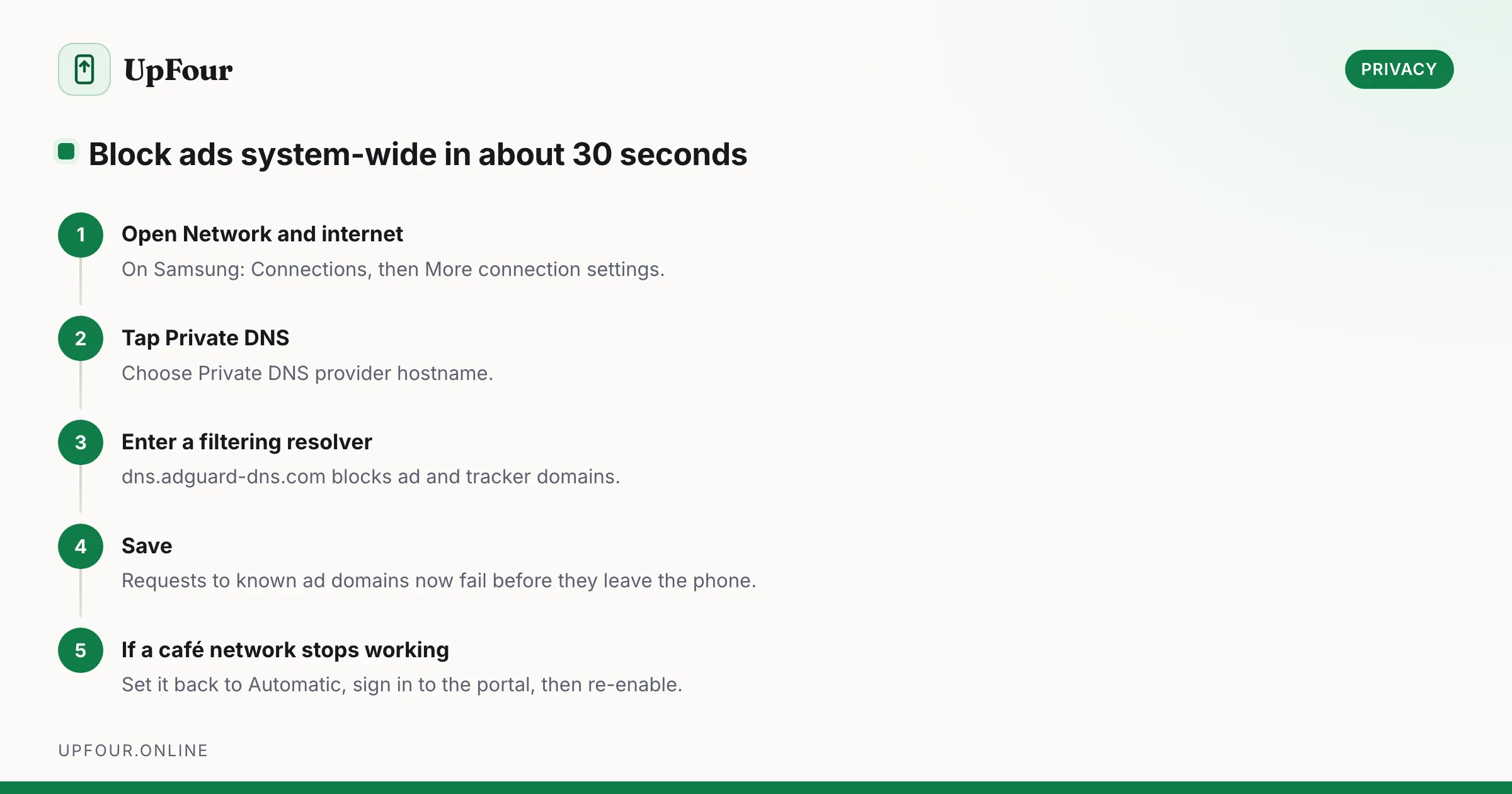
How to Stop Ads and Pop-Ups on Android (Including the Ones From Nowhere)
Block ads on Android without root: remove personalised ads, use a filtering DNS, and find the app responsible for full-screen pop-ups on your home screen.
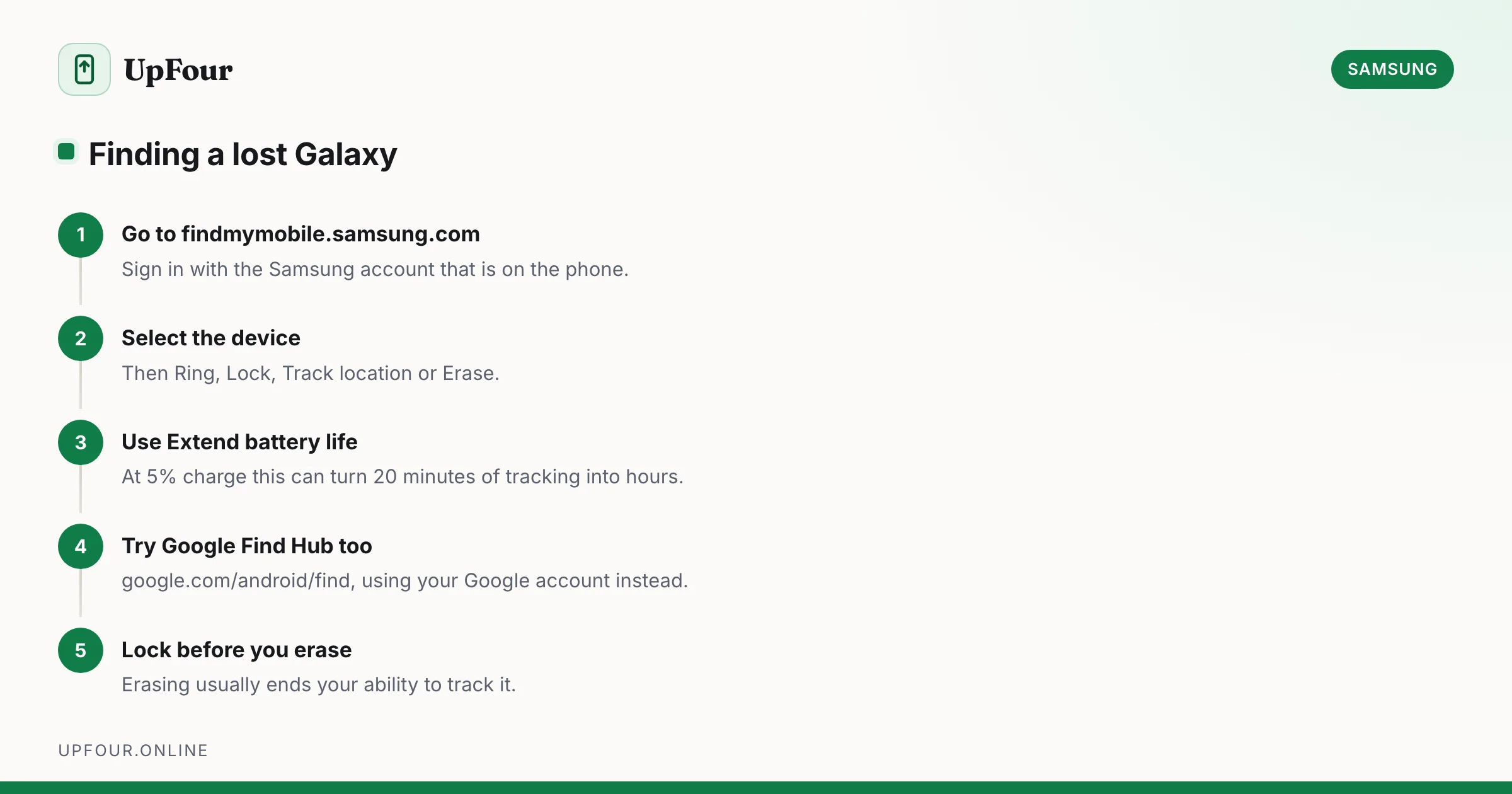
How to Find a Lost Samsung Phone (Find My Mobile and Find Hub)
Locate, ring, lock or wipe a lost Galaxy phone using Samsung Find My Mobile or Google Find Hub — including how to find one that is switched off.