How to Find a Lost Samsung Phone (Find My Mobile and Find Hub)
Locate, ring, lock or wipe a lost Galaxy phone using Samsung Find My Mobile or Google Find Hub — including how to find one that is switched off.
Short answer
Go to findmymobile.samsung.com and sign in with your Samsung account to locate, ring, lock or erase the phone. Google's Find Hub at google.com/android/find works as a second option using your Google account.
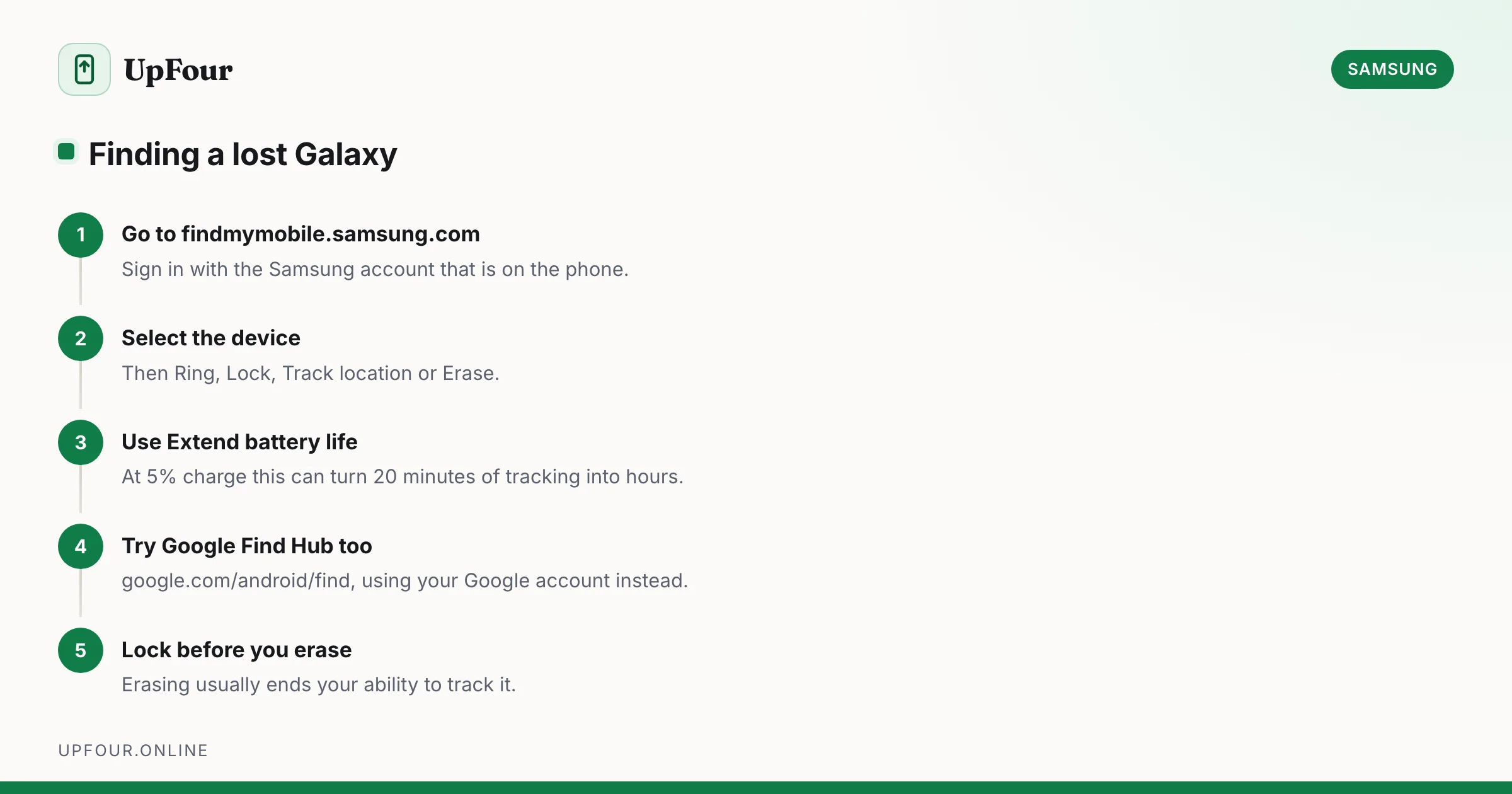
A Galaxy phone can be found through two independent services. Try both — they use different networks and one often works when the other does not.
Samsung Find My Mobile
- Go to findmymobile.samsung.com on any device.
- Sign in with the Samsung account that is on the lost phone.
- Select the device from the list on the left.
Available actions:
| Action | What it does |
|---|---|
| Ring | Rings at full volume for a minute, even if set to silent |
| Lock | Locks the screen and shows a message and contact number |
| Track location | Updates the position periodically |
| Erase data | Factory resets remotely — last resort |
| Extend battery life | Cuts everything but location to buy tracking time |
| Retrieve calls/messages | Pulls recent logs from the device |
| Unlock | Removes the screen lock if you are locked out yourself |
The Extend battery life option is the underused one. If the phone is at 5%, this can turn 20 minutes of tracking into several hours.
Google Find Hub
Works on any Android phone, including Galaxy.
- Go to google.com/android/find, or use the Find Hub app on another Android device.
- Sign in with the Google account on the lost phone.
- Choose Play sound, Secure device or Erase device.
Because it uses the Google account rather than the Samsung one, it works even if Find My Mobile was never set up.
Finding a phone that is switched off
Both services now support offline finding, using nearby devices to relay a location over Bluetooth.
Samsung: requires Offline finding to be enabled in advance — Settings › Security and privacy › Find My Mobile › Offline finding. Nearby Galaxy devices then report its position anonymously.
Google: the Find Hub network works similarly across Android devices generally.
Both need to have been turned on before the phone was lost. Neither can be enabled remotely. This is the single most valuable thing to set up today, while you still have the phone.
Set it up now (two minutes)
Settings › Security and privacy › Find My Mobile, and enable:
- Find My Mobile itself
- Offline finding
- Send last location — transmits the position when the battery is nearly flat
- Remote unlock
Then confirm Google's side: Settings › Google › All services › Find My Device / Find Hub, and make sure it is on.
Also check Settings › Location is enabled. Location services off means neither service can produce a position.
If the phone was stolen
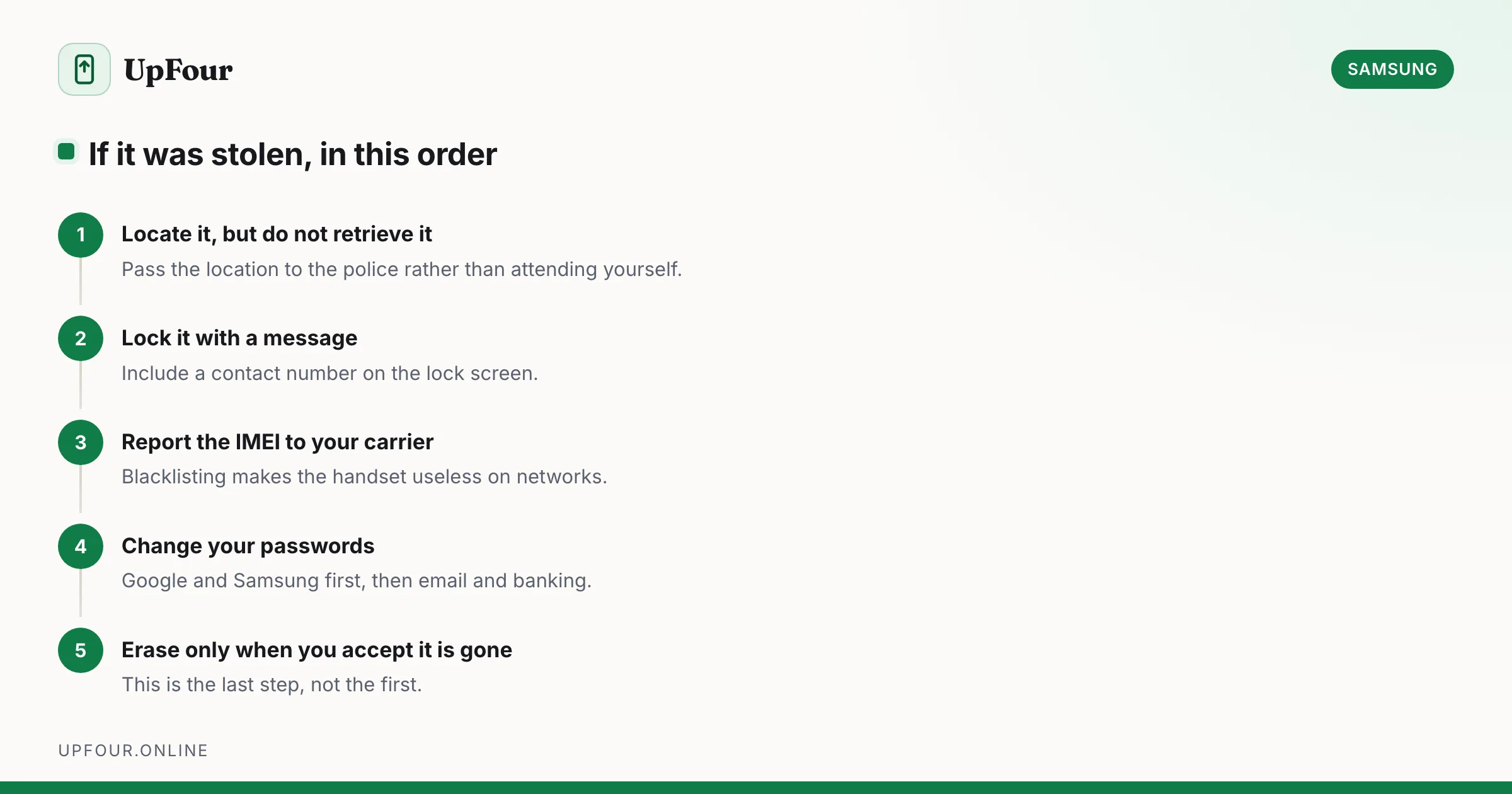
Order matters here.
- Locate it — but do not go and retrieve it yourself. Give the location to the police.
- Lock it immediately with a message and a contact number.
- Report it to your carrier to blacklist the IMEI, making it unusable on networks. Find the IMEI on the box, or in your Google account's device list.
- Change your passwords — Google and Samsung accounts first, then banking and email.
- Erase it only once you accept it is gone. Erasing usually ends your ability to track it.
Modern Galaxy phones also carry Theft Detection Lock, which locks the screen automatically when the phone detects the motion of being snatched, and Offline Device Lock, which locks it if it goes offline for a period. Enable both under Settings › Security and privacy › Device unlock › Theft protection.
Reactivation Lock
Samsung's Reactivation Lock ties the handset to your account so a thief cannot simply factory reset and resell it — the phone demands your Samsung account credentials after a wipe.
Enable it at Settings › Security and privacy › Find My Mobile › Reactivation Lock.
Remember to turn this off and remove your Samsung account before selling a phone. Otherwise the buyer receives a device they cannot activate. See how to delete or remove a Samsung account.
Common problems
| Problem | Cause |
|---|---|
| Device not listed | Not signed in to that Samsung account, or Find My Mobile was never enabled |
| Location unavailable | Phone is off, offline, or Location was disabled |
| "Offline" but you enabled offline finding | It needs another Galaxy device to pass nearby to relay a position |
| Ring does not work | Phone is offline; the command queues until it reconnects |
| Cannot sign in | Recover the account first — see our password reset guide |
Finding Galaxy Buds and a Galaxy Watch
The same Find My Mobile console lists them. Buds can be made to chime if they are in Bluetooth range or were recently connected, and the last known location is shown where they were last connected to the phone.
In short
Use findmymobile.samsung.com with your Samsung account, and google.com/android/find with your Google account. Enable Offline finding, Send last location and Theft protection before you need them — none of these can be switched on after the phone is gone.
Frequently asked questions
How do I find my lost Samsung phone?
Go to findmymobile.samsung.com and sign in with the Samsung account on the phone, then ring, lock, track or erase it. Google's Find Hub at google.com/android/find is a second option using your Google account.
Can I find a Samsung phone that is turned off?
Yes, if Offline finding was enabled beforehand under Settings › Security and privacy › Find My Mobile. Nearby Galaxy devices relay its position over Bluetooth. It cannot be enabled after the phone is lost.
What is Reactivation Lock?
It ties the handset to your Samsung account so a thief cannot factory reset and resell it — the phone demands your account credentials after a wipe. Turn it off and remove your account before selling a phone.
Should I erase my lost phone remotely?
Only as a last resort, because erasing usually ends your ability to track it. Lock it with a contact message first, report the IMEI to your carrier, and change your account passwords.
Sources & further reading
Official documentation used while writing and checking this guide. Every link was verified at the last update.
- Samsung Find My MobileSamsung
- Samsung account sign-in and managementSamsung
- Secure Our World guidanceUS Cybersecurity & Infrastructure Security Agency
- Set screen lock on an Android deviceGoogle Android Help
Machine-readable version: Markdown source
Related guides
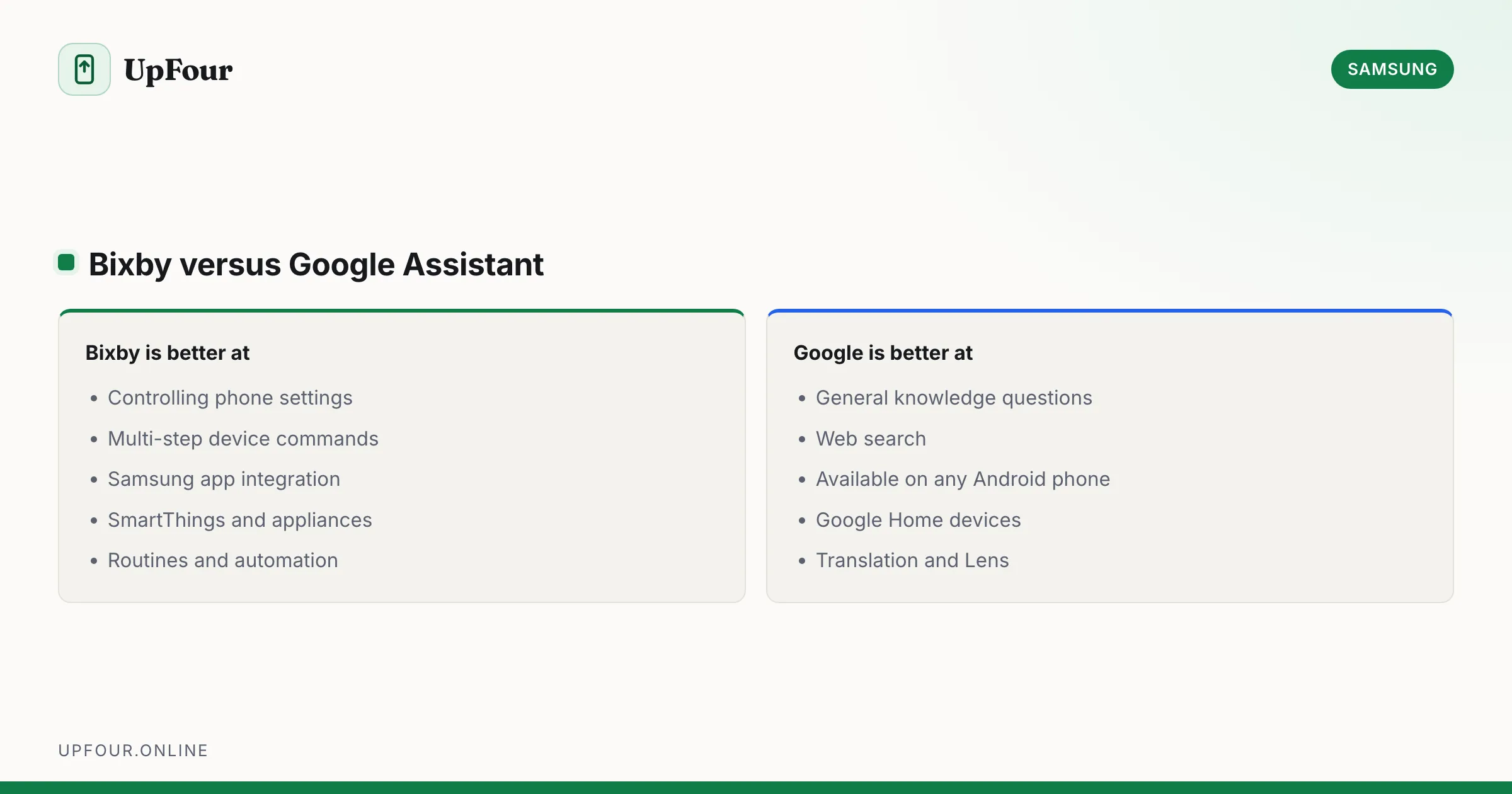
What Is Bixby? Samsung's Assistant Explained (and How to Disable It)
What Bixby does, how it differs from Google Assistant and Gemini, how to remap the power button, and how to turn Bixby off entirely.
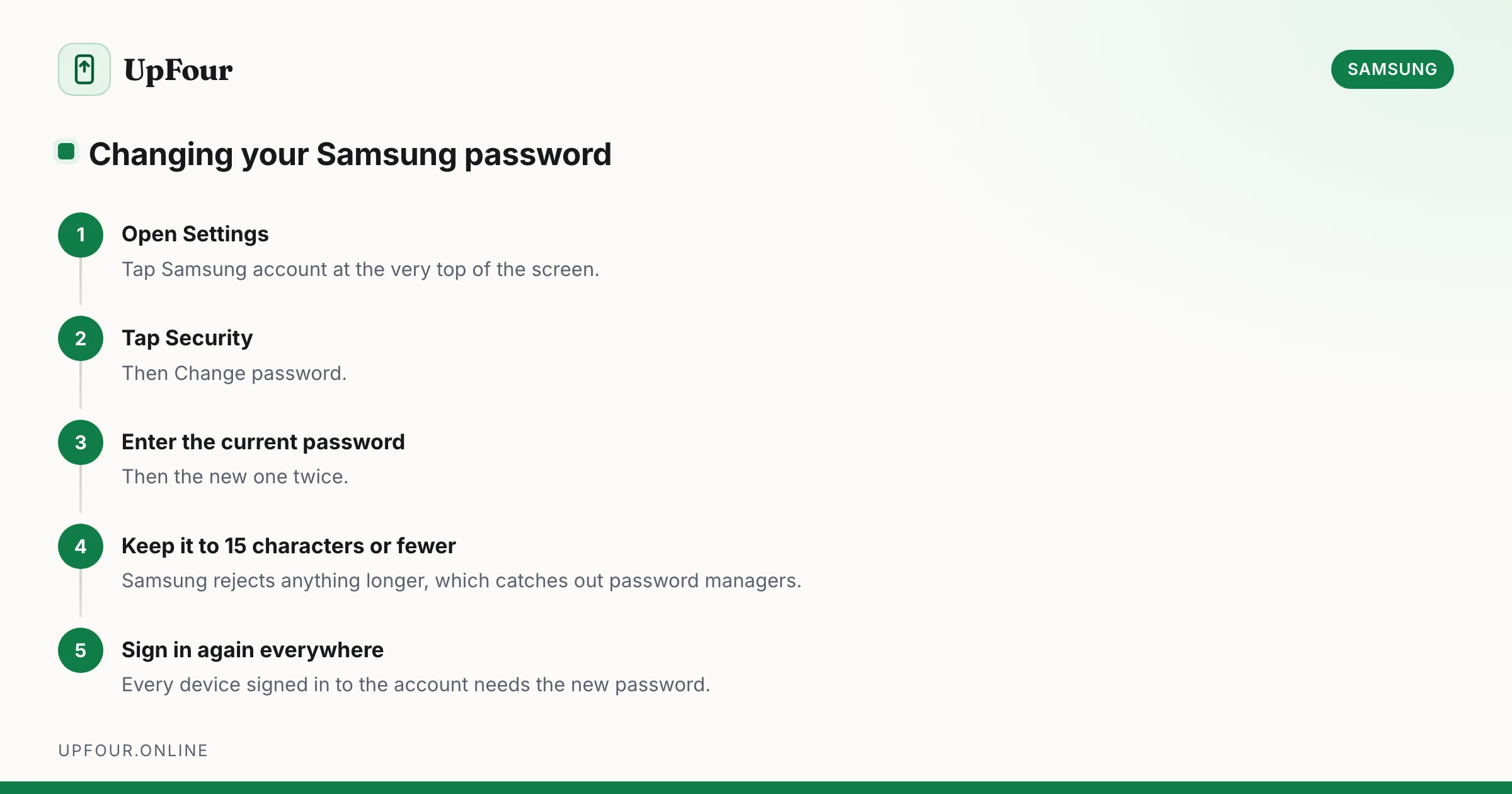
How to Change Your Samsung Account Password (and Email Address)
Change your Samsung account password from your phone or a browser, update the email address on the account, and understand what signs out when you do.
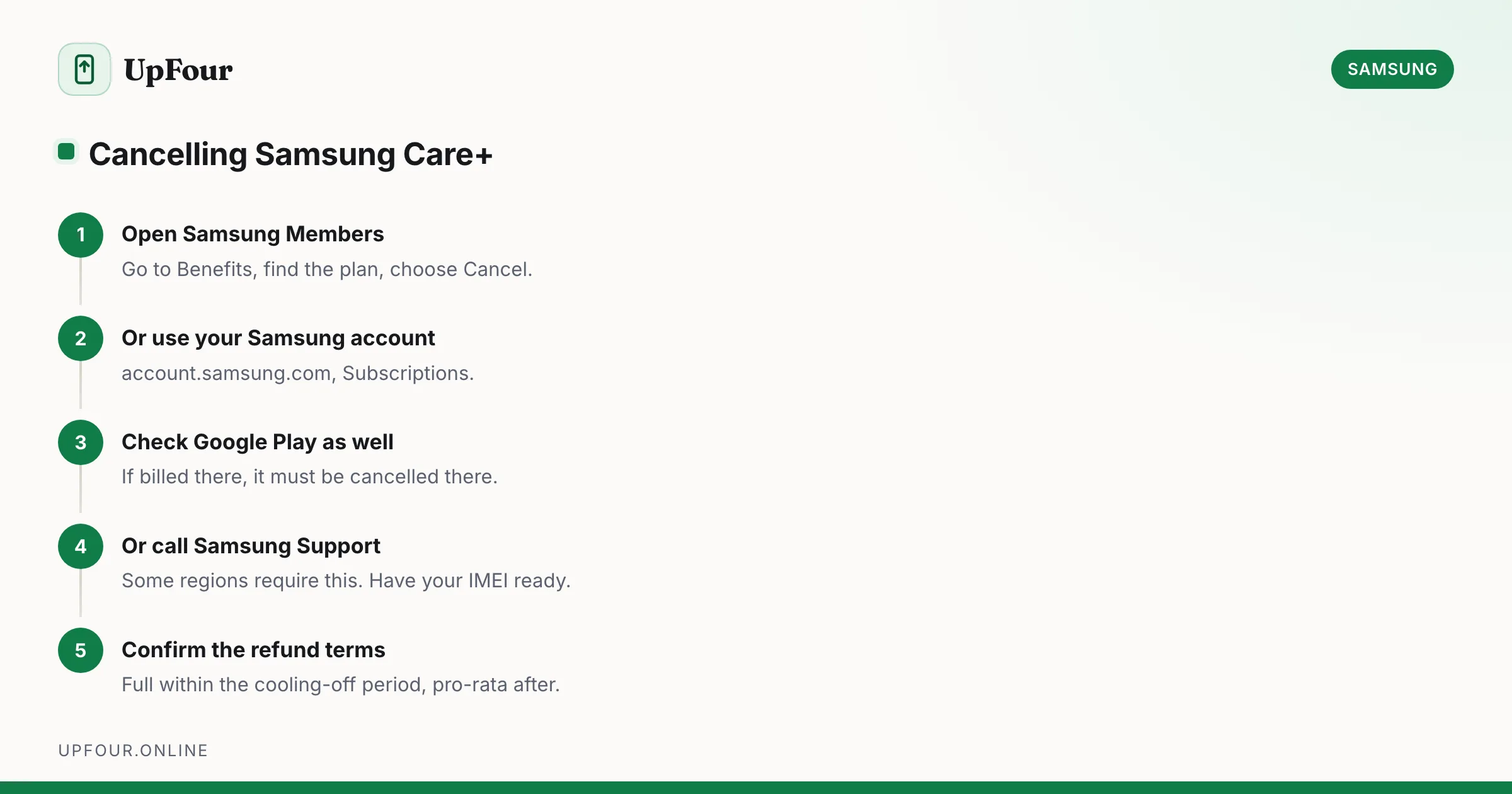
How to Cancel Samsung Care+ (and How to Add It After Purchase)
Cancel a Samsung Care+ plan, understand refunds and cancellation windows, and learn how to add coverage to a phone you already own.