How to Change Your Samsung Account Password (and Email Address)
Change your Samsung account password from your phone or a browser, update the email address on the account, and understand what signs out when you do.
Short answer
On your phone go to Settings › Samsung account › Security › Change password, or in a browser sign in at account.samsung.com and open Security › Password. You need your current password for both.
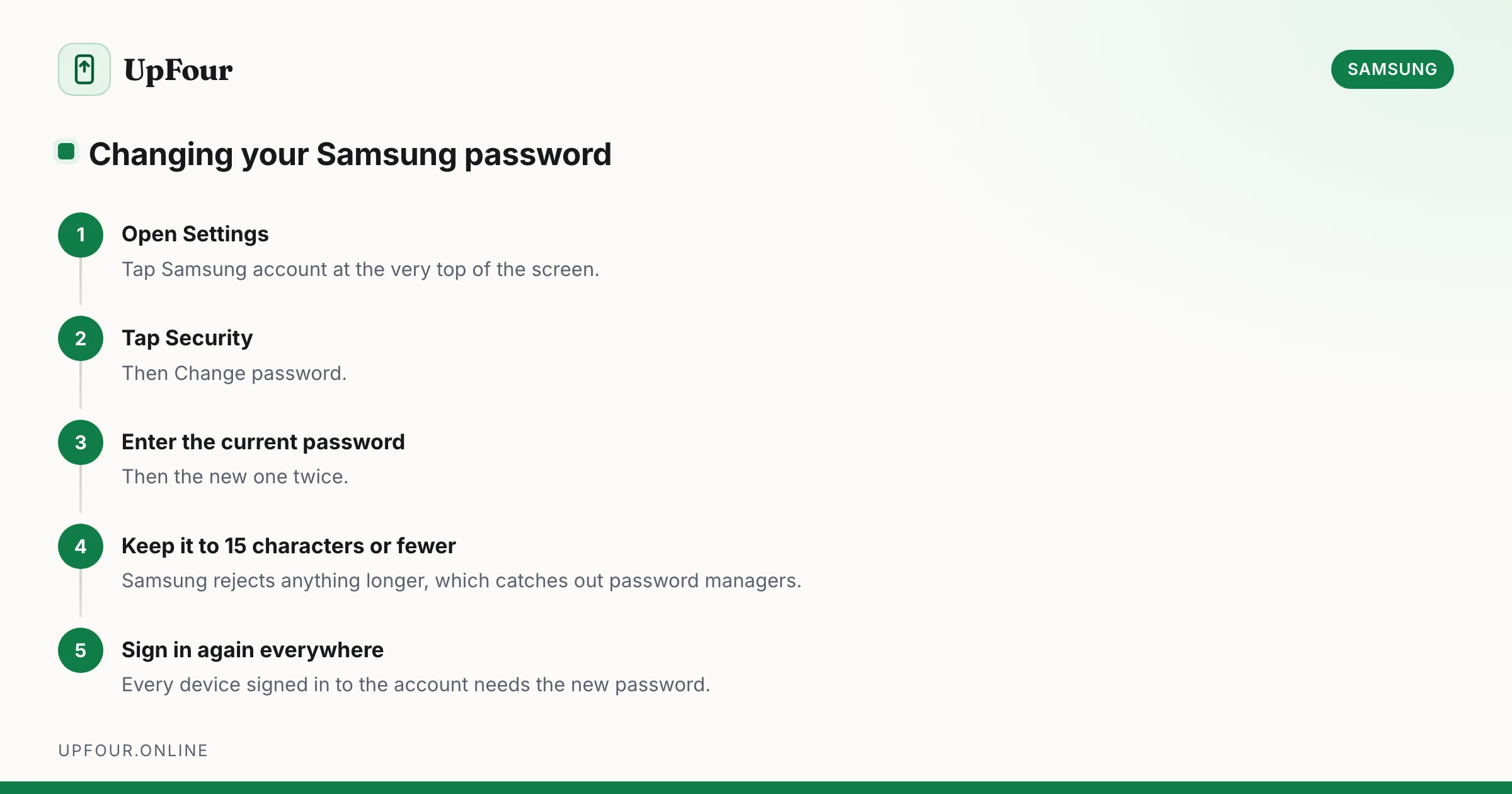
Changing a password you still know is quick. Changing the email address on the account is the part with real consequences, so both are covered here.
Change the password on your Galaxy phone
- Open Settings.
- Tap your name / Samsung account at the top of the screen.
- Tap Security.
- Tap Change password.
- Enter your current password, then the new one twice.
Some One UI versions place this under Settings › Accounts and backup › Manage accounts › Samsung account › Security. If you cannot find it, the browser method below always works.
Change the password in a browser
- Go to account.samsung.com and sign in.
- Open the Security tab.
- Select Password.
- Enter the current password, then the new password twice.
If you cannot remember the current password, you need the recovery flow instead — see resetting a Samsung account password.
Password rules
- 8 to 15 characters
- at least one uppercase letter, one lowercase letter, one number, one symbol
- no three identical characters in a row
- cannot match a previously used password
- cannot contain your account ID
The 15-character maximum is the one that trips people up. If your password manager generates 20 characters by default, shorten it to 15 for this account.
What happens when you change it
Changing the password signs you out of that account on every device. Expect to re-authenticate on:
- every Galaxy phone and tablet signed in to the account
- Samsung smart TVs and monitors
- SmartThings, and any connected appliances
- Galaxy Watch and Galaxy Buds, if paired through the account
- Samsung Pay / Samsung Wallet
Nothing is deleted — you simply sign in again with the new password. But do it at a time when you can reach your devices, not right before travelling.
Changing the password does not remove Reactivation Lock, and it does not disconnect the account from your phone. Only removing the account does that.
Change the email address on your Samsung account
Your Samsung account ID is an email address, so changing it changes how you sign in.
- Sign in at account.samsung.com.
- Open Profile (or Personal info).
- Find Account ID or Email.
- Select Edit, enter the new address, and verify it via the link Samsung sends there.
You must be able to open the new inbox to complete verification. Until you click that link, the old address remains your sign-in ID.
Points worth knowing before you change the email
- Your sign-in ID changes. From then on you sign in with the new address.
- Purchases and subscriptions stay with the account, not the address, so Galaxy Store content is preserved.
- Some regions restrict this. If the edit option is missing or greyed out, your account was created in a region where the ID is fixed, or it was created through a partner sign-in such as Google.
- A Samsung account created via "Continue with Google" may not expose a password or editable ID at all. In that case you manage sign-in through Google, not Samsung.
Add a recovery phone number while you are here
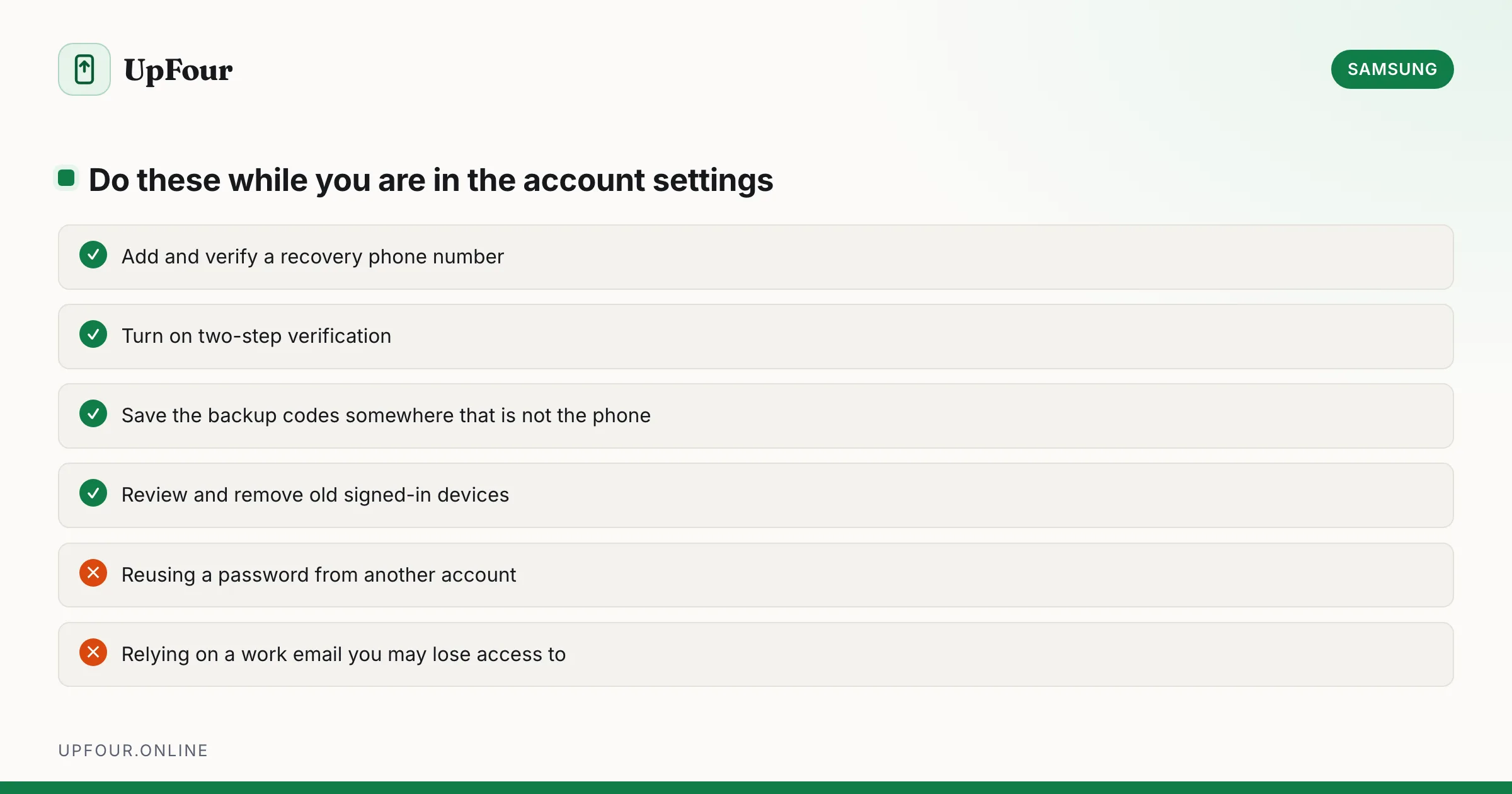
The single highest-value thing you can do on this screen. Profile › Contact information › Phone number. A verified number gives you SMS recovery if you ever lose email access, which is the difference between a two-minute reset and a support ticket with proof of purchase.
Turn on two-step verification
account.samsung.com › Security › Two-step verification.
Your Samsung account can remotely locate, lock and wipe your phone. That makes it worth protecting properly. Choose an authenticator app over SMS where offered, and save the backup codes somewhere that is not your phone — losing both the phone and the codes means a manual support recovery.
Review devices and sign out remotely
account.samsung.com › Security › Devices lists everything currently signed in, with the last-used date. Remove any device you have sold, lost or do not recognise.
If you have just sold a phone and forgot to remove the account, do this immediately — and be aware that removing it here does not necessarily clear Reactivation Lock on the handset itself.
Quick reference
| Task | Where |
|---|---|
| Change password (phone) | Settings › Samsung account › Security › Change password |
| Change password (web) | account.samsung.com › Security › Password |
| Change email / account ID | account.samsung.com › Profile › Account ID |
| Add recovery number | account.samsung.com › Profile › Contact information |
| Two-step verification | account.samsung.com › Security |
| See signed-in devices | account.samsung.com › Security › Devices |
Frequently asked questions
How do I change my Samsung account password on my phone?
Open Settings, tap Samsung account at the top, then Security › Change password. Enter your current password followed by the new one. On some versions the path is Settings › Accounts and backup › Manage accounts › Samsung account › Security.
Can I change the email address on my Samsung account?
Yes, in most regions. Sign in at account.samsung.com, open Profile, edit the Account ID, and verify the new address using the link Samsung sends to it. Your purchases and subscriptions stay with the account.
Will changing my Samsung password sign me out of my devices?
Yes. Every device signed in to the account — phones, tablets, TVs, watches and SmartThings — will need you to sign in again with the new password. Nothing is deleted.
Why is the option to change my email greyed out?
Either your region does not permit changing the account ID, or the account was created through a partner sign-in such as Continue with Google, in which case sign-in is managed by Google rather than Samsung.
Sources & further reading
Official documentation used while writing and checking this guide. Every link was verified at the last update.
- Samsung account sign-in and managementSamsung
- Official Samsung SupportSamsung
- Samsung Find My MobileSamsung
- Secure Our World guidanceUS Cybersecurity & Infrastructure Security Agency
Machine-readable version: Markdown source
Related guides
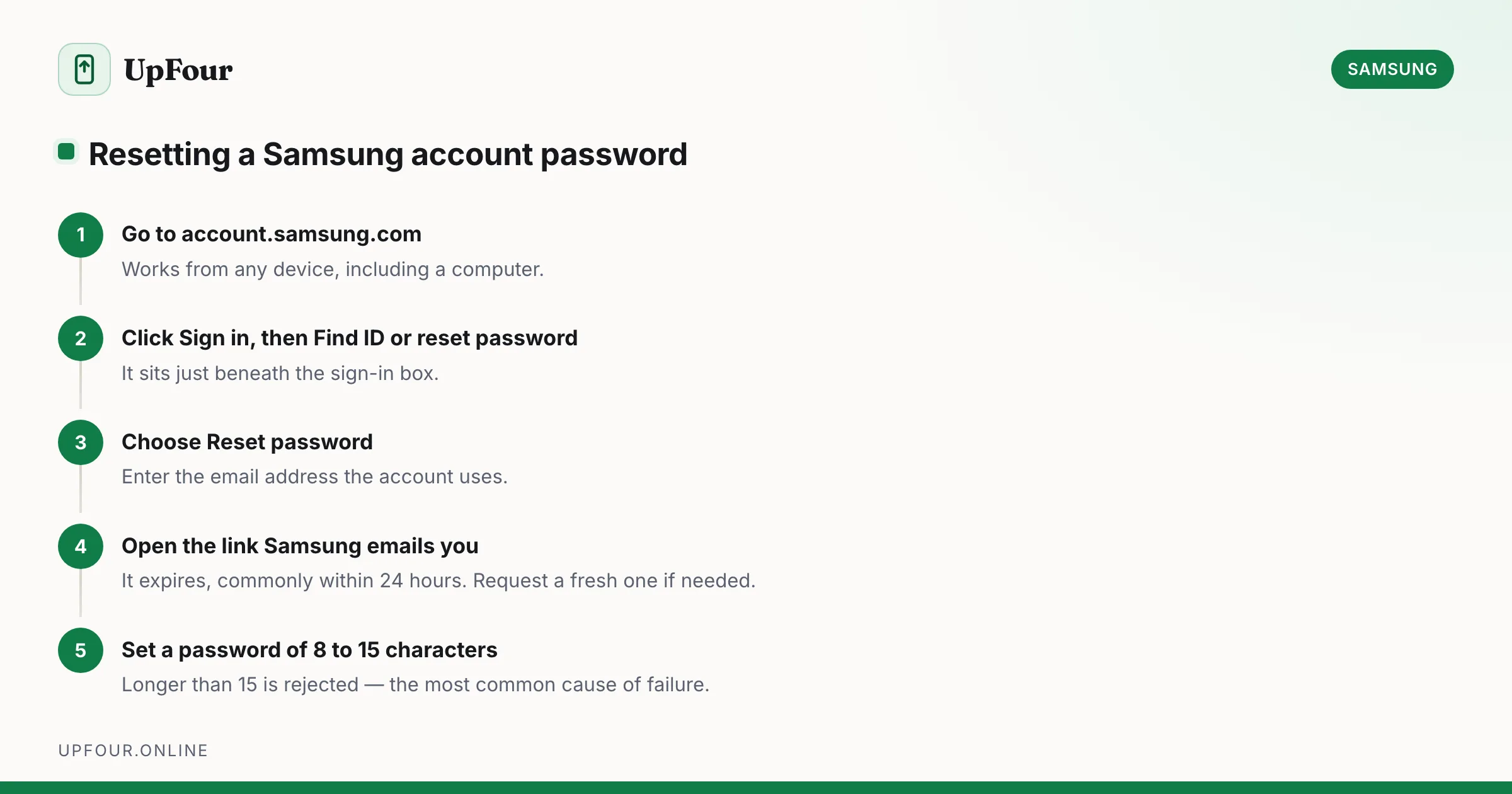
How to Reset Your Samsung Account Password (Even Without Access to Your Email)
Reset a forgotten Samsung account password step by step, including what to do when you no longer have access to the recovery email or phone number.
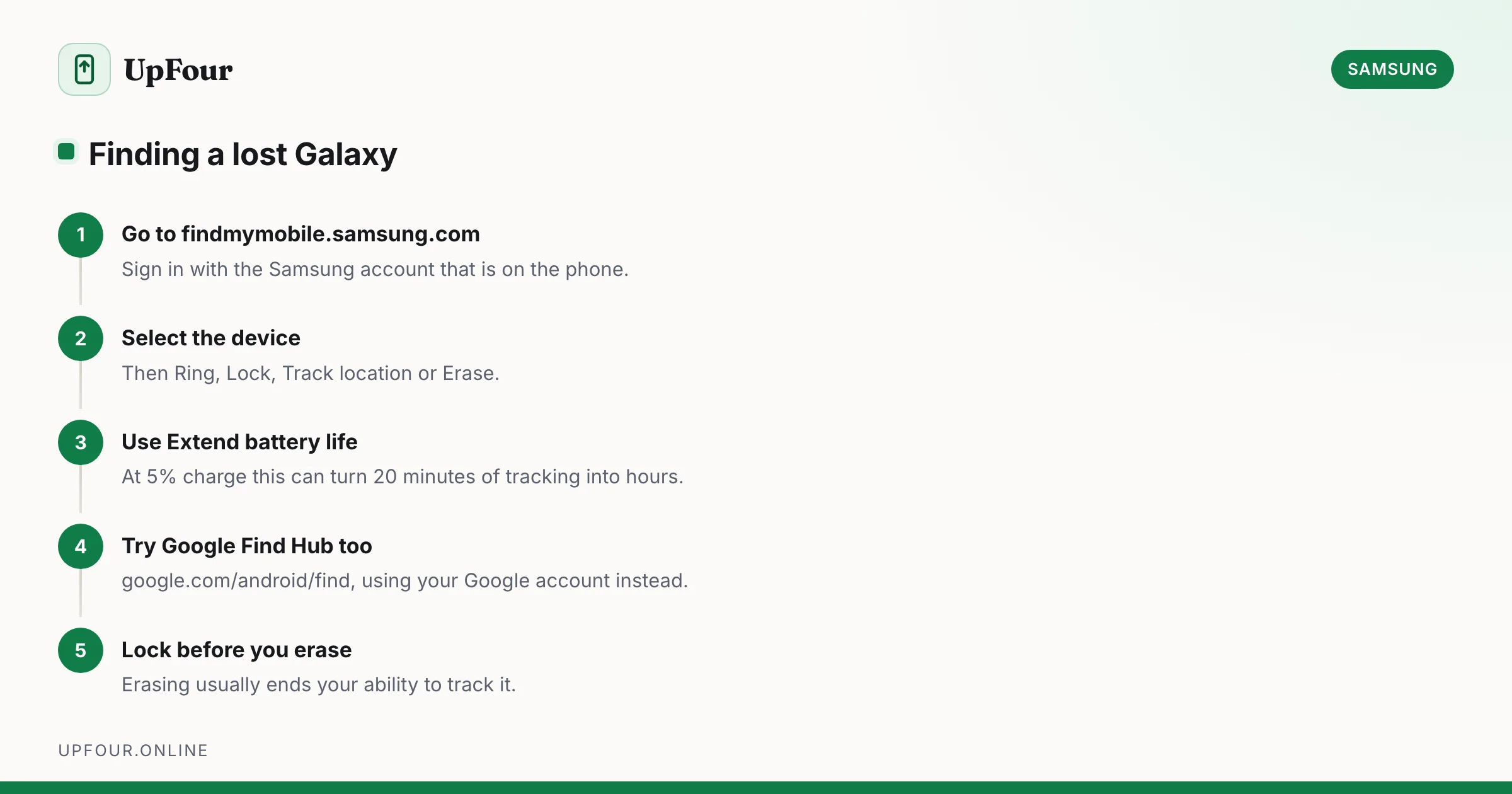
How to Find a Lost Samsung Phone (Find My Mobile and Find Hub)
Locate, ring, lock or wipe a lost Galaxy phone using Samsung Find My Mobile or Google Find Hub — including how to find one that is switched off.
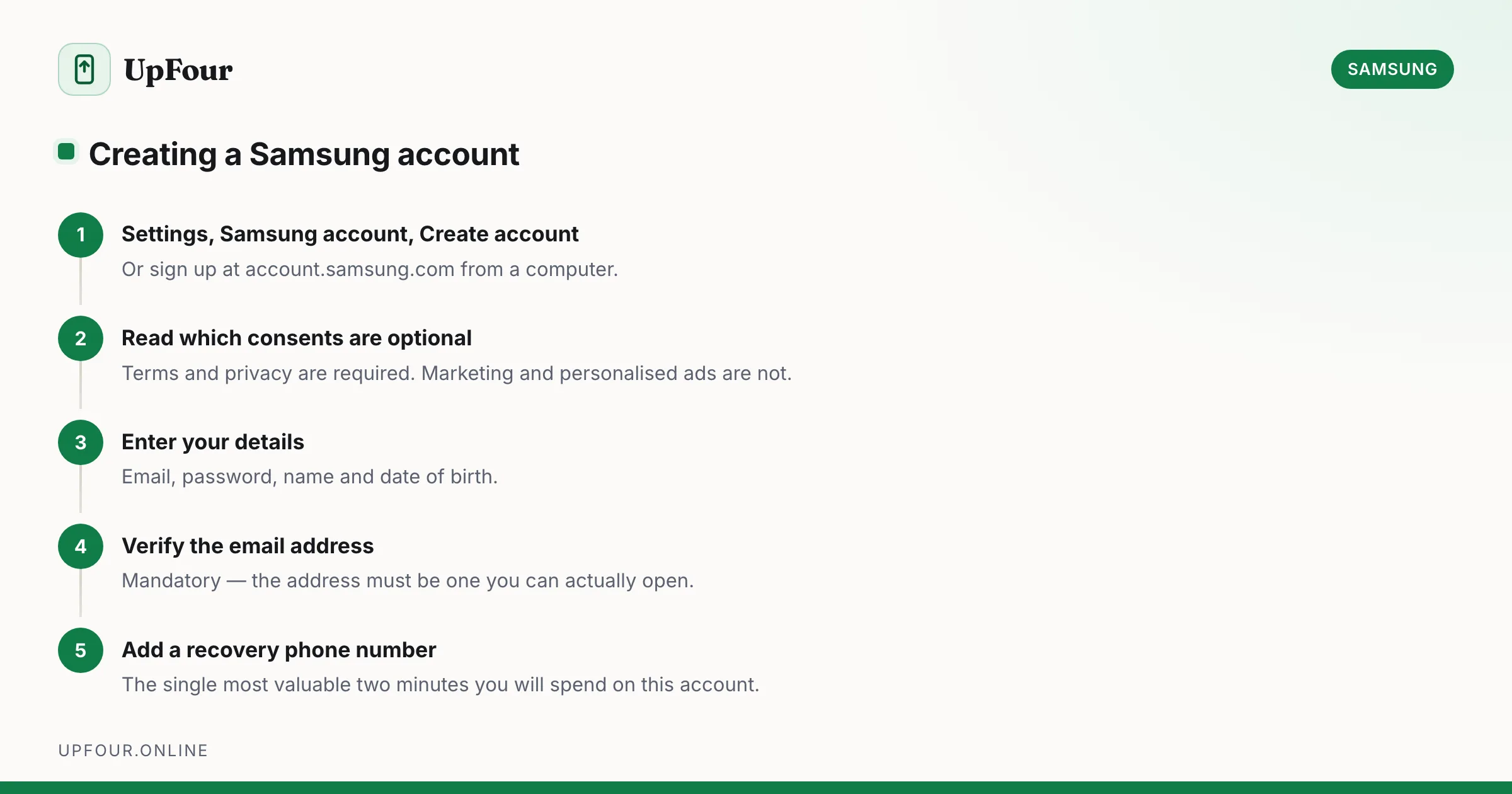
How to Create a Samsung Account (and Whether You Need One)
Set up a Samsung account on your phone or in a browser, avoid the common sign-up errors, and understand exactly what the account unlocks.