Android App Permissions Explained: What Each One Really Grants
What every Android permission actually allows, which ones apps abuse, and how to audit and revoke access without breaking the apps you rely on.
Short answer
Open Settings › Security & privacy › Privacy controls › Permission manager and review by permission rather than by app — this shows every app holding location, microphone or camera access in one list.
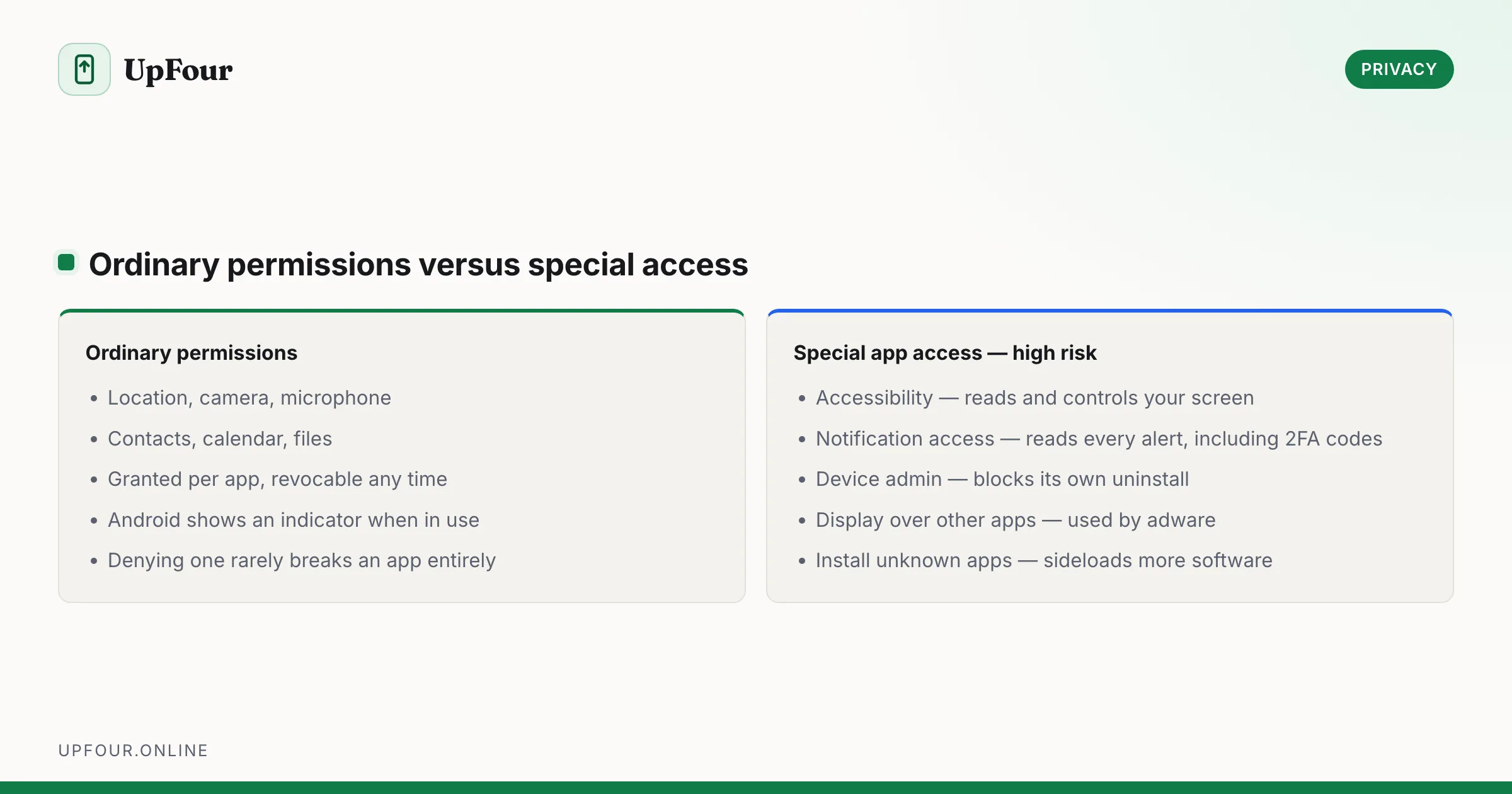
Permission prompts are approved in a second and never revisited. This is what each one grants, and which combinations deserve scrutiny.
Audit by permission, not by app
Settings › Security & privacy › Privacy controls › Permission manager.
Reviewing app-by-app means checking dozens of screens and never seeing the pattern. Reviewing by permission shows you every app holding Microphone in a single list, which is where surprises surface.
Do Location, Microphone, Camera, Files and media and Contacts first.
What each permission actually grants
Location
Three distinct levels, and the difference matters more than most people realise.
- Allow all the time — the app can request your position while it is closed. Justified for navigation, fitness tracking and find-my-device apps. Almost nothing else.
- Only while using the app — access only while it is in the foreground with a visible indicator. This should be your default answer.
- Ask every time — a one-off grant that expires when the app closes.
Separately, Precise location toggles between exact GPS coordinates and an approximate area of a few square kilometres. Weather, news, shopping and most social apps work perfectly on approximate location. Turn precision off for all of them.
Camera and Microphone
Full access to the sensor while the app is in the foreground. Background access requires a visible foreground service notification, and the green dot in the status bar appears whenever either is active.
The realistic risk is not a secret recording — it is an app you granted access to years ago that has since changed ownership.
Files and media / Photos and videos
Android now supports selected photos only: the app sees the specific items you pick and nothing else. Always choose this over full access for anything that just needs a profile picture or an attachment.
Full Files and media access lets the app read every document, download and image on the device. Reserve it for file managers and backup tools.
Nearby devices
Scans for and connects to nearby Bluetooth and Wi-Fi devices. Legitimate for headphones, wearables and smart-home apps. In anything else it is a proximity and presence signal — it can infer who you are near, and where you are, without Location permission.
Notifications
Since Android 13 apps must ask. Deny it freely; nothing else breaks. Note that an app with notification access can also read the content of notifications from other apps if you additionally grant Notification access under Settings › Notifications › Device & app notifications, which is a much more serious grant.
Contacts
Reads your entire address book, including names, numbers, emails and any notes. A single grant to one app can expose every contact you have — including people who never used the app. Deny by default; the system contact picker lets you share one contact without granting the permission. Our Android privacy checklist covers the wider settings worth changing.
Phone
Reads phone state, call logs and, on older API levels, hardware identifiers. Required for dialers and call-screening apps. Rare and suspicious elsewhere.
SMS
Reads and sends text messages. Almost never legitimate outside a default SMS app, and it is the classic route to intercepting one-time passcodes. Google restricts it heavily on the Play Store, so an app requesting it outside the store is a red flag.
The special access list — where real power lives
Settings › Apps › Special app access. These are not ordinary permissions and are far more consequential:
| Access | What it grants |
|---|---|
| Display over other apps | Draw on top of anything — used by adware, and by overlay attacks that hijack taps |
| Device admin apps | Lock, wipe and enforce policy; blocks its own uninstall |
| Accessibility | Read all screen content and act as you — the single most powerful grant on Android |
| Notification access | Read the contents of every notification, including 2FA codes |
| Usage access | See which apps you use and for how long |
| Install unknown apps | Sideload other APKs |
| All files access | Full read/write over shared storage |
Audit Accessibility and Notification access specifically. A legitimate accessibility service is one you deliberately set up — a screen reader, a switch-access tool, a password manager's autofill. Anything else on that list should be removed today.
Revoking without breaking things
- Revoke and use the app normally. If something fails, it will prompt again with context — and you will finally know what it wanted the permission for.
- Enable Pause app activity if unused per app so long-unused apps lose their permissions automatically.
- After revoking, force stop the app so it re-reads its permission state.
Warning combinations
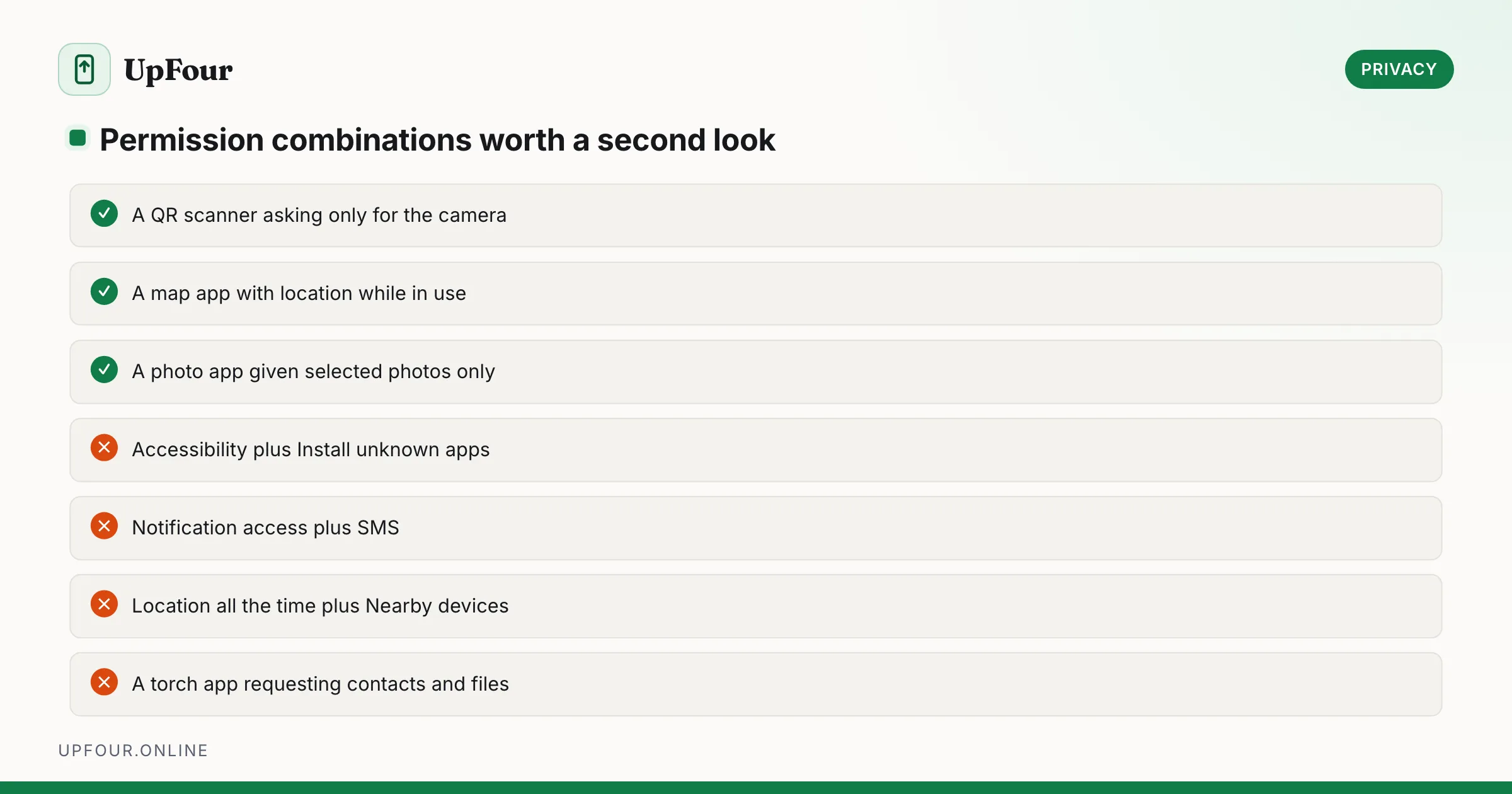
Individually reasonable, jointly a profile:
- Location (all the time) + Nearby devices — continuous movement and proximity tracking.
- Accessibility + Install unknown apps — the standard shape of Android banking malware.
- Notification access + SMS — full interception of one-time passcodes.
- Contacts + Files + Phone in a simple utility such as a torch or QR scanner — the app is a data collector with a feature attached.
A quick test before granting
Ask what the app's core feature is, and whether it can work without the permission. A QR scanner needs the camera. It does not need contacts, location or files — and you do not need one at all, since Android scans QR codes natively. When the answer is no, deny — and if the app then refuses to function, that is useful information about the app.
Frequently asked questions
Which Android permissions are the most dangerous?
Accessibility access and Notification access are the most powerful, since they allow an app to read the whole screen or every notification and act on your behalf. Device admin and Display over other apps follow closely.
Should I give apps precise or approximate location?
Approximate is enough for weather, news, shopping and most social apps. Reserve precise location for navigation, fitness tracking and delivery apps that genuinely need it.
Can I give an app access to only some of my photos?
Yes. Android offers a selected photos option, where the app sees only the items you pick. Use it instead of granting full Files and media access.
What happens if I revoke a permission an app needs?
The app will prompt again the next time it needs that permission, with context about why. Force stop the app after revoking so it re-reads its permission state.
Sources & further reading
Official documentation used while writing and checking this guide. Every link was verified at the last update.
- Permissions on AndroidAndroid Developers
- Android permissions architectureAndroid Open Source Project
- Manage location permissions for appsGoogle Android Help
- Secure Our World guidanceUS Cybersecurity & Infrastructure Security Agency
Machine-readable version: Markdown source
Related guides
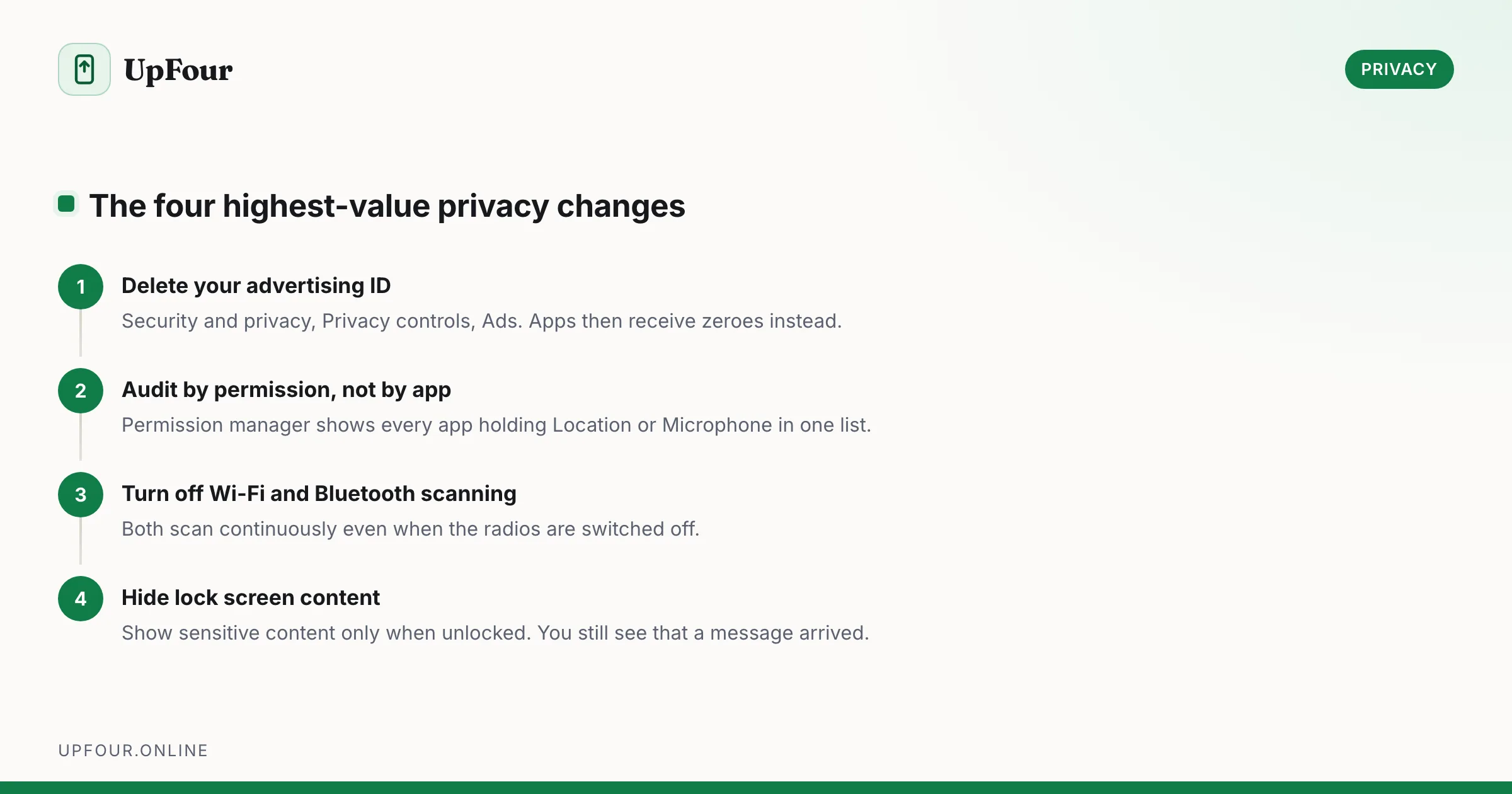
The Android Privacy Checklist: 12 Settings to Change Today
A concrete Android privacy checklist — permissions, ad ID, location history, lock screen leaks, Private DNS and the settings that actually reduce tracking.
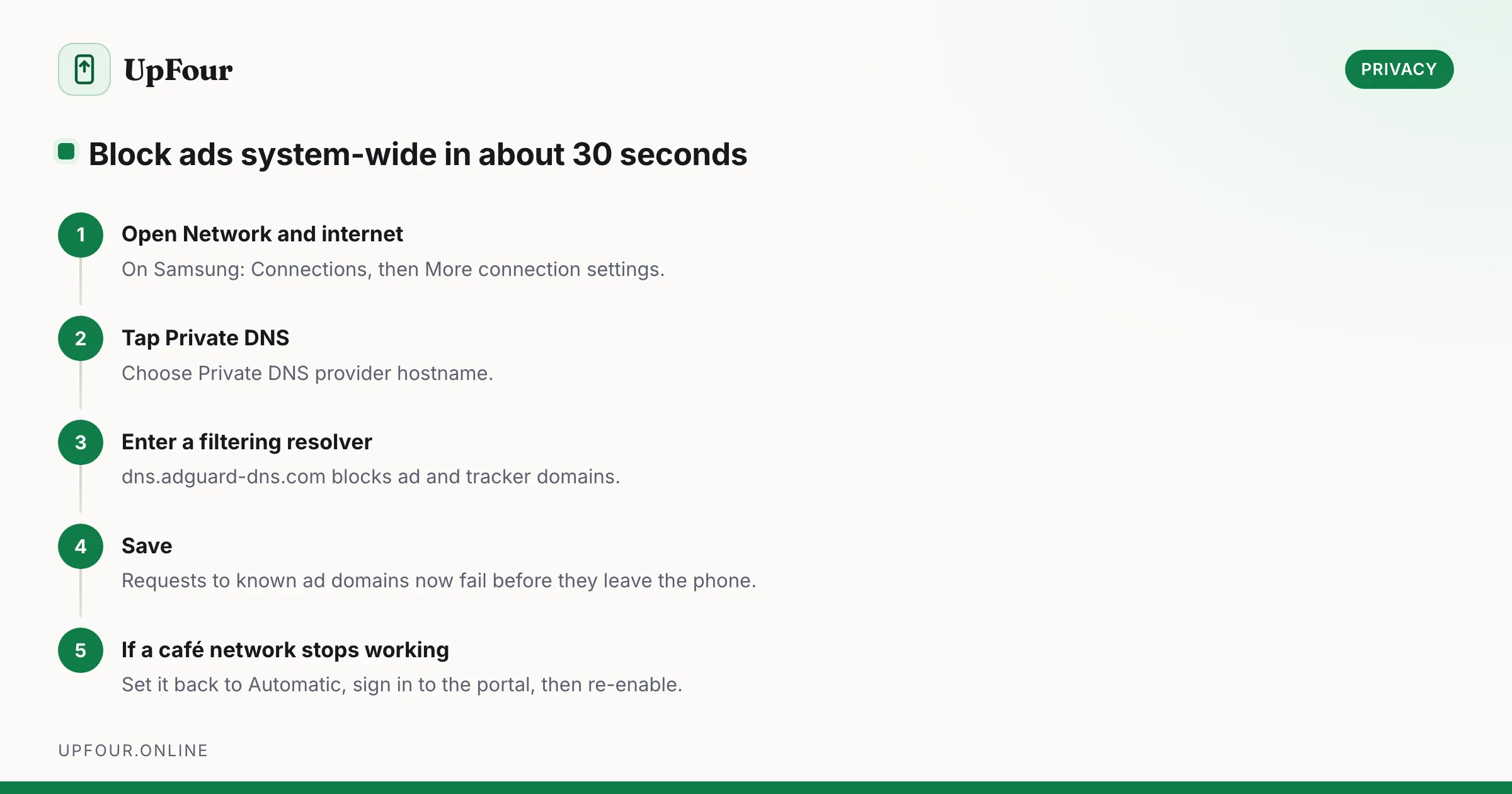
How to Stop Ads and Pop-Ups on Android (Including the Ones From Nowhere)
Block ads on Android without root: remove personalised ads, use a filtering DNS, and find the app responsible for full-screen pop-ups on your home screen.
How to Find a Lost Samsung Phone (Find My Mobile and Find Hub)
Locate, ring, lock or wipe a lost Galaxy phone using Samsung Find My Mobile or Google Find Hub — including how to find one that is switched off.