How to Scan Documents on a Samsung Galaxy Phone
Scan documents to PDF on a Samsung Galaxy using the built-in camera scanner, Samsung Notes and Google Drive — plus how to fix a missing Scan button.
Short answer
Open the Samsung Camera app and point it at a document. A Scan button appears automatically — tap it, then crop and save as a PDF or image. If it does not appear, enable Scan documents in Camera settings.
Galaxy phones have a document scanner built into the camera, and most owners never notice it because it only appears when the camera recognises a page.
Method 1: The Camera app (fastest)
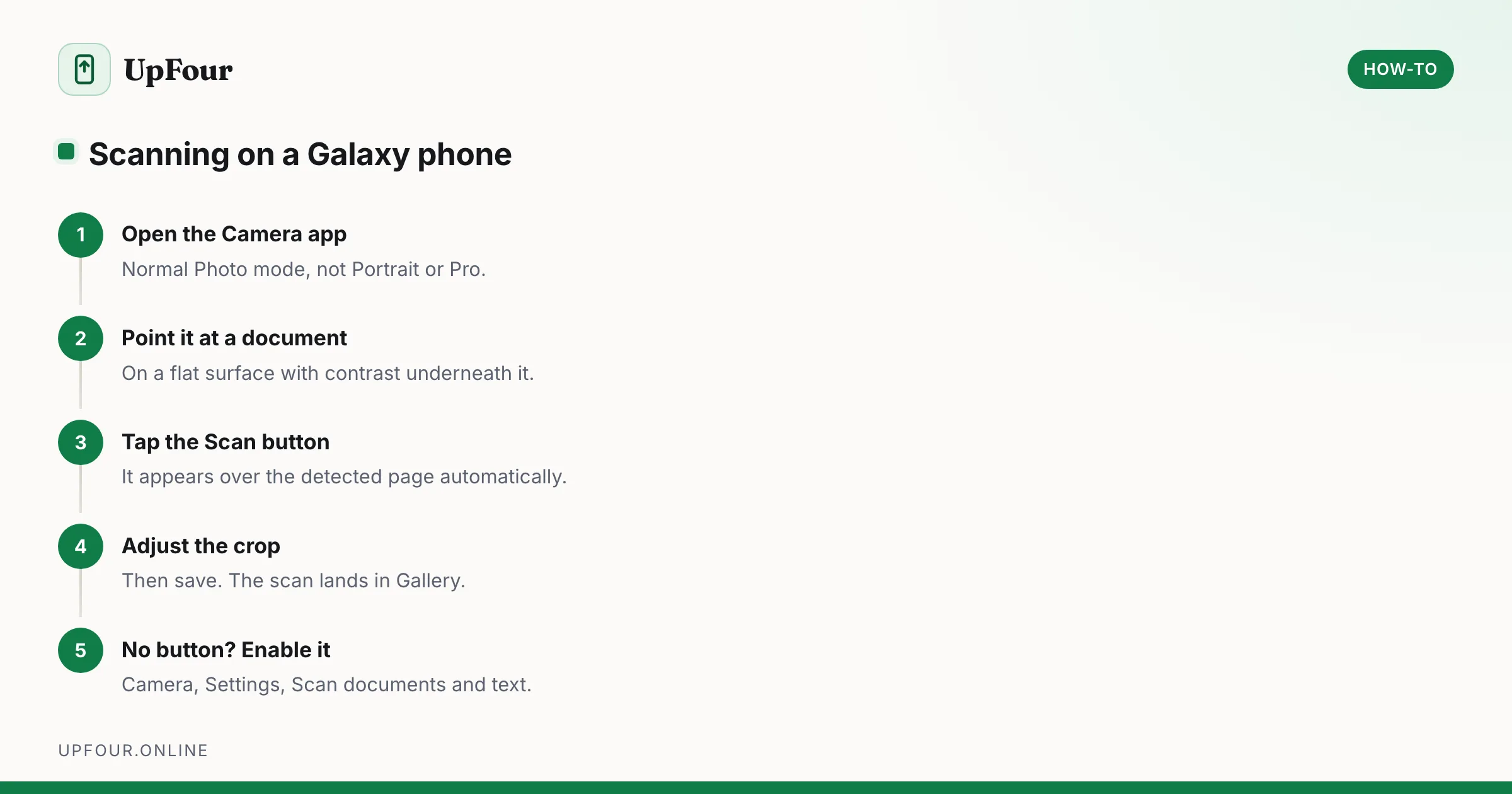
- Open the Camera app.
- Point it at a document on a flat surface.
- A Scan button appears over the detected page.
- Tap it.
- Adjust the crop handles if needed, then tap Save.
The scan lands in Gallery. From there, share it or convert it to PDF.
If the Scan button never appears
The feature is a toggle, and it is off on some models and carrier builds.
Camera › Settings (gear) › Scan documents and text — turn it on.
Also check:
- The document needs contrast against the background. White paper on a white table will not be detected.
- Enough light. Edge detection fails in dim conditions.
- The whole page should be within the frame.
- On older models the feature may not exist at all — use Google Drive instead, below.
Method 2: Samsung Notes (best for multi-page PDFs)
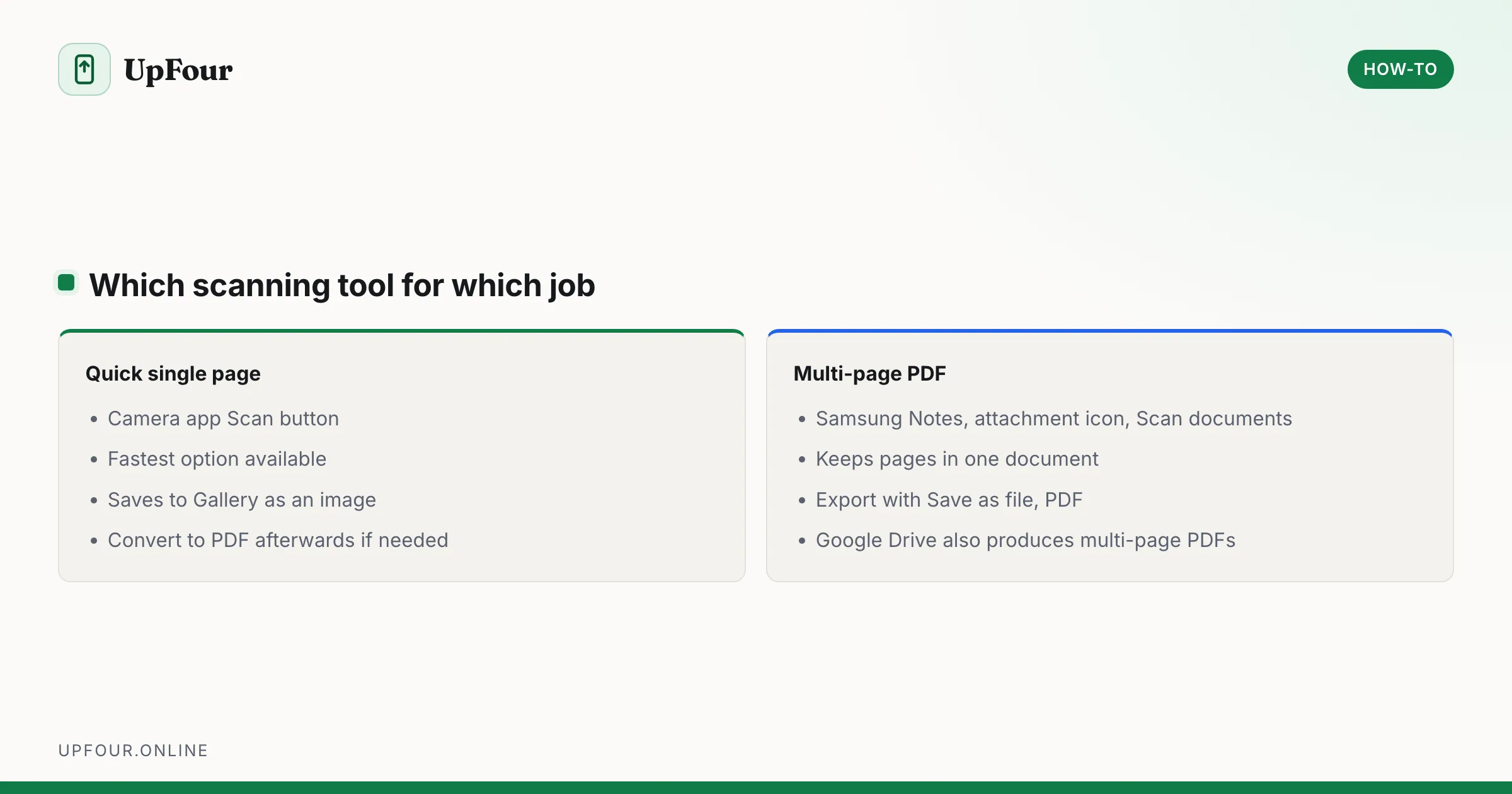
Samsung Notes produces a proper multi-page PDF and keeps everything in one document.
- Open Samsung Notes.
- Create a new note.
- Tap the + / paperclip icon.
- Choose Scan documents.
- Capture each page in turn.
- Save, then use ⋮ › Save as file › PDF file to export.
This is the better route when you have several pages that belong together, such as a contract or a form.
Method 3: Google Drive (works on every Android phone)
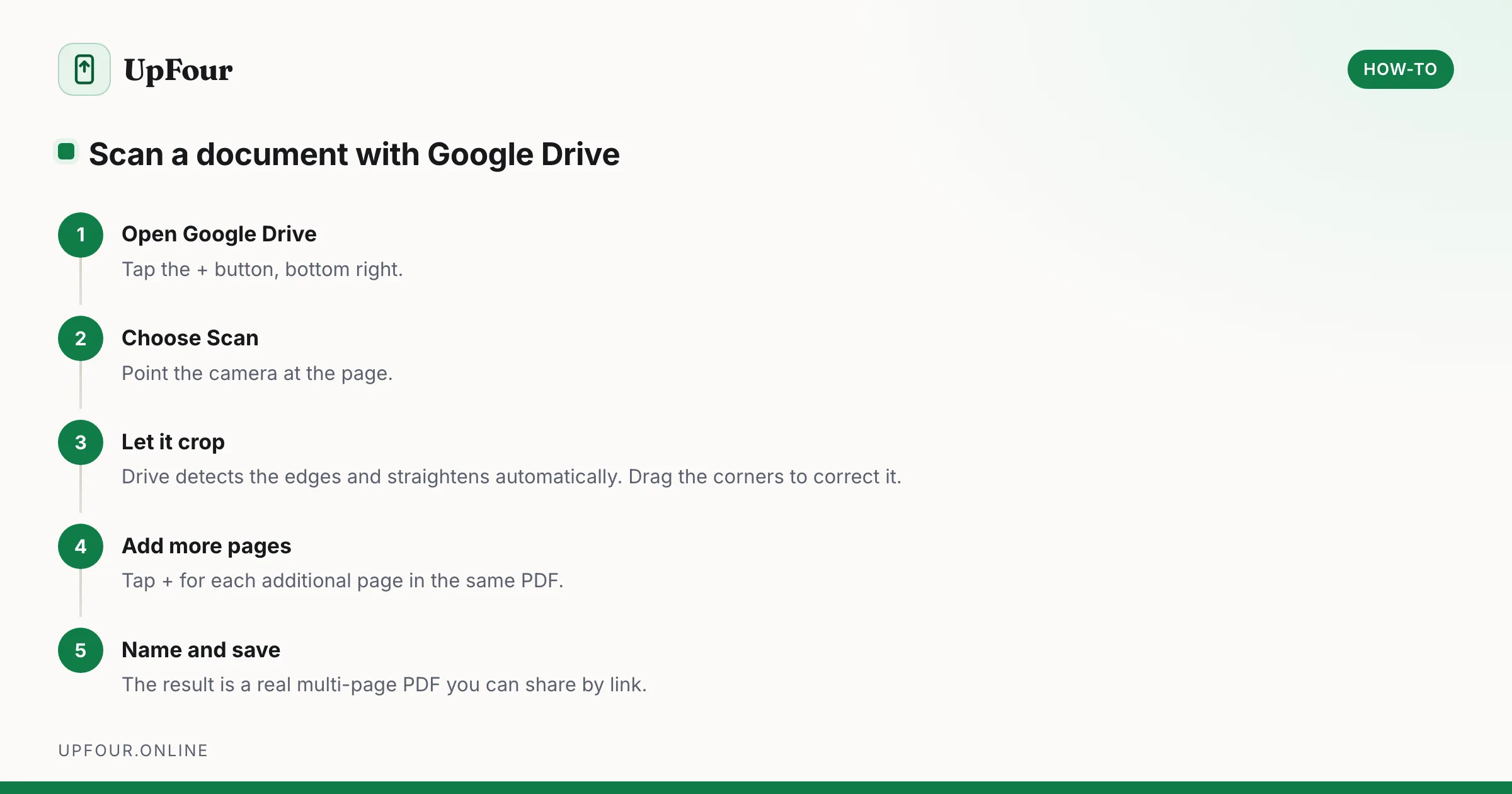
- Open Google Drive.
- Tap + › Scan.
- Photograph the page; Drive crops and de-skews automatically.
- Add more pages with +, then save as a PDF.
Use this when you want the file in the cloud immediately, or when the Samsung scanner is unavailable. Our general Android scanning guide covers this in more depth.
Extract text instead of an image
Galaxy phones can read text straight off the page.
- Camera — point at text and tap the T in a box icon that appears in the corner. Select and copy.
- Gallery — open any photo containing text and tap the same extract-text icon.
- Bixby Vision or Google Lens — both perform live text recognition and translation.
This is the fastest way to get a phone number, address or paragraph off a printed page without typing it.
Convert a scan to PDF
If your scan saved as an image:
- Open Gallery and select the image or images.
- Tap Share.
- Choose Samsung Notes or a PDF converter, then export as PDF.
Alternatively open My Files, select the images, and use ⋮ › Convert to PDF where your build offers it.
Get better results
- Even, indirect light. Daylight from a window is ideal; avoid casting your own shadow.
- Never use flash on a document — it produces a bright hotspot.
- Dark surface under white paper so edge detection can find the boundary.
- Hold the phone parallel to the page rather than at an angle.
- Flatten curled pages. Curvature distorts text beyond what OCR can correct.
Scan directly to a computer or printer
If you have a Samsung printer with a scanner, the Samsung Print Service Plugin or the printer manufacturer's own app can pull a scan from the hardware to your phone over Wi-Fi. For other brands, install that manufacturer's app — HP Smart, Epson Smart Panel, Canon PRINT and so on all support scan-to-phone.
For sending a phone scan to a computer, Quick Share to a nearby Windows PC, or simply save to OneDrive, which Galaxy phones integrate with directly.
Quick reference
| Task | Where |
|---|---|
| Quick single-page scan | Camera app › Scan button |
| Multi-page PDF | Samsung Notes › + › Scan documents |
| Scan to cloud | Google Drive › + › Scan |
| Copy text from paper | Camera › extract-text icon |
| Enable the Scan button | Camera › Settings › Scan documents and text |
| Convert images to PDF | Gallery › Share › Samsung Notes |
Frequently asked questions
How do I scan a document on a Samsung phone?
Open the Camera app and point it at the document. A Scan button appears over the detected page — tap it, adjust the crop and save. For multi-page PDFs, use Samsung Notes › + › Scan documents instead.
Why is there no Scan button in my Samsung camera?
The feature is a setting. Open Camera › Settings and enable Scan documents and text. It also needs good light and a document that contrasts with the surface beneath it.
How do I scan multiple pages into one PDF on a Galaxy phone?
Use Samsung Notes. Create a note, tap the attachment icon, choose Scan documents and capture each page, then export with ⋮ › Save as file › PDF file. Google Drive's scanner also produces multi-page PDFs.
How do I copy text from a photo on a Samsung phone?
Open the photo in Gallery and tap the extract-text icon, or point the Camera at the text and tap the same icon. You can then select and copy the text like any other text.
Sources & further reading
Official documentation used while writing and checking this guide. Every link was verified at the last update.
- Official Samsung SupportSamsung
- Scan documents with Google DriveGoogle Drive Help
- Android platform releases and version historyAndroid Developers
Machine-readable version: Markdown source
Related guides
How to Scan Documents With an Android Phone (No App Needed)
Scan documents to PDF on any Android phone using tools you already have — Google Drive, Google Files and the camera — with tips for readable, small-file scans.
How to Scan a QR Code on a Samsung Phone (Including From the Gallery)
Scan QR codes on a Galaxy phone with the camera, Quick Settings tile or Bixby Vision — plus how to scan a QR code from a saved screenshot or photo.
How to Change the Region on a Samsung Phone
Change your country, language and store region on a Galaxy phone — what can be changed easily, what is locked to the firmware, and what breaks.