How to Find Lost Galaxy Buds (Including One Missing Earbud)
Locate lost Galaxy Buds with SmartThings Find, make them ring, see their last known location, and find a single earbud lost around the house.
Short answer
Open the SmartThings app, go to SmartThings Find, select your Galaxy Buds and tap Ring. If they are out of range, the map shows their last known location instead.
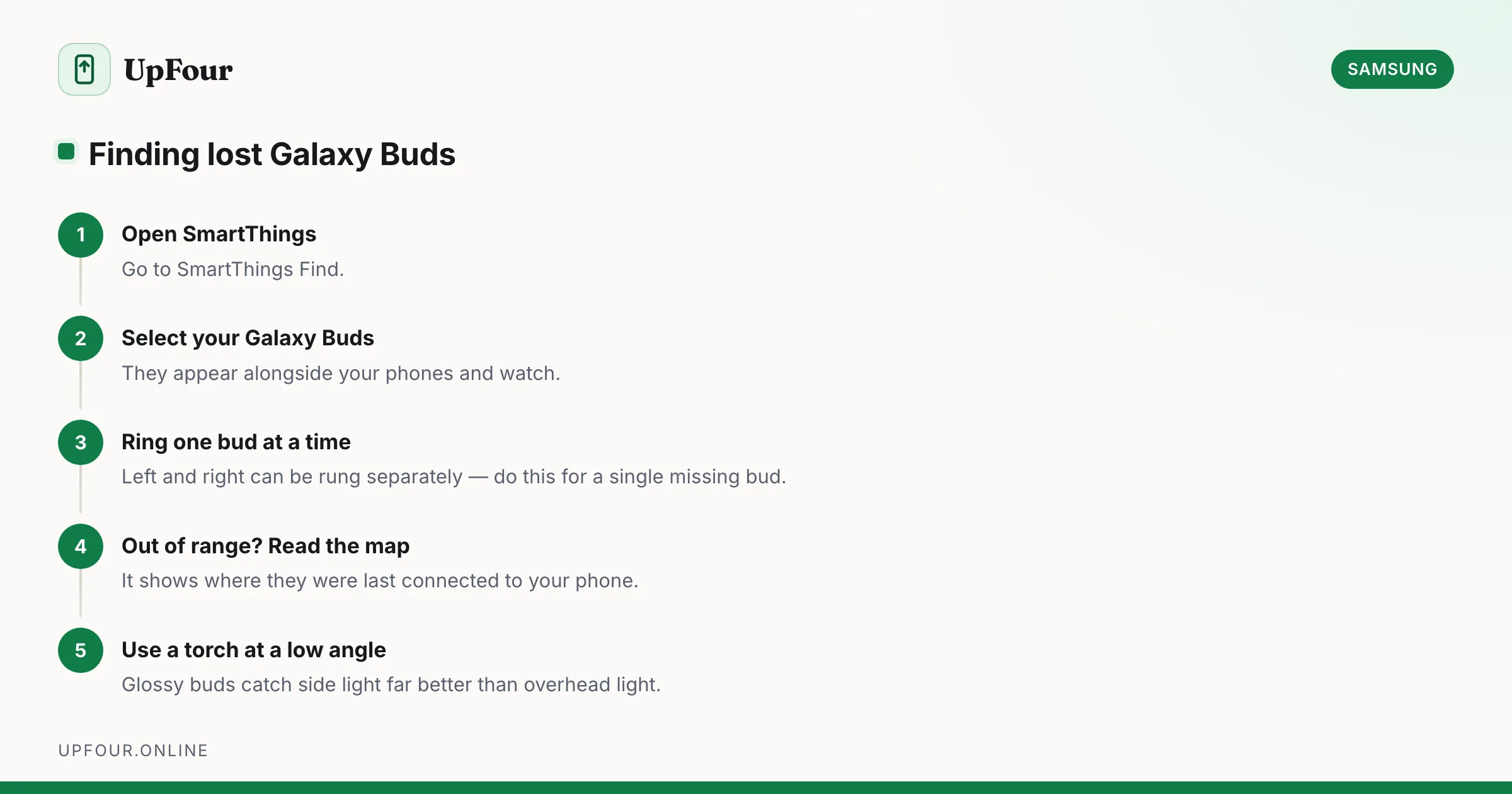
Galaxy Buds can be located through Samsung's finding network, and each earbud can be rung independently — which is what you need when only one has vanished down the side of a sofa.
Ring them with SmartThings Find
- Open the SmartThings app.
- Tap SmartThings Find (or the Map / Devices tab).
- Select your Galaxy Buds.
- Tap Ring.
You can usually ring the left and right buds separately. Use this when only one is missing — ringing both makes it much harder to work out which sound you are chasing.
The buds must be out of the case to ring. Sealed in a closed case they are disconnected and silent.
Find them on the web
Go to smartthings.com or findmymobile.samsung.com and sign in with your Samsung account. Registered Galaxy Buds appear alongside your phones and watch.
If they are out of range
The map shows the last known location — where they were last connected to your phone. That is usually enough to narrow it to a room, a car or an office.
Newer Galaxy Buds also support offline finding through Samsung's network of nearby Galaxy devices, which relay an anonymous location over Bluetooth. This works even when your own phone is nowhere near them, but it needs other Galaxy devices to pass by — effective in a city, less so in a remote area.
Finding one earbud in the house
Ringing gets you close; these get you the rest of the way.
- Ring only the missing bud so there is one sound to follow.
- Check the classic hiding places: sofa cushions and the gap behind them, coat and jacket pockets, gym bags, the car footwell and between the seats, bedding, and the laundry basket.
- Use Bluetooth signal strength as a hot-and-cold game. Walk around with the phone; the connection stabilises as you approach and drops as you move away.
- Turn off the lights and use a torch at a low angle — the case and buds are glossy and catch light from the side far better than under overhead lighting.
If the case is what you lost
The case itself is not trackable. Only the earbuds have radios, and only while out of the case and charged.
If you lost the case with the buds inside, the last known location on the map is all you have. Replacement cases are sold separately by Samsung — you do not need to buy a whole new set.
Set up finding before you need it
Do this now, while you still have them.
- Pair the buds with the Galaxy Wearable app.
- Ensure they are registered to your Samsung account.
- In SmartThings Find, enable Offline finding and Send last location for the buds.
- Confirm they appear in the device list.
Without registration, none of the finding features work, and there is no way to add them after the buds are lost. The same applies to finding a lost Galaxy phone.
Why buds sometimes will not ring
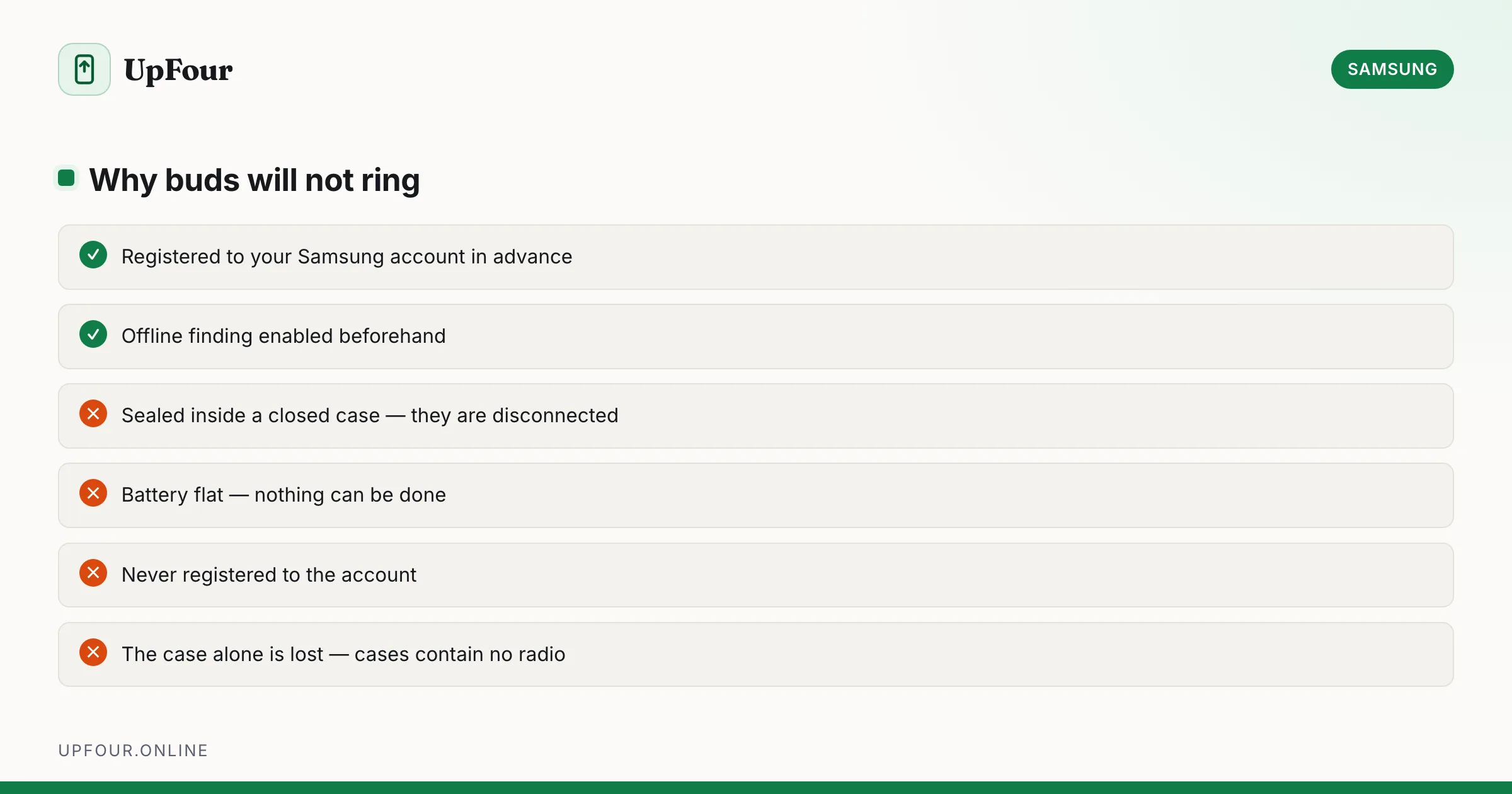
| Cause | Fix |
|---|---|
| Buds are in a closed case | They must be out of the case and connected |
| Battery is flat | Nothing can be done; use the last known location |
| Not registered to your account | Register them; this cannot be done retroactively |
| Connected to a different device | Ringing works through the registered account, not the active connection |
| Out of Bluetooth range with no relay | Rely on last known location or offline finding |
Non-Samsung earbuds
If yours are not Galaxy Buds:
- Google Find Hub now supports compatible Bluetooth trackers and some headphones.
- Android's Bluetooth device list shows the last connected time, which helps narrow down when they went missing.
- Many manufacturers have their own app with a find feature — check the one for your brand.
Prevent it happening again
- Keep them in the case whenever they are not in your ears. This solves ninety per cent of losses and preserves battery.
- Attach a case strap or carabiner so the case clips to a bag.
- Enable offline finding and confirm registration.
- Consider a Bluetooth tracker attached to the case if you lose it habitually — the case is the untrackable part, and a tracker fixes exactly that gap.
In short
Use SmartThings › SmartThings Find, select the buds and Ring — one bud at a time if only one is missing. Out of range, use the last known location on the map. Register the buds to your Samsung account and enable offline finding now, because neither can be set up after they are lost.
Frequently asked questions
How do I find my lost Galaxy Buds?
Open the SmartThings app, go to SmartThings Find, select your Galaxy Buds and tap Ring. If they are out of range, the map shows their last known location. The buds must be out of the case to ring.
Can I ring just one Galaxy Bud?
Yes. SmartThings Find lets you ring the left and right earbuds separately, which makes it far easier to locate a single missing bud than ringing both at once.
Can I track my Galaxy Buds case?
No. Only the earbuds contain radios, and only while out of the case with charge remaining. If you lost the case with the buds inside, the last known location is all that is available.
Why won't my Galaxy Buds ring?
They are probably in a closed case, out of battery, or not registered to your Samsung account. Registration must be done before they are lost — it cannot be added afterwards.
Sources & further reading
Official documentation used while writing and checking this guide. Every link was verified at the last update.
- Samsung Find My MobileSamsung
- Official Samsung SupportSamsung
- Samsung account sign-in and managementSamsung
Machine-readable version: Markdown source
Related guides
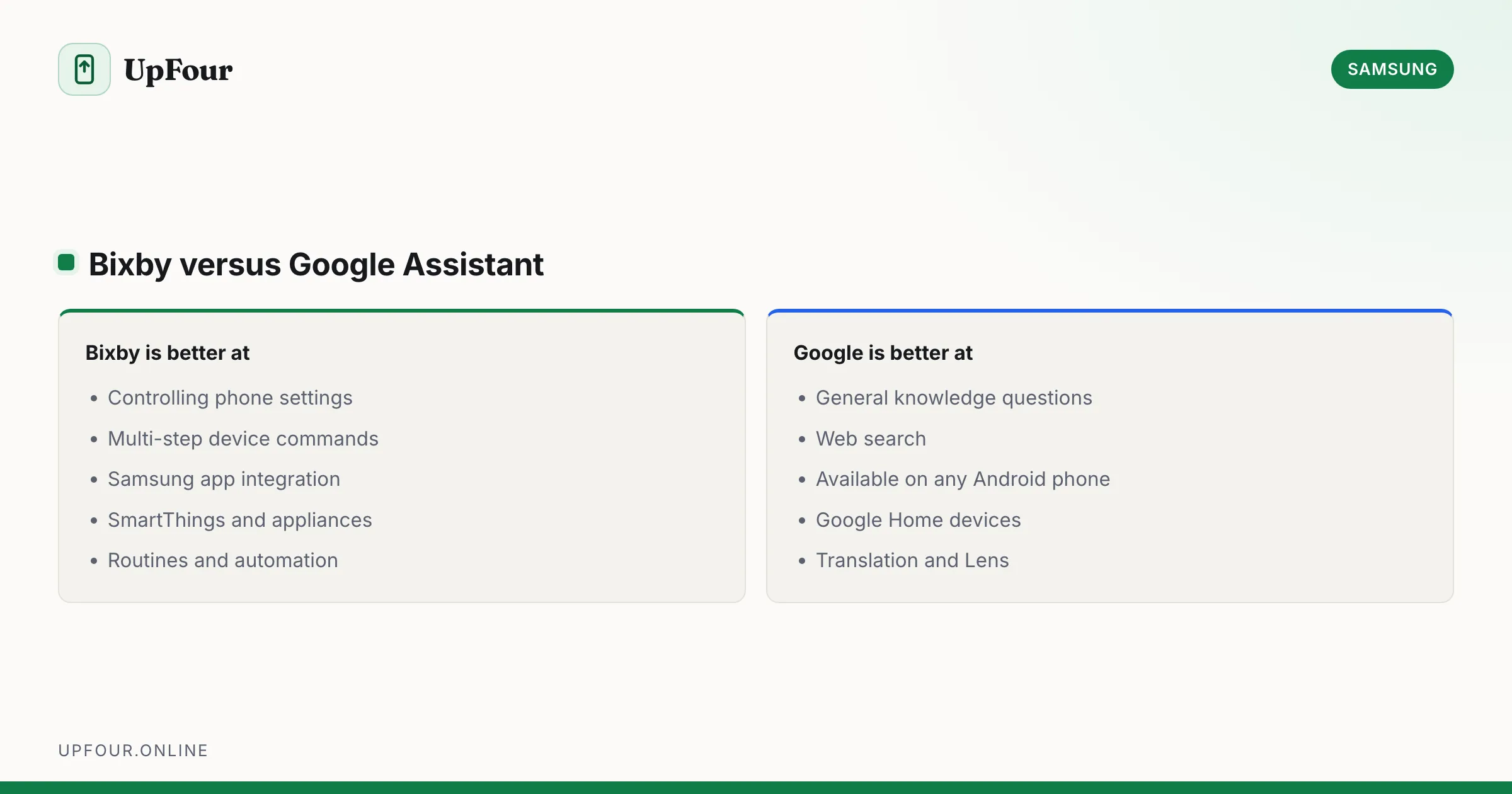
What Is Bixby? Samsung's Assistant Explained (and How to Disable It)
What Bixby does, how it differs from Google Assistant and Gemini, how to remap the power button, and how to turn Bixby off entirely.

How to Cancel Samsung Care+ (and How to Add It After Purchase)
Cancel a Samsung Care+ plan, understand refunds and cancellation windows, and learn how to add coverage to a phone you already own.
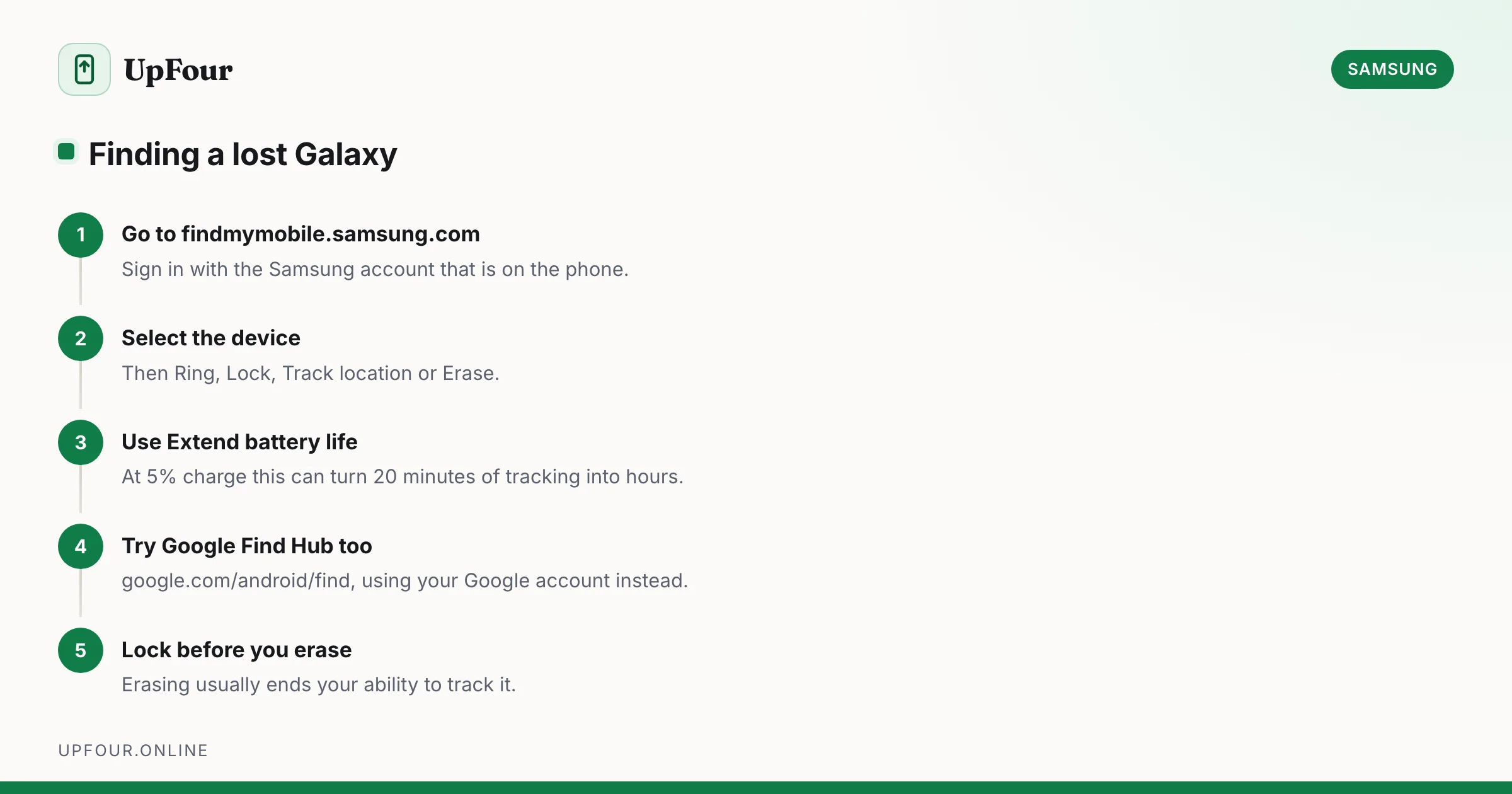
How to Find a Lost Samsung Phone (Find My Mobile and Find Hub)
Locate, ring, lock or wipe a lost Galaxy phone using Samsung Find My Mobile or Google Find Hub — including how to find one that is switched off.