How to Sign In to (and Out of) Your Samsung Account
Sign in to your Samsung account on a phone, tablet, TV or browser — and sign out safely without triggering Reactivation Lock problems.
Short answer
On a Galaxy phone open Settings and tap Samsung account at the top, then Sign in. In a browser, sign in at account.samsung.com. To sign out, use Settings › Accounts and backup › Manage accounts › Samsung account › Remove account.
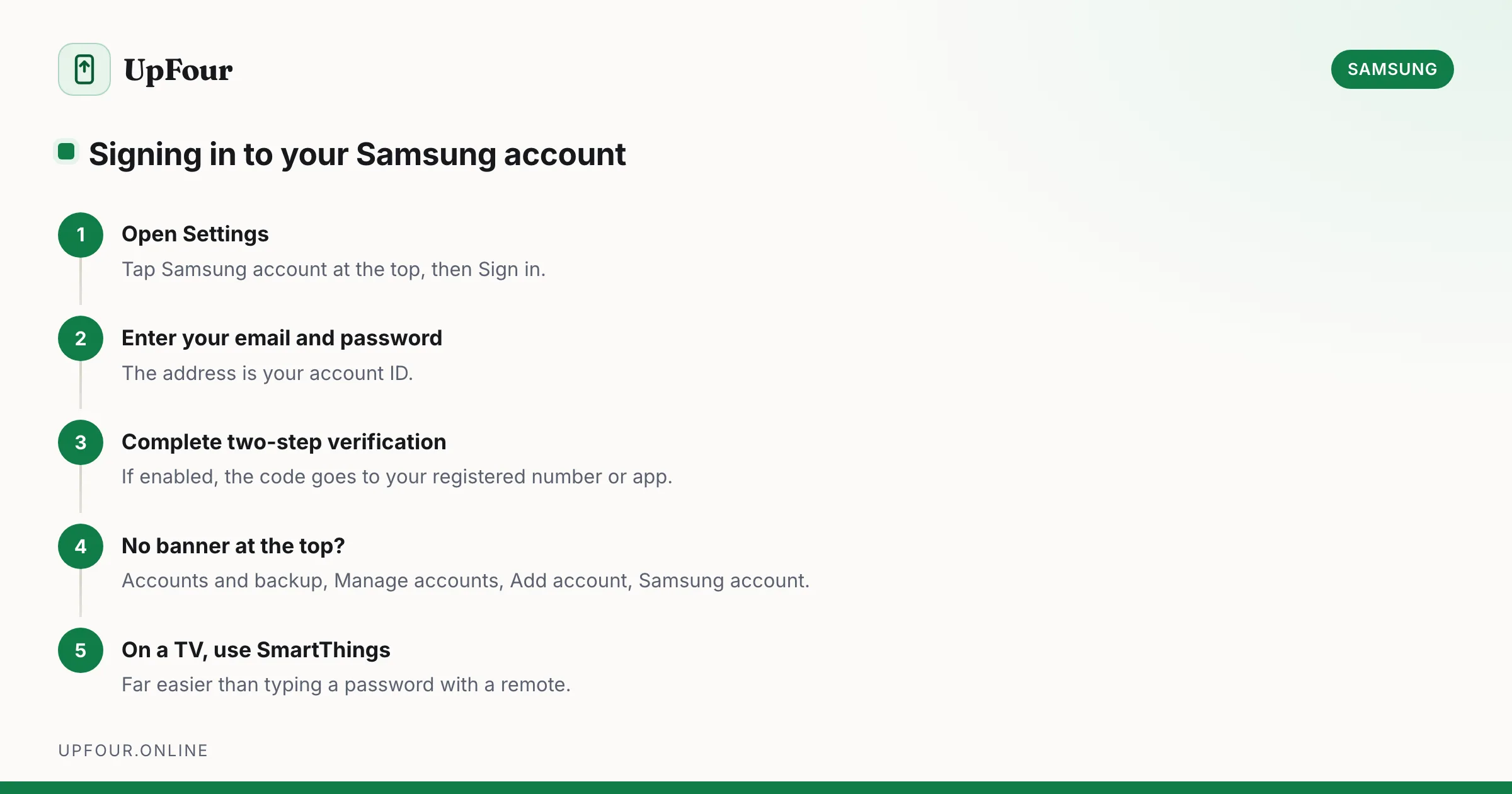
Signing in is straightforward. The part worth reading is what signing out does, because on Samsung devices it interacts with Reactivation Lock.
Sign in on a Galaxy phone or tablet
- Open Settings.
- Tap Samsung account at the very top of the screen.
- Tap Sign in.
- Enter your account email and password.
- Complete two-step verification if it is enabled.
If there is no Samsung account banner at the top, go to Settings › Accounts and backup › Manage accounts › Add account › Samsung account.
You can also sign in from inside any Samsung app that requires it — Galaxy Store, Samsung Notes, SmartThings, Samsung Health — and it applies device-wide.
Sign in on the web
Go to account.samsung.com and click Sign in. This is where you manage the password, recovery details, two-step verification and the list of signed-in devices. Several settings exist only here and not on the phone.
Sign in on a Samsung TV
Settings › General › System Manager › Samsung Account › Sign In.
Typing a password with a TV remote is miserable. Two better options:
- Use the SmartThings app on your phone — signing in there can carry the account to the TV automatically.
- Use the QR code option where offered, and scan it with your phone.
Sign in with Google instead
Samsung offers Continue with Google at sign-up. If you originally used it, there is no separate Samsung password — always use the Google button, or password recovery will fail with "account not found" even though the account exists.
Signing out: what it actually does
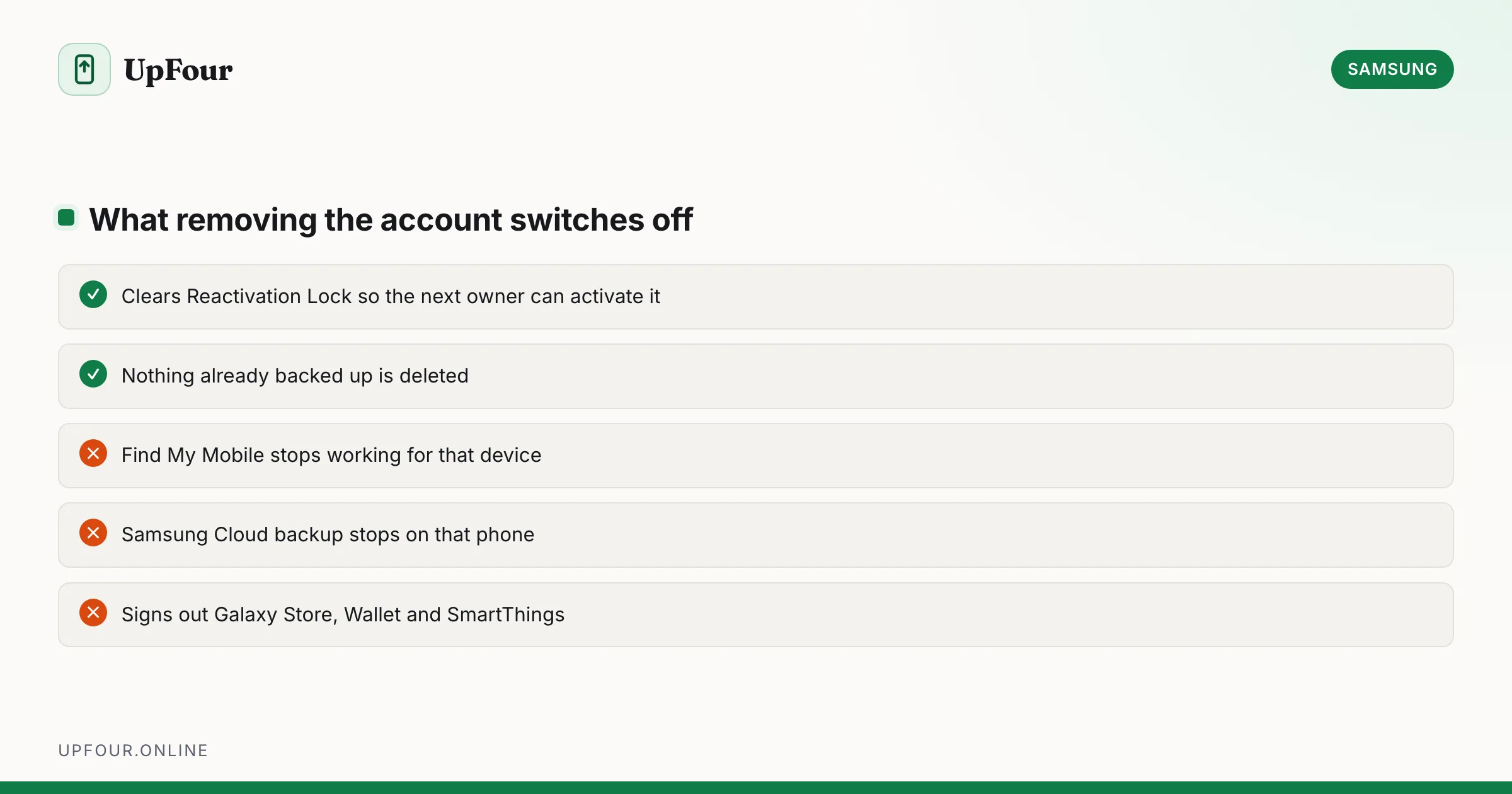
Settings › Accounts and backup › Manage accounts › Samsung account › Remove account.
Samsung calls this "remove", not "sign out", and the wording is accurate. Removing the account from a device:
- stops Samsung Cloud sync and backup on that device
- disables Find My Mobile for it — you can no longer locate or remotely wipe it
- signs out of Galaxy Store, Samsung Pay/Wallet, Samsung Notes sync and SmartThings
- clears Reactivation Lock for that handset
It does not delete the account and does not remove anything already backed up. Sign in again and sync resumes.
Removing the account requires the account password. That is intentional — otherwise a thief could disable Find My Mobile in seconds.
Reactivation Lock, and why sign-out order matters
Reactivation Lock ties the handset to your Samsung account. After a factory reset, the phone demands that account's credentials before it will finish setup. Factory resetting does not clear it.
The correct order before selling or giving away a phone:
- Remove the Samsung account (Settings › Accounts and backup › Manage accounts).
- Remove the Google account — this clears Google's Factory Reset Protection.
- Then factory reset.
Reset first and you hand over a device the new owner cannot activate. The fix at that point is for you to sign in at account.samsung.com › Security › Devices and remove the handset remotely, which is not always sufficient depending on the model.
Sign out of every device remotely
account.samsung.com › Security › Devices lists everything currently signed in, with last-used dates. Remove anything you have sold, lost or do not recognise.
Changing your password also invalidates every existing session, forcing a fresh sign-in everywhere. That is the fastest response if you believe the account is compromised.
Sign-in problems
| Message | Cause and fix |
|---|---|
| "Account not found" | Wrong address, or you signed up with Continue with Google — use the Google button |
| "Incorrect password" repeatedly | Caps lock, or a password over 15 characters that was truncated at creation |
| "Network error" | Check the date and time are automatic; a wrong clock breaks the TLS handshake |
| Stuck on verification | The code goes to the registered recovery address or number, which may be an old one |
| "Too many attempts" | Temporary lockout. Wait, then use password reset rather than guessing |
| Verification loop after reset | Reactivation Lock — the phone needs the account previously signed in, not a new one |
The date-and-time cause is more common than it looks. A phone with a badly wrong clock fails certificate validation and every sign-in attempt fails with a vague network error. Set Settings › General management › Date and time › Automatic date and time.
Should you sign in at all?
A Samsung account is optional. A Galaxy phone works fine with only a Google account. Sign in if you want:
- Find My Mobile — remote location, lock and wipe, including some offline finding
- **Samsung Cloud** backup of settings, call logs and messages
- Galaxy Store purchases and Good Lock modules
- SmartThings for Samsung appliances and smart home devices
- Samsung Health history synced across devices
- Samsung Wallet for payments
If you use none of those, skipping it is a legitimate choice and one fewer account to secure.
Frequently asked questions
How do I sign in to my Samsung account?
Open Settings and tap Samsung account at the top of the screen, then Sign in and enter your email and password. In a browser, go to account.samsung.com. If you originally signed up using Continue with Google, use that button instead.
How do I sign out of my Samsung account?
Go to Settings › Accounts and backup › Manage accounts › Samsung account › Remove account. You will need the account password. This also disables Find My Mobile and clears Reactivation Lock on that device.
Why does my Samsung account say network error when signing in?
Most often the phone's clock is wrong, which breaks certificate validation. Enable Settings › General management › Date and time › Automatic date and time, then try again.
Do I need a Samsung account on a Galaxy phone?
No, it is optional and the phone works with only a Google account. You need it for Find My Mobile, Samsung Cloud backup, Galaxy Store purchases, SmartThings and Samsung Wallet.
Sources & further reading
Official documentation used while writing and checking this guide. Every link was verified at the last update.
- Samsung account sign-in and managementSamsung
- Official Samsung SupportSamsung
- Samsung Find My MobileSamsung
- Set screen lock on an Android deviceGoogle Android Help
Machine-readable version: Markdown source
Related guides
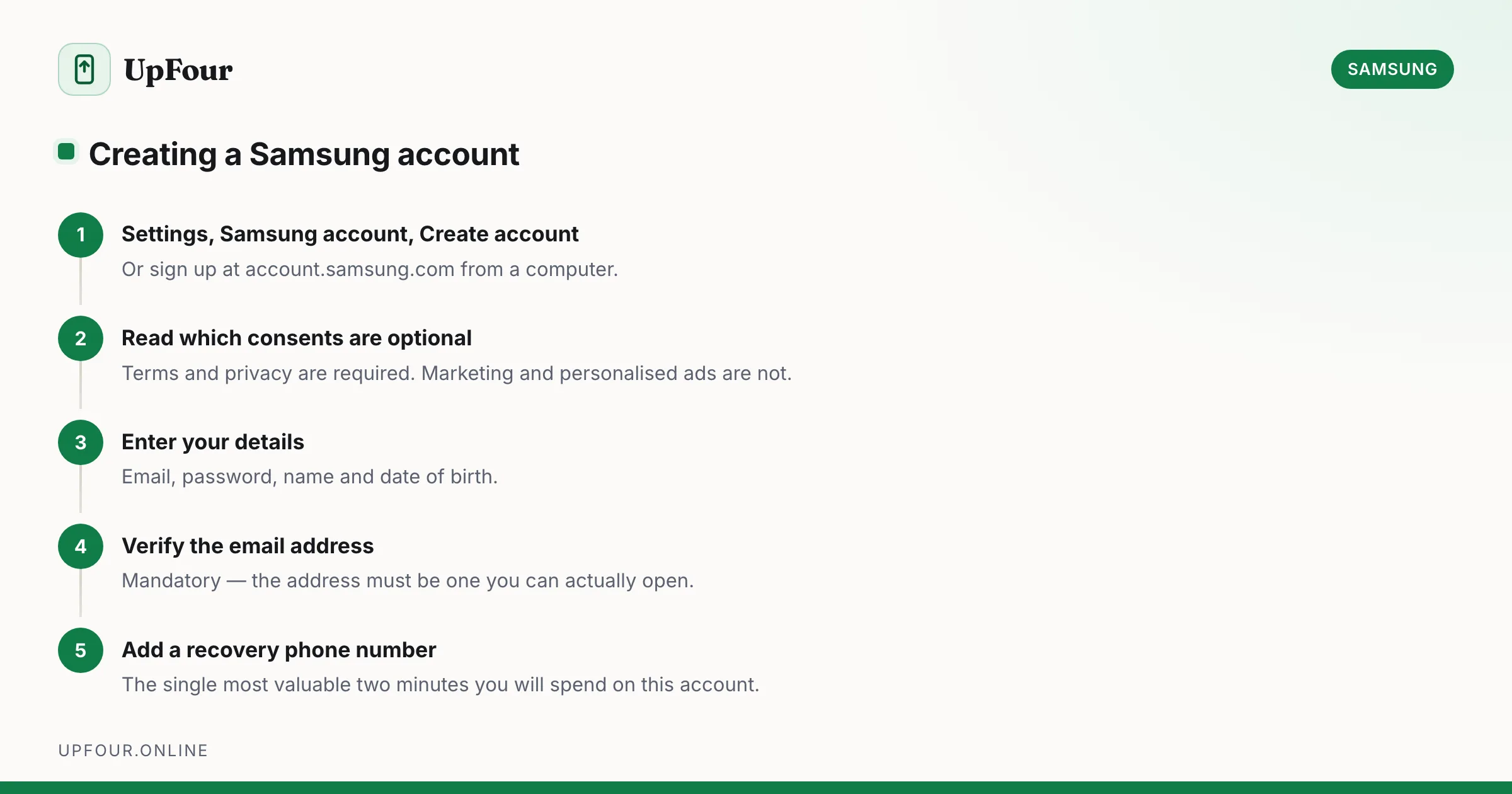
How to Create a Samsung Account (and Whether You Need One)
Set up a Samsung account on your phone or in a browser, avoid the common sign-up errors, and understand exactly what the account unlocks.
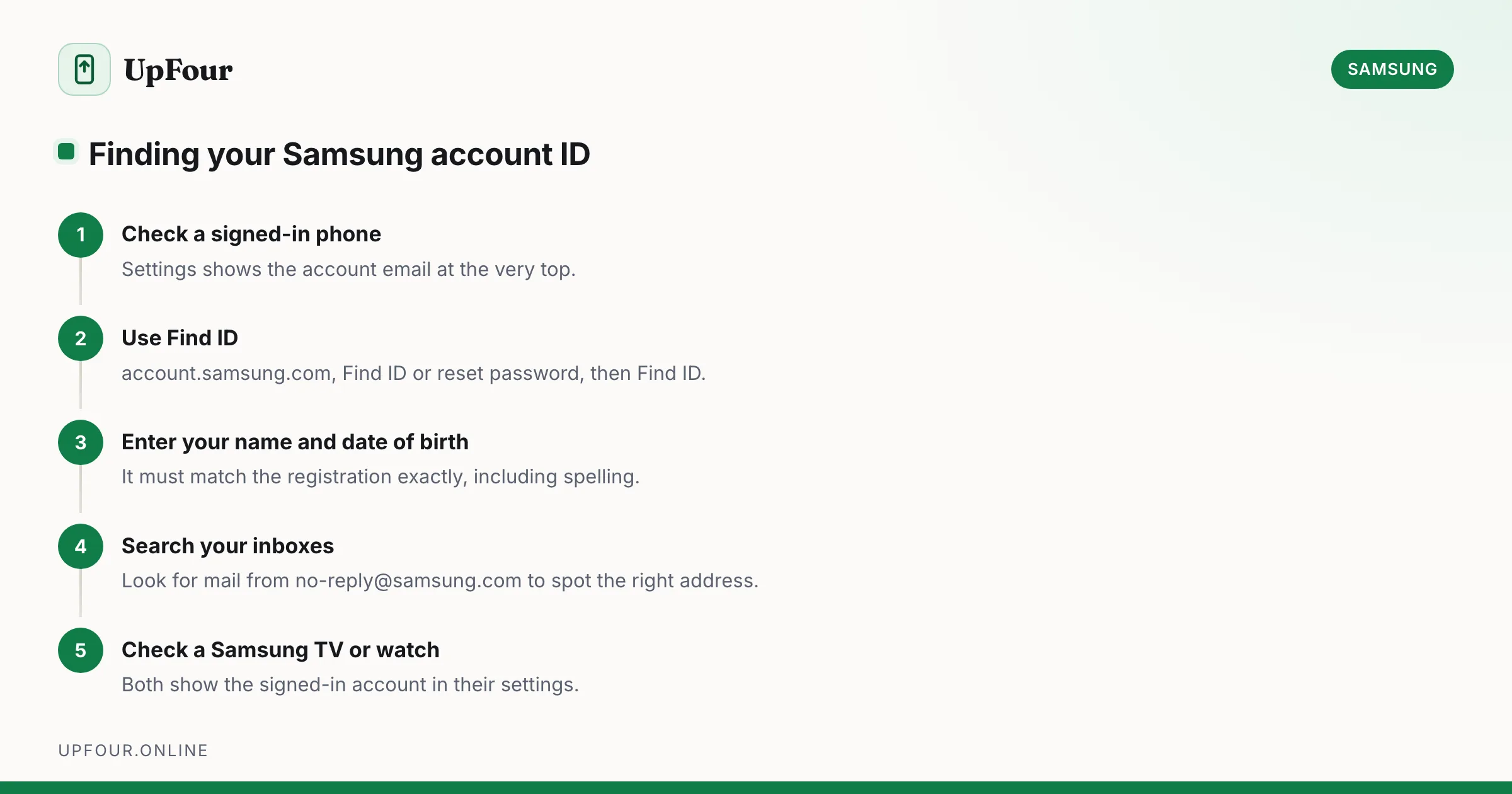
How to Find Your Samsung Account ID When You've Forgotten It
Find out which email address your Samsung account uses, recover a forgotten Samsung ID, and check whether you even have an account in the first place.
How to Reset Your Samsung Account Password (Even Without Access to Your Email)
Reset a forgotten Samsung account password step by step, including what to do when you no longer have access to the recovery email or phone number.